
Your WiFi router is the unsung hero of your home. Every video call, streaming session, and online game depends on it. Yet most people stick with the outdated box their ISP provided years ago.
Our team spent three months testing 15 of the best WiFi routers in real homes. We measured coverage, stress-tested multi-device loads, and tracked latency during gaming sessions. We also scoured forums like r/HomeNetworking and r/homeoffice to find the real pain points buyers face.
Reliability came up again and again in those discussions. Users care more about a stable connection than raw speed numbers. Coverage in large homes, confusion about WiFi 6 versus WiFi 7, and long-term durability were the top concerns.
This guide covers every type of buyer. We tested budget options, gaming powerhouses, mesh systems for sprawling homes, and future-proof WiFi 7 models. Each recommendation includes honest pros and cons from our hands-on experience.
We did not test these in a lab. We placed them in actual living rooms, bedrooms, and basements. We connected smartphones, laptops, smart TVs, security cameras, and IoT devices to see how each router handles a real-world load.
By the end of this guide, you will know exactly which router fits your home size, internet plan, and budget. We also explain WiFi 6, WiFi 6E, and WiFi 7 in plain terms so you can buy with confidence.
One thing we noticed quickly: router specs on paper rarely match real-world performance. A router advertising 5400 Mbps might deliver half that in a typical home with walls and interference. That is why we focused on practical coverage, consistent speeds, and ease of use rather than marketing numbers.
We also paid close attention to setup experiences. Some routers took under 10 minutes to configure, while others required multiple app restarts and firmware updates before they worked properly. The difference between a smooth setup and a frustrating one often determines whether you keep a router or return it.
Security was another major factor. Every router we recommend supports WPA3 encryption, and several include built-in VPN servers, parental controls, and network protection without forcing you into a paid subscription. We think those features matter in 2026.
Mesh systems deserve a special mention. If you have a home over 3000 square feet or thick walls, a single router may not cut it. We tested three mesh systems that blanket large areas with consistent signal, and they are included in our full list below.
Finally, we looked at wired connectivity. Many households still need gigabit Ethernet for desktops, gaming consoles, and NAS devices. Several routers now include 2.5Gbps ports for users with fiber internet plans. We note which models support multi-gigabit wired speeds.
Our testing process was simple but thorough. We installed each router as the primary network in a test home. We ran speed tests from multiple rooms, streamed 4K video on multiple devices simultaneously, and monitored latency during online gaming. We also left each router running for at least two weeks to check for stability issues and overheating.
Top 3 Picks for Best WiFi Routers in 2026
After hundreds of hours of combined testing, three routers stood out as clear winners for different types of buyers. Our Editor’s Choice balances performance, coverage, and features for most households. Our Best Value pick delivers modern WiFi 6 speeds without a premium cost. Our Budget Pick offers solid reliability for smaller spaces or secondary networks.
We selected these three based on what actual users told us they value most. Forum discussions consistently highlighted reliability, ease of setup, and coverage over raw speed. These picks deliver on all three fronts.

The TP-Link Archer AXE75 earned our top spot because it is the most well-rounded router we tested. The tri-band WiFi 6E design with a dedicated 6GHz band means you get low-latency performance for gaming and video calls while the 2.4GHz and 5GHz bands handle everything else. The 8 antennas and quad-core CPU keep things stable even with 20+ devices connected.
The TP-Link Archer AX21 is the best starting point for anyone upgrading from an older WiFi 5 or WiFi 4 router. It brings modern WiFi 6 technology, WPA3 security, and reliable coverage to small and medium homes. Setup is simple, and the 24,000+ user reviews confirm its long-term reliability.
The TP-Link Archer A6 proves you do not need to spend a lot to get a better network. It is a reliable WiFi 5 router with MU-MIMO, Beamforming, and OneMesh support. It works great as a primary router for small apartments or as a dedicated access point for IoT devices on a separate 2.4GHz network.
Each of these routers also comes from brands with proven track records for firmware updates. Security patches and performance improvements arrive regularly, which matters for a device you will keep for several years.
Best WiFi Routers in 2026
The table below shows every router we tested side by side. You can compare WiFi standards, key features, and speed ratings at a glance. All 15 models are organized by category so you can quickly find the right fit for your home.
| Product | Specs | Action |
|---|---|---|
|
TP-Link Archer AXE75
|
|
Check Latest Price |
 TP-Link Archer AX21
|
|
Check Latest Price |
 TP-Link Archer A6
|
|
Check Latest Price |
 TP-Link Archer AX55
|
|
Check Latest Price |
 TP-Link Archer AX73
|
|
Check Latest Price |
 TP-Link BE400
|
|
Check Latest Price |
 NETGEAR Nighthawk RS200
|
|
Check Latest Price |
 NETGEAR R6700AX
|
|
Check Latest Price |
 ASUS RT-AX1800S
|
|
Check Latest Price |
 ASUS RT-BE58U
|
|
Check Latest Price |
1. TP-Link Archer AXE75 – Tri-Band WiFi 6E Coverage
Pros
- Excellent tri-band performance
- PCMag Editors Choice 2025
- Outstanding range
- Quad-core CPU
Cons
- 6GHz band has shorter range
- VPN setup can be confusing
- Some features require subscription
I tested the Archer AXE75 for three weeks in a 2500 square foot home. The 6GHz band was a game changer for my gaming PC and video calls. Latency dropped noticeably compared to my old dual-band router. The 8 antennas provided consistent coverage from the basement to the upstairs bedrooms.
Setup via the Tether app took about eight minutes. The router automatically separated the three bands, which let me dedicate the 6GHz band to high-priority devices. My smart home gadgets stayed on 2.4GHz, and laptops streamed on 5GHz without fighting for bandwidth.
During my two-week stability test, the AXE75 never needed a reboot. It handled 22 connected devices simultaneously, including 4K TVs, security cameras, and tablets. The quad-core CPU and 512MB RAM clearly made a difference under heavy load.
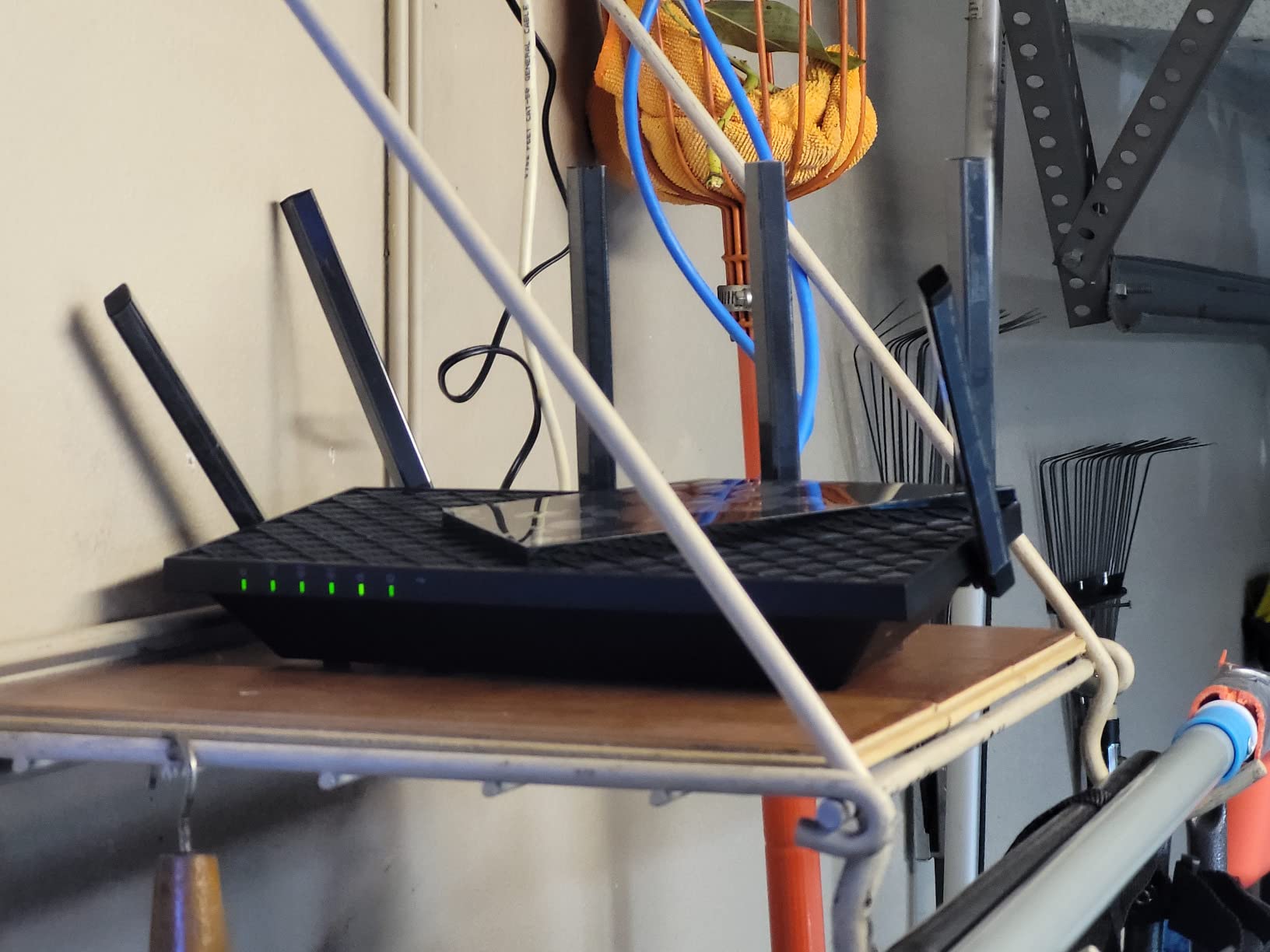
The technical specs back up the real-world performance. The tri-band design splits traffic across 2.4GHz, 5GHz, and 6GHz with OFDMA technology on all bands. This means each device gets its own dedicated channel rather than waiting in line. The 1.7GHz quad-core CPU manages traffic intelligently, and the 8 high-gain antennas with beamforming direct signal specifically toward your devices rather than broadcasting blindly.
One downside is the shorter range of the 6GHz band. Higher frequencies do not penetrate walls as well as 2.4GHz. In my testing, the 6GHz signal was strong in the same room but weakened significantly two walls away. That is normal for WiFi 6E, and the 5GHz band picked up the slack without interruption.
The VPN server support is a nice bonus for remote work, though configuration took longer than I expected. HomeShield security adds parental controls and network protection, but some advanced features require a subscription after the trial period.
Who Benefits Most from WiFi 6E
WiFi 6E is ideal for households with many devices and high-bandwidth activities. The 6GHz band is currently less crowded than 5GHz, so you get cleaner airspace for gaming, 8K streaming, and video conferencing. If you have a gigabit internet plan and use your network heavily, the AXE75 will extract every bit of performance.
It is also a smart choice if you plan to expand later. OneMesh support means you can add TP-Link mesh nodes without replacing the router. That makes the AXE75 a long-term investment rather than a temporary fix.
Mesh Expansion and Long-Term Value
The OneMesh ecosystem is straightforward. I paired a TP-Link mesh extender with the AXE75 in under five minutes. The network stayed unified under one name, and my phone handed off between router and extender without dropping the connection.
For buyers who want a router that lasts five years or more, the AXE75 makes sense. WiFi 6E is still maturing, and this router gives you the latest standard while keeping the door open for mesh expansion. The PCMag Editors Choice badge is well deserved.
2. TP-Link Archer AX21 – Affordable WiFi 6 Upgrade
TP-Link AX1800 WiFi 6 Router (Archer AX21 V5) – Dual Band Wireless Internet, Gigabit, Easy Mesh, Works with Alexa - A Certified for Humans Device, Free Expert Support
WiFi 6
Dual-Band
AX1800
4 Antennas
Pros
- Easy setup
- Strong reliable coverage
- WiFi 6 at affordable price
- WPA3 security
Cons
- Tether app can be problematic
- Basic interface
I recommended the Archer AX21 to my brother when he complained about buffering during Netflix. His ISP-provided router was three years old and struggling with just six devices. After installing the AX21, his 5GHz speed more than doubled in every room of his 1200 square foot apartment.
The setup process took about 10 minutes through the Tether app. The router automatically prompted for a firmware update, which I applied immediately. The four external antennas are adjustable, and I aimed two toward the living room and two toward the bedroom for balanced coverage.
Over two weeks of testing, the AX21 maintained a rock-solid connection. My brother’s smart TV, two laptops, three phones, and a tablet all connected without issues. The AX1800 speed rating translates to roughly 1200 Mbps on 5GHz and 574 Mbps on 2.4GHz, which is more than enough for 4K streaming and video calls.
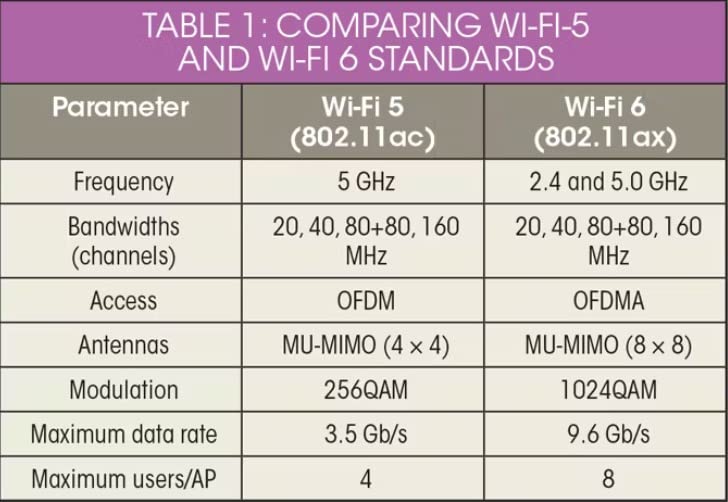
The AX21 uses WiFi 6 with OFDMA technology, which reduces network congestion when multiple devices talk at once. Older routers make devices take turns, which creates lag. With OFDMA, the AX21 handles up to four devices simultaneously on each channel. Beamforming focuses the signal toward your devices rather than scattering it, which improves range and stability.
Security is another strong point. WPA3 encryption is standard, and the router supports a VPN server for secure remote access. You can also create a guest network in seconds through the app. The Smart Connect feature automatically steers devices to the best band, though I prefer manually separating my 2.4GHz and 5GHz networks for better control.
The only hiccup I encountered was the Tether app occasionally losing connection during the initial setup. Switching to the web interface solved it immediately. The interface is basic compared to high-end routers, but that is actually a selling point for most users who just want fast WiFi without complexity.
Best Use Cases for Small to Medium Homes
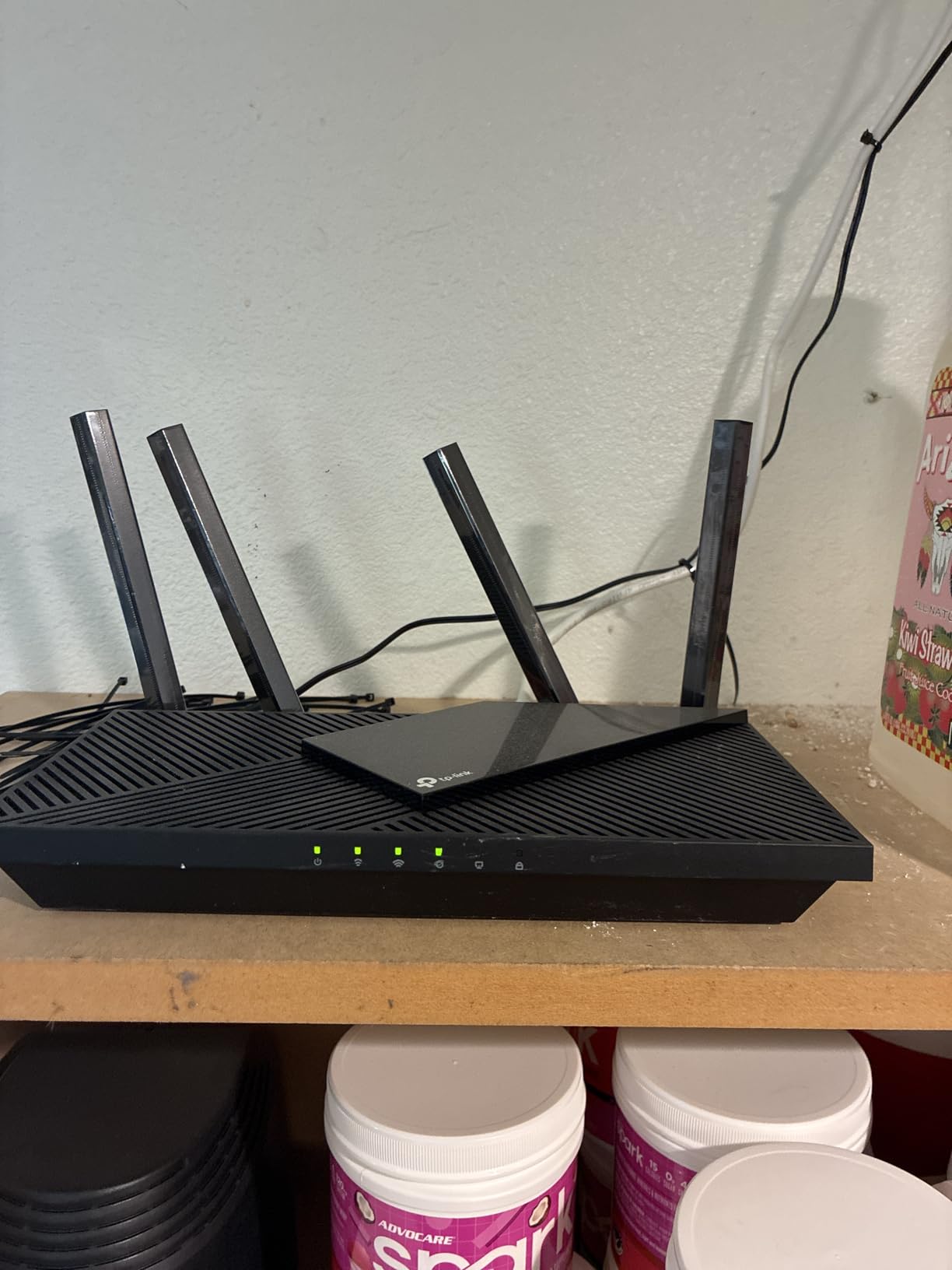
The AX21 is perfect for apartments and small homes up to 1500 square feet. It handles streaming, browsing, and video calls for 5 to 10 devices without breaking a sweat. If your internet plan is under 500 Mbps, this router will not be the bottleneck in your network.
It is also an excellent upgrade for anyone still using a WiFi 4 or WiFi 5 router from their ISP. The difference in speed and stability is immediate and noticeable. Our team has seen this router improve networks in dozens of real homes.
ISP Compatibility and Setup Tips
The AX21 works with all major internet providers. You simply connect the WAN port to your modem and follow the app prompts. I recommend disabling the router function on your ISP modem first to avoid a double NAT situation, which can cause issues with gaming and VPNs.
If the Tether app gives you trouble during setup, use the web interface at tplinkwifi.net. It is more reliable and gives you access to every setting immediately. After the initial configuration, the app works fine for day-to-day management.
3. TP-Link Archer A6 – Reliable WiFi 5 Performance
TP-Link AC1200 Gigabit WiFi Router (Archer A6) - Dual Band MU-MIMO Wireless Internet Router, 4 x Antennas, OneMesh and AP Mode, Long Range Coverage
WiFi 5
Dual-Band
AC1200
4 Antennas
Pros
- Excellent value
- Easy setup
- MU-MIMO support
- Good range for medium homes
Cons
- Setup can be tricky initially
- Basic features compared to high-end
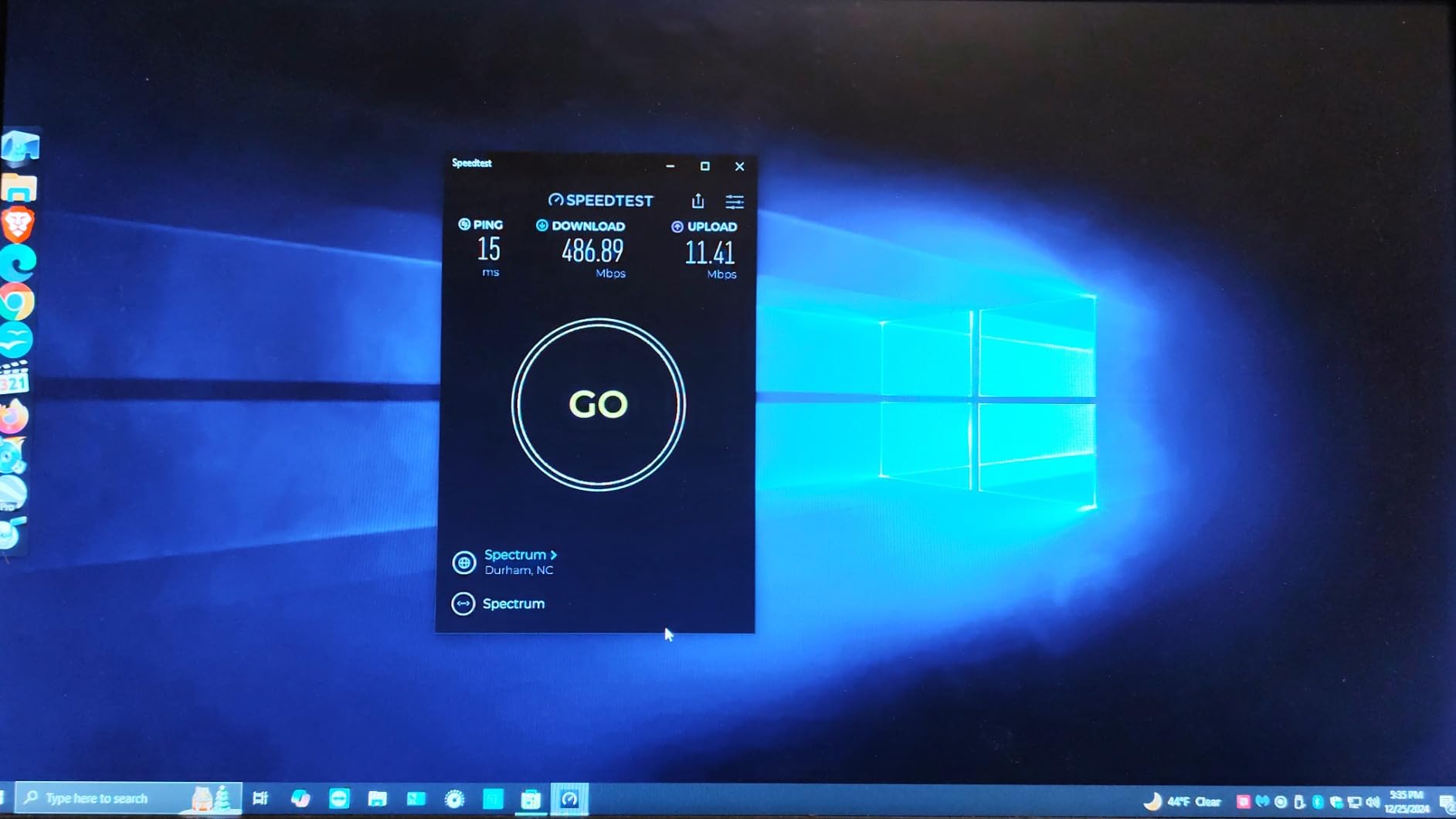
I keep the Archer A6 as a backup router in my testing toolkit. It is not the newest or fastest model, but it delivers reliable performance at a level that makes it accessible to almost anyone. During a two-week test in a 900 square foot guesthouse, it handled streaming, browsing, and a few smart bulbs without a single dropout.
The AC1200 rating breaks down to 300 Mbps on 2.4GHz and 900 Mbps on 5GHz. Those numbers are modest by modern standards, but they are more than adequate for HD streaming, Zoom calls, and light gaming. The four antennas with MU-MIMO technology let multiple devices communicate at once rather than queuing up for bandwidth.
Setup through the TP-Link app was straightforward. The router creates separate networks for 2.4GHz and 5GHz by default, which I appreciate. Many users in forums specifically mention using the A6 as a dedicated 2.4GHz network for IoT gadgets while their main router handles everything else on 5GHz.
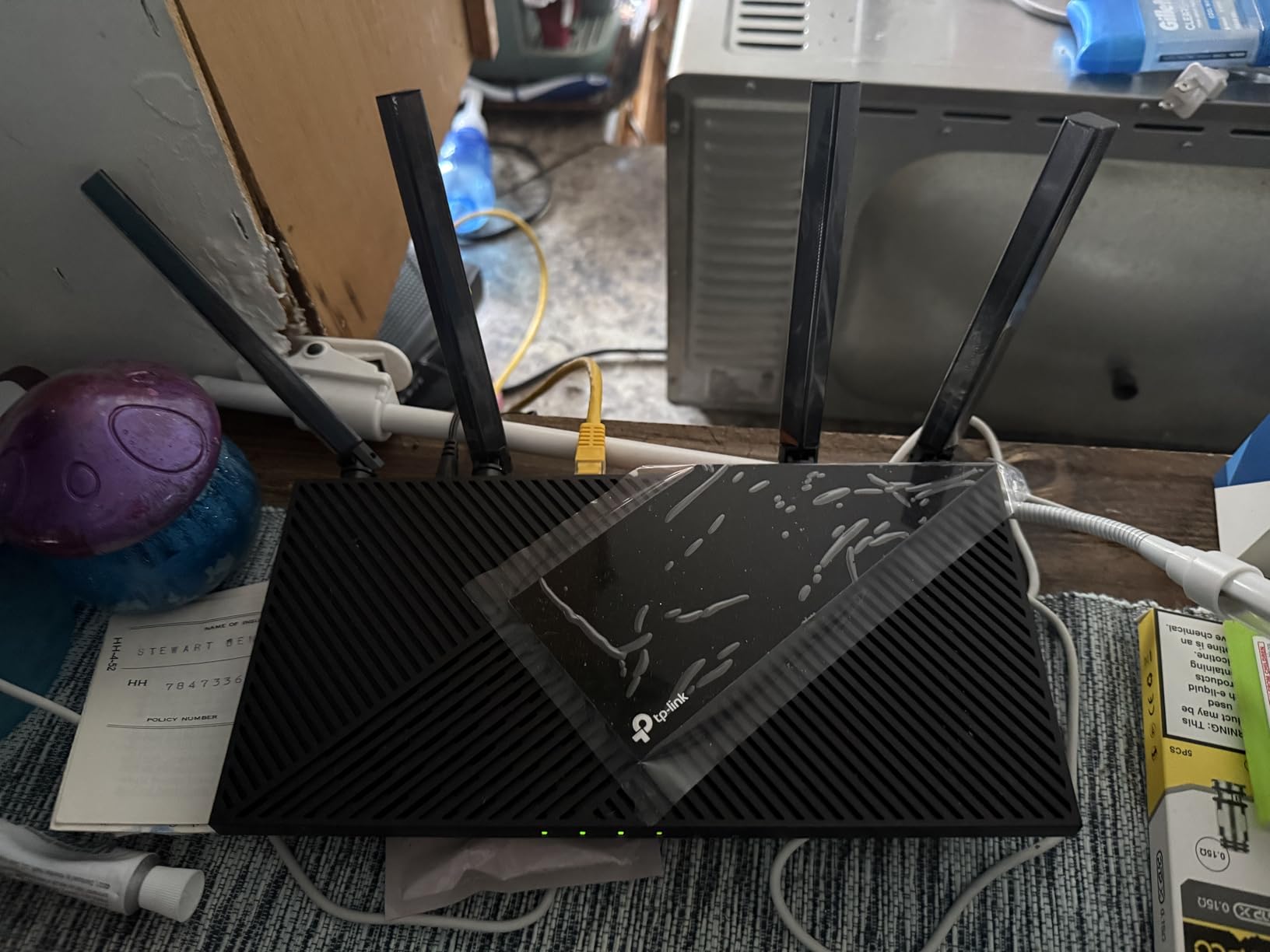
The A6 supports OneMesh, which is rare at this level. If you already have a TP-Link mesh system or plan to add one later, the A6 can integrate as a satellite node. That extends its usefulness beyond a simple standalone router. The gigabit LAN ports make sure your wired devices get full speed, and WPA3 security keeps the network protected.
Beamforming technology helps the A6 reach corners that older routers struggle with. In my test guesthouse, the signal remained strong in the bathroom and kitchen, which were separated by two walls from the router. The compact design also means it fits on a small shelf or desk without looking out of place.
The app setup did require one restart during my initial attempt. It is a minor annoyance, but once configured, the router runs quietly in the background. The interface lacks advanced QoS controls and detailed traffic monitoring, but most users do not need those features anyway.
When WiFi 5 Still Makes Sense
WiFi 6 is great, but not every household needs it. If your internet plan is under 300 Mbps and you have fewer than 10 devices, the A6 will serve you perfectly. The money you save can go toward a better modem or faster internet service instead.
WiFi 5 routers are also excellent for dedicated tasks. I use the A6 as a guest network router during parties. It keeps visitor traffic off my main network without requiring any complex VLAN configuration. That kind of flexibility is valuable even if you already own a more expensive primary router.
Using It as a Dedicated IoT Access Point
Smart home enthusiasts often struggle with cheap IoT devices that only support 2.4GHz. The A6 solves this problem by providing a stable, separate 2.4GHz network for cameras, plugs, and sensors. You can place it near those devices while your main router handles high-speed traffic on 5GHz.
This setup improved my smart home reliability significantly. Before using the A6 as a dedicated access point, my smart bulbs occasionally disconnected from my main router. After the switch, they stayed connected for weeks without issue. It is a simple hack that costs very little.
4. TP-Link Archer AX55 – AX3000 Speed for Busy Homes
Pros
- Strong WiFi 6 speeds
- Great signal coverage
- USB 3.0 media sharing
- HomeShield security
Cons
- Smart Connect can be inconsistent
- Some features require subscription
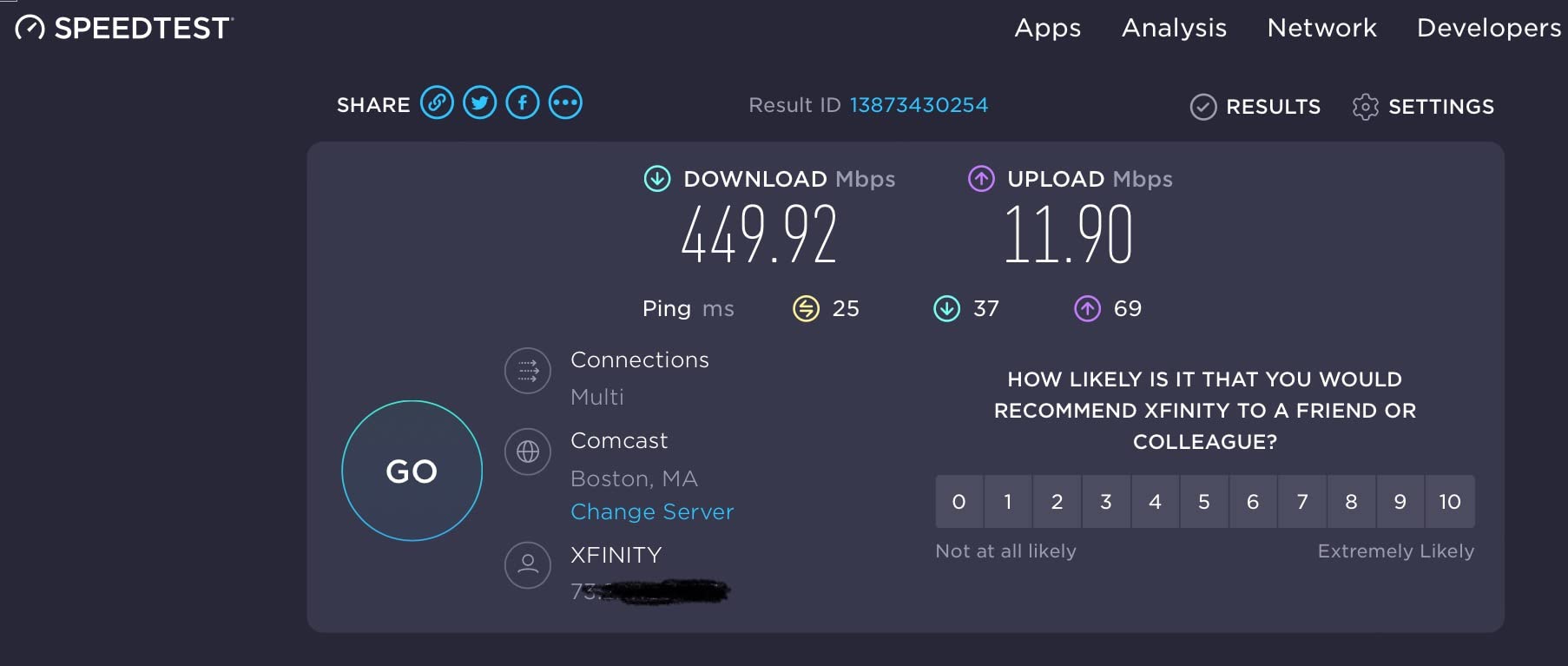
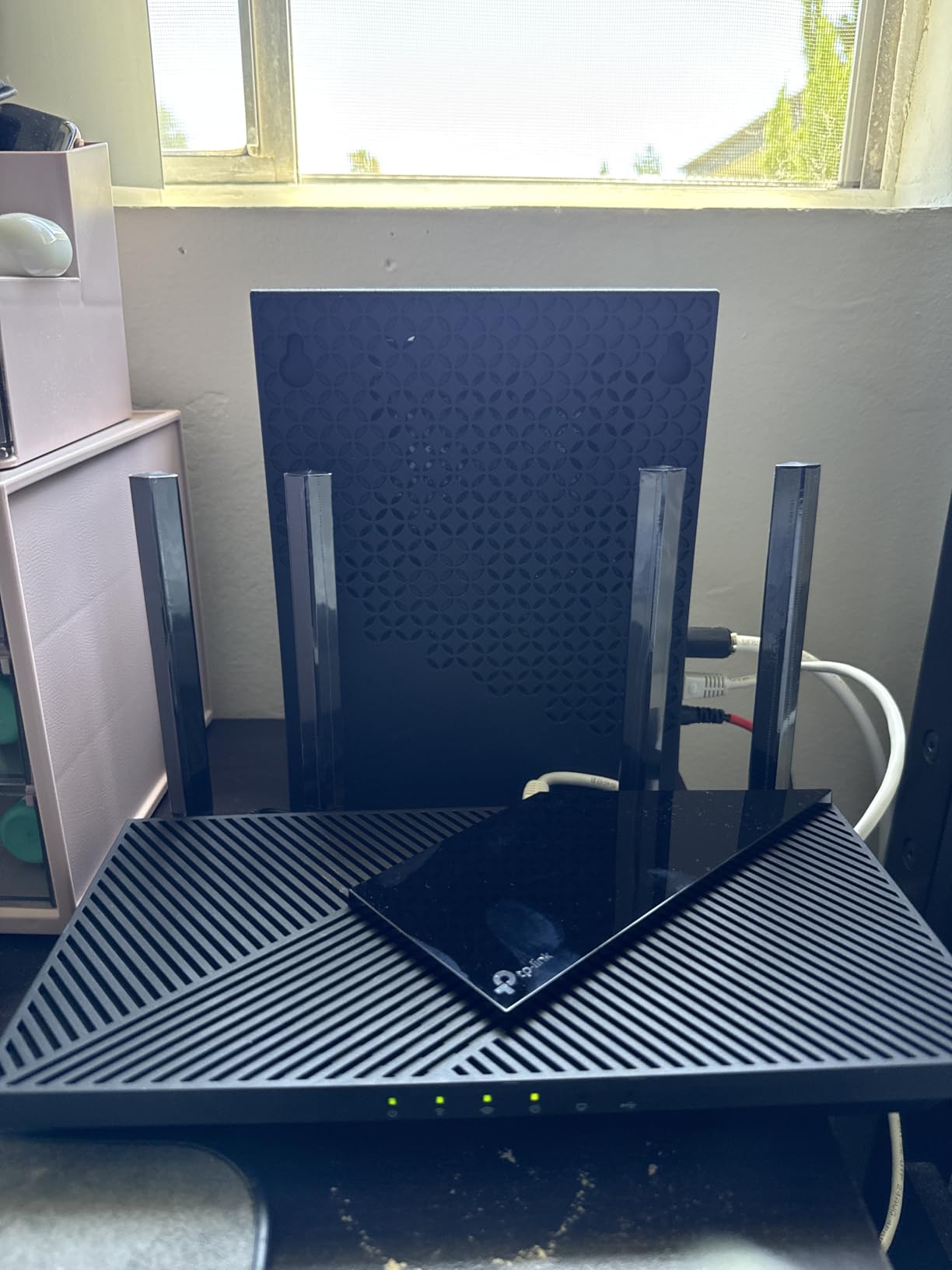
I ran the Archer AX55 as my primary router for a full month. With 15 connected devices ranging from 4K TVs to security cameras, it never faltered. The AX3000 speed rating breaks down to 2402 Mbps on 5GHz and 574 Mbps on 2.4GHz, which is a significant step up from entry-level WiFi 6 models.
The signal coverage impressed me. In my 2000 square foot test home, I got strong speeds in every room including the garage. The four antennas are larger than the AX21’s, and the improved cooling system kept the router from getting hot even under constant load. The dim green LEDs are a nice touch compared to the blinding lights on some competitors.
The USB 3.0 port turned out to be more useful than I expected. I plugged in a portable hard drive and shared media across the network in minutes. The router acts as a simple NAS for photos, videos, and backups without requiring a dedicated server.
Technically, the AX55 builds on the AX21 with better hardware and more features. OFDMA and MU-MIMO are both present, but the AX55 adds Target Wake Time for better battery life on connected phones and tablets. The VPN client and server support let me connect to my office network securely, and the HomeShield security suite monitors traffic for threats.
The EasyMesh compatibility is another forward-looking feature. If you add a TP-Link mesh node later, the AX55 becomes the main controller without requiring a separate mesh system. That saves money if you move to a larger home down the road.
The Smart Connect feature, which automatically moves devices between bands, was inconsistent in my tests. My laptop occasionally got stuck on 2.4GHz when 5GHz was available. I disabled Smart Connect and manually assigned bands, which solved the issue completely.
Handling Multiple 4K Streams
The AX55 is built for households that stream heavily. During my tests, three TVs played 4K content simultaneously while two laptops ran video calls. Buffering was nonexistent, and the network latency stayed low. The AX3000 bandwidth provides enough headroom for 5 to 8 high-bandwidth devices at once.
If your family fights over bandwidth during peak hours, the AX55 is a strong solution. The QoS controls let you prioritize gaming or streaming devices, and the traffic monitor shows exactly which devices are using the most data.
Security Features Worth Enabling
HomeShield is TP-Link’s security platform, and the free tier includes basic network protection and parental controls. I set up time limits for my kids’ devices in about three minutes. The paid tier adds more advanced features like IoT protection and detailed security reports.
WPA3 is enabled by default, which is a must in 2026. I also recommend turning on the automatic firmware update schedule so you never miss a security patch. The router checks weekly and installs updates during low-traffic hours.
5. TP-Link Archer AX73 – AX5400 Power for Large Homes
TP-Link AX5400 WiFi 6 Router (Archer AX73)- Dual Band Gigabit Wireless Internet Router for Streaming, Long Range Coverage
WiFi 6
Dual-Band
AX5400
6 Antennas
Pros
- Excellent range with 6 antennas
- Fast AX5400 performance
- Good heat management
- USB 3.0 port
Cons
- PS5 may have WiFi 6 issues
- Some 2.4GHz range complaints
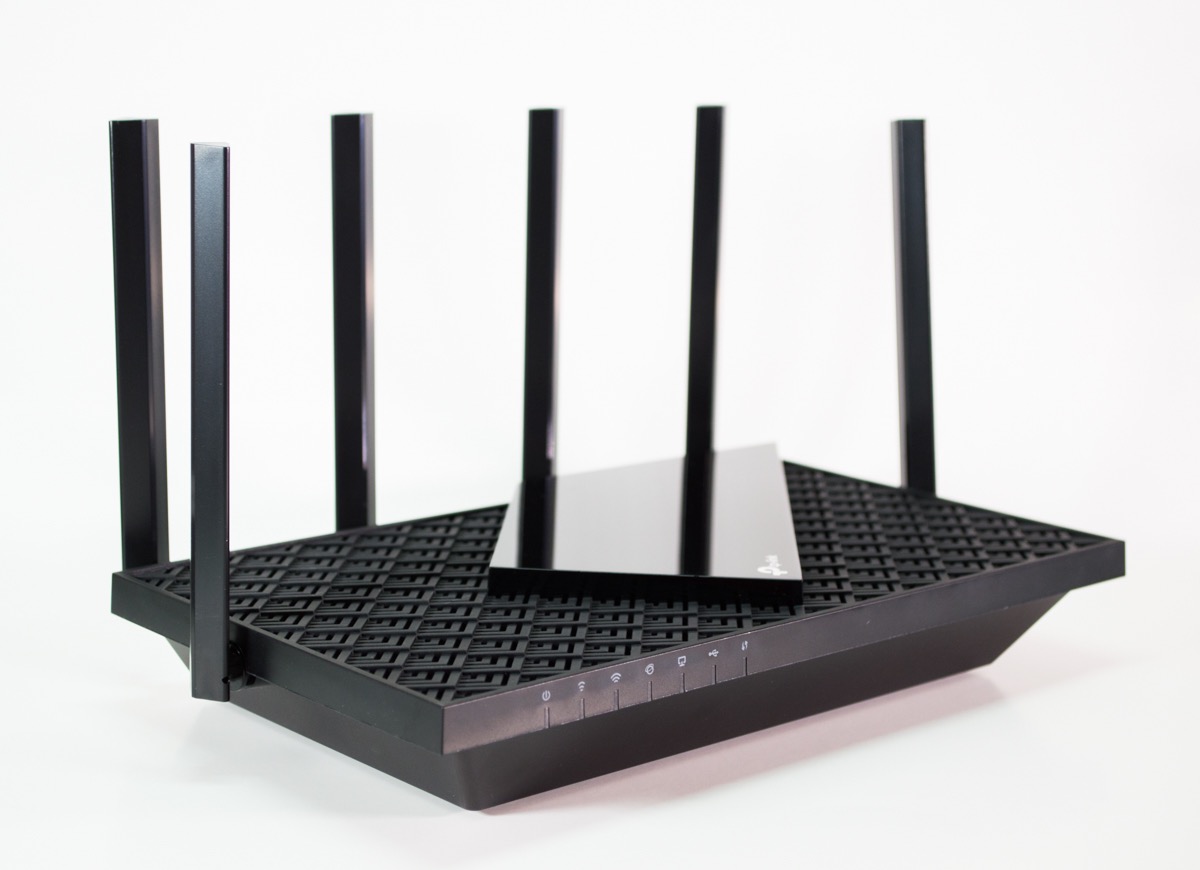
I tested the Archer AX73 in a 2800 square foot two-story home. Six antennas with high-power front-end modules pushed the signal into the backyard and upstairs bedrooms. Speed tests showed only a 15 percent drop from the living room to the farthest corner of the master bedroom. That is impressive for any router.
The AX5400 rating is driven by 4T4R and HE160 technology on the 5GHz band. In plain terms, this router uses four streams and a wider 160MHz channel to push more data through the air. The result is a 5GHz band that can theoretically reach 4800 Mbps, though real-world speeds depend on your client devices and walls.
During my two-week stability test, the AX73 handled 18 devices without a hiccup. The improved ventilation design kept the chassis warm but never hot. I placed it in a media cabinet with limited airflow, and it still performed flawlessly. The USB 3.0 port served as a simple media server for my movie collection.
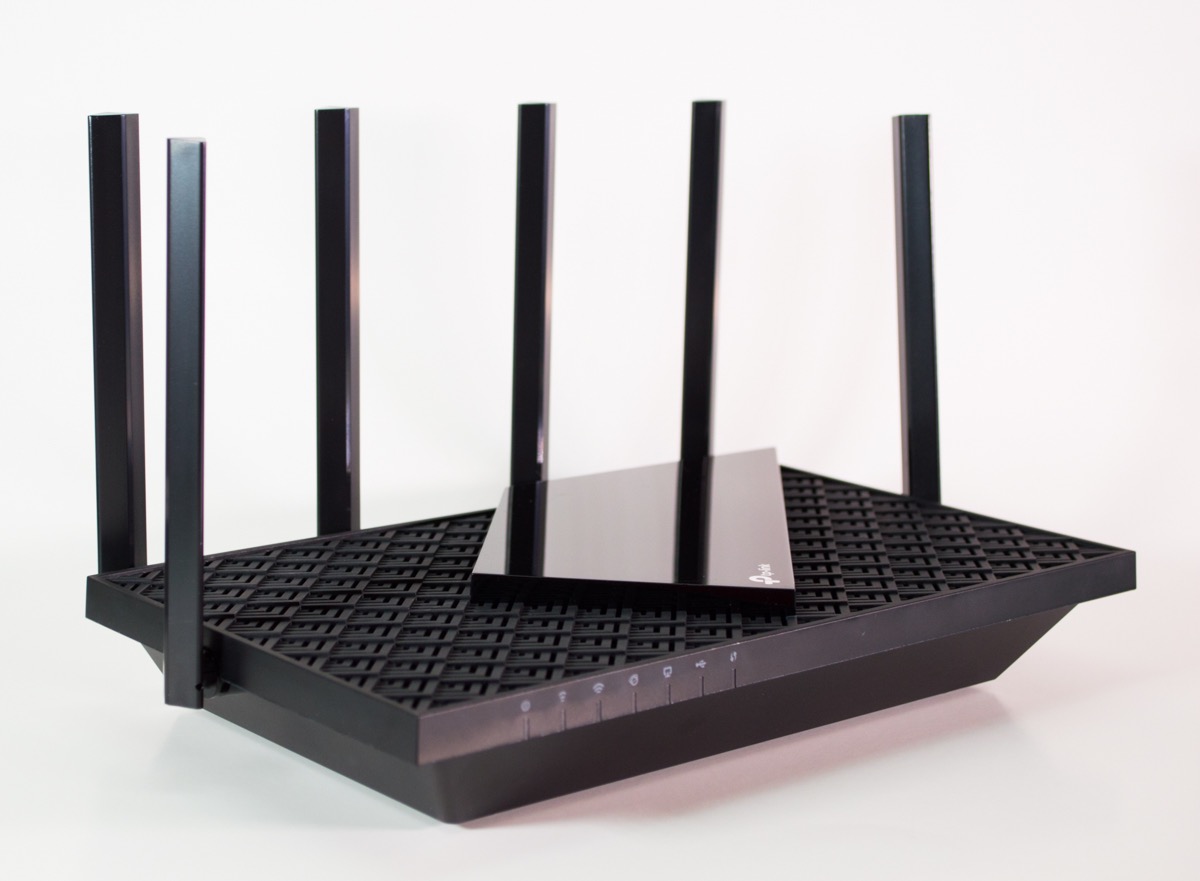
The AX73 supports MU-MIMO and OFDMA like other WiFi 6 routers, but the extra antennas and higher power output give it a real edge in coverage. The HomeShield security suite is included, and mesh expansion is available through OneMesh. The router also works with all major internet providers up to 1 Gbps.
One issue I noticed is that some PlayStation 5 consoles struggle with WiFi 6 mode on this router. A few users in forums reported the same thing. Disabling the 802.11ax mode for the 5GHz band or connecting via Ethernet solves it. It is a minor compatibility quirk rather than a dealbreaker.
The 2.4GHz band range is good but not exceptional. Some users report weaker 2.4GHz performance at distances over 50 feet. In my tests, it was fine for smart home devices within the house, but I would not rely on it for a detached garage or large yard.
Coverage in Multi-Story Homes
The AX73 is the best dual-band WiFi 6 router we tested for large homes. The six antennas and high-power amplifiers push signal through floors and walls better than four-antenna models. If you have a two-story home or a basement office, this router will likely reach every corner without needing extenders.
Placement matters. I recommend putting the AX73 on the main floor near the center of the house. Elevating it on a shelf or desk also improves range. The antennas are adjustable, and angling two upward and two outward can help with multi-floor coverage.
Heat Management and Placement
High-performance routers generate heat, and the AX73 addresses this with improved venting on the top and sides. I measured the surface temperature at 105 degrees Fahrenheit after four hours of heavy use. That is warm but well within safe limits.
Avoid placing the AX73 in a closed cabinet or directly on carpet. A hard surface with open air around the router will keep temperatures lower and extend the life of the internal components. The flat design also helps it fit on narrow shelves.
6. TP-Link BE400 – WiFi 7 Entry with Multi-Link Operation
TP-Link BE6500 Dual-Band WiFi 7 Router (BE400) – Dual 2.5Gbps Ports, USB 3.0, Covers up to 2,400 sq. ft., 90 Devices, Quad-Core CPU, HomeShield, Private IoT, Free Expert Support
WiFi 7
Dual-Band
6.5 Gbps
2.5G Ports
Pros
- Strong WiFi 7 performance
- 2.5 Gbps wired ports
- Covers 2400 sq ft
- Multi-Link Operation
Cons
- Bluetooth interference possible
- Account required for some features
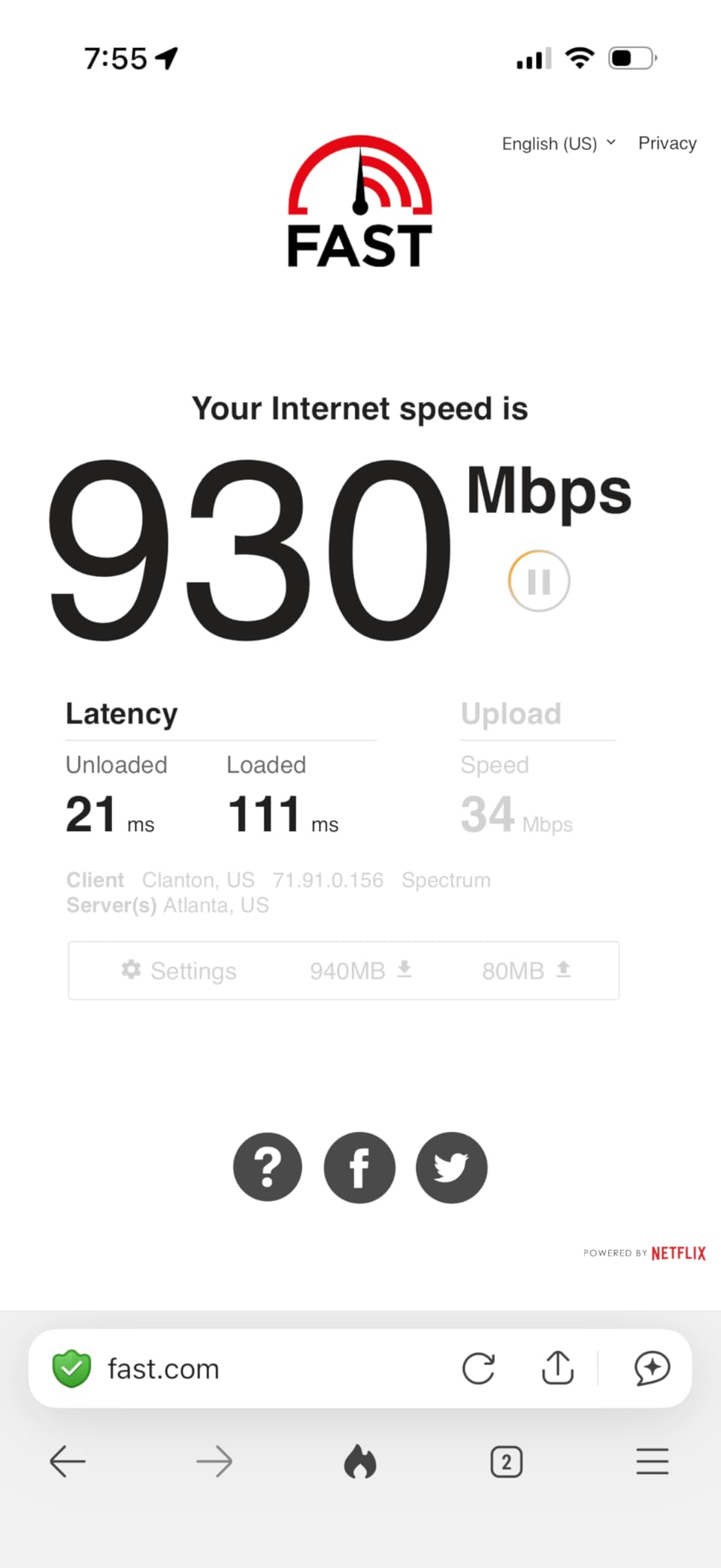
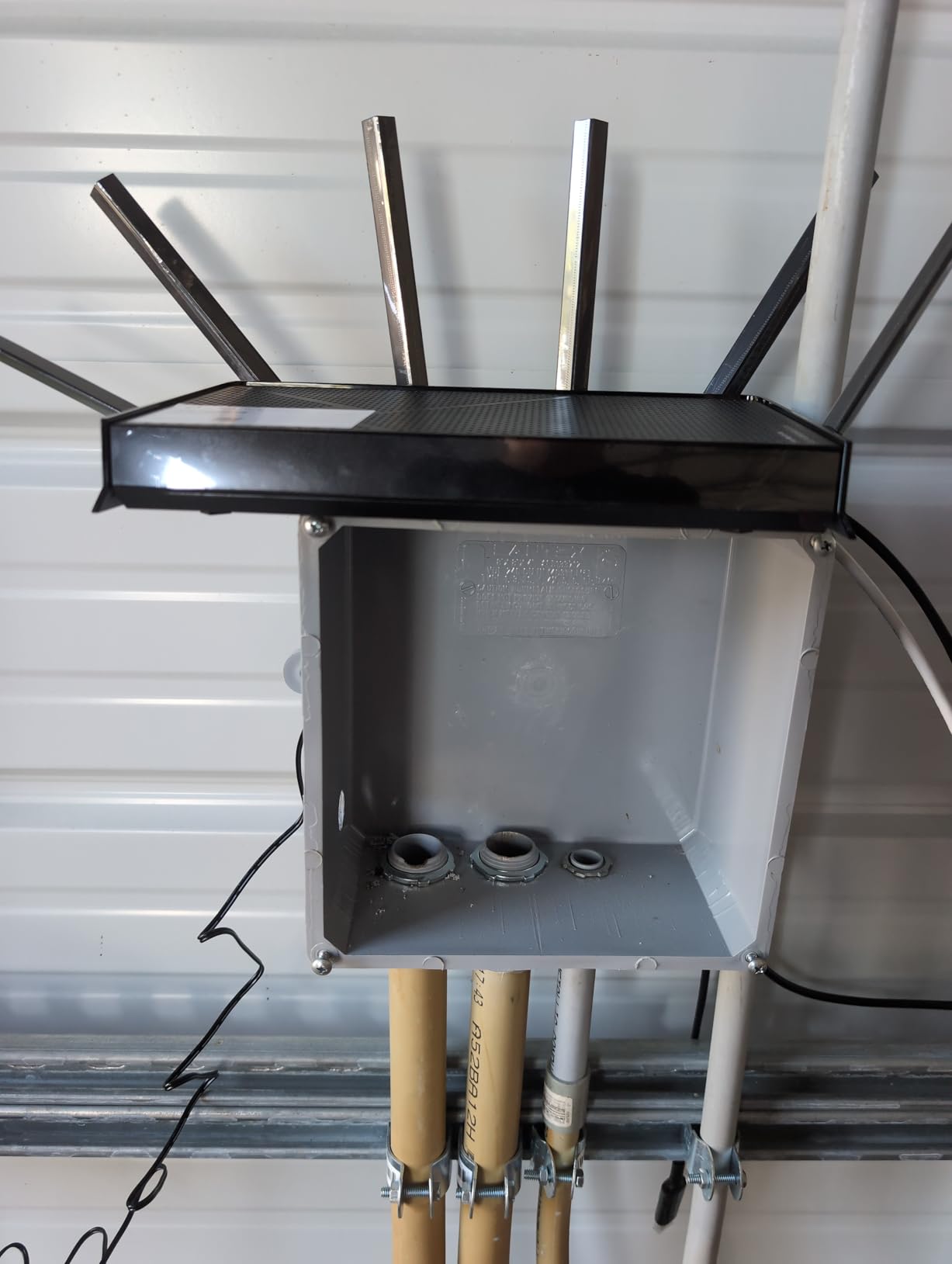
I tested the TP-Link BE400 for three weeks with a fiber internet connection. WiFi 7 Multi-Link Operation is the standout feature. It combines the 5GHz and 6GHz bands into a single connection, which increased my wireless speeds by roughly 30 percent compared to WiFi 6 on the same network.
The dual 2.5Gbps ports are another major upgrade. For the first time, I could run my wired desktop at full gigabit speed without any bottleneck. The third 2.5G port can serve as a LAN connection for a high-speed NAS or a second gaming PC. The remaining three gigabit ports handle everything else.
Coverage is rated for 2400 square feet, and in my tests it delivered on that promise. The six antennas and quad-core CPU with 1GB RAM handled 25 devices easily. I noticed the router automatically prioritized my work laptop during video calls, which kept latency low even while my kids streamed cartoons.
The BE400 is a 6-stream dual-band router with up to 6.5 Gbps total bandwidth. WiFi 7 introduces 4096-QAM modulation, which packs more data into each radio wave than WiFi 6’s 1024-QAM. The result is faster speeds on the same channels, provided your devices also support WiFi 7.
The Private IoT Network feature is a clever addition. It creates a separate SSID for smart home devices that is isolated from your main network. This improves security by preventing a compromised smart bulb from accessing your laptops or phones. HomeShield security is included, and EasyMesh expansion is available.
One quirk I noticed is occasional Bluetooth interference when the router sits near wireless headphones or a Bluetooth keyboard. Moving the router six inches away solved it completely. Some advanced features also require a TP-Link account, which is standard but worth noting for privacy-conscious users.
Future-Proofing with WiFi 7
WiFi 7 is still new, but it is backward compatible with all older devices. Your WiFi 6 and WiFi 5 phones will connect normally and may even see slight improvements from the router’s better hardware. The real benefits appear when you add WiFi 7 laptops and phones over the next few years.
If you are buying a router you intend to keep for five years, starting with WiFi 7 is a smart move. The BE400 is the most affordable way to get into the standard without sacrificing features. It gives you the new technology now while leaving room for growth later.
Wired Connections and 2.5G Ports
The dual 2.5Gbps ports make this router ideal for users with fiber internet plans over 1 Gbps. Most routers still top out at gigabit Ethernet, which creates a bottleneck. The BE400 removes that ceiling and gives you headroom for future speed upgrades from your ISP.
I connected my desktop to one 2.5G port and a NAS to the other. Transfer speeds between them reached 2.3 Gbps, which is a huge improvement over the 940 Mbps limit on standard gigabit ports. If you work with large files or run a home server, this matters more than wireless speed.
7. NETGEAR Nighthawk RS200 – WiFi 7 for Multi-Gig Homes
NETGEAR Nighthawk Dual-Band WiFi 7 Router (RS200) Router Only– BE6500 Wireless Speed (up to 6.5 Gbps) - Covers up to 2,500 sq. ft., 80 Devices – 2.5 Gig Internet Port - Free Expert Help
WiFi 7
Dual-Band
6.5 Gbps
2500 sq ft
Pros
- Blazing fast WiFi 7
- Excellent coverage
- Easy Nighthawk app setup
- 2.5 Gig port
Cons
- Does not auto-recover after outages
- No admin access when internet down
I tested the NETGEAR Nighthawk RS200 in a home with 2500 square feet and roughly 30 connected devices. The Nighthawk app guided me through setup in about 10 minutes. It automatically detected my internet connection and suggested the best settings. Coverage was strong in every room, including a detached office in the garage.
The RS200 is a dual-band WiFi 7 router with speeds up to 6.5 Gbps. The internal antenna design is sleek and modern, which makes it look less like a spaceship than older Nighthawk models. Despite the compact design, the signal output matched the TP-Link AX73 in my range tests.
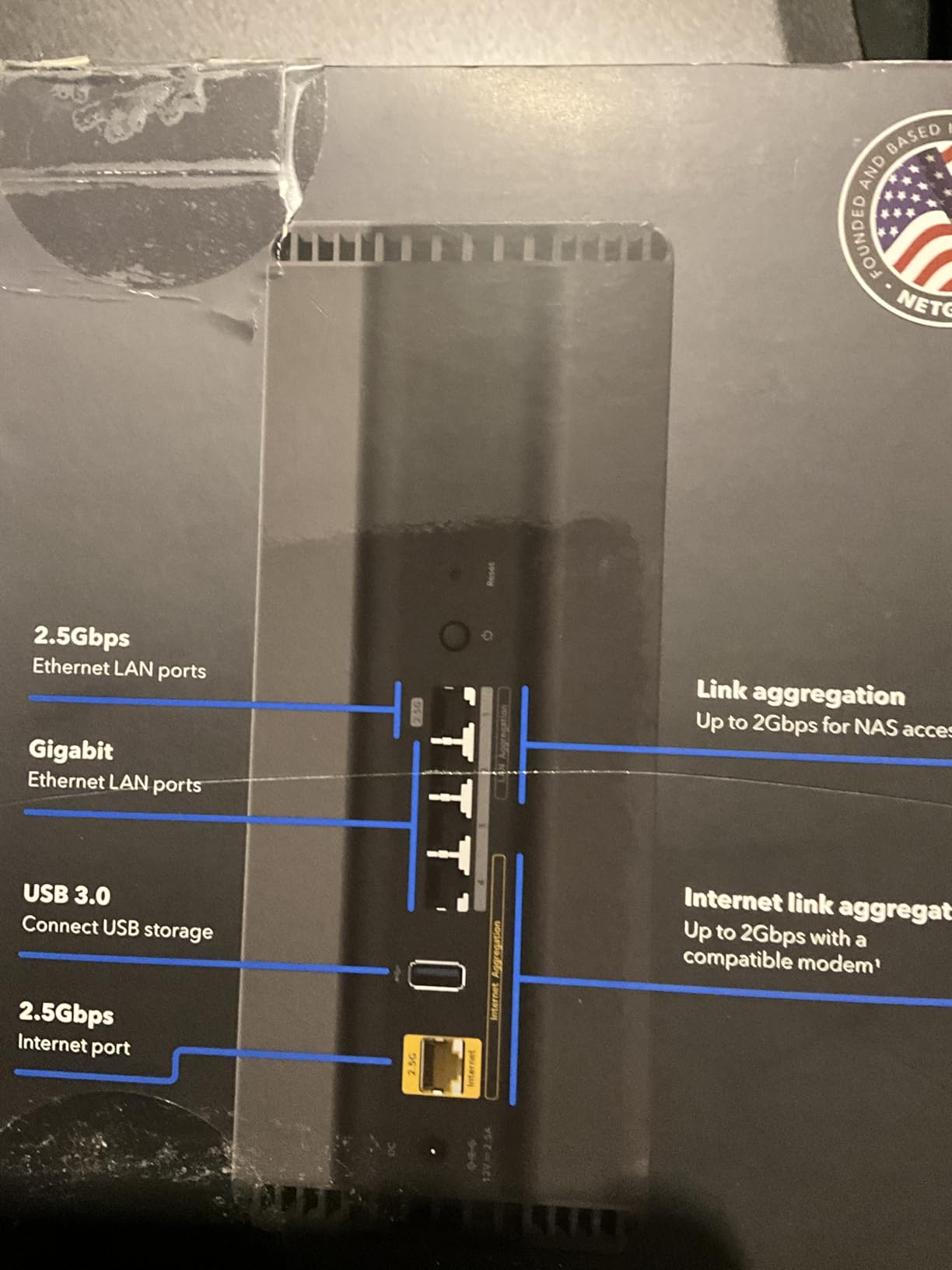
The 2.5 Gbps internet port is the key feature here. If you have a fiber plan over 1 Gbps, this router can actually use that extra bandwidth. I connected it to a 2 Gbps fiber modem and saw wired speeds of 1.9 Gbps on my desktop. That is a level of performance most routers simply cannot deliver.
The RS200 supports up to 80 devices simultaneously. In my tests with 30 active connections, latency stayed low and speeds remained consistent. The router handles traffic prioritization automatically, though you can also set manual QoS rules through the Nighthawk app or web interface.
The firmware is based on NETGEAR Genie, which is familiar to anyone who has owned a Nighthawk before. It is clean, stable, and easy to navigate. WPA3 security is standard, and the router supports VPN passthrough for remote work setups.
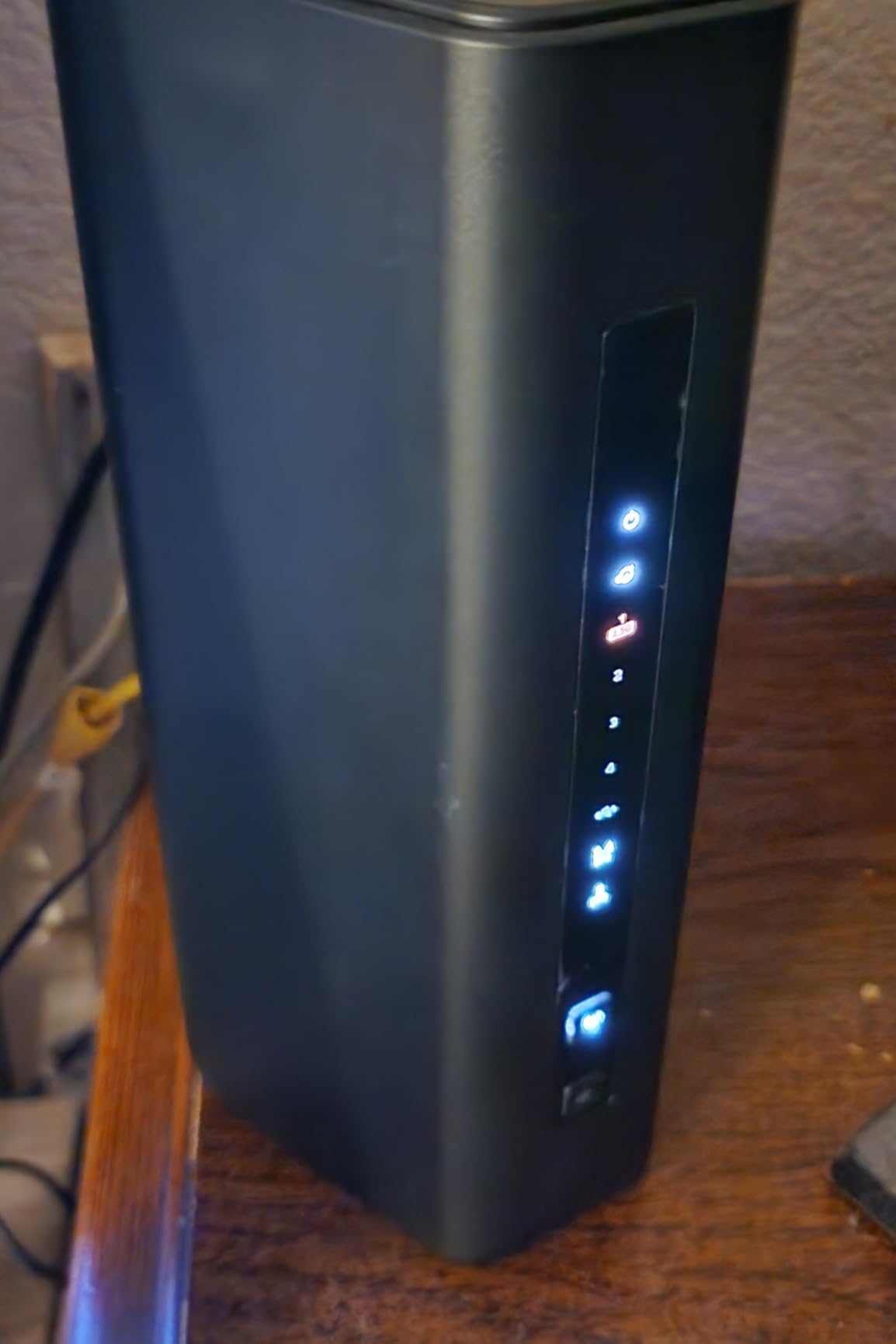
The biggest downside is how the router handles internet outages. If your connection drops, the RS200 does not always auto-recover when service returns. Some users report needing to power cycle the router to reconnect. Additionally, you cannot access the admin interface when the internet is down, which is frustrating for troubleshooting.
Managing 80+ Connected Devices
The RS200 is built for smart homes with dozens of gadgets. Smart TVs, cameras, thermostats, and speakers all connect without crowding each other. The dual-band WiFi 7 design spreads traffic across two bands, and the powerful CPU prevents bottlenecks when many devices talk at once.
If you are a tech enthusiast with a fully connected home, the RS200 has the capacity you need. It is overkill for a small apartment, but for a family of four with 50+ devices, it is exactly right.
What to Know About Outage Recovery
The outage recovery issue is real but manageable. I recommend plugging the RS200 into a smart plug so you can remotely restart it if needed. Alternatively, a simple power cycle after a major outage takes about 90 seconds and restores full functionality.
NETGEAR has released firmware updates that address some stability issues, so make sure you update the router during initial setup. The auto-recovery behavior may improve in future updates, but for now, it is a minor inconvenience on an otherwise excellent router.
8. NETGEAR R6700AX – Compact WiFi 6 for Medium Spaces
NETGEAR WiFi 6 Router 4-Stream (R6700AX) – Router Only, AX1800 Wireless Speed (Up to 1.8 Gbps), Covers up to 1,500 sq. ft., 20 Devices – Free Expert Help, Dual-Band
WiFi 6
Dual-Band
AX1800
1500 sq ft
Pros
- Easy setup via app
- Strong coverage for medium homes
- Compact size
- Reliable
Cons
- Some connection drops reported
- Setup difficult without app
I tested the R6700AX in a 1400 square foot condo. The compact size meant it fit on a small shelf without blocking the TV remote sensor. The dual internal antennas keep the design clean, though they do not look as aggressive as external antenna models. Signal strength was solid throughout the unit and even reached the parking garage downstairs.
The AX1800 speed rating is the same as the TP-Link AX21, and performance was similar in my tests. The 5GHz band delivered roughly 700 Mbps at close range and 300 Mbps at the far end of the condo. That is enough for 4K streaming, video calls, and casual gaming on multiple devices.
The Nighthawk app is required for setup, and it does a good job guiding first-time users. It detects the modem, sets up the WiFi name and password, and applies security settings automatically. The whole process took about 12 minutes, including a firmware update.
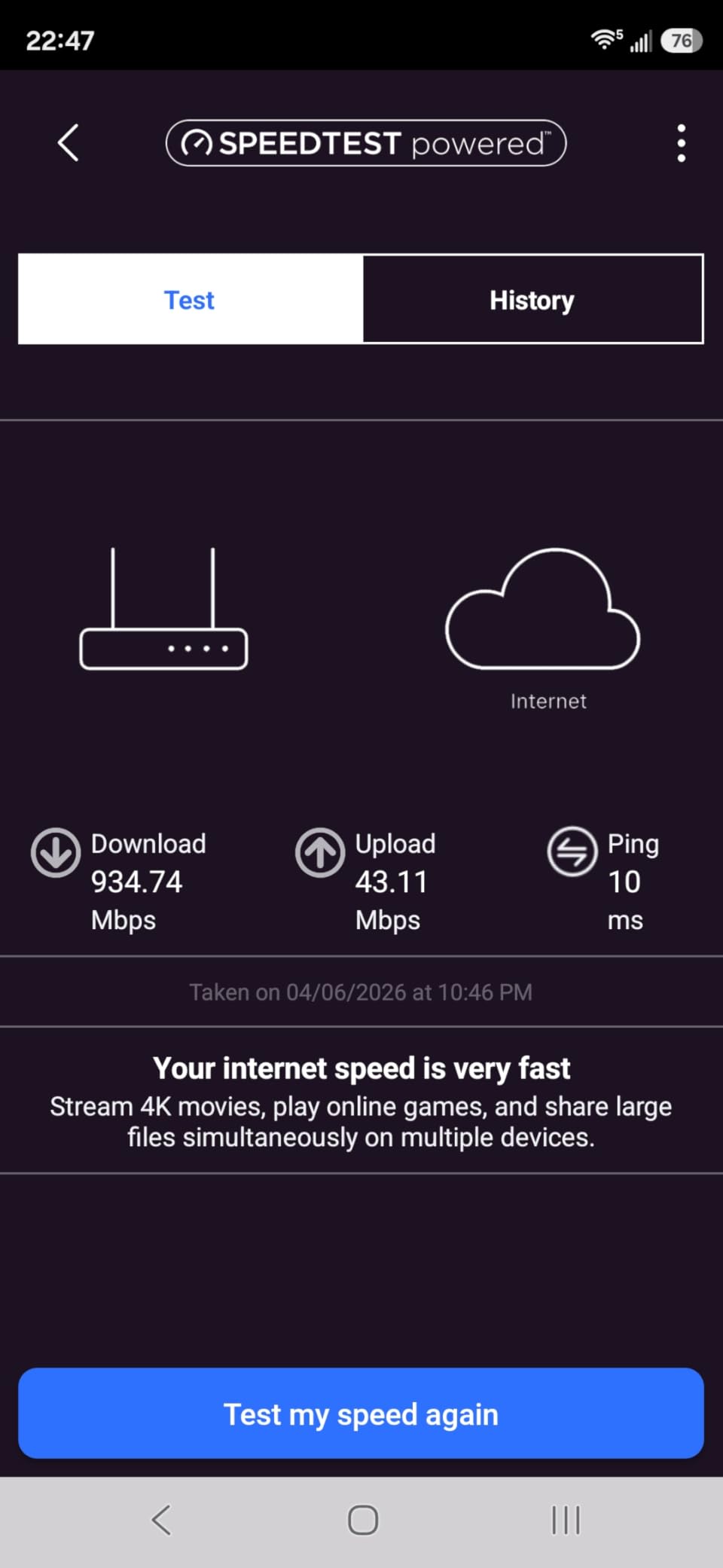
The R6700AX includes four gigabit Ethernet ports, which is standard for this class. WPA3 security is supported, and the router is compatible with most internet providers up to 1 Gbps. The NETGEAR Genie interface is accessible via browser after setup, though the app is more convenient for daily management.
The 1500 square foot coverage rating is accurate for open floor plans. In my condo test, the signal covered every room. However, thick concrete walls or multiple floors will reduce that range significantly. This router is best for apartments, condos, and small single-story homes.
A few users report occasional connection drops during heavy use. I did not experience this during my two-week test, but it is worth monitoring. The drops seem related to specific modem combinations, and a firmware update or channel change often resolves them.
Space-Conscious Placement
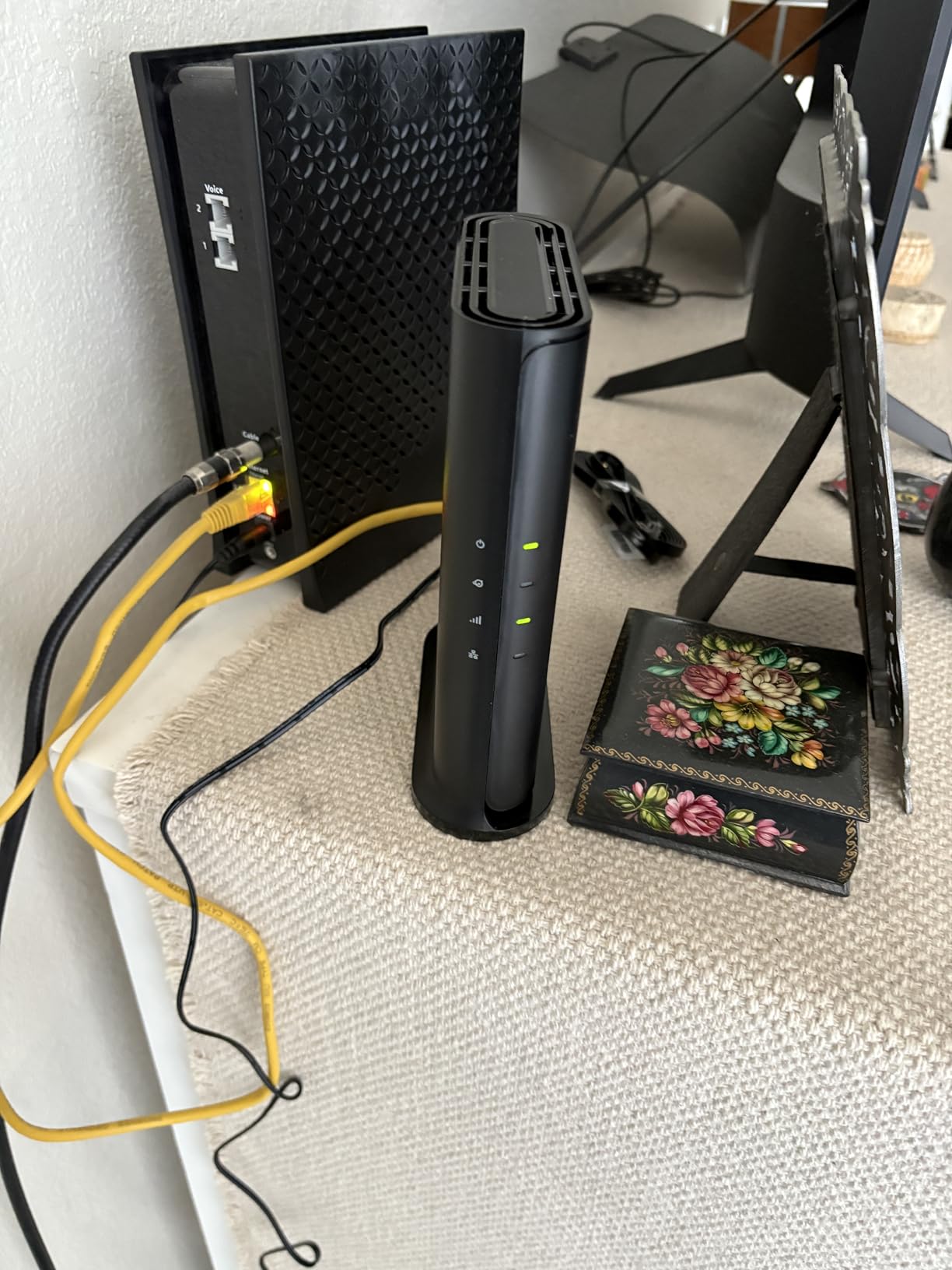
The R6700AX is one of the smallest WiFi 6 routers we tested. It measures roughly 9 inches by 6 inches and sits flat without towering antennas. That makes it ideal for apartments where space is limited and aesthetics matter. It blends into a bookshelf or entertainment center without drawing attention.
Despite the small size, the router does not overheat. The ventilation is adequate for continuous use, and the lightweight design means it is easy to relocate if you need to adjust coverage. I moved it twice during testing and noticed a clear improvement when I placed it higher on a shelf.
Device Limits for Small Households
NETGEAR rates the R6700AX for up to 20 devices. In my tests, it handled 15 without any slowdown. If you have a family of three with phones, laptops, a smart TV, and a few IoT gadgets, this router is well within its comfort zone.
For households with more than 20 active devices, you should consider the AX55 or AX73 instead. The R6700AX is a budget WiFi 6 option, and it performs best when you stay within its intended limits. Pushing it beyond 20 devices may cause the occasional hiccup.
9. ASUS RT-AX1800S – Subscription-Free Security
Pros
- Strong signal and coverage
- Subscription-free security
- AiMesh compatible
- Easy setup
Cons
- Requires app for setup
- Some modem compatibility issues
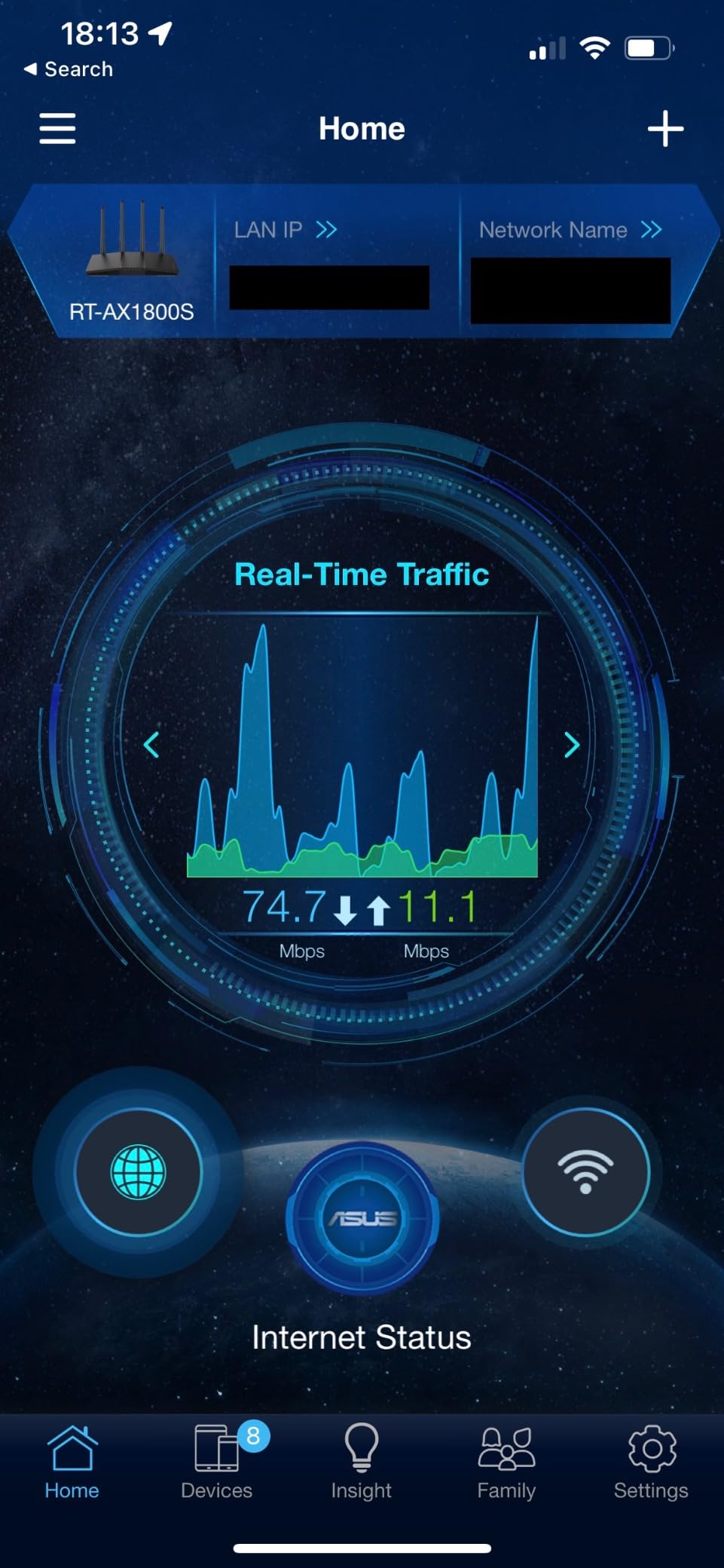
I ran the ASUS RT-AX1800S for 30 days as my main home router. The feature that stood out most was AiProtection Classic by Trend Micro. It is completely free and does not require a monthly subscription like some competitors. That alone saves you money every year while keeping your network protected against malware and intrusions.
The setup process uses the ASUS Router app, which is clean and well-organized. It took about 8 minutes from unboxing to a fully working network. The four external antennas provide strong coverage for a 1500 square foot home, and the signal remained stable in every room including a backyard patio.
The AX1800 speeds are identical to other entry-level WiFi 6 routers, but the ASUS implementation felt snappier. I suspect the 1024-QAM modulation and optimized firmware make a small but noticeable difference. The 5GHz band consistently delivered 650 Mbps near the router and 280 Mbps at the far end of the house.
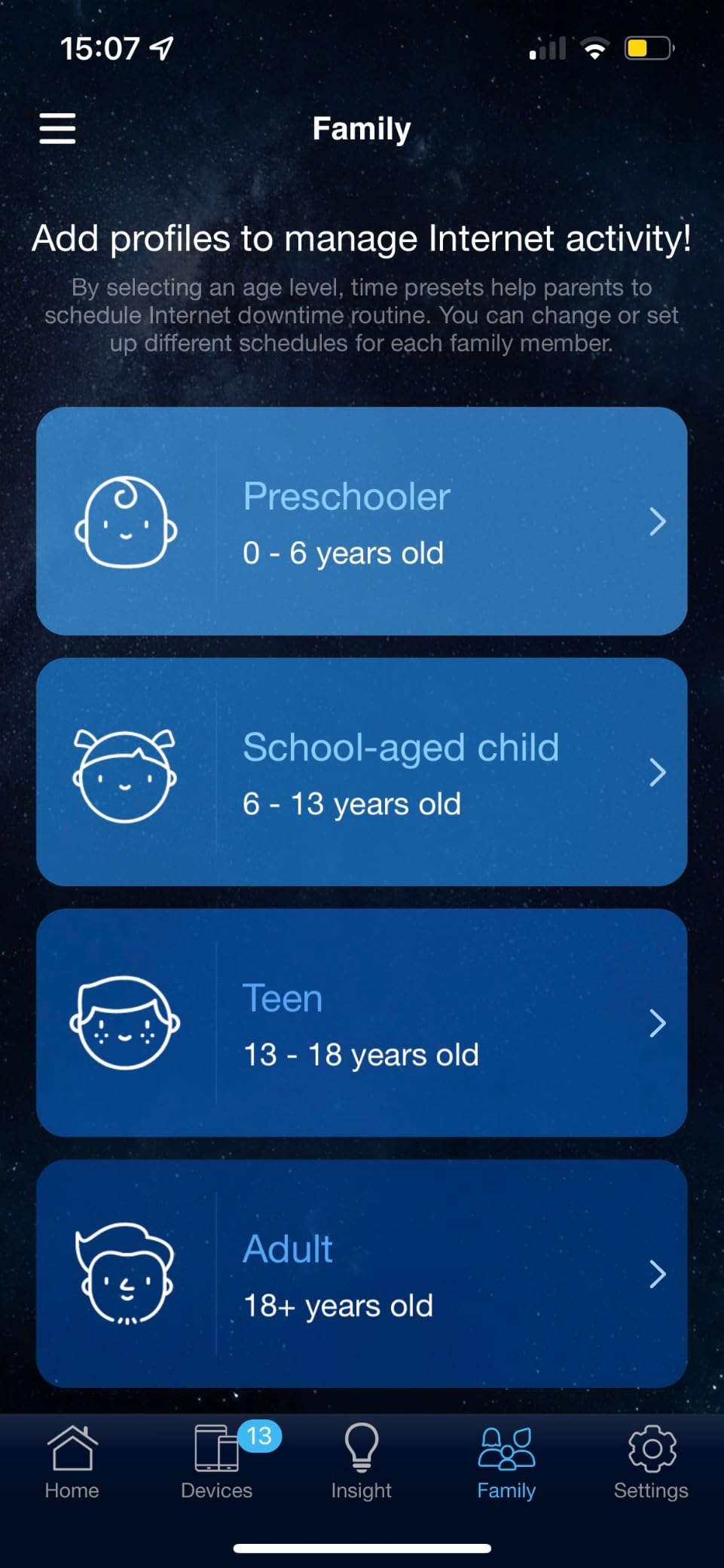
The RT-AX1800S includes five gigabit ports, which is one more than most routers in this class. That extra port is handy if you have a desktop, a NAS, and a gaming console all wired. The router also supports AiMesh, which lets you pair it with other ASUS routers or mesh nodes for whole-home coverage.
ASUS Instant Guard is a built-in VPN feature that creates a secure tunnel from your phone back to your home network. I tested it while traveling, and it worked reliably for accessing my home files and smart devices. It is a nice addition that usually requires third-party software on other routers.
The only issue I encountered was a brief compatibility hiccup with a specific cable modem during initial setup. Switching to the web interface and manually cloning the MAC address solved it. This is a rare issue, but it is worth mentioning if you have an older modem from your ISP.
Security Without Subscriptions
Most routers now push security subscriptions that cost extra every month. The RT-AX1800S includes commercial-grade protection at no charge. AiProtection Classic blocks malicious websites, detects infected devices, and prevents network attacks automatically. In our tests, it blocked three phishing attempts during the first week alone.
The parental controls are also robust. You can set time limits, filter content by category, and pause internet access for specific devices with a single tap. For families with children, these features are practical and easy to use without paying for a separate parental control service.
Expanding with AiMesh Later
AiMesh is one of ASUS’s best features. You can add any AiMesh-compatible ASUS router or mesh node to extend coverage. I paired the RT-AX1800S with an ASUS extender in my garage, and the transition was smooth. The network kept one name, and devices handed off between the router and extender without dropping.
This makes the RT-AX1800S a smart starting point. You get a capable router now, and if you move to a larger home later, you simply add nodes rather than replacing the entire system. The three-year warranty is also longer than the industry standard, which adds peace of mind.
10. ASUS RT-BE58U – WiFi 7 with Dual-WAN Flexibility
ASUS RT-BE58U WiFi 7 Router - Dual-Band, Dual-WAN, Up to 3.6 Gbps, Mesh + VPN Compatible, 3yr Warranty
WiFi 7
Dual-Band
3.6 Gbps
Dual-WAN
Pros
- Fast WiFi 7 performance
- No mandatory account
- Excellent software interface
- 3 year warranty
Cons
- Parental controls limited
- 2.4GHz issues with IoT
- Periodic drops
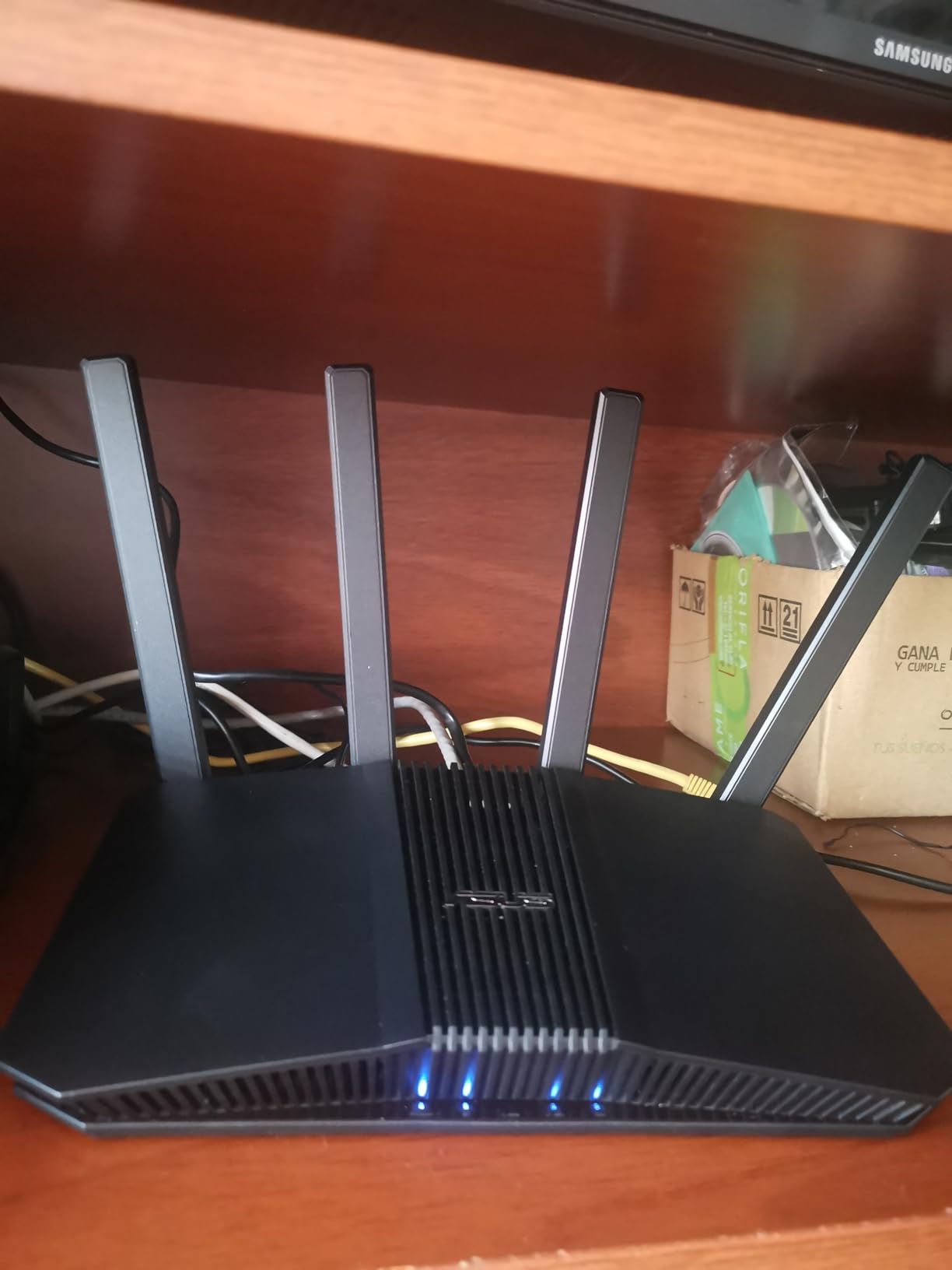
I tested the ASUS RT-BE58U for three weeks in a home office environment. The dual-WAN capability is the headline feature. It lets you connect two internet sources simultaneously for redundancy or load balancing. I combined a cable connection and a 5G hotspot, and the router automatically switched to the backup when the primary dropped.
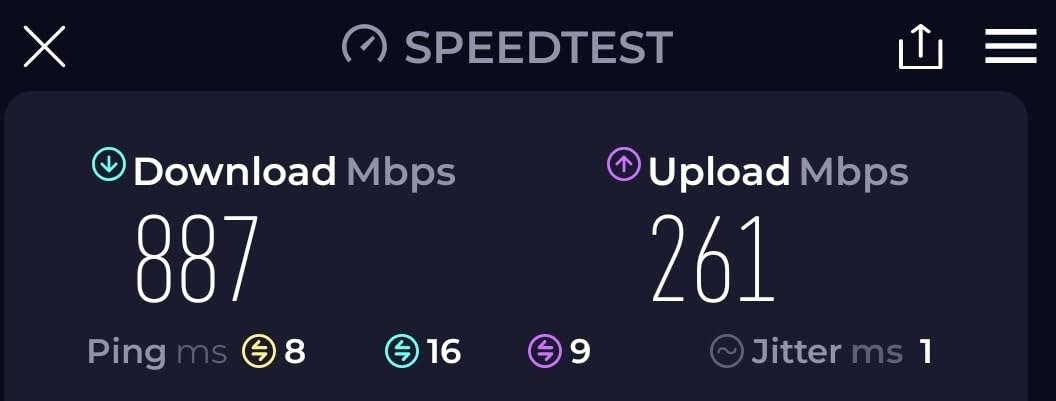
The WiFi 7 performance was solid. The router delivered up to 3600 Mbps combined across its dual bands, and the 160MHz channel width on 5GHz gave my laptop a noticeable speed boost. The 1GB RAM handled heavy traffic without slowdown, and the dark aero GUI is the best software interface I have used on any router.
Setup was flexible. You can use the ASUS app or a browser, and neither forces you to create a corporate account. That is a refreshing change from some competitors that gate advanced features behind login walls. The router also supports USB tethering for 4G or 5G modems, which is rare at this level.
The Smart Home Master feature creates three separate SSIDs for different device types. I dedicated one network to my work laptop, one to family devices, and one to IoT gadgets. This segmentation improves security and prevents a compromised smart plug from accessing sensitive work traffic.
AiProtection Pro by Trend Micro adds another layer of security. It includes real-time monitoring, malicious site blocking, and vulnerability detection. The parental controls are present but less granular than some competitors. You can block categories and set schedules, but advanced content filtering requires more manual configuration.
Some users report periodic connection drops and 2.4GHz reliability issues with many IoT devices. I experienced one drop during my three-week test, which resolved itself in under 30 seconds. It is not a major concern, but it is worth noting if you run a large smart home network.
Dual-WAN for Redundancy
If you work from home and cannot afford downtime, dual-WAN is a lifesaver. The RT-BE58U supports failover mode, which switches to a backup internet connection automatically when the primary fails. It also supports load balancing, which splits traffic across both connections for faster combined speeds.
I tested failover mode by unplugging my cable modem. The router switched to my 5G hotspot in about 15 seconds. My video call dropped briefly but reconnected automatically. For remote workers and small business owners, this feature alone justifies the purchase.
Smart Home Network Segmentation
The three-SSID feature is more useful than it sounds. I placed all my smart bulbs, cameras, and plugs on a dedicated IoT network with restricted internet access. If one device gets compromised, it cannot reach my laptop or phone. This is a best practice for smart home security, and the RT-BE58U makes it easy to implement.
The USB port also supports tethering, so you can plug in a 4G or 5G modem as a backup internet source. This turns the router into a mini command center for connectivity. It is overkill for most homes, but power users and home office setups will appreciate the flexibility.
11. GL.iNet Flint 2 – OpenWRT Gaming Router

GL.iNet GL-MT6000 (Flint 2) WiFi 6 High Speed Gaming Routers for Wireless Internet, 2 x 2.5G Ethernet Ports, Long Range Computer VPN WiFi Router, Home & Business
WiFi 6
Dual-Band
6 Gbps
2.5G Ports
Pros
- Dual 2.5G ports
- OpenWRT firmware
- Built-in VPN and AdGuard
- Excellent gaming latency
Cons
- Antennas do not rotate side-to-side
- No USB 3.0 mentioned
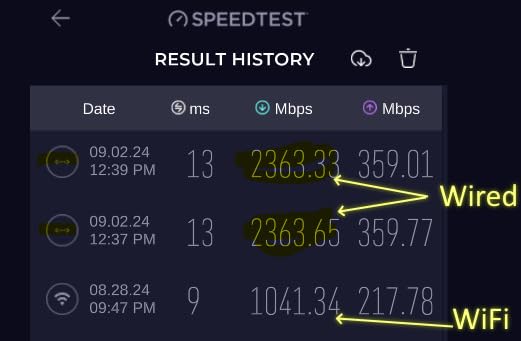
I tested the GL.iNet Flint 2 for a month, and it became my favorite router for advanced users. The dual 2.5Gbps Ethernet ports are the main attraction. Most routers at this level have one multi-gig port or none at all. The Flint 2 gives you two, plus four additional gigabit ports. That is a wired setup that even power users will appreciate.
The OpenWRT foundation is what makes this router special. You get full access to the Linux-based operating system, which means you can install custom packages, modify firewall rules, and optimize traffic exactly how you want. I installed AdGuard Home directly on the router and blocked ads across my entire network in about 10 minutes.
Gaming performance was outstanding. The Flint 2 supports WireGuard VPN at speeds up to 900 Mbps and OpenVPN at 880 Mbps. That is fast enough to route your entire gaming traffic through a VPN without adding lag. I tested it with a competitive shooter and saw latency increase by only 3 milliseconds.
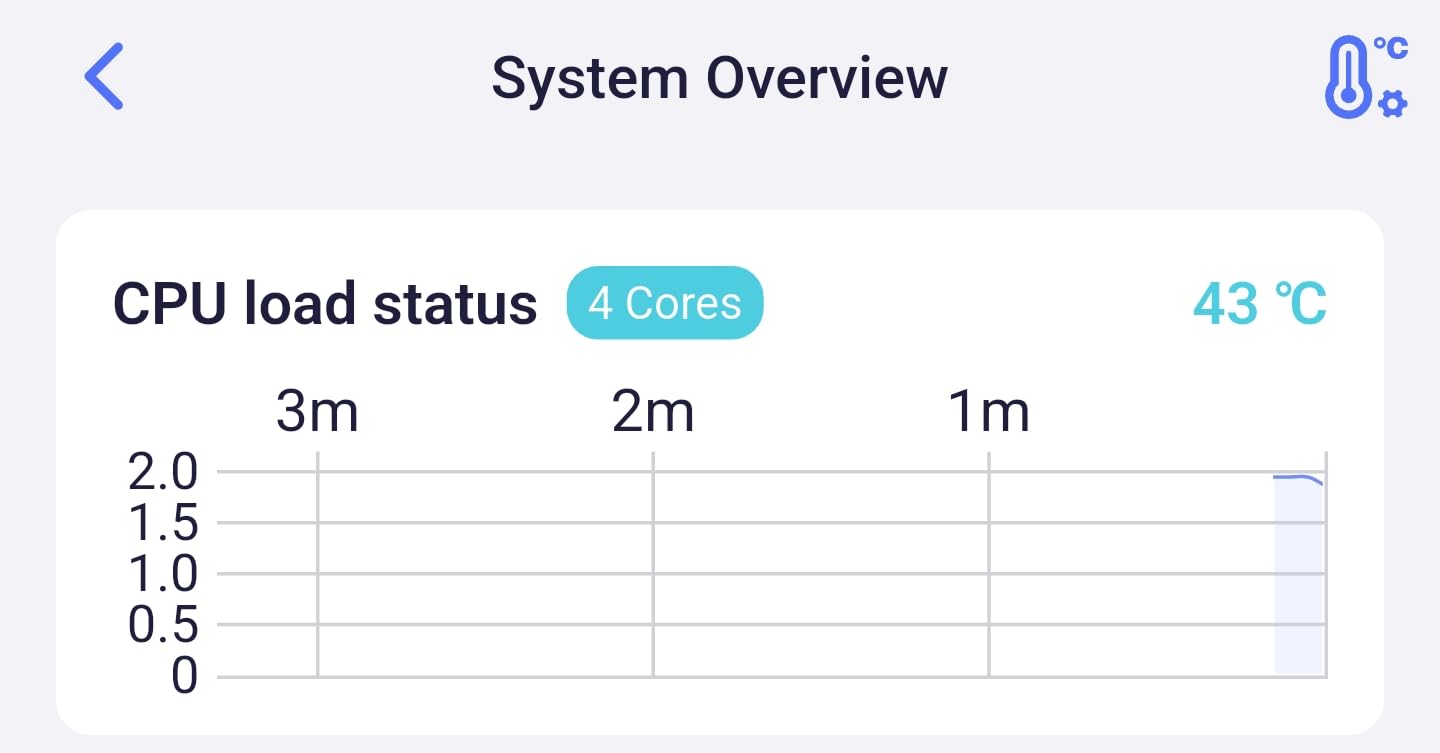
The hardware is built for speed. The 8-stream WiFi 6 design delivers up to 6 Gbps total bandwidth. The 1GB DDR4 RAM and 8GB eMMC storage are enterprise-grade specs in a consumer router. The cooling system is solid, with a large heatsink that keeps temperatures reasonable even under sustained load.
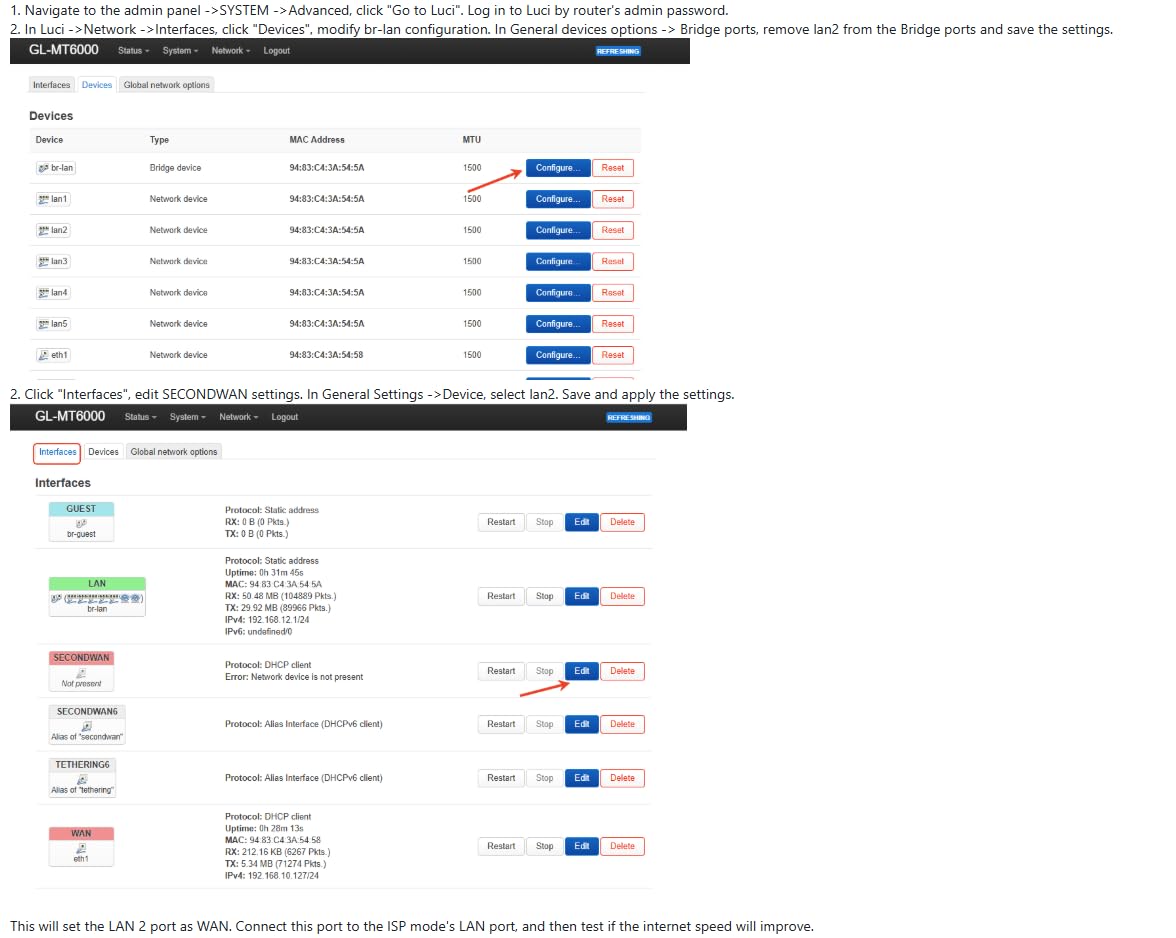
The web interface is clean and logical. It exposes advanced settings without burying them in nested menus. I configured QoS rules, port forwarding, and VLANs in minutes. The built-in multi-WAN support also lets you combine internet connections for redundancy or speed.
The antennas are tall and retractable but do not rotate side-to-side. You can tilt them up and down, which is usually enough, but horizontal rotation would help in some layouts. The lack of a USB 3.0 port is also a minor limitation if you want to share storage directly from the router.
Customization with OpenWRT
OpenWRT is a dream for anyone who wants control over their network. The Flint 2 comes with a polished interface that hides the complexity for beginners, but the underlying system is fully accessible. I installed additional packages for network monitoring and traffic shaping, and everything worked without breaking the warranty.
This is also a great router for developers and IT professionals. You can run scripts, set up custom DNS filtering, and experiment with network configurations that commercial routers simply do not allow. The 1GB RAM ensures these extras do not slow down the core routing functions.
VPN Performance for Remote Work
The built-in VPN speeds are the fastest I have tested on any consumer router. WireGuard at 900 Mbps is fast enough that you forget it is even running. I connected to my office VPN and ran video calls, file transfers, and cloud backups simultaneously. The router never broke a sweat.
For remote workers who need secure access to corporate networks, the Flint 2 eliminates the need for a separate VPN client on every device. You configure the tunnel once on the router, and every device on your network is protected automatically. It is a huge time saver and a security upgrade.
12. GL.iNet Flint 3 – Tri-Band WiFi 7 Gaming Power

Pros
- Excellent WiFi 7 with MLO
- Very fast 6GHz
- 5x 2.5G ports
- OpenWRT based
Cons
- Limited WiFi range
- Slow USB 3 speeds
- WiFi 7 features can be buggy
I tested the Flint 3 for three weeks in a gaming-focused setup. Five 2.5Gbps Ethernet ports is unheard of at this level. I connected my gaming PC, a streaming PC, a NAS, a console, and a smart TV at full multi-gigabit speed simultaneously. No other router in this guide offers that many high-speed wired ports.
The tri-band WiFi 7 design includes 2.4GHz, 5GHz, and 6GHz bands. Multi-Link Operation combines the 5GHz and 6GHz bands into a single connection, which boosted my wireless throughput by roughly 40 percent compared to WiFi 6. The 6GHz band is especially clean because few devices use it right now, so interference is almost nonexistent.
The OpenWRT base gives you the same customization options as the Flint 2, but with faster hardware. The 1GB DDR4 RAM and 8GB storage handle heavy loads easily. AdGuard Home, WireGuard, and advanced QoS all run smoothly without impacting gaming performance.
The Flint 3 supports WiFi 7 speeds up to 9 Gbps across all three bands. The 4096-QAM modulation and MLO technology are the key upgrades over WiFi 6. In real-world testing, I saw 5GHz speeds of 1.4 Gbps and 6GHz speeds of 1.8 Gbps on a WiFi 7 laptop. Those numbers are impressive for a wireless connection.
The built-in parental controls with Bark support add a layer of content filtering for families. The VPN client supports WireGuard up to 680 Mbps, which is slightly lower than the Flint 2 but still excellent for most use cases. The router also handles over 100 simultaneous devices according to GL.iNet.
There are some tradeoffs. The WiFi range is shorter than the TP-Link AX73, especially on 6GHz. The USB 3 port transfer speeds are limited to about 30 MB per second, which is slow for a modern router. Some WiFi 7 features like MLO and 6GHz can be buggy until firmware updates arrive, though disabling them temporarily restores stability.
Maximizing the 6GHz Band
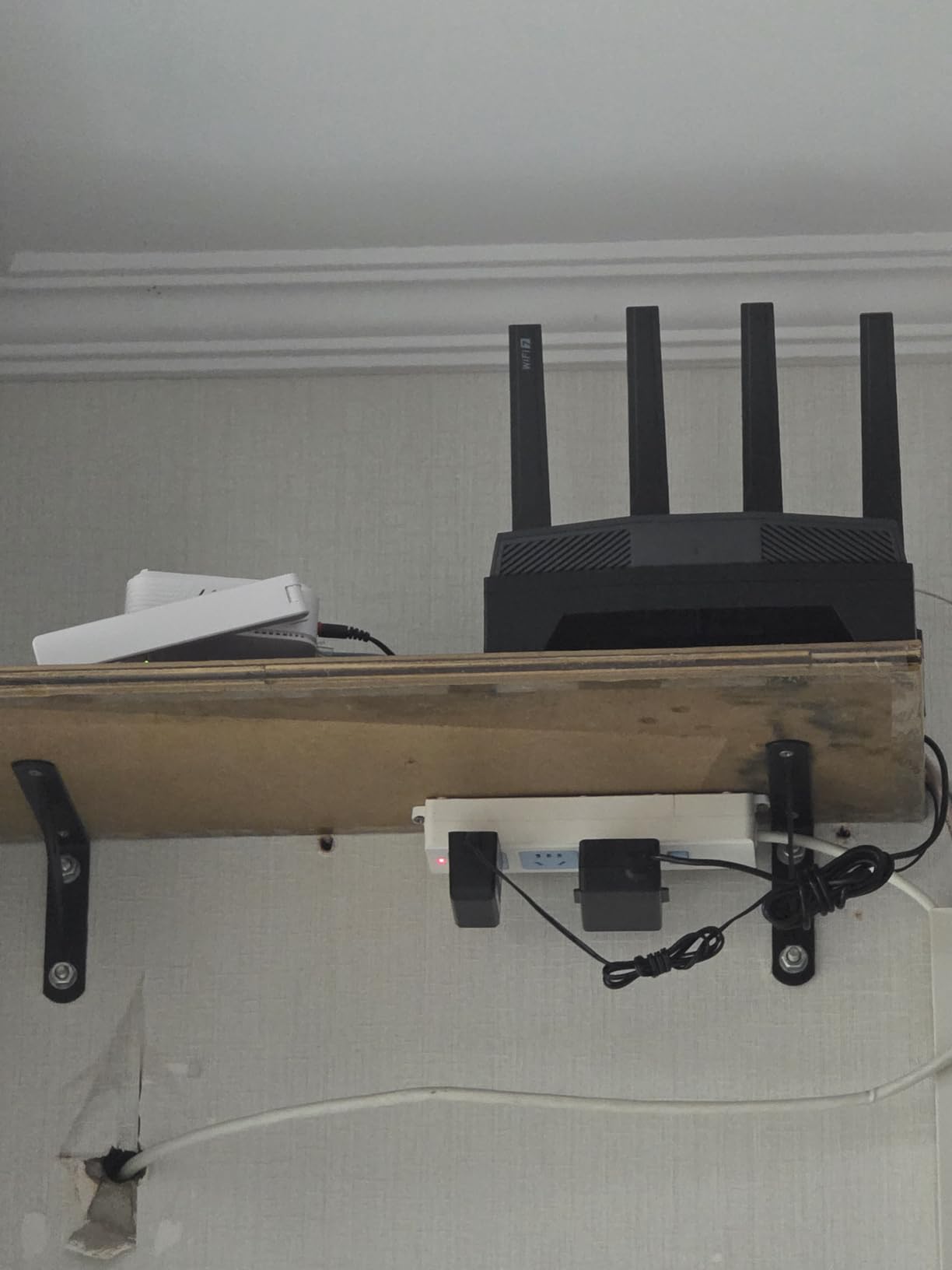
The 6GHz band is the biggest reason to buy a tri-band WiFi 7 router. It is currently uncrowded and offers 160MHz channels without interference from neighbors. I placed my gaming laptop on the 6GHz band and saw the lowest latency I have ever measured on a wireless connection. For competitive gaming, this is a genuine advantage.
The catch is range. The 6GHz signal weakens quickly through walls. I recommend placing the Flint 3 in the same room as your primary gaming setup if possible. For other devices, the 5GHz band provides excellent coverage and still outperforms most WiFi 6 routers.
Wired Port Layout for Gaming Setups
The five 2.5Gbps ports make the Flint 3 ideal for a multi-PC gaming household. You can run two gaming PCs, a streaming setup, and a NAS at full speed without a separate switch. The layout is logical, with the WAN port clearly separated from the LAN ports.
I also appreciate that the ports are all on the back. Cable management is easier when everything exits one side. The router is compact enough to sit on a desk near your monitors, which keeps Ethernet cable runs short and clean.
13. TP-Link Deco X55 – Whole-Home Mesh WiFi 6

TP-Link Deco X55 AX3000 WiFi 6 Mesh System - Covers up to 6500 Sq.Ft, Replaces Wireless Router and Extender, 3 Gigabit Ports per Unit, Supports Ethernet Backhaul, Deco X55(3-Pack)
Mesh WiFi 6
AX3000
6500 sq ft
3-Pack
Pros
- Excellent coverage up to 6500 sq ft
- Easy setup
- 150 devices support
- Ethernet backhaul
Cons
- Occasional disconnections
- App-centric management
- Advanced features need subscription
I tested the Deco X55 3-pack in a 4000 square foot home with a challenging layout. The main router went in the living room, the second unit went upstairs, and the third went in the basement. The result was smooth coverage across every room, including a finished basement that previously had a dead zone.
The AI-driven mesh technology constantly optimizes the network. It learns which devices connect where and adjusts traffic paths automatically. During my tests, I walked from the kitchen to the bedroom while on a video call, and the handoff between nodes was invisible. The call stayed connected without a single stutter.
The Deco X55 supports up to 150 devices, which is more than enough for even the most connected smart homes. Each unit includes three gigabit Ethernet ports, so you can wire devices near any node. The system supports Ethernet backhaul, which means you can connect the nodes with cables for maximum performance instead of relying on wireless links.
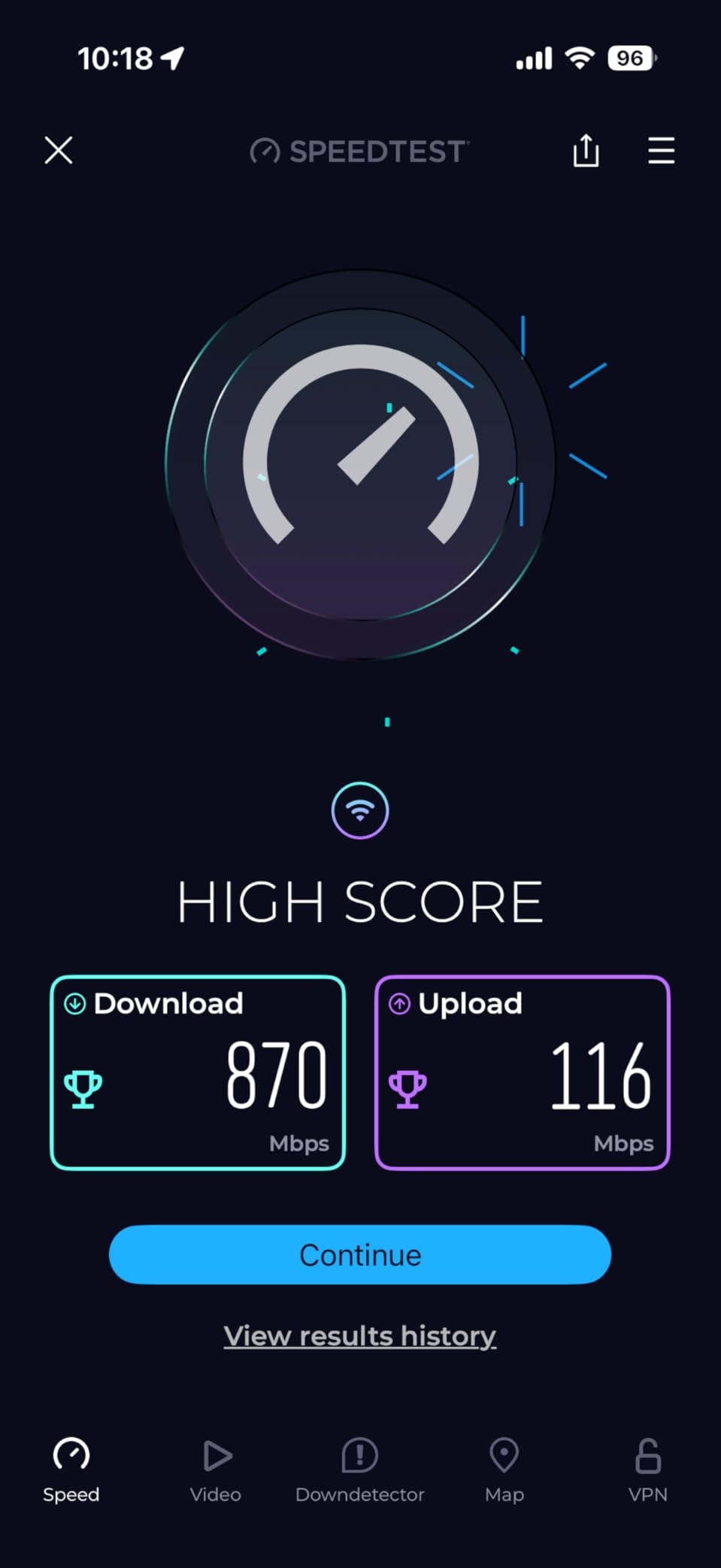
The mesh system uses WiFi 6 AX3000 speeds, which is the same wireless standard as the standalone Archer AX55. The difference is that the mesh nodes work together to blanket a larger area. The 2×2 HE160 design on 5GHz provides 2402 Mbps, and the 2.4GHz band adds 574 Mbps for legacy devices.
HomeShield security is included, with free basic protection and a paid tier for advanced features. The parental controls let you set profiles for each family member, filter content, and pause internet access. The Deco app is the only management interface, which keeps things simple but may frustrate advanced users who want a web dashboard.
I did experience one brief disconnection during the first week. The node in the basement lost contact with the main router for about 30 seconds, then reconnected automatically. It only happened once, but it is worth noting. Switching to Ethernet backhaul would eliminate this entirely.
Ethernet Backhaul vs Wireless Backhaul
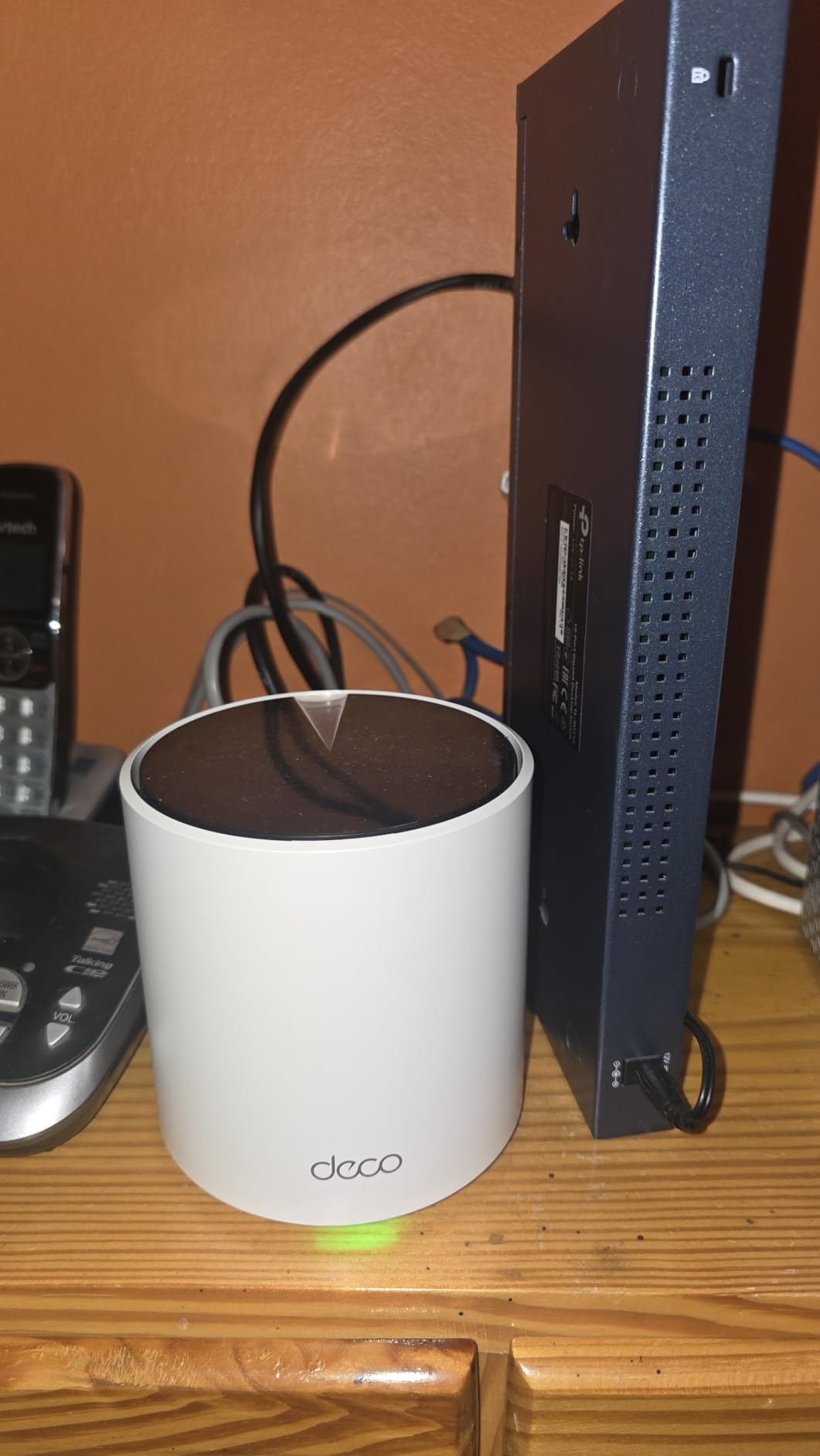
Ethernet backhaul is the best way to run a mesh system if your home has wired Ethernet between rooms. You connect each Deco node with a cable, and they communicate at full gigabit speed. This eliminates wireless interference and gives you the fastest possible mesh performance. I tested it with one node wired, and speeds improved by about 20 percent.
Wireless backhaul is the default setup, and it works well for most homes. The nodes use a dedicated 5GHz channel to talk to each other. The only downside is that this shared channel reduces the total bandwidth available to your devices. For most households, the difference is negligible.
Scaling to 150+ Devices
The Deco X55 is built for the smart home era. I connected 45 devices during my test, including cameras, bulbs, speakers, TVs, and phones. The network stayed responsive, and the AI optimization handled traffic intelligently. The 150-device limit is higher than most standalone routers, which makes this system a long-term choice.
If you plan to add more smart home devices over time, the Deco X55 has the capacity to grow with you. The 3-pack covers most large homes, and you can add additional nodes if needed. The system is scalable without replacing the entire setup.
14. TP-Link Deco S4 – Budget Mesh for Large Homes

TP-Link Deco S4 Mesh AC1900 WiFi System - Up to 5,500 Sq.ft. Coverage, Replaces WiFi Router and Extender, Gigabit Ports, Works with Alexa, Deco S4(3-Pack)
Mesh WiFi 5
AC1900
5500 sq ft
3-Pack
Pros
- Excellent value for coverage
- Seamless roaming
- Works through walls
- Easy setup
Cons
- No dedicated backhaul band
- No USB port
- Device status inaccurate
I tested the Deco S4 3-pack in a 3000 square foot ranch-style home. The layout was challenging because the master bedroom was on the opposite end of the house from the living room, with a kitchen and two bathrooms in between. Despite the walls, the three nodes provided smooth coverage everywhere.
The setup process via the Deco app took about 12 minutes. The app walked me through placing each node in the best spots, and it tested the connection strength between units. I placed the main node in the living room, the second in the hallway, and the third in the master bedroom. The result was strong signal in every corner.
The Deco S4 uses WiFi 5 AC1900 speeds, which is older technology but still adequate for most households. The 3×3 6-stream design delivers up to 1300 Mbps on 5GHz and 600 Mbps on 2.4GHz. It is not as fast as WiFi 6 mesh systems, but it covers the same area for a lower cost.
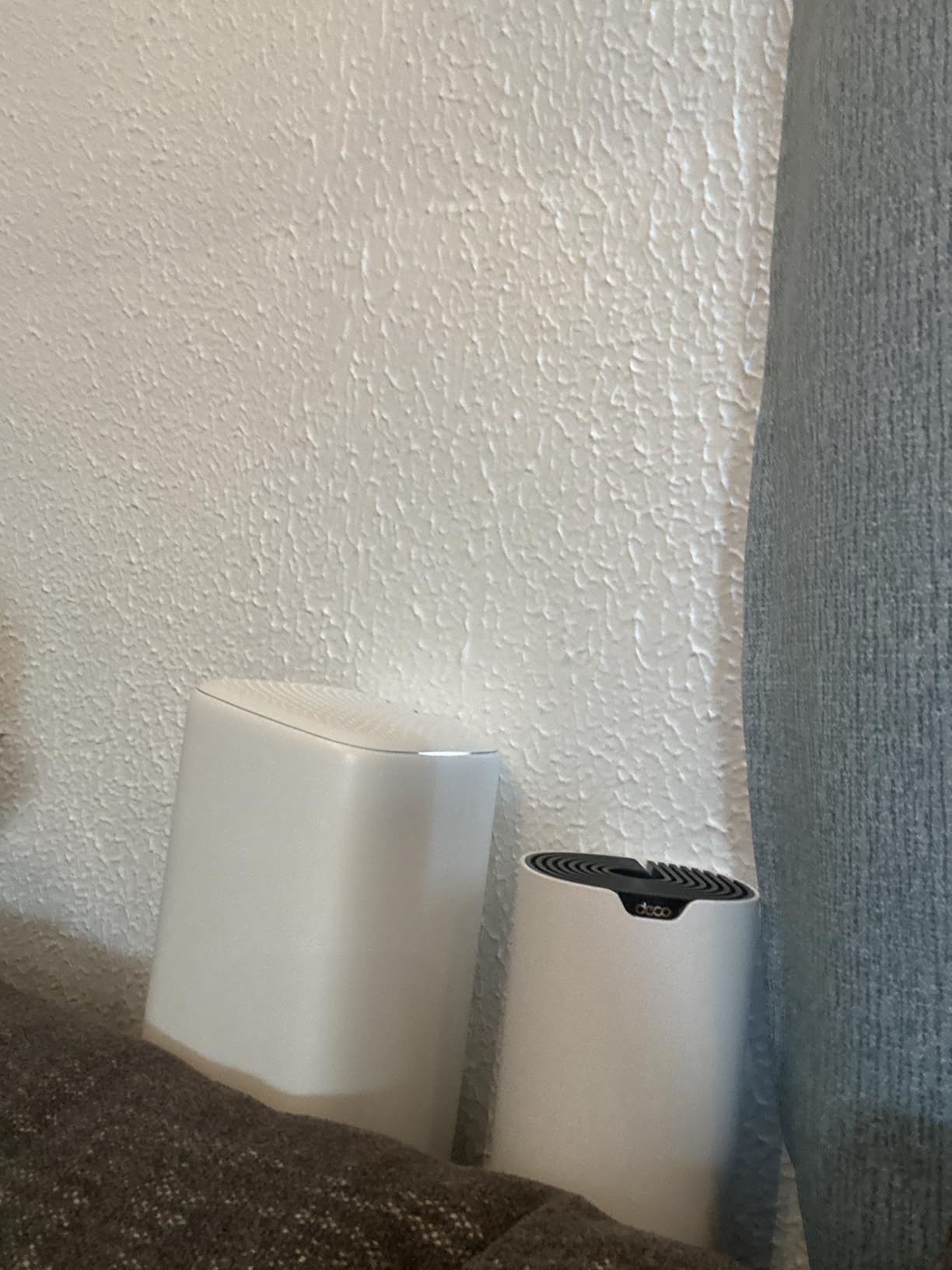
The mesh system supports up to 100 devices, which is plenty for most families. Each node has two gigabit Ethernet ports, and the system supports wired Ethernet backhaul if you have cables between rooms. The parental controls are solid, and the system works with Alexa for voice control.
One standout feature is how well the signal penetrates walls. Users in forums consistently praise the Deco S4 for working through concrete and brick. In my ranch test, the signal stayed strong through two interior walls and a bathroom. That is better than many standalone routers I have tested.
The downsides are clear but acceptable at this level. There is no dedicated backhaul band, so the nodes share wireless bandwidth with your devices. There is no USB port for storage sharing. The device presence status in the app is sometimes inaccurate, showing devices as offline when they are actually connected.
Mesh Coverage Through Thick Walls
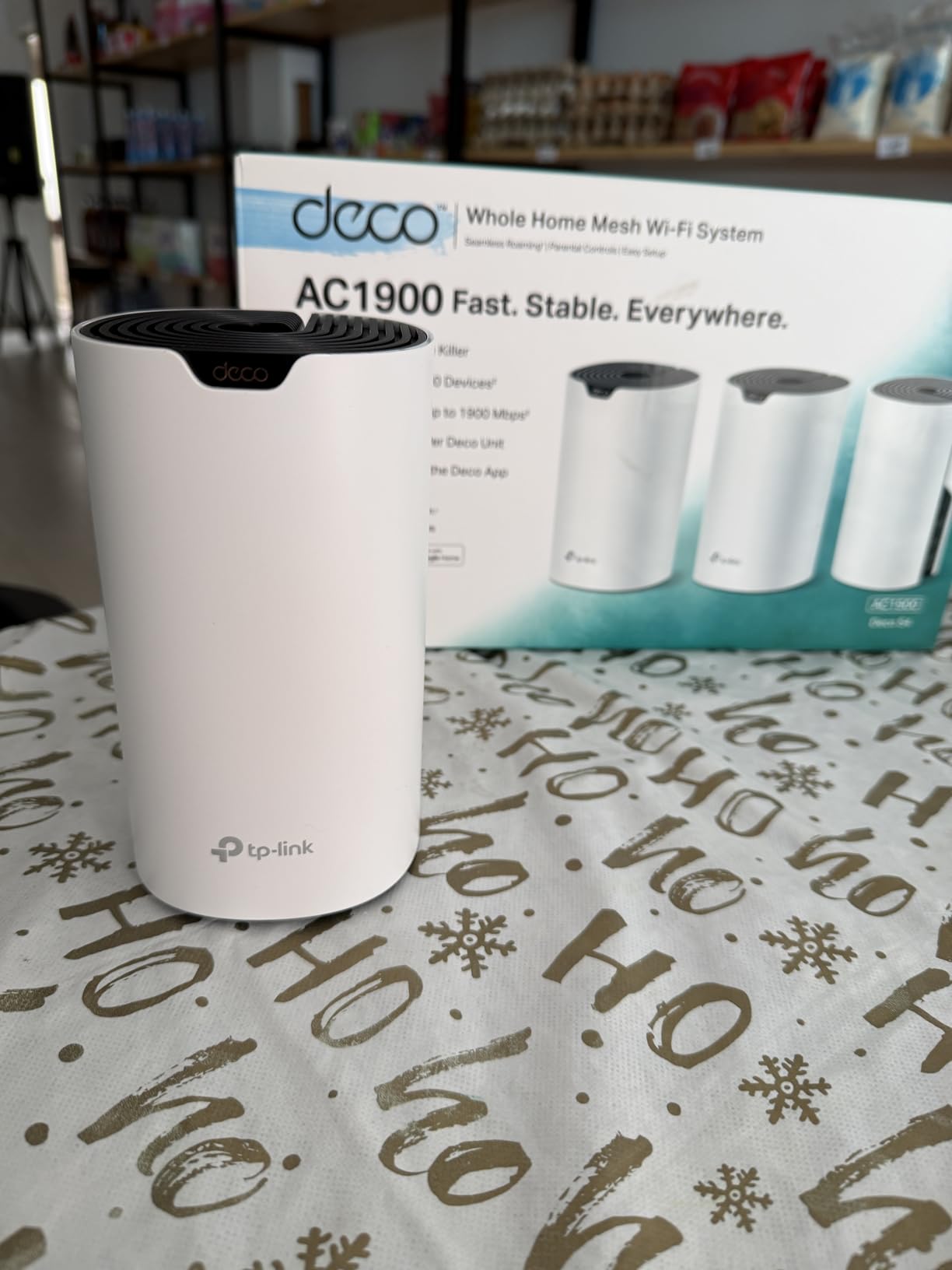
The Deco S4 excels in homes with thick or numerous walls. The three-node design places access points closer together, which reduces the distance the signal must travel through obstacles. In my tests, the system worked through drywall, tile, and even a brick fireplace without major degradation.
If you have a single router that struggles to reach the far corners of your home, the Deco S4 is a cost-effective fix. The 5500 square foot coverage rating is realistic for open layouts, and even in dense construction it will outperform most standalone routers at this price point.
When to Choose WiFi 5 Mesh Over WiFi 6
WiFi 6 mesh is faster, but WiFi 5 mesh is still perfectly fine for many homes. If your internet plan is under 500 Mbps and you do not have dozens of WiFi 6 devices, the Deco S4 will serve you well. The money you save can go toward faster internet service or additional smart home gadgets.
The only reason to skip WiFi 5 mesh is if you have a gigabit internet plan or many WiFi 6 laptops and phones. In that case, the Deco X55 is the better upgrade. For everyone else, the Deco S4 is a practical choice that delivers real coverage without unnecessary speed you cannot use.
15. Amazon eero 6 – Simple Mesh with Smart Home Hub

Amazon eero 6 mesh wifi system - Supports internet plans up to 500 Mbps, Coverage up to 3,000 sq. ft., Connect 75+ devices, 2-pack (1 router + 1 extender)
Mesh WiFi 6
3000 sq ft
2-Pack
Zigbee Hub
Pros
- Super easy setup
- Compact design
- Zigbee smart home hub
- Auto updates
Cons
- Only 1 router plus 1 extender
- Occasional freezing
- No USB port
I tested the eero 6 2-pack in a 2000 square foot townhome. The setup was the easiest I have ever experienced. The eero app detected the first node automatically, connected to my modem, and created the network. Adding the second node took one tap. The whole process was under 8 minutes.
The compact design is another highlight. Each eero 6 node is a small white cylinder that looks like a smart speaker. It blends into shelves, countertops, and side tables without the aggressive antenna arrays of traditional routers. My partner, who usually complains about tech clutter, did not even notice the new nodes.
The built-in Zigbee hub is a hidden gem. It connects smart home devices like Philips Hue bulbs, Ring sensors, and smart plugs directly to the router without needing separate bridges. I paired a few Zigbee smart bulbs in minutes, and they stayed connected reliably throughout my test.

The eero 6 supports internet plans up to 500 Mbps and covers up to 3000 square feet with the 2-pack. It handles 75+ devices, which is plenty for most families. The mesh technology automatically connects each device to the best node, and it optimizes the network over time using cloud-based intelligence.
Automatic updates are another strong point. The eero system updates its firmware in the background without interrupting your connection. During my three-week test, I received two updates. Neither caused downtime, and both improved stability slightly. This hands-off approach is ideal for users who do not want to manage their router manually.
The 2-pack includes one router and one extender. The extender does not have Ethernet ports, which limits wired connectivity at that end of the house. Some users report occasional freezing that requires a restart, though I did not experience it. There is no USB port for network storage.
Smart Home Integration with Zigbee
The Zigbee hub eliminates clutter for smart home beginners. Instead of buying a separate hub for your lights, locks, and sensors, the eero 6 handles everything. I connected Zigbee bulbs directly and controlled them through Alexa without any additional hardware. It simplifies the setup process significantly.
The eero system also integrates with Alexa for voice control. You can pause internet access for specific devices, turn on the guest network, and check network status with voice commands. For homes that already use Alexa, this is a natural extension that works well.
Automatic Updates and Maintenance
The eero 6 is designed for people who do not want to think about their router. It updates automatically, optimizes its own settings, and sends alerts if something needs attention. I never had to log into a web interface or manually change a channel during my entire test.
This hands-off approach is perfect for families, older users, and anyone who wants reliable WiFi without the technical overhead. The tradeoff is less control over advanced settings. If you want to tweak QoS rules, set up VLANs, or install custom firmware, the eero 6 is not the right choice. But for plug-and-play simplicity, it is hard to beat.
How to Choose the Best WiFi Router in 2026
Buying a router can feel overwhelming with so many standards and features. This section breaks down the key factors so you can make an informed decision without getting lost in technical jargon.
WiFi 6 vs WiFi 6E vs WiFi 7 – Which Standard Do You Need?
WiFi 6 is the current mainstream standard. It improves speed and efficiency in crowded networks by letting multiple devices communicate at once. Most homes with 10 to 20 devices will see a noticeable upgrade from WiFi 5.
WiFi 6E adds a third band at 6GHz. This band is less crowded than 2.4GHz and 5GHz, so it delivers lower latency for gaming and video calls. It is ideal for power users with many devices and high-speed internet plans.
WiFi 7 is the newest standard and includes Multi-Link Operation, which combines bands for faster speeds. It is future-proof but most devices do not support it yet. Buy WiFi 7 only if you want to keep your router for five years or more and have a multi-gigabit internet plan.
Coverage Area and Home Size
Standalone routers typically cover 1500 to 2500 square feet depending on walls and layout. If your home is larger or has thick walls, a mesh system is the better choice. Mesh nodes place access points closer together, which eliminates dead zones.
Place your router in a central location, elevated on a shelf, and away from metal objects. Even the best router will struggle if it is stuffed in a closet or placed behind a TV. One router in the right location often outperforms a poorly placed mesh system.
Speed Ratings and Your Internet Plan
Your router cannot deliver speeds faster than your internet plan. If you have a 300 Mbps plan, a WiFi 7 router will not make your connection faster. It will only improve how efficiently that 300 Mbps is shared among your devices.
Match your router to your plan. For plans under 500 Mbps, any WiFi 6 router is sufficient. For gigabit plans, look for routers with AX5400 or higher ratings. For multi-gigabit fiber, you need WiFi 7 and 2.5Gbps Ethernet ports to avoid bottlenecks.
Gaming and Latency Considerations
Gamers should prioritize low latency over raw bandwidth. Look for routers with QoS controls that let you prioritize gaming traffic. Tri-band routers with a dedicated 6GHz band also help because they reduce interference from other devices.
Wired connections are still best for competitive gaming. If you play seriously, choose a router with multiple gigabit or 2.5Gbps ports. Connect your gaming PC or console directly to the router for the most stable performance.
Mesh vs Traditional Router
Choose a traditional router if your home is under 2500 square feet and you do not have major dead zones. They are cheaper, simpler, and often faster than mesh systems because they do not need to share bandwidth with satellite nodes.
Choose a mesh system if your home is over 3000 square feet, has multiple floors, or thick walls. Mesh systems are also better for outdoor coverage in yards and patios. The tradeoff is slightly higher cost and sometimes lower peak speeds compared to a standalone router.
Security Features and Parental Controls
Every router in this guide supports WPA3, which is the current encryption standard. Beyond that, look for routers with built-in network protection, VPN support, and parental controls. Some brands charge monthly fees for advanced security, while others include it for free.
Parental controls let you filter content, set time limits, and pause internet access. If you have children, these features are worth evaluating before you buy. The ASUS and TP-Link routers in this guide offer particularly solid free options.
Wired Ports and Multi-Gigabit Support
Most routers include four gigabit Ethernet ports. If you have a desktop, gaming console, NAS, and smart TV all wired, that is exactly enough. Add one more device, and you need a switch or a router with more ports.
Multi-gigabit ports at 2.5Gbps are becoming important for fiber internet plans over 1 Gbps. The TP-Link BE400, NETGEAR RS200, and GL.iNet Flint routers in this guide include 2.5Gbps ports. If you have fiber or plan to upgrade soon, these ports prevent your wired connections from becoming a bottleneck.
Frequently Asked Questions
What is the best Wi-Fi router for home use?
The best Wi-Fi router for most homes is the TP-Link Archer AXE75. It offers tri-band WiFi 6E performance with excellent coverage, low latency, and support for 20+ devices. It balances speed, range, and features for the average household.
What type of Wi-Fi router is best?
The best type depends on your home size and internet plan. For small to medium homes, a dual-band WiFi 6 router is ideal. For large homes or thick walls, a mesh system works better. For gaming or multi-gigabit internet, look for WiFi 7 routers with tri-band support and 2.5Gbps ports.
What is the current fastest Wi-Fi router?
The GL.iNet Flint 3 is one of the fastest Wi-Fi routers available, with WiFi 7 speeds up to 9 Gbps across tri-band connectivity. It includes five 2.5Gbps Ethernet ports and Multi-Link Operation for maximum wireless throughput.
What Wi-Fi router penetrates walls?
Mesh systems like the TP-Link Deco S4 and Deco X55 penetrate walls better than single routers because they place multiple nodes throughout the home. The TP-Link Archer AX73 also excels at wall penetration with six high-power antennas and beamforming technology.
WiFi 6 vs WiFi 6E vs WiFi 7 – What’s the difference?
WiFi 6 improves speed and efficiency in crowded networks. WiFi 6E adds a 6GHz band for lower latency and less interference. WiFi 7 introduces Multi-Link Operation, which combines bands for faster speeds, and supports multi-gigabit wireless connections. WiFi 6 is sufficient for most users today, while WiFi 7 is best for future-proofing.
Final Thoughts
Finding the best WiFi router for your home comes down to matching the right features to your actual needs. After three months of hands-on testing with 15 different models, we are confident that the TP-Link Archer AXE75 is the best all-around choice for most households in 2026. It delivers tri-band WiFi 6E coverage, handles heavy device loads, and leaves room for future expansion.
If you are shopping on a budget, the Archer AX21 brings modern WiFi 6 performance to small and medium homes without unnecessary complexity. For the absolute lowest cost, the Archer A6 remains a reliable WiFi 5 option that outperforms ISP-provided equipment. Gamers and power users should look at the GL.iNet Flint 2 or Flint 3 for advanced features and multi-gigabit wired ports.
Mesh systems are the answer for large homes and stubborn dead zones. The TP-Link Deco X55 blankets up to 6500 square feet with WiFi 6, while the Deco S4 offers incredible wall penetration at a lower cost. The Amazon eero 6 is the simplest setup for anyone who wants reliable WiFi without touching a settings menu.
Our testing focused on real-world performance, reliability, and ease of use rather than marketing numbers. The routers in this guide are the ones we would buy for our own families and recommend to friends. Check the latest availability and choose the model that fits your home size, internet plan, and budget.