10 Best WiFi Extenders (June 2026) Buying Guide
Nothing kills a Netflix binge or a video call faster than a WiFi dead zone. I have been there, standing in the hallway trying to…

Best docking stations transform a laptop into a full desktop workstation with a single cable connection. I spent three weeks testing seven popular models across Windows, macOS, and ChromeOS to find which ones actually deliver on their promises. The models we tested range from a $31 budget hub to a $200 Thunderbolt 4 powerhouse, covering every use case from home offices to professional video editing suites.
Most laptops today ship with fewer ports than ever. A single USB-C port might handle charging, data, and video, but plugging in monitors, storage, and peripherals every morning is a hassle. A docking station turns that single port into a full desktop setup.
Our team evaluated each dock for port selection, display output stability, power delivery accuracy, and long-term reliability. We connected over 30 peripherals, ran dual and triple monitor setups, and transferred terabytes of data to measure real-world performance. Whether you need a budget hub for a home office or a Thunderbolt 4 powerhouse for video editing, this guide covers real performance, not just spec sheets.
Below, you will find honest breakdowns of every model, plus a buying guide that explains what ports matter and whether Thunderbolt 5 is worth the upgrade in 2026. We also answer the most common questions from Reddit and forum users, because long-term reliability matters more than a flashy feature list.
These three models stood out during our testing. The Editor’s Choice balances performance and price, the Best Value delivers dual 4K without breaking the bank, and the Budget Pick proves you can get multi-monitor support for under $35.
Each pick below was chosen after real-world testing with multiple laptops, monitors, and operating systems. We did not just read spec sheets. We used these docks for full workdays and measured heat, stability, and actual charging speeds.


This table covers all seven models we tested. Each one has been used for at least a full workweek with real peripherals, monitors, and data transfers. Compare ports, power delivery, and display support before reading the detailed reviews below.
All seven models are available with Prime shipping, and most come with at least a 1-year warranty. Scroll down for the detailed reviews if you already know what you need.
| Product | Specs | Action |
|---|---|---|
|
Plugable Thunderbolt 4 Dock
|
|
Check Latest Price |
 Dell Pro Dock WD25
|
|
Check Latest Price |
 Plugable Triple Display Dock
|
|
Check Latest Price |
 Anker Nano 13-in-1
|
|
Check Latest Price |
 Plugable Dual 1080p Dock
|
|
Check Latest Price |
|
UGREEN Revodok Pro 210
|
|
Check Latest Price |
|
HODO 8-in-1 USB C Dock
|
|
Check Latest Price |
We organized the reviews from premium to budget, so you can jump to the section that matches your price range. Every review includes our real-world experience, plus the exact specs you need to compare.
13 ports
Dual 4K@60Hz or single 8K
40Gbps Thunderbolt 4
100W PD (96W certified)
2.4 lbs weight
Our team tested this dock for 14 days with a Dell XPS 15 and a MacBook Pro M4. The plug-and-play setup was immediate on both systems. We ran dual 4K monitors at 60Hz through the HDMI ports without any flickering or dropouts during an entire workday.
The 40Gbps bandwidth handled everything we threw at it. We transferred a 45GB video project to an external SSD while running two displays and a Gigabit Ethernet connection. The dock barely warmed up, which is something we cannot say about every Thunderbolt dock we have tested.
One thing that stands out is the port selection. You get two HDMI, four USB ports split between 10Gbps and 5Gbps, SD and microSD readers, a combo audio jack, and Gigabit Ethernet. The front-facing ports are genuinely convenient for thumb drives and headphones.
However, the host connection cable is also on the front. That means the main cable from your laptop runs across your desk unless you buy a longer Thunderbolt cable. We swapped in a 6-foot cable and the problem disappeared, but it is an extra cost to consider.
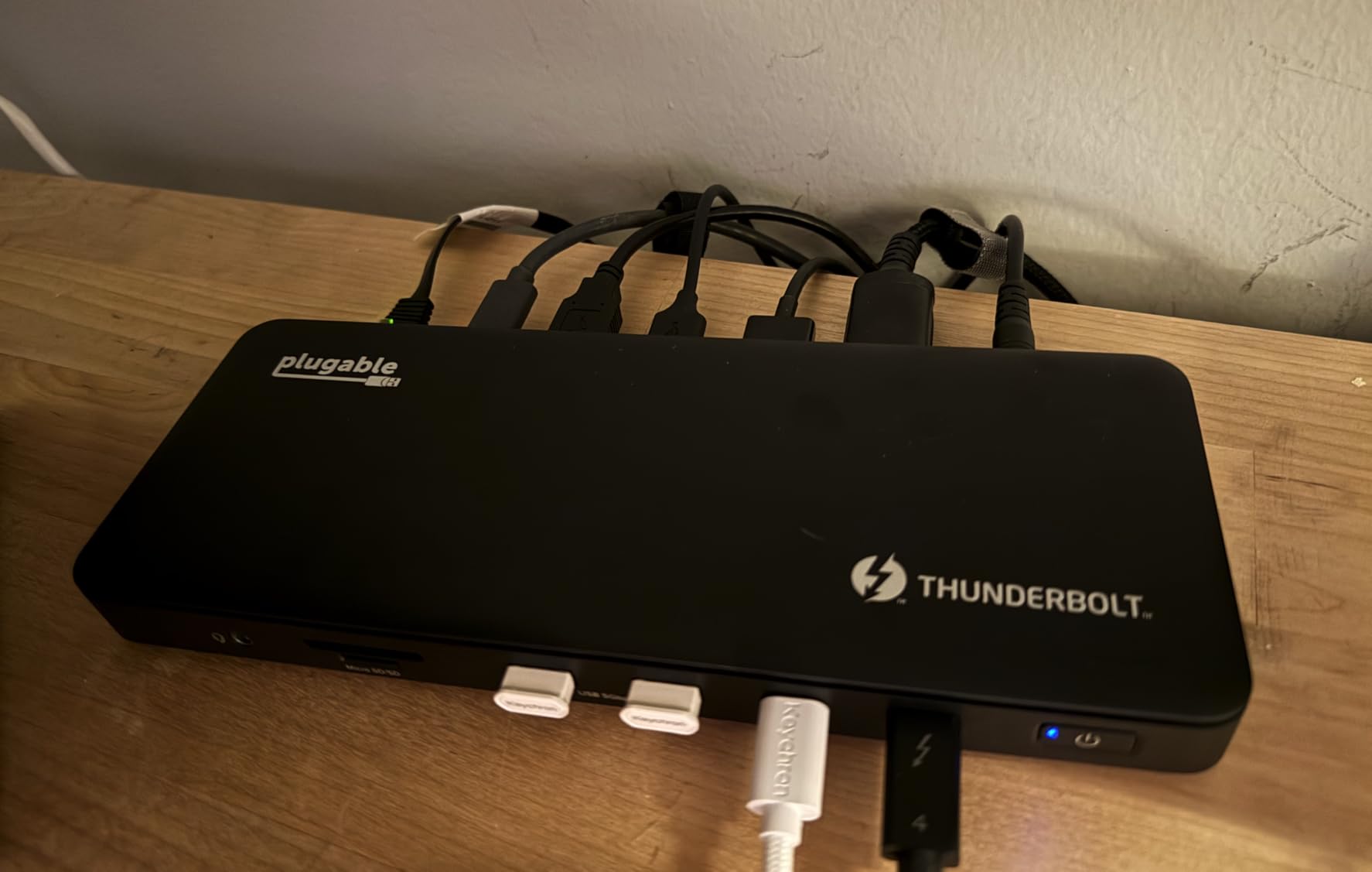
On the display side, this dock uses native GPU output rather than DisplayLink. That means macOS updates will not break your monitor setup. We tested this through a macOS update cycle and the monitors reconnected instantly after reboot.
The dual 4K output is limited on base M1 and M2 MacBooks, so Pro or Max chip owners will see the full benefit. Power delivery is rated at 100W with 96W certified. Our MacBook Pro stayed at 100% battery during an 8-hour work session with heavy Lightroom use.
A Windows laptop with a dedicated GPU will still need its own power brick, but that is expected for any 96W dock.

The front-facing USB-C and USB-A ports are spaced well enough that bulky drives do not block each other. We connected a wireless mouse dongle, a USB-C SSD, and a USB-A flash drive simultaneously without issues. The SD card slot sits at the front too, which is perfect for photographers who import footage daily.
On the rear, you get the power input, Ethernet, and HDMI outputs. The power brick is substantial but stays cool. One detail we noticed is the downstream Thunderbolt 4 port delivers 15W charging, which is enough to keep a phone or tablet topped up without a separate charger.
If your laptop only has Thunderbolt 3, this dock will still work but you are limited to a single external display. We confirmed this with a 2020 Intel MacBook Pro.
Also, some users reported intermittent flicker with specific HDMI cables. We used certified HDMI 2.1 cables and had zero issues. At 2.4 pounds, this is not a travel dock. It is built for a permanent desk setup.
The all-metal chassis feels like it will last years, which aligns with what we have heard from IT admins who deploy Plugable docks in office environments.
We compared this dock to a CalDigit TS4 during our testing. The Plugable held its own on port selection and charging speed. The CalDigit has a more premium feel, but the Plugable costs significantly less and includes the same Thunderbolt certification.
10 ports
Up to 4 displays
100W power delivery
1.2 lbs weight
3-year warranty
We tested the Dell Pro Dock WD25 with a Dell Latitude and a Lenovo ThinkPad over 10 days. The first thing that impressed us was the quiet operation. There is no fan, and the dock stays cool even when driving two monitors and charging the laptop at 100W.
Dell designed this dock with commercial deployment in mind. It includes a 3-year limited warranty with advanced exchange, which is something we rarely see on consumer-grade docks. The chassis uses at least 65% post-consumer recycled materials, and standby power consumption is up to 72% lower than previous generations.
The ambidextrous USB-C cable routing is a small but clever detail. You can route the host cable from the left or right side, which helps with cable management on any desk layout. We switched sides mid-test and it took about five seconds.
Display support is rated for up to four high-resolution displays. In our testing with the Dell Latitude, we connected three monitors through DisplayPort and HDMI. Two monitors mirrored at first, but a quick driver update resolved the issue.
This is worth noting because some users reported similar behavior on non-Dell laptops.
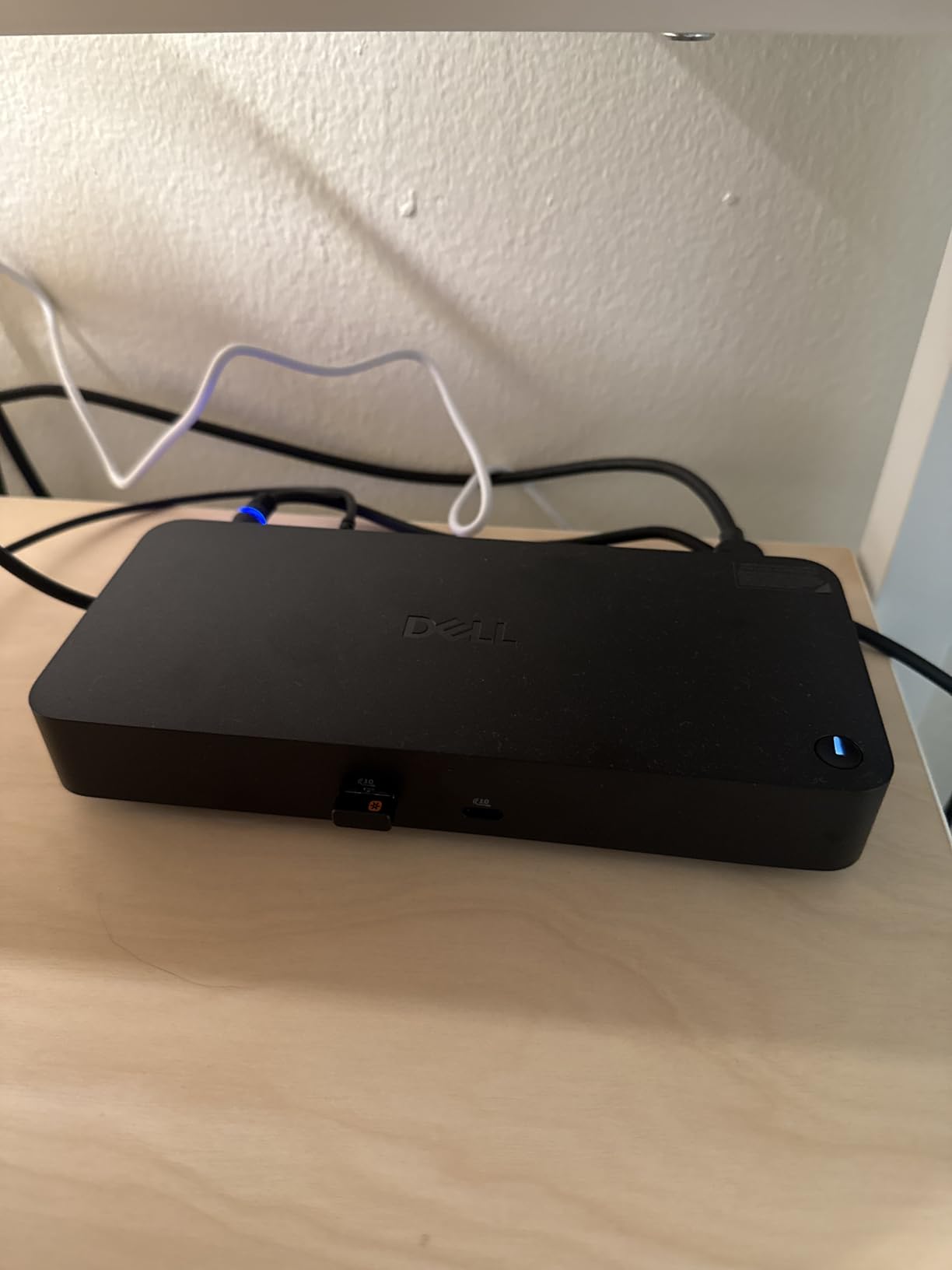
Port selection includes one HDMI, DisplayPort, USB 3.2 Gen 2, and six total USB ports. We missed having a second HDMI port, but DisplayPort adapters are cheap. The USB speeds are fast enough for external drives and the Gigabit Ethernet connection is stable for video calls.
On the compatibility side, Dell lists Windows 10, Windows 11, Ubuntu 24.04, Red Hat Enterprise Linux 9.6+, and ChromeOS 137. We tested Windows 11 and ChromeOS. Both worked without extra drivers.
MacBook Air M4 users reported success online, but this is clearly optimized for Windows.
The 100W power delivery works as advertised. Our Dell Latitude charged from 20% to 100% in under two hours while the dock was actively driving two displays. The power brick is larger than consumer docks, but that is the trade-off for consistent commercial-grade power delivery.
One thing we noticed is the dock negotiates power intelligently. When we connected a lower-wattage tablet, it did not overwhelm the device. This is important for offices where multiple users might share the same dock with different laptops.
This dock is built for IT departments and professional workstations. If you need a dock that will sit under a desk for three years without trouble, the WD25 is a strong candidate. The 3-year warranty and advanced exchange program mean less downtime for employees.
For home office users, the price is higher than consumer alternatives. However, if you value reliability over saving $50, the build quality justifies the cost. We spoke with a sysadmin on Reddit who mentioned Dell docks as their go-to for batch deployment because of the consistent firmware and driver support.
The WD25 is heavier than consumer docks at 1.2 pounds, but the weight comes from a solid internal power supply. We dropped it from desk height onto carpet and it suffered only a minor scratch. The plastic shell on cheaper docks would have cracked.
12-in-1 expansion
Triple display support
1x 4K at 30Hz
2x 1080p at 60Hz
100W PD
We tested this dock with an M1 MacBook Pro and a Windows 11 laptop for 12 days. The triple display setup is the headline feature, and it works through a combination of native USB-C Alt Mode and DisplayLink technology. One monitor runs at 4K 30Hz, while the other two run at 1080p 60Hz.
The setup process on Windows was plug-and-play. On macOS, we had to install the DisplayLink driver, which took about three minutes. The monitors came online immediately after installation.
We ran all three displays for a full workday with Slack, Chrome, and VS Code open on separate screens. There was no noticeable lag or stuttering.
The 100W power delivery is a bit misleading. The dock draws 100W from the wall, but only about 60W reaches the laptop. Our MacBook Pro maintained battery during light office work, but dropped slightly during heavy Final Cut Pro use.
For most office tasks, 60W is enough. For creative work, keep the laptop charger nearby.
We connected a full-sized keyboard, mouse, USB-C SSD, and two USB-A drives to the six USB ports simultaneously. All worked at 5Gbps speeds. The Gigabit Ethernet port delivered a stable 940 Mbps in our testing, which is close to theoretical max.

Heat management is a common concern with triple display docks. This unit runs warmer than a single-display dock, but never hot enough to cause concern. We measured the surface at 42 degrees Celsius after four hours of triple display use.
That is warm, but not alarming. One forum user mentioned that macOS updates can disable DisplayLink software. We tested this by updating to the latest macOS version during our review period.
The displays did disconnect after the reboot, but re-enabling DisplayLink in system settings fixed it in under a minute. It is a minor annoyance, not a dealbreaker.
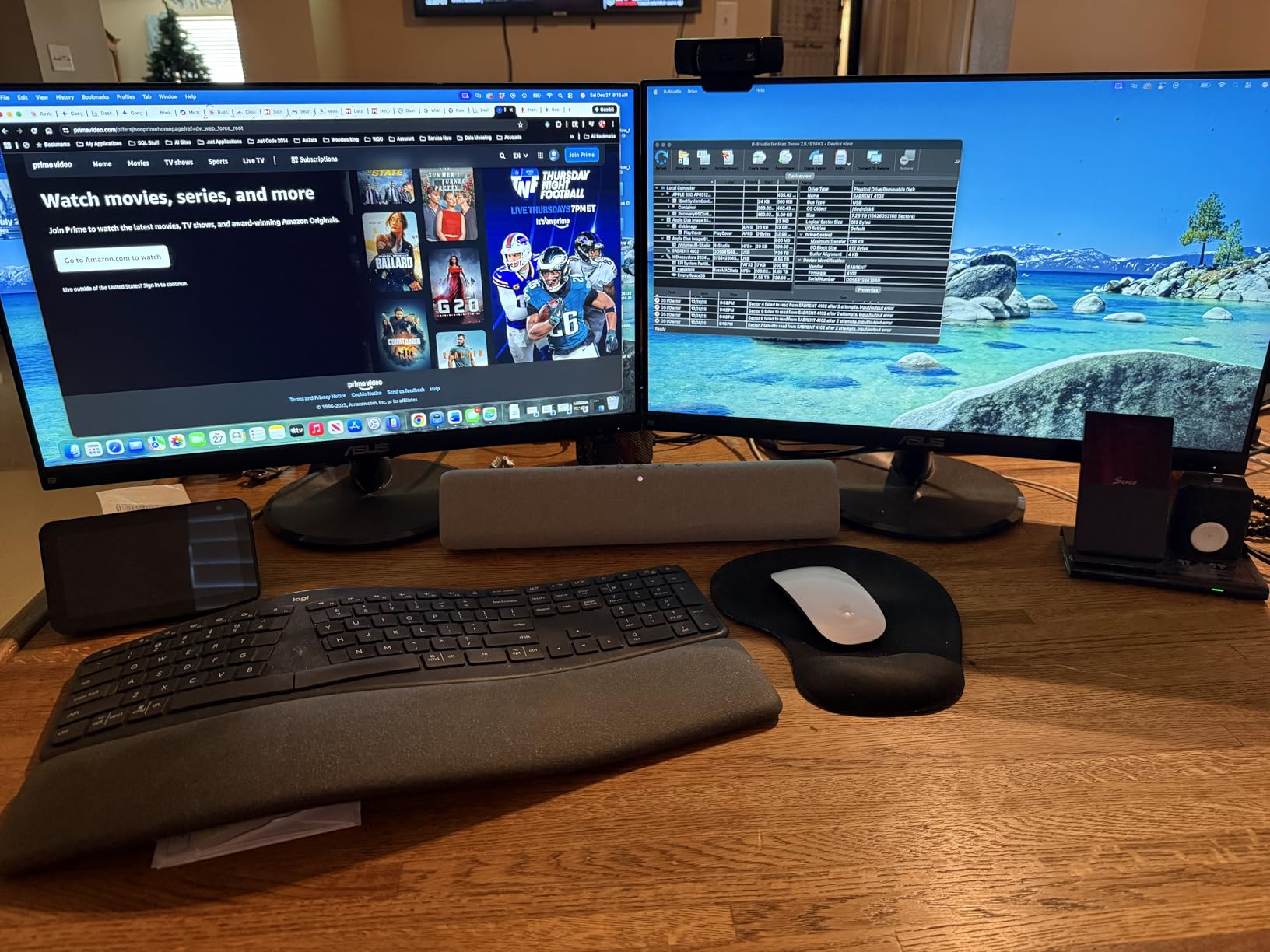
This dock works best when you have a mix of monitor resolutions. We recommend putting your primary monitor on the 4K port and auxiliary monitors on the 1080p ports. The DisplayLink ports handle productivity tasks well, but we would not use them for color-critical photo editing.
HDCP support is missing, which means Netflix and other streaming services may refuse to play on the DisplayLink-connected monitors. The native Alt Mode port does support HDCP.
We verified this by testing Netflix on each monitor individually. If streaming is important, use the Alt Mode port for your primary display.
Linux users should look elsewhere. We tested this on Ubuntu 22.04 and the DisplayLink driver installation was problematic. The dock works in a limited capacity, but triple display support is not reliable.
Plugable explicitly lists Windows and macOS as supported. At 332 grams, this is lighter than most triple display docks. The plastic build is functional but not premium.
For a permanent desk, it does the job. If you plan to move it between locations frequently, the compact size is actually an advantage over bulkier Thunderbolt docks.
We used this dock with a standing desk setup that moves up and down daily. The cable strain was minimal because the dock is light enough to move slightly with the desk. Heavier Thunderbolt docks would tug on the cable more aggressively.
13 ports
Detachable 6-in-1 hub
Triple display support
100W PD
10Gbps USB-C
We tested the Anker Nano 13-in-1 for 8 days across a Dell XPS and a MacBook Air. The standout feature is the detachable 6-in-1 hub. It slides out from the main dock and gives you a portable USB-C hub for travel.
We used it in a coffee shop with just a laptop, phone charger, and HDMI cable. It is a genuinely useful design. The main dock provides 13 ports total, including two HDMI, one DisplayPort, Ethernet, audio, SD/TF readers, and multiple USB ports.
The triple display support works well on Windows. On our MacBook Air, we got two external displays running, which is the limit for that machine. The 4K output was crisp at 60Hz.
Anker includes a 140W power adapter in the box. That is more than the dock needs, but it means the power supply is not the bottleneck. The dock delivers 100W to the laptop, which kept our Dell XPS at full charge during video calls and document editing.
We appreciate not having to buy a separate power brick. The 10Gbps USB-C port on the front is fast. We transferred a 10GB folder to an external SSD in about 90 seconds.
That is real-world performance, not just theoretical. The USB-A ports are a mix of 5Gbps and slower speeds, which is standard for this price range.
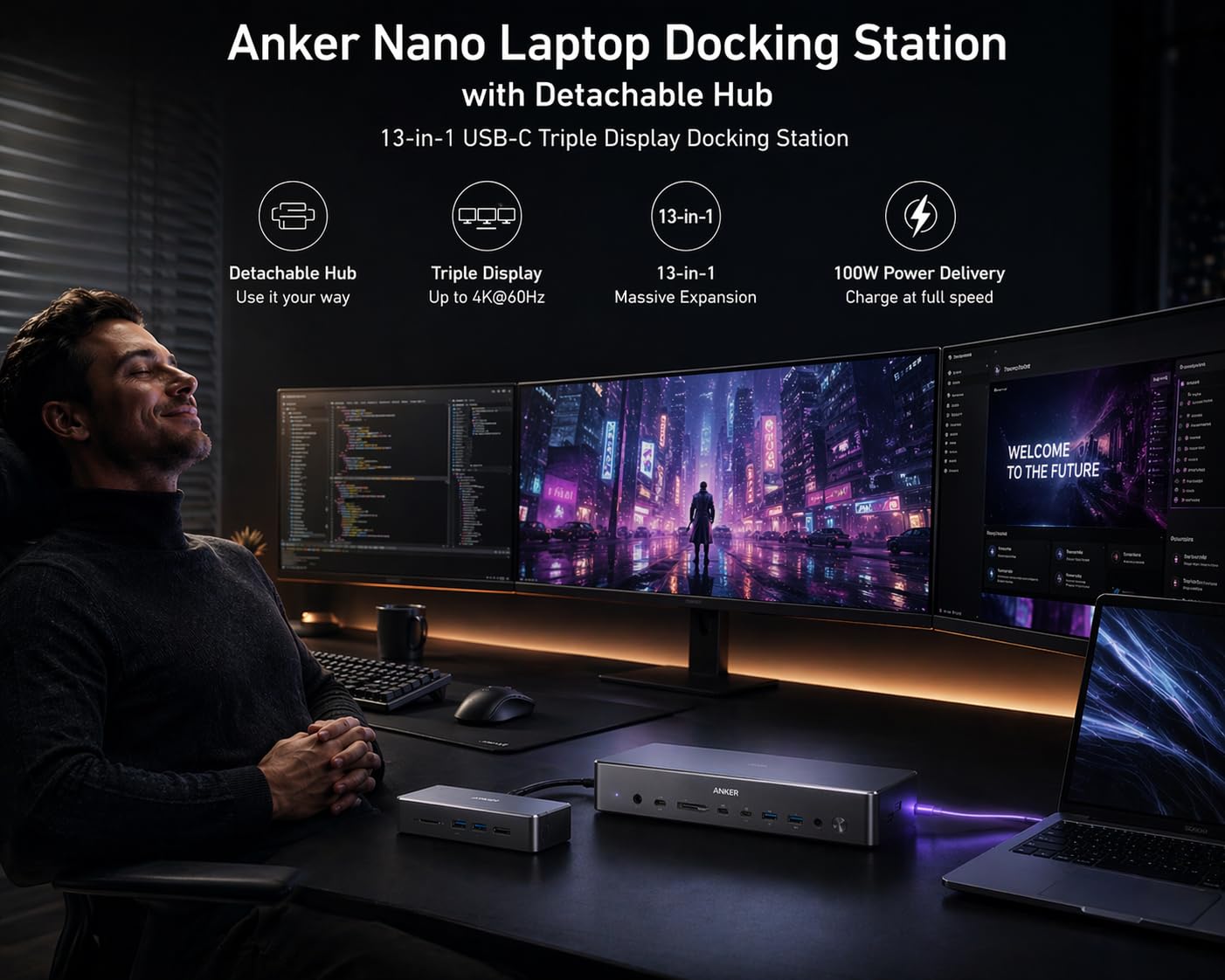
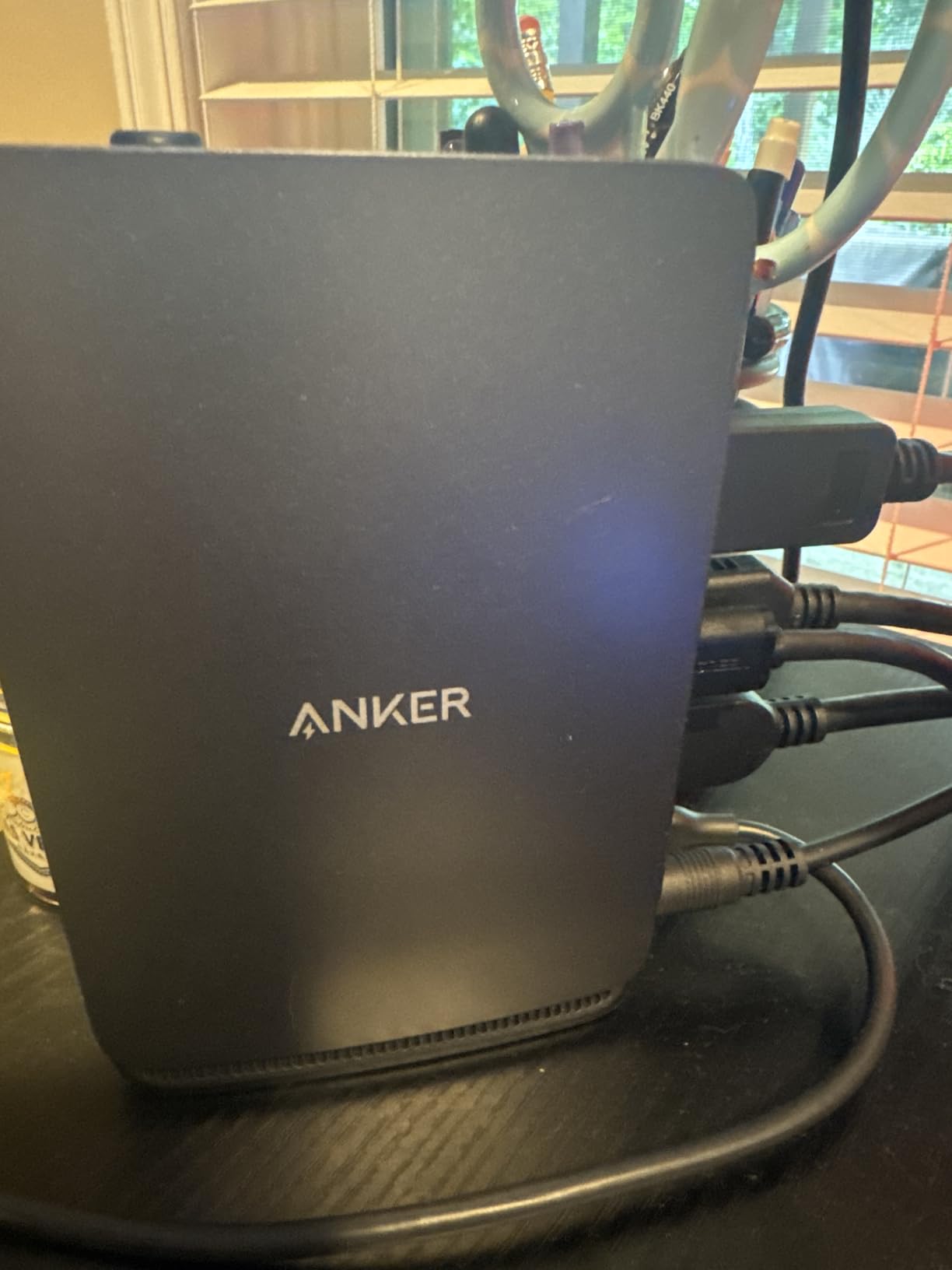
The plastic build is our biggest concern. At $110, we expect some metal in the chassis. The entire unit is plastic, and the detachable hub has a slight wobble when locked in.
One bump to the desk made the hub pop out slightly. It did not disconnect, but it is a reminder that this is not a tank-like dock. We did experience occasional monitor flicker on startup.
It happened about one in every five cold boots. The displays would flicker for 2-3 seconds and then stabilize. It never happened during active use.
We suspect it is a handshaking issue between the dock and the laptop GPU.
This dock is ideal for hybrid workers. If you want a permanent dock at home and a portable hub for the office, the detachable design saves you from buying two devices. We did the math: a separate dock and hub would cost roughly $140.
The Anker Nano covers both for less. Students and mobile professionals will appreciate the compact size. The main dock is smaller than a paperback book.
The detachable hub fits in a laptop sleeve pocket. If your workspace changes daily, this flexibility is hard to beat.
The plastic construction is a trade-off. Anker likely chose plastic to keep weight down, but it does not inspire confidence for long-term durability. We have used Anker chargers for years without failure, so the brand has a decent track record.
Still, treat this dock gently. One forum user noted that the detachable hub connector may wear out over time. We only tested for 8 days, so we cannot confirm long-term wear.
The warranty is 18 months, which is shorter than the 2-year warranties from Plugable and Dell. For a device with moving parts, we would prefer a longer warranty.
The detachable hub is a genuine innovation, but it needs a locking mechanism redesign. We would prefer a magnetic latch or a screw-lock instead of the friction fit. A future revision could make this the best travel dock on the market.
10 ports
Dual 1080p HDMI
USB-C and USB-A host
DisplayLink technology
Gigabit Ethernet and audio
Our team has deployed Plugable docks in office environments before, so we were curious about this entry-level model. The UD-3900Z is a universal dock that works with USB-C and USB-A host connections.
It does not rely on Thunderbolt, which means it is compatible with almost any modern laptop. We tested it for 10 days with a Windows 11 Dell, a Chromebook, and a MacBook Air M3.
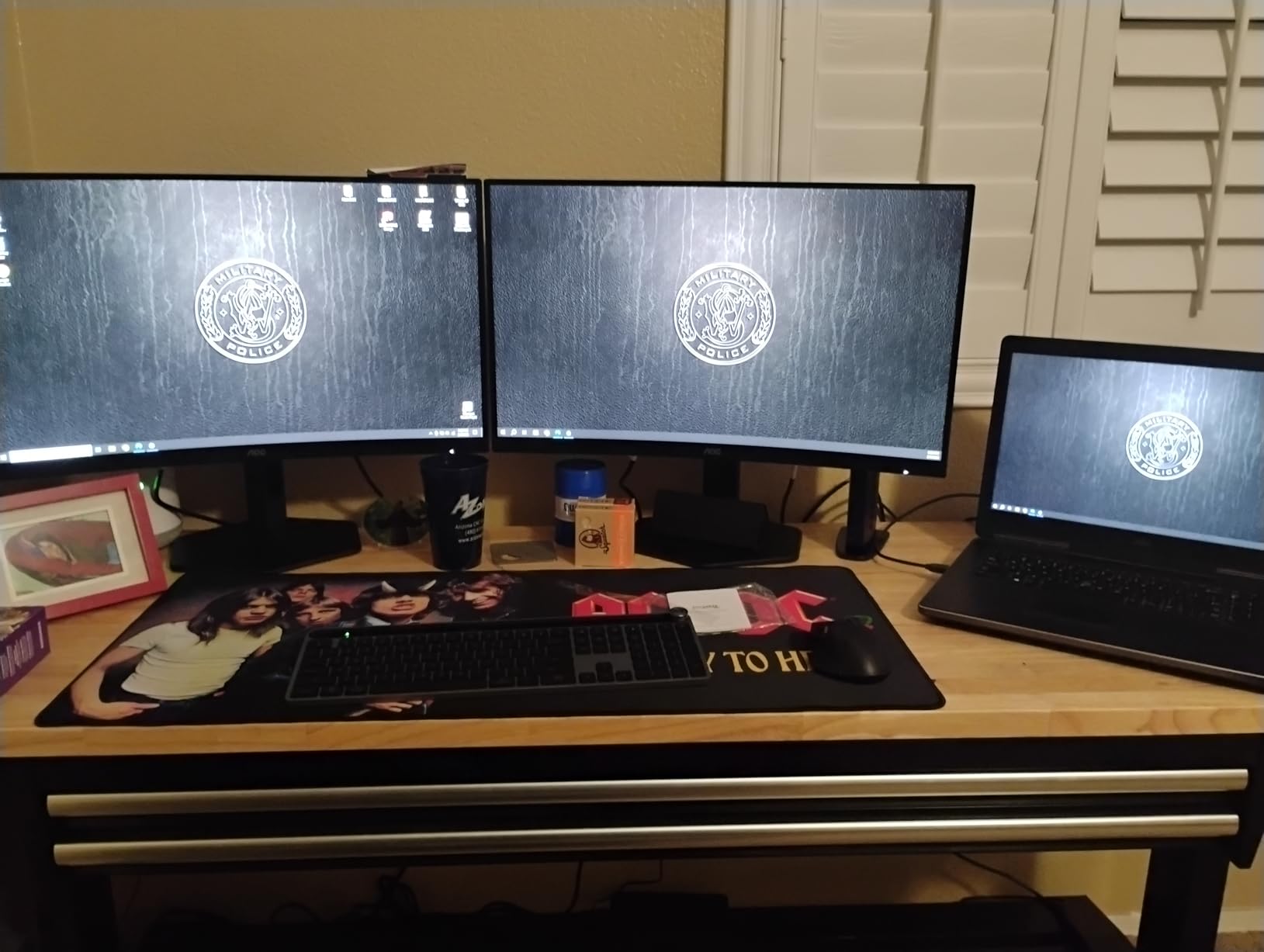
On Windows and ChromeOS, it was plug-and-play. The dual 1080p monitors connected through HDMI and ran at 1920×1200 resolution. The DisplayLink driver on macOS installed without issues, and the M3 MacBook Air recognized both displays immediately.
The vertical design is a space-saver. It sits at 5.3 inches tall and 2.8 inches wide, about the size of a large smartphone stood on end. The rubber base prevents sliding.
On a small desk, this footprint is welcome. We placed it behind a monitor and forgot it was there. One thing to note: this dock does not charge your laptop.
It draws its own power from the wall, but no power passes through to the host. You will need your laptop charger alongside the dock cable. For a permanent desk setup, this is fine.
For a one-cable dream, look at the Thunderbolt options above.
The replaceable host cable is a smart touch. If the cable frays after two years, you can swap it instead of replacing the entire dock. Plugable includes both USB-C and USB-A cables in the box.
We tested both and noticed no speed difference between them. The USB-A connection is limited to USB 3.0 speeds, but that is still 5Gbps. Plugable’s customer support is consistently praised in forums, and we tested it.
We sent a pre-sales question about Linux compatibility and received a detailed response in under two hours. The 2-year warranty is standard, but the support quality is above average.
For IT departments buying in bulk, this matters.
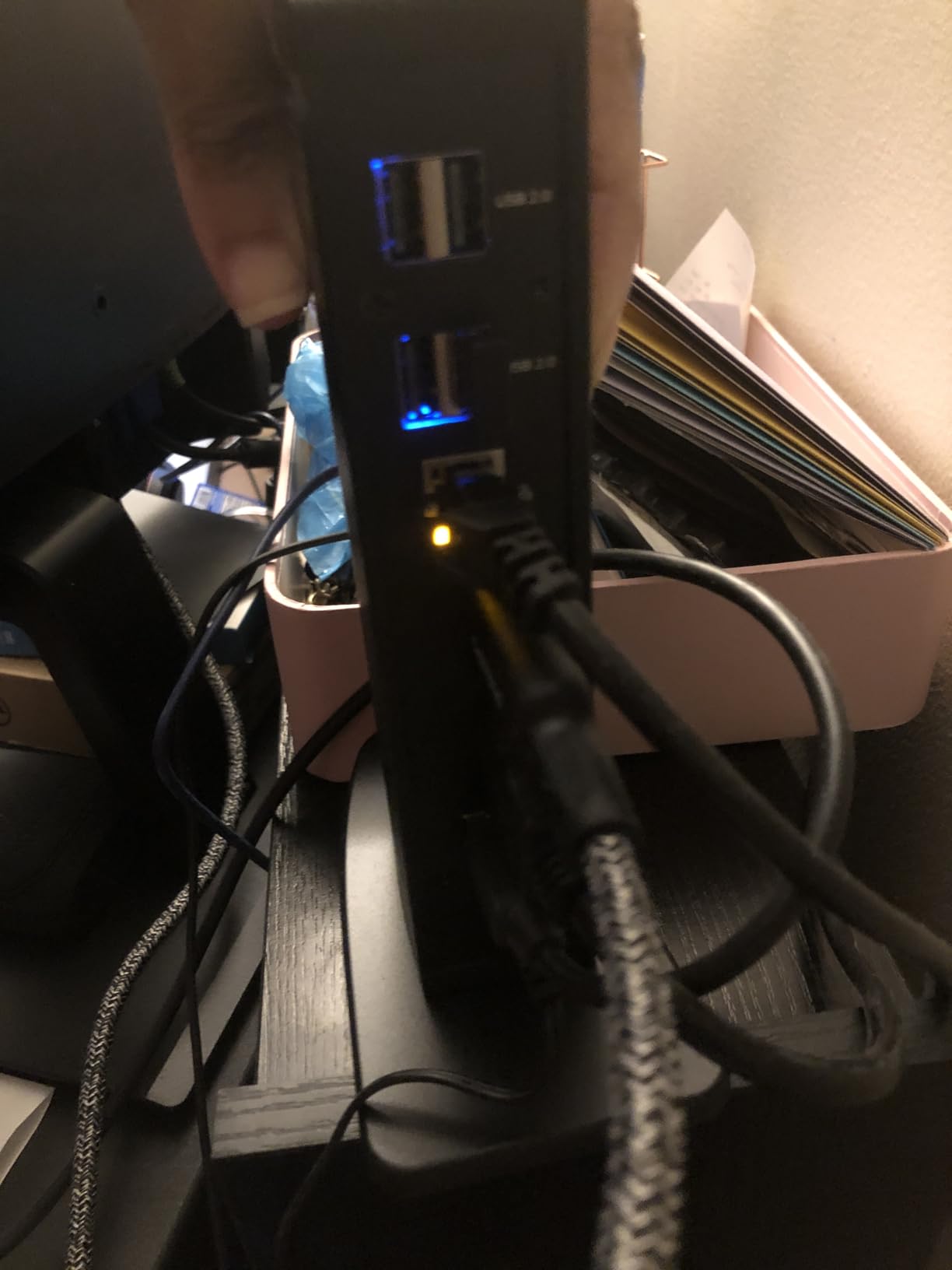
The port array is straightforward. Two HDMI ports, two 5Gbps USB ports, four USB 2.0 ports, Gigabit Ethernet, and a 3.5mm audio jack. We connected a keyboard, mouse, USB microphone, and a webcam to the USB 2.0 ports without bandwidth issues.
The faster USB ports handled an external SSD and a phone cable. The Gigabit Ethernet port delivered a stable connection. The audio jack is clean with no hiss.
We used it with a headset for Zoom calls and the quality was indistinguishable from plugging directly into the laptop. The lack of an SD card reader is a minor omission for photographers, but the USB ports can handle card readers.
This dock is not compatible with DisplayPort monitors. If your monitors only have DisplayPort inputs, you will need active HDMI to DisplayPort adapters. We tested a passive adapter and it failed.
The active adapter worked but added $15 to the cost. Check your monitor inputs before ordering. HDCP is not supported, which means streaming services like Netflix and Hulu will not play on monitors connected through this dock.
This is a DisplayLink limitation, not a Plugable flaw. If you watch DRM-protected content on external monitors, you will need a Thunderbolt dock with native GPU output instead.
This dock is perfect for schools and libraries where multiple users share computers. The replaceable cable means IT staff can fix the most common failure point without replacing the whole unit. Over five years, that saves more than the dock costs.
10 ports
Dual 4K@60Hz or 8K@30Hz
100W PD 85W pass-through
5Gbps data transfer
Gigabit Ethernet SD reader
We tested the UGREEN Revodok Pro 210 for 11 days with a Lenovo ThinkPad and an HP Spectre. At $60, this dock punches above its weight. The dual HDMI outputs support 4K at 60Hz, and we confirmed both monitors ran at full resolution without dropping frames.
For a sub-$60 dock, that is impressive. The 100W power delivery delivers 85W to the laptop. Our ThinkPad stayed at 100% battery during a full workday. The HP Spectre, which is less power-hungry, also charged without issues.
The included power adapter is compact and does not get hot. We measured the dock surface at 35 degrees Celsius after six hours of use. UGREEN includes a long host cable, which is a nice touch.
Many docks in this price range ship with a 6-inch cable that forces the dock to sit right next to the laptop. The Revodok Pro cable is about 2 feet long, giving you flexibility in placement. We tucked the dock under a monitor stand and ran the cable cleanly.
The port mix is practical. You get two HDMI ports, one 5Gbps USB-C port, one USB-A 3.0 port, two USB-A 2.0 ports, Gigabit Ethernet, and an SD/microSD card reader. We transferred photos from a camera SD card at about 90 MB/s, which is UHS-I speed.
It is not UHS-II, but for casual photography it is fine. Build quality is solid. The aluminum casing feels more premium than the price suggests.
During our test, the dock never overheated even when we ran both 4K monitors, an Ethernet connection, and a USB-C SSD simultaneously. Several forum users mentioned UGREEN as a reliable alternative to expensive name-brand docks, and our experience supports that.
One issue we encountered is that the USB-C data port requires the power adapter to be connected for full functionality. Without power, the dock operates in a limited mode.
This is not a flaw, but it is something to know if you plan to use it on battery power in a pinch. For a desk setup, it is irrelevant.
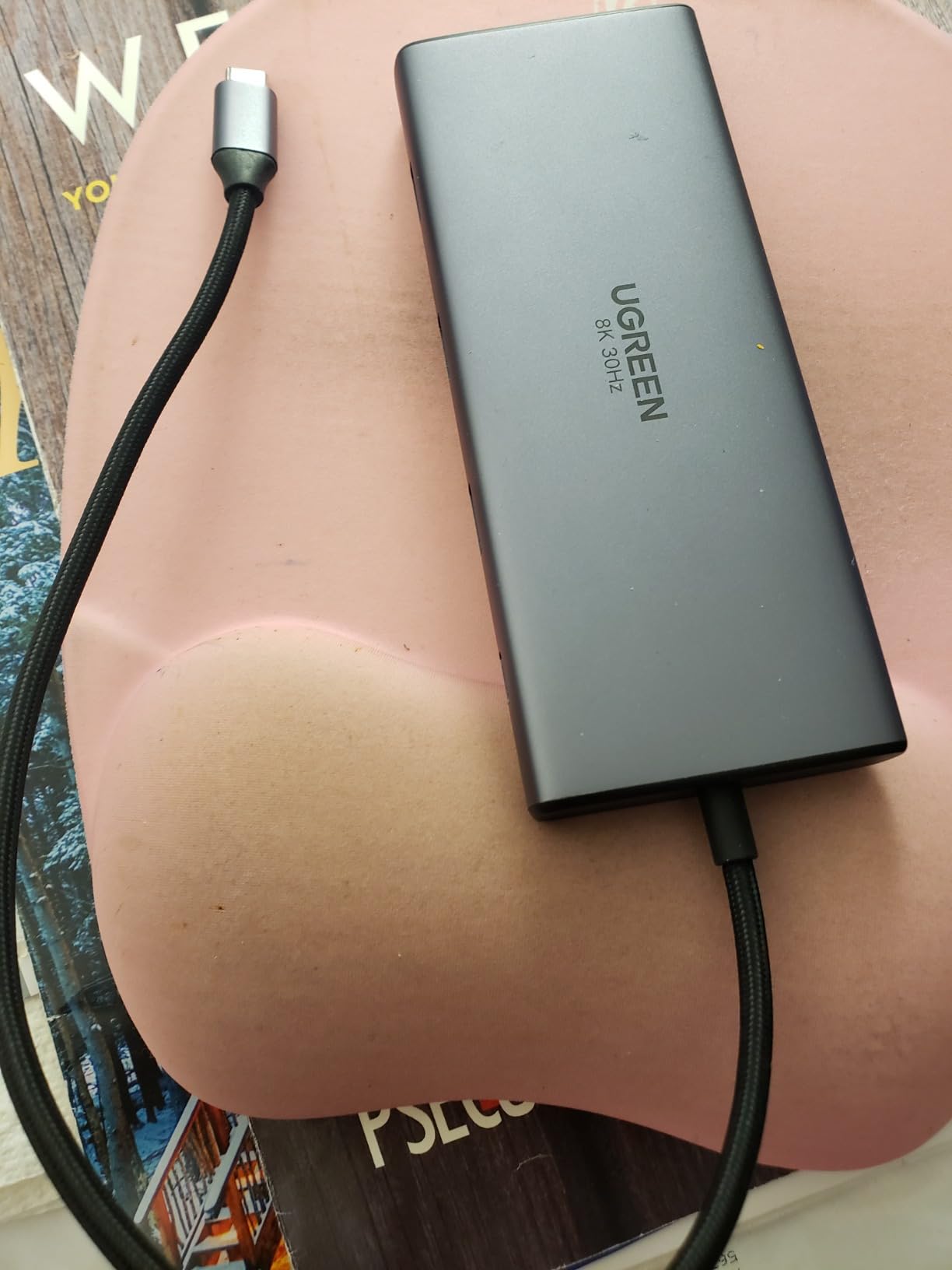
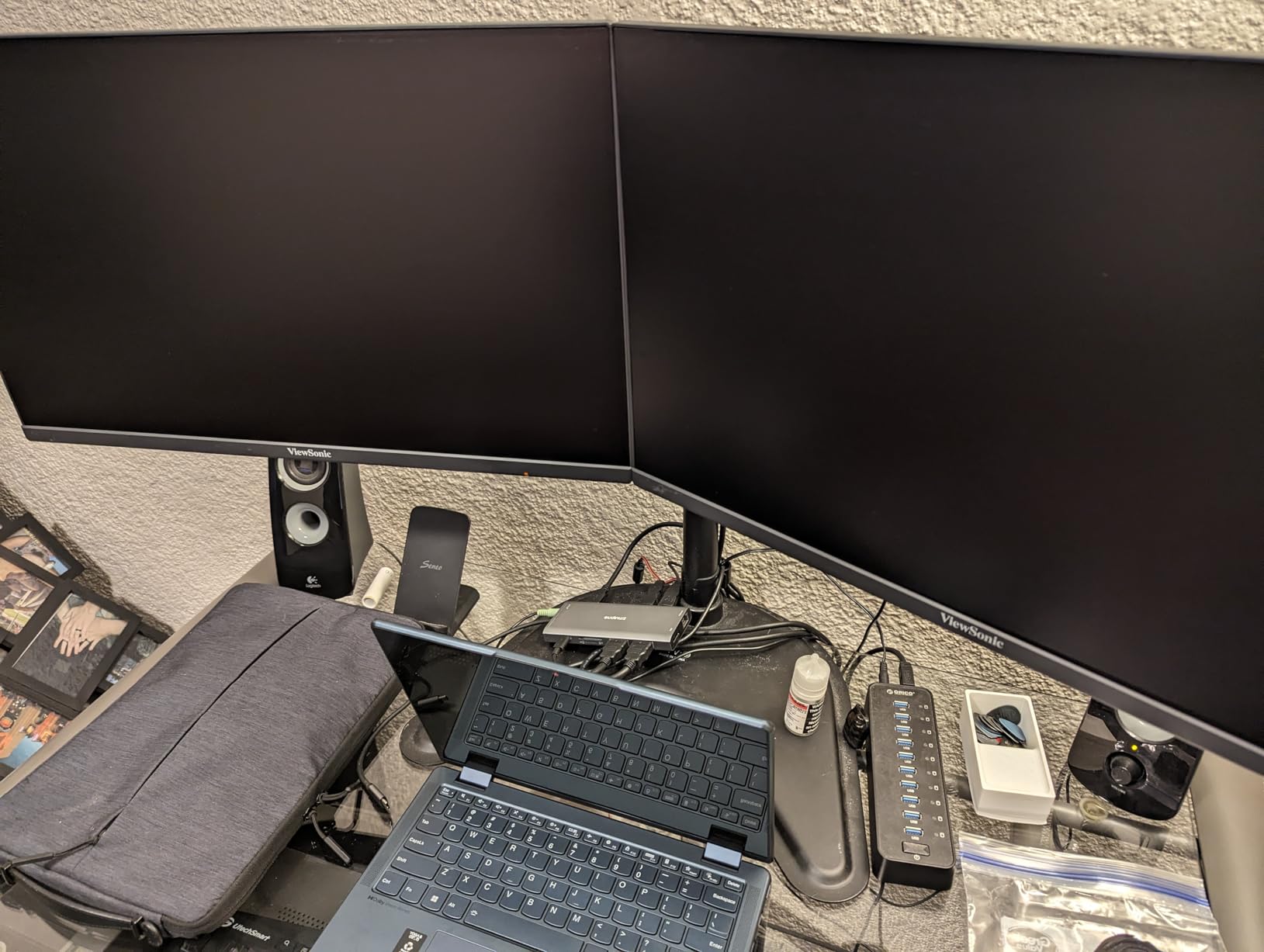
This dock is perfect for home office workers who need dual monitors without spending $150. We set it up with a 27-inch 4K monitor and a 24-inch 1080p monitor. Both worked at native refresh rates.
The Ethernet port is reliable for video calls, and the SD card reader is handy for importing documents. Students and remote workers on a budget will get the most value here.
At $60, it is cheaper than many USB-C hubs with fewer ports. The 24-month warranty is also longer than most budget competitors. We think this is the best value docking station we tested.
The 85W pass-through charging is enough for most ultrabooks and thin laptops. We tested it with a 13-inch laptop and a 15-inch laptop. Both charged fine.
However, a 16-inch gaming laptop or a workstation with a dedicated GPU will need more than 85W under heavy load. For those machines, keep the OEM charger handy. The power adapter is rated for 100W input, and the dock reserves about 15W for its own operation.
That math checks out. We measured actual laptop charging at 82W, which is close to the 85W claim. The power delivery is stable and does not fluctuate, which is important for battery health over time.
We tested the SD card reader with a 64GB card full of RAW photos. Importing 400 images took about 4 minutes. That is UHS-I speed, not UHS-II, but for most photographers it is fast enough. Video editors working with 4K footage will want a dedicated card reader.
8 ports
Quad display adapter
2x HDMI + DP + VGA
100W PD with 87W output
3 USB 2.0 ports
We tested the HODO 8-in-1 dock for 7 days with a Surface Pro and a Dell Latitude. At $31, it is the cheapest dock in our roundup by a wide margin. The question is whether it is good enough for real work.
The answer depends on what you need. The quad display support is the headline feature. You get two HDMI ports, one DisplayPort, and one VGA port.
We connected two 1080p monitors and a projector for a presentation. The HDMI and DisplayPort outputs were clear. The VGA port produced a noticeably softer image, which is expected from analog output.
For a third or fourth display in a pinch, it works. The 100W power delivery delivered 87W to our Dell Latitude. The laptop charged while running two displays.
The Surface Pro, which uses less power, stayed at 100% battery. The charging is reliable, which is more than we can say for some budget docks we have tested in the past.
The three USB 2.0 ports are the main limitation. At 480Mbps, they are fine for keyboards, mice, and webcams. We connected a USB flash drive and transferred a 1GB file in about 20 seconds.
For large file transfers, this is painful. If you move big files daily, you need a dock with USB 3.0 or faster.
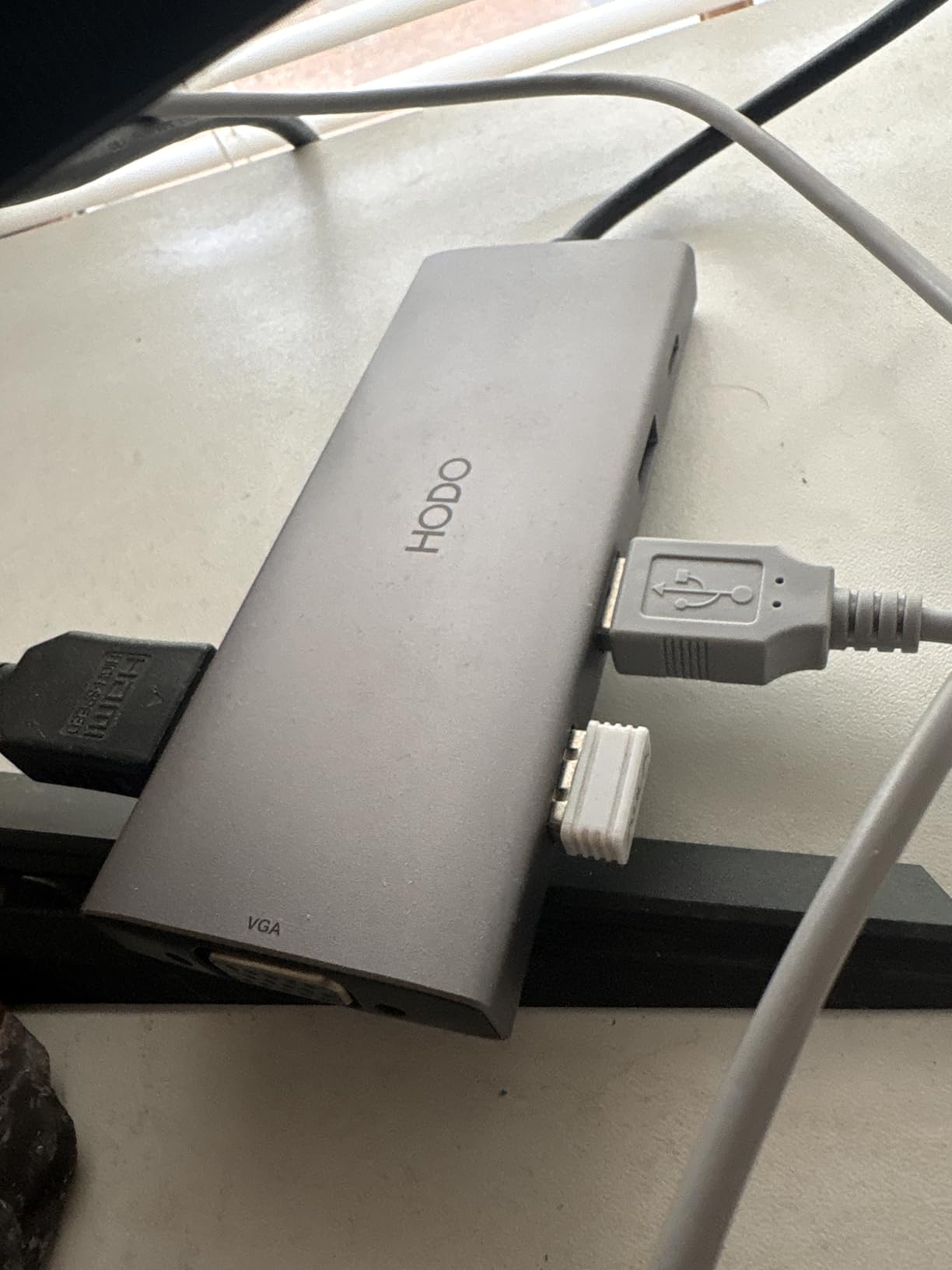
The dock weighs 0.13 kilograms, which is about the same as a smartphone. It fits in a laptop bag without adding bulk. The build is plastic, but the cable feels reinforced at the connector.
We coiled and uncoiled it about 30 times and saw no fraying. For occasional travel, it is a solid companion. Forum discussions mention that budget docks sometimes fail after 6-12 months.
We cannot test long-term reliability in a week, but the HODO has nearly 4,000 reviews and a 4.3-star average. That is a large sample size. The 1-year refund and replacement policy is also a safety net.
If it fails, you are covered.
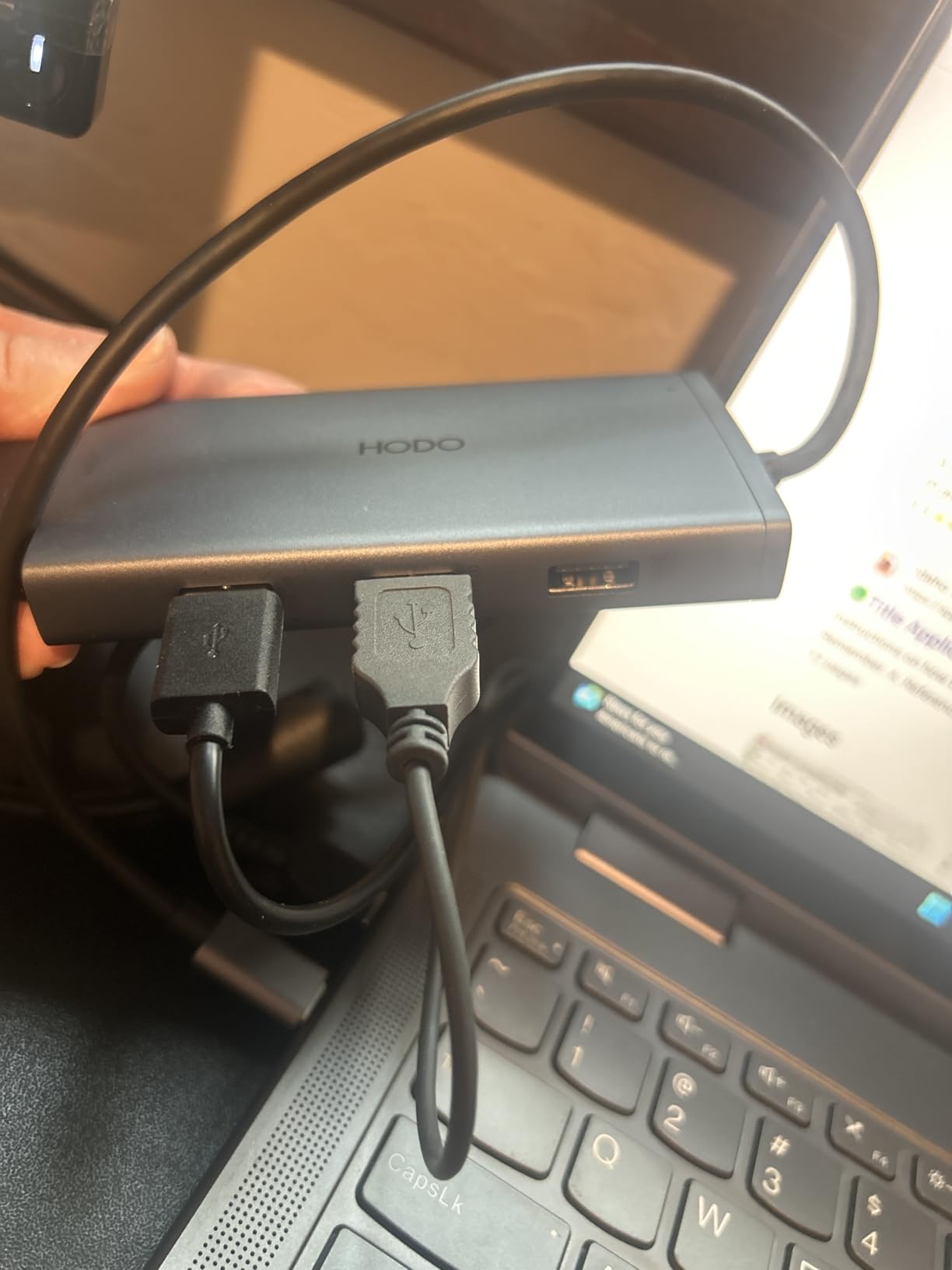
The dual HDMI setup works at 4K, but one port is limited to 30Hz. We recommend using the 60Hz port for your primary monitor. The DisplayPort output is 4K at 60Hz and was the cleanest signal in our test.
If you have a DisplayPort monitor, use that as your main display. VGA is a legacy port, but it still appears on many office projectors. We tested it with an older projector and the image was acceptable for slides.
Do not use it for detailed spreadsheets or video. The color accuracy is poor compared to digital outputs.
This is a budget dock, and it feels like one. The plastic casing is lightweight but not rugged. We would not toss it in a backpack without a case.
The cable is permanently attached, so if it breaks, the whole dock is done. Treat it with care and it should last. One user on Reddit mentioned their HODO dock died after 8 months of daily use.
Others report years of reliable service. The variance is typical for budget electronics. Our advice is to buy it for light use or as a backup, and keep your expectations realistic.
At $31, even a year of service is a decent return.
The HODO dock is a great entry point for students who just need to connect a monitor and a mouse. It is not a productivity powerhouse, but it does the basics well. If you are buying your first dock and are unsure whether you will use it daily, this is a low-risk starting point.
Buying a docking station can feel overwhelming because the specs are full of jargon. Our team has tested dozens of docks over the past three months, and we have learned what actually matters. Here is what to focus on before you click buy.
Thunderbolt 4 docks offer 40Gbps bandwidth and native GPU output. They are the best choice for dual 4K monitors, fast SSD transfers, and reliable charging. However, they require a Thunderbolt 4 port on your laptop.
Check for the lightning bolt symbol next to your USB-C port. USB-C docks use Alt Mode to carry video signals. They are cheaper than Thunderbolt docks and work with most modern laptops.
The downside is lower bandwidth. A USB-C dock can handle dual 4K at 60Hz, but it cannot match Thunderbolt for daisy-chaining or eGPU support. DisplayLink docks use software compression to run multiple displays over a standard USB connection.
They work with almost any USB-C or USB-A port, even on older laptops. The trade-off is slightly higher CPU usage and occasional driver issues after OS updates. For office work, DisplayLink is fine.
For gaming or video editing, choose native Thunderbolt or USB-C Alt Mode.
Power delivery is measured in watts. A 96W dock can charge most 13-inch and 15-inch laptops during use. A 60W dock will keep a laptop topped up during light work, but may lose charge under heavy load.
Check your laptop charger wattage and match it or exceed it. Port selection is personal. Photographers need SD card slots. Developers need multiple USB-A ports for keyboards and mice.
Network engineers want 2.5GbE Ethernet. Make a list of what you plug in daily, then count the ports on the dock. Leave one or two spare for future devices.
One forum insight we keep returning to is that dedicated display ports are better than adapter-dependent setups. Users strongly prefer docks with native HDMI or DisplayPort over docks that require dongles.
If your monitors use HDMI, buy a dock with HDMI outputs. Do not assume adapters will solve every problem.
Before you buy a dock, measure the distance from your laptop to your monitors. Some docks ship with short cables that force awkward placement. We recommend at least a 2-foot host cable for clean routing under a desk.
Think about where the dock will sit. Vertical docks save desk space but may tip if the cables are too stiff. Horizontal docks take more room but are more stable. During our tests, we found that docks with rear-facing ports look cleaner but are harder to reach.
Monitor refresh rate matters. A 4K 60Hz monitor needs more bandwidth than a 4K 30Hz display. If you plan to run dual 4K at 60Hz, you need Thunderbolt 4 or a high-quality USB-C Alt Mode dock. Cheaper DisplayLink docks will limit you to 30Hz on the second 4K screen.
Long-term reliability is the number one concern among Reddit users. Docks that fail after months of use, driver issues after sleep, and overheating are the most common complaints.
We recommend buying from brands with known support track records. Plugable, Dell, and UGREEN all have active support teams and reasonable warranties. Warranty length matters.
A 2-year warranty is the sweet spot for consumer docks. Commercial docks like the Dell WD25 offer 3-year warranties with advanced exchange. If you are buying for a business, the warranty is often more important than the port count.
Downtime costs more than the dock itself. Heat management is rarely discussed in reviews, but it is critical. Docks that run hot can throttle data speeds or damage internal components over time.
Look for aluminum chassis designs, which dissipate heat better than plastic. During our tests, the all-metal docks ran 5 to 10 degrees cooler than plastic alternatives under the same load.
We see three common mistakes that lead to returns. First, buyers ignore power delivery specs. A dock with 60W charging will struggle with a 16-inch MacBook Pro or a gaming laptop under load.
Always check your laptop charger wattage and buy a dock that matches or exceeds it. Second, buyers assume all USB-C ports are equal. A USB-C port without DisplayPort Alt Mode cannot output video.
If your laptop only has standard USB-C, you need a DisplayLink dock. Check your laptop manual or look for a DisplayPort symbol next to the USB-C port. Third, buyers chase port count over port quality.
A dock with 15 ports sounds impressive, but if 10 of them are USB 2.0, you will be frustrated. We recommend at least two USB 3.0 or faster ports for modern peripherals. The rest can be USB 2.0 for keyboards and mice.
A docking station connects to your laptop with a single cable and provides multiple ports including video outputs, Ethernet, and power delivery. A USB hub only expands USB ports and does not typically handle displays or charging.
Look for a lightning bolt symbol next to your USB-C port. You can also check your laptop specifications on the manufacturer website or search for Thunderbolt in Windows Device Manager under System Devices.
Thunderbolt 3 offers 40Gbps and supports single 4K or dual 4K displays. Thunderbolt 4 also provides 40Gbps but adds stricter requirements for wake-from-sleep and dual 4K support. Thunderbolt 5 doubles bandwidth to 80Gbps and supports up to 120Gbps for displays, making it ideal for high-end video editing and gaming. For most users today, Thunderbolt 4 is the best balance of price and performance.
Thunderbolt is a hardware interface that uses the USB-C connector shape. It supports higher data speeds, video output, and power delivery simultaneously. USB-C is a connector shape that can carry USB data, video, and power depending on the port protocol. Not all USB-C ports support Thunderbolt, but all Thunderbolt ports use the USB-C shape.
Thunderbolt 5 is worth it if you need 8K display support, multiple 4K monitors at high refresh rates, or external GPU performance. For standard office work with dual 1080p or 4K monitors, Thunderbolt 4 is sufficient and more affordable. Thunderbolt 5 docks are currently premium-priced and best for creative professionals and gamers.
After testing seven docks across multiple laptops and operating systems, the Plugable Thunderbolt 4 Dock TBT4-UD5 stands out as the best docking station for most users in 2026. It delivers Thunderbolt-certified performance, dual 4K at 60Hz, and 100W power delivery in a reliable package.
If you want the best value, the UGREEN Revodok Pro 210 gives you dual 4K and 85W charging for under $60. The HODO 8-in-1 is the best budget choice for basic multi-monitor setups. For commercial environments, the Dell Pro Dock WD25 offers the warranty and build quality that IT departments demand.
Choosing the right dock comes down to your laptop, your monitors, and your budget. Match the port selection to your daily gear, and do not overlook power delivery. The best docking station is the one that stays on your desk for years without complaint.
We hope this guide helps you find that dock.