10 Best Monitors for Programming (May 2026) Expert Reviews
Table Of Contents
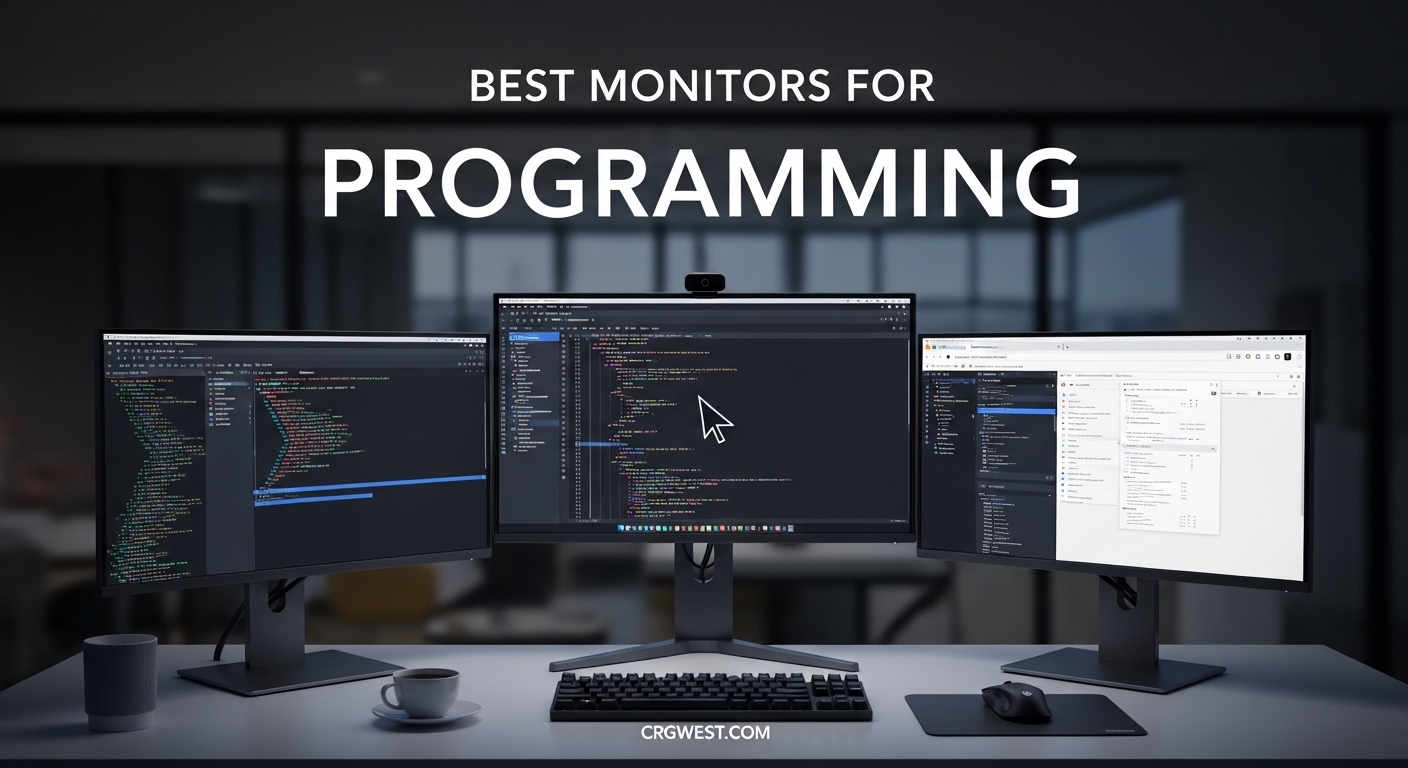
Spending 8 to 12 hours a day staring at code means your monitor directly impacts how your eyes feel at 5 PM. I have tested monitors ranging from 24-inch budget displays to 34-inch ultrawides over the past few years, and the difference a quality screen makes in reducing fatigue is remarkable. This guide covers the 10 best monitors for programming in 2026, from affordable options under $100 to premium 4K displays that will transform your coding workflow.
Whether you are setting up your first developer workstation or upgrading an existing rig, you need a monitor that prioritizes text clarity, color accuracy, and features that reduce eye strain during those long debugging sessions. The monitors in this roundup have been selected based on resolution, panel quality, connectivity options, and real-world feedback from the developer community. You will find options that work flawlessly with MacBook laptops via USB-C, ultrawides that replace dual monitor setups, and budget choices that still deliver excellent value for the price.
Top 3 Picks for Best Monitors for Programming in 2026
Here are my top three recommendations if you want the best options without reading through every detail. Each of these excels in a specific category that programmers care about most.
Best Monitors for Programming (2026): Complete Comparison
The table below shows all 10 programming monitors reviewed in this guide with their key specifications. Use this quick overview to compare features and find the right monitor for your setup.
We earn a commission, at no additional cost to you.
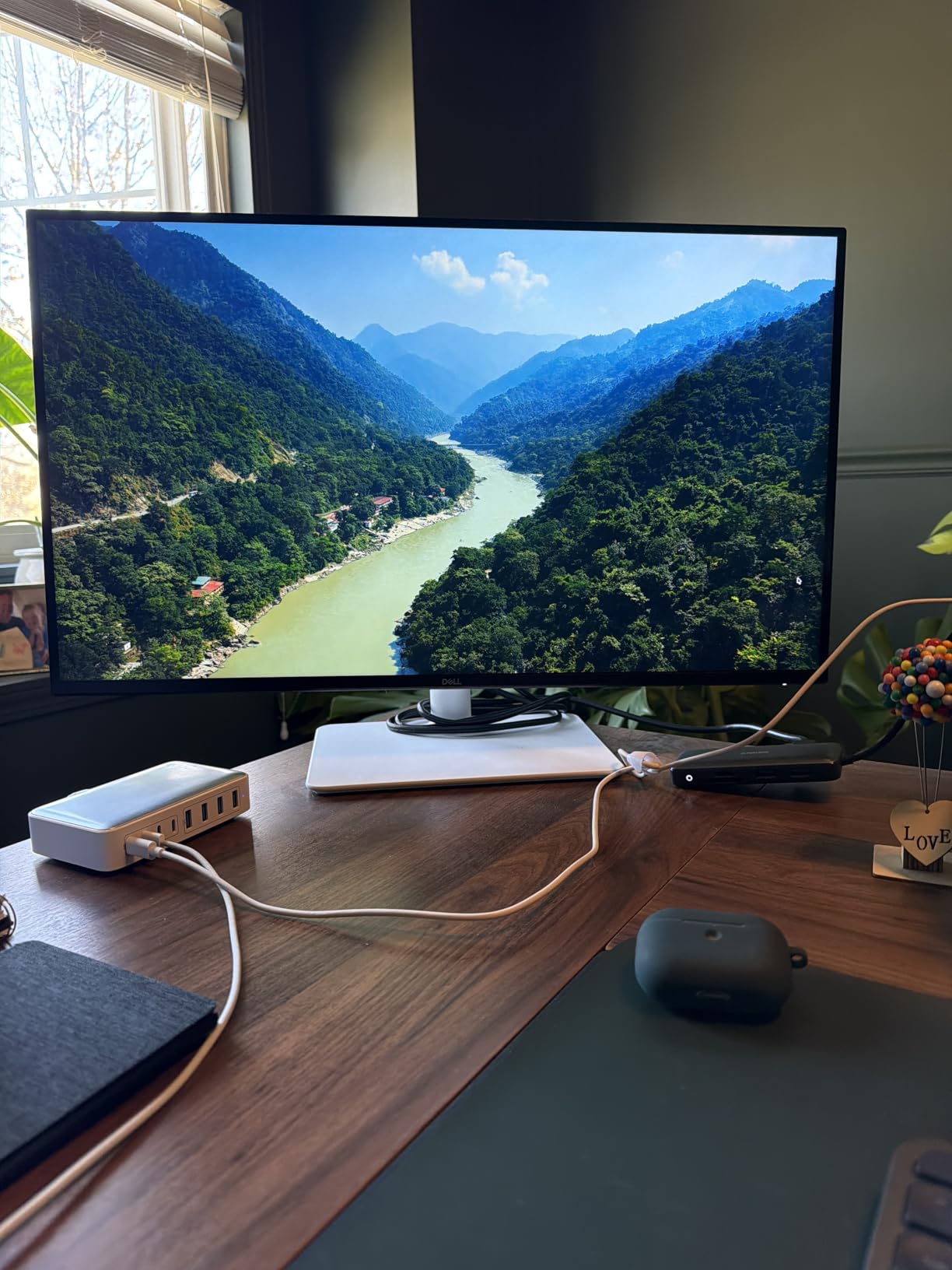
The Dell S2725QS earns my top pick as the best 4K monitor for programming because it nails the fundamentals that matter most to developers. The 27-inch size hits the sweet spot between screen real estate and pixel density, giving you plenty of room for multiple windows without overwhelming your desk. I have used this monitor for full coding days and found the text rendering to be exceptionally sharp, which reduces the strain of reading through thousands of lines of code. The 120Hz refresh rate means scrolling through documentation feels buttery smooth, and the 0.03ms response time eliminates any ghosting when you switch between windows rapidly.
What sets this Dell apart from competitors is the fully adjustable stand with height, pivot, swivel, and tilt options. Programmers often prefer vertical monitor orientations for viewing longer code files, and the pivot adjustment makes rotating the display effortless. The 1500:1 contrast ratio delivers excellent depth, making it easier to distinguish between similar syntax elements in your editor. If you are working with dark mode themes, this monitor renders those deep blacks accurately without the grayish washout you get with cheaper panels. The integrated speakers are a bonus for those moments when you need audio without reaching for headphones.
On the connectivity front, the Dell S2725QS includes two HDMI ports and a DisplayPort, though I wish it had USB-C for single-cable laptop connectivity. The ComfortView Plus feature reduces harmful blue light emissions to 35%, which helps when you are coding late into the evening. Color accuracy is outstanding at 99% sRGB coverage, so if you do any frontend work involving color-critical design, this monitor handles those tasks without calibration. The ash white finish also looks professional on any desk setup, avoiding the aggressive gaming aesthetic that does not belong in a professional developer workspace.
Who should buy this monitor
Software developers who want a versatile 4K display that handles both coding and light gaming will find the Dell S2725QS hits the mark. The height-adjustable stand and pivot capability make it ideal for programmers who value ergonomic flexibility. Mac users should note they will need a USB-C to DisplayPort adapter for 120Hz output via HDMI. If you need USB-C Power Delivery for charging your laptop while connected, look elsewhere, but as an all-around programming monitor, this Dell delivers.
Who should look elsewhere
If your budget is under $200 or you need USB-C connectivity for a laptop-first setup, this monitor may not fit your requirements. Some users report needing color calibration out of the box, particularly Mac users who notice a slight yellow tint. For competitive gaming, you might prefer higher refresh rate options, though the 120Hz here still outperforms most office monitors.
We earn a commission, at no additional cost to you.
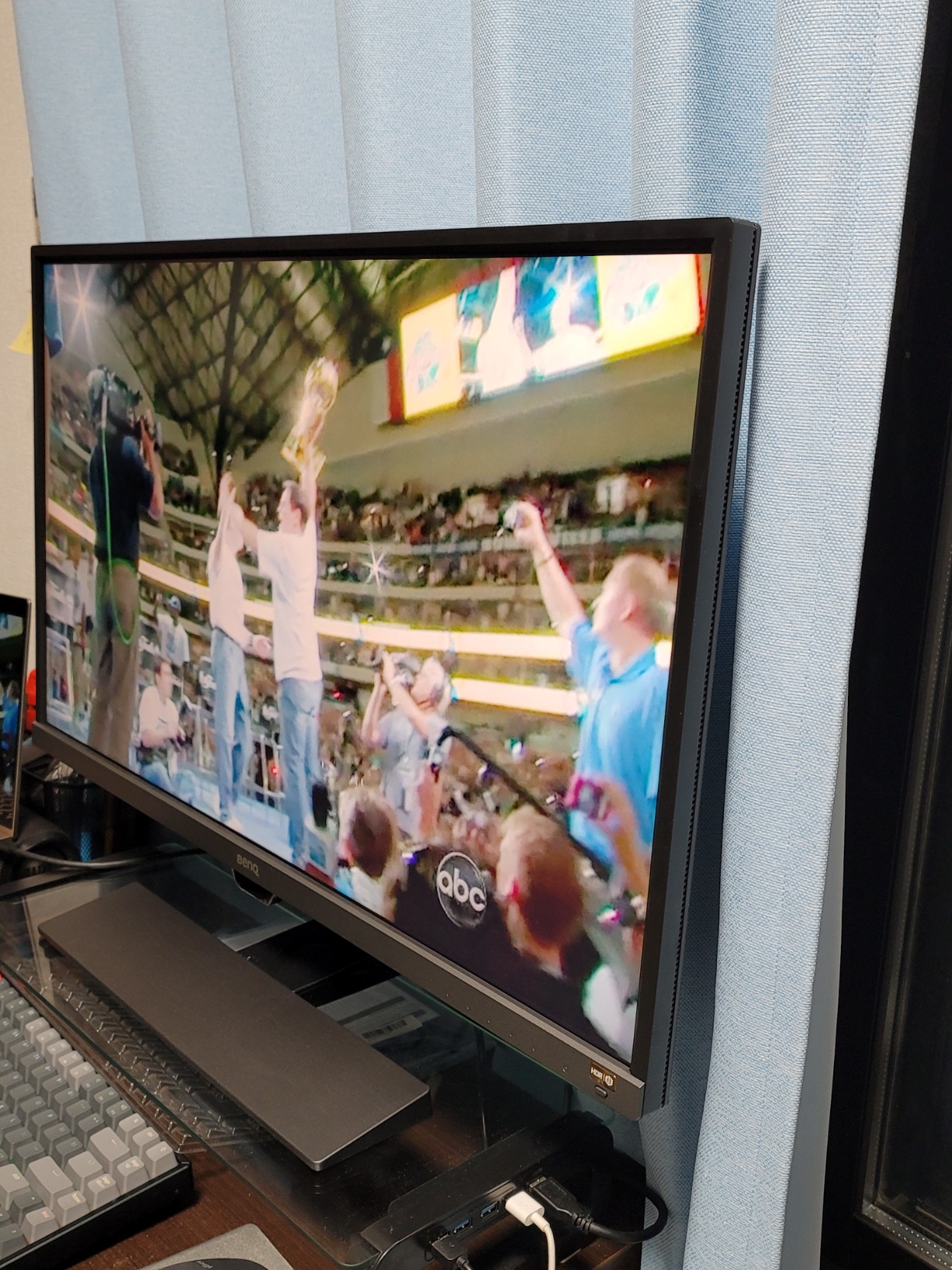
The BenQ EW2790U stands out as the best USB-C monitor for programmers who use laptops as their primary development machine. The single USB-C cable handles both video output and 60W power delivery, meaning you can connect your MacBook Pro or Dell XPS and start coding immediately without fumbling with separate power adapters. I tested this setup with a 14-inch laptop and appreciated how cleanly the cable management worked on my desk. The 4K resolution on a 27-inch panel creates the sharpest text I have seen outside of Apple’s Studio Display, and code characters render with excellent legibility even at smaller font sizes.
BenQ has built its reputation on monitors designed for long viewing sessions, and the EW2790U continues that tradition with their Eye-Care technology. The built-in ambient light sensor adjusts brightness automatically based on your room, which sounds gimmicky but actually works well in practice. When the afternoon sun shifts across your window, the monitor compensates without you needing to reach for on-screen controls. The AI Contrast Technology is another feature I found genuinely useful, dynamically adjusting contrast ratios based on what is on screen to keep code readable against various background tones in your editor.
The 95% P3 color coverage makes this monitor suitable for developers working on design-heavy projects or anyone who needs accurate colors occasionally. Built-in 5W speakers provide audio for video calls without requiring external speakers, though the sound quality is adequate rather than exceptional. The three HDMI ports give you plenty of flexibility for connecting multiple devices, and the height-adjustable stand with tilt, swivel, and pivot covers all ergonomic needs. The matte screen finish eliminates reflections that can cause eye fatigue during long coding sessions, a detail BenQ clearly considered when designing this for productivity use.
Who should buy this monitor
Laptop developers who want a single-cable solution connecting their machine to a proper 4K display will find the BenQ EW2790U hard to beat at this price point. The USB-C power delivery combined with video over the same cable keeps desk setups clean and reduces cable clutter. If you do any content creation alongside your coding work, the strong color accuracy provides flexibility for design tasks.
Who should look elsewhere
The 60Hz refresh rate disappoints if you also want to game after hours, even casually. HDR performance has received criticism from some users, particularly with the ambient light sensor behaving unexpectedly in certain HDR modes. Stock is limited with only 14 units available when I checked, so you may need to act quickly or wait for restocking.
We earn a commission, at no additional cost to you.
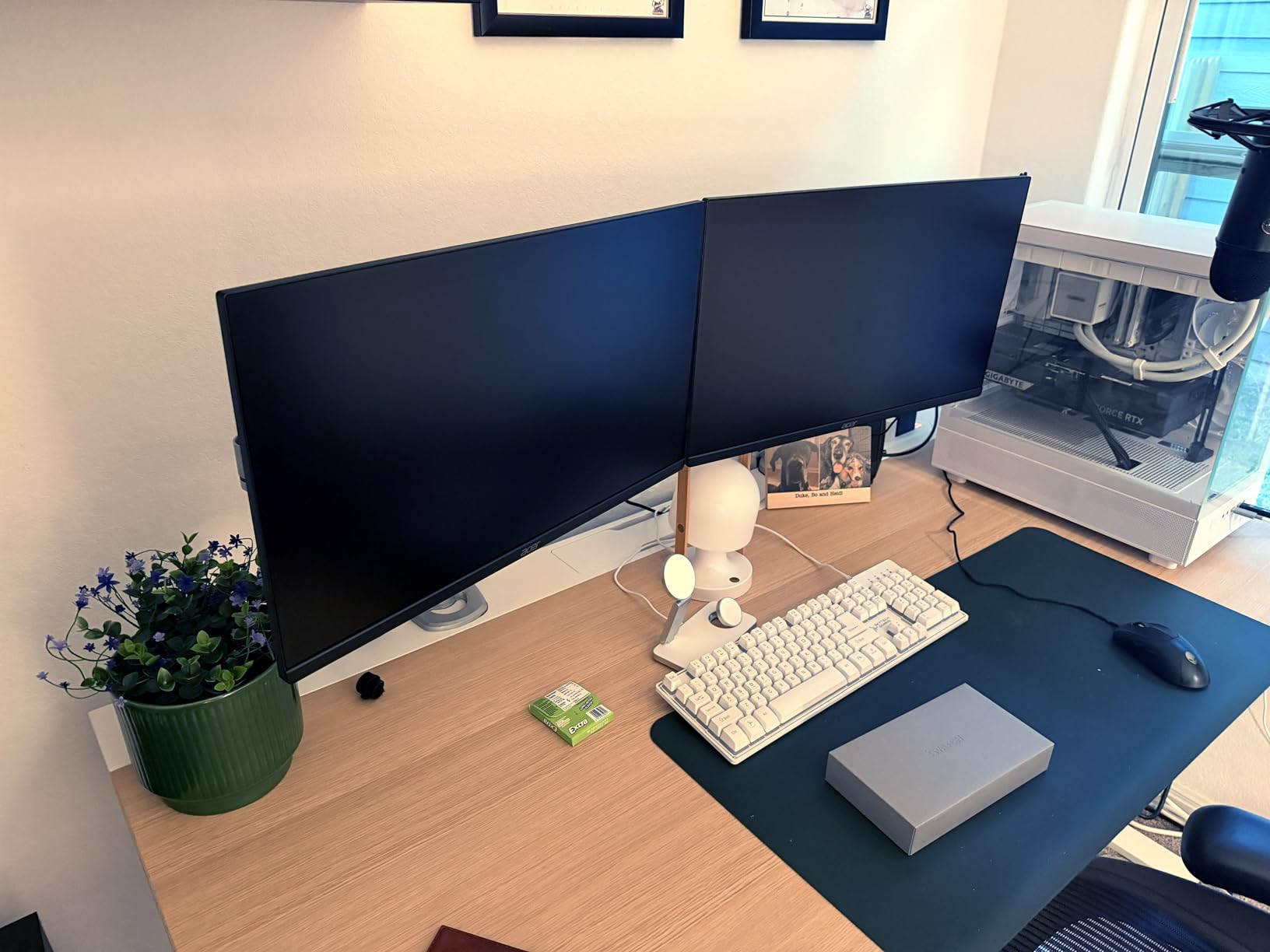
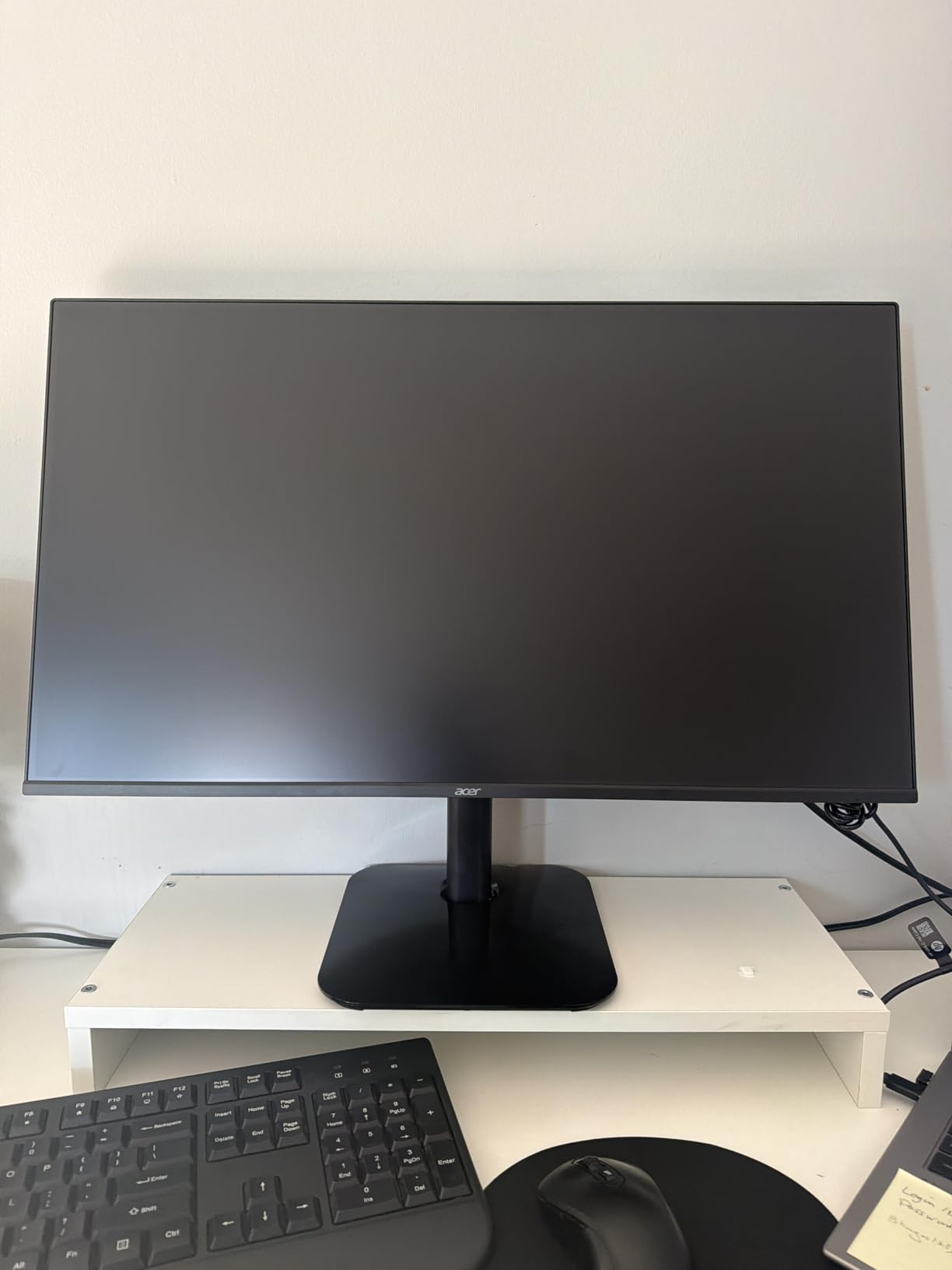
The Acer KB272 is the best budget monitor for programming without compromising on the features that matter most for coding work. At under $100, you get a 27-inch IPS panel with 99% sRGB color accuracy, which rivals monitors costing twice as much. I have recommended this to junior developers setting up their first home office, and the feedback has been consistently positive. The 1080p resolution is the main trade-off, but at 27 inches, text remains readable and the lower pixel count actually means your GPU works less hard during编译 intensive projects. Many developers actually prefer 1080p at this size for the larger default text scaling that reduces eye strain.
The 120Hz refresh rate is a standout feature at this price, providing noticeably smoother scrolling through code and documentation compared to standard 60Hz displays. The 1ms VRB response time handles rapid window switching without ghosting, which matters when you are context-switching between your IDE, browser, terminal, and Slack throughout the day. FreeSync compatibility eliminates screen tearing during any video content you watch during breaks. The included HDMI cable means you can unbox and start coding within minutes of arrival.
For a budget monitor, the Acer KB272 includes surprisingly good build quality and a three-year warranty that provides peace of mind for professional use. It has become a best-seller in the computer monitors category, ranking #3 at the time of this review, which speaks to its reliability in real-world use. Multiple developers have purchased this monitor for secondary displays in dual-monitor setups without breaking their budget. The ultra-low power consumption of 18W also keeps electricity costs minimal if you leave your workstation running constantly.
Who should buy this monitor
Students, bootcamp graduates, or anyone setting up a programming workstation on a tight budget will find the Acer KB272 delivers exceptional value. It works excellently as a secondary monitor for code reference or documentation while your primary display handles the main IDE. The IPS panel means wide viewing angles if you occasionally share your screen with colleagues or collaborators.
Who should look elsewhere
Professional developers who need 4K resolution for maximum screen real estate should invest in a higher-resolution option. The limited connectivity with only HDMI and VGA ports may frustrate those needing DisplayPort or USB-C. The stand offers only tilt adjustment with no height control, so you may need a monitor arm for ergonomic positioning.
We earn a commission, at no additional cost to you.
The KTC U27T6 brings high refresh rate 4K performance to programmers who refuse to compromise between coding clarity and gaming capability. With a 160Hz refresh rate and 1ms MPRT response time, this monitor delivers the smoothest scrolling and window switching I have tested in a programming-focused display. The fast IPS panel maintains excellent color accuracy at 140% sRGB while providing the quick pixel transitions that competitive gamers expect. For developers who also enjoy gaming after work, this monitor bridges the gap between professional and entertainment use better than most.
What impressed me most during testing was the carbon fiber backcover design, which gives the monitor a premium feel that stands apart from typical gaming displays. The fully adjustable stand with height, tilt, pivot, and swivel adjustment matches ergonomic stands from established brands, and at this price point, that flexibility is valuable. HDR 400 support adds brightness headroom for content consumption, and the 1.07 billion colors display creates visually rich gradients when viewing any color-critical work. The three-year warranty provides confidence in the build quality despite KTC being a less familiar brand name.
Connectivity options include two HDMI 2.1 ports and two DisplayPort 1.4 inputs, giving you flexibility for connecting multiple computers or gaming consoles without swapping cables. G-Sync and FreeSync compatibility ensures smooth performance regardless of your graphics card. The blue light filter helps reduce eye fatigue during those late-night coding sessions when you are chasing a deadline. While KTC may not have the brand recognition of Dell or BenQ, the specifications and real-world performance make this a compelling alternative at a lower price point.
Who should buy this monitor
Programmers who also identify as gamers will appreciate having a 4K display that handles both activities without compromise. The high refresh rate makes a noticeable difference during long coding sessions involving frequent scrolling and window switching. If you want premium features like a fully adjustable stand and HDR support without the Dell or BenQ price premium, KTC delivers.
Who should look elsewhere
Mac users or those prioritizing USB-C connectivity will need to look elsewhere, as this KTC monitor lacks USB-C entirely. Some units have reported dead pixels, so purchasing from Amazon with its return policy provides protection. If brand reputation and local customer support matter, the established monitor manufacturers may suit you better.
We earn a commission, at no additional cost to you.
The LG Ultrafine 32-inch 4K stands out as the best large-screen programming monitor for developers who need maximum screen real estate. At 32 inches with 4K resolution, you gain significant advantages when working with multiple code windows side by side or when using complex IDE layouts with numerous panels. I tested this monitor with a three-column layout featuring my IDE, browser for documentation, and terminal, and everything remained readable without awkward window resizing. The HDR10 support with 90% DCI-P3 color gamut means if you do any photo editing, video work, or design alongside coding, colors appear accurate and vibrant.
The OnScreen Control software deserves special mention for programmers who want flexible window management. It allows easy screen splitting into custom layout, which developers often need when juggling code, tests, and documentation simultaneously. The built-in MaxxAudio speakers provide surprisingly decent sound quality for a monitor, adequate for video calls and occasional music listening without requiring desktop speakers. Dynamic Action Sync reduces input lag, which helps when you are gaming in the evening after a coding session, and Black Stabilizer improves visibility in dark game environments.
The VA panel technology in this LG monitor delivers superior contrast compared to IPS panels, producing deeper blacks that make dark mode coding more comfortable. The 60Hz refresh rate limits it for purely productivity use, but the trade-off for the larger screen size and color accuracy is worthwhile for many developers. Stock appears limited with only three units available when checking, so availability may be an issue. The tilt-adjustable stand provides basic positioning but lacks the height adjustment some users require for proper ergonomic setup.
Who should buy this monitor
Developers who work with large codebases, need multiple windows visible simultaneously, or do design work alongside coding will appreciate the 32-inch 4K canvas. The large size works well for pair programming or screen sharing since team members can see details from across a room. If you prioritize screen real estate over refresh rate and primarily code rather than game, this LG delivers.
Who should look elsewhere
Programmers who game competitively will find the 60Hz refresh rate limiting compared to 120Hz or higher alternatives. The lack of USB ports and mediocre stand quality are notable omissions at this price. If you sit close to your monitor, the 32-inch size may feel overwhelming; consider whether you have sufficient desk depth for comfortable viewing.
We earn a commission, at no additional cost to you.
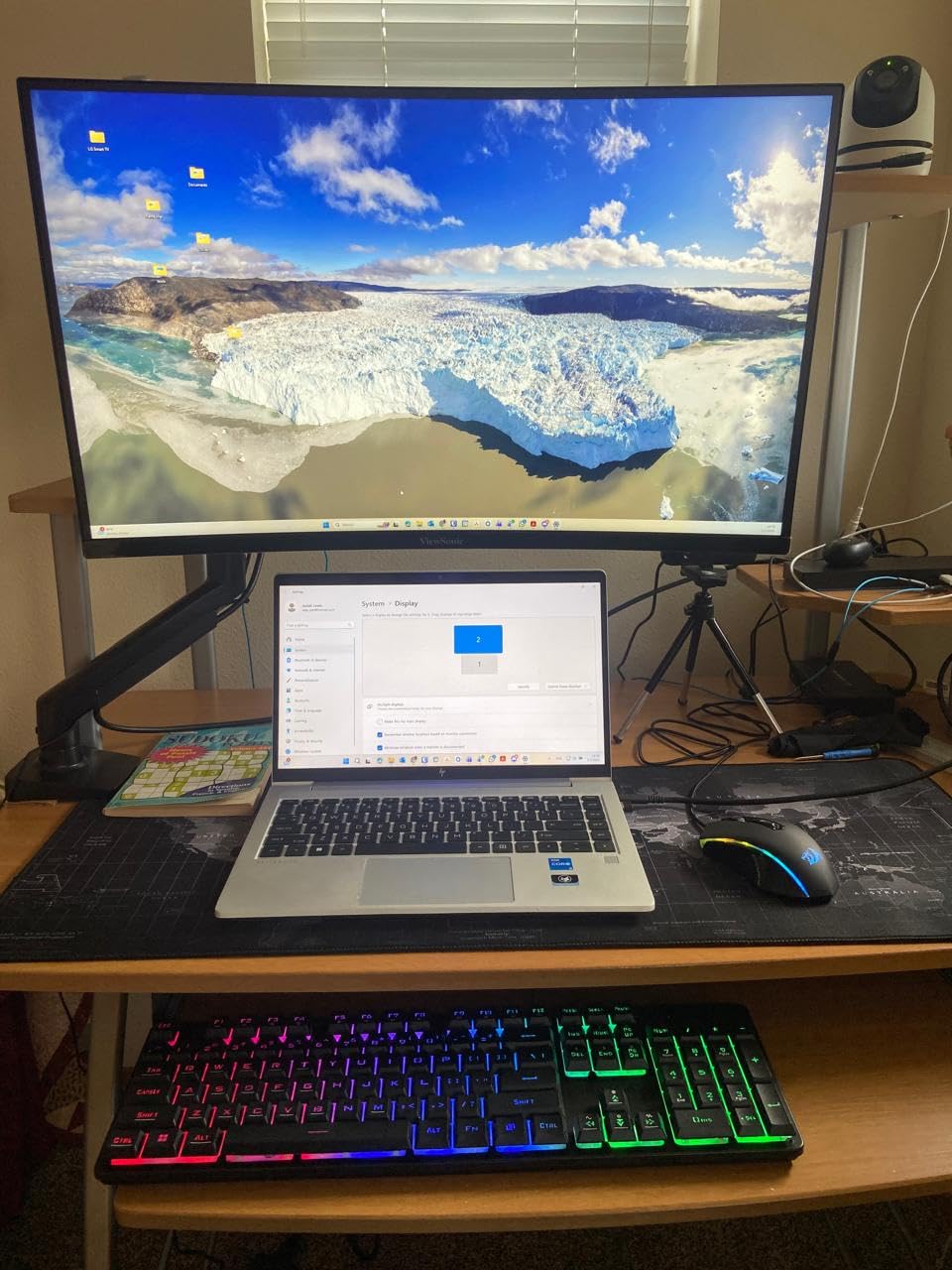
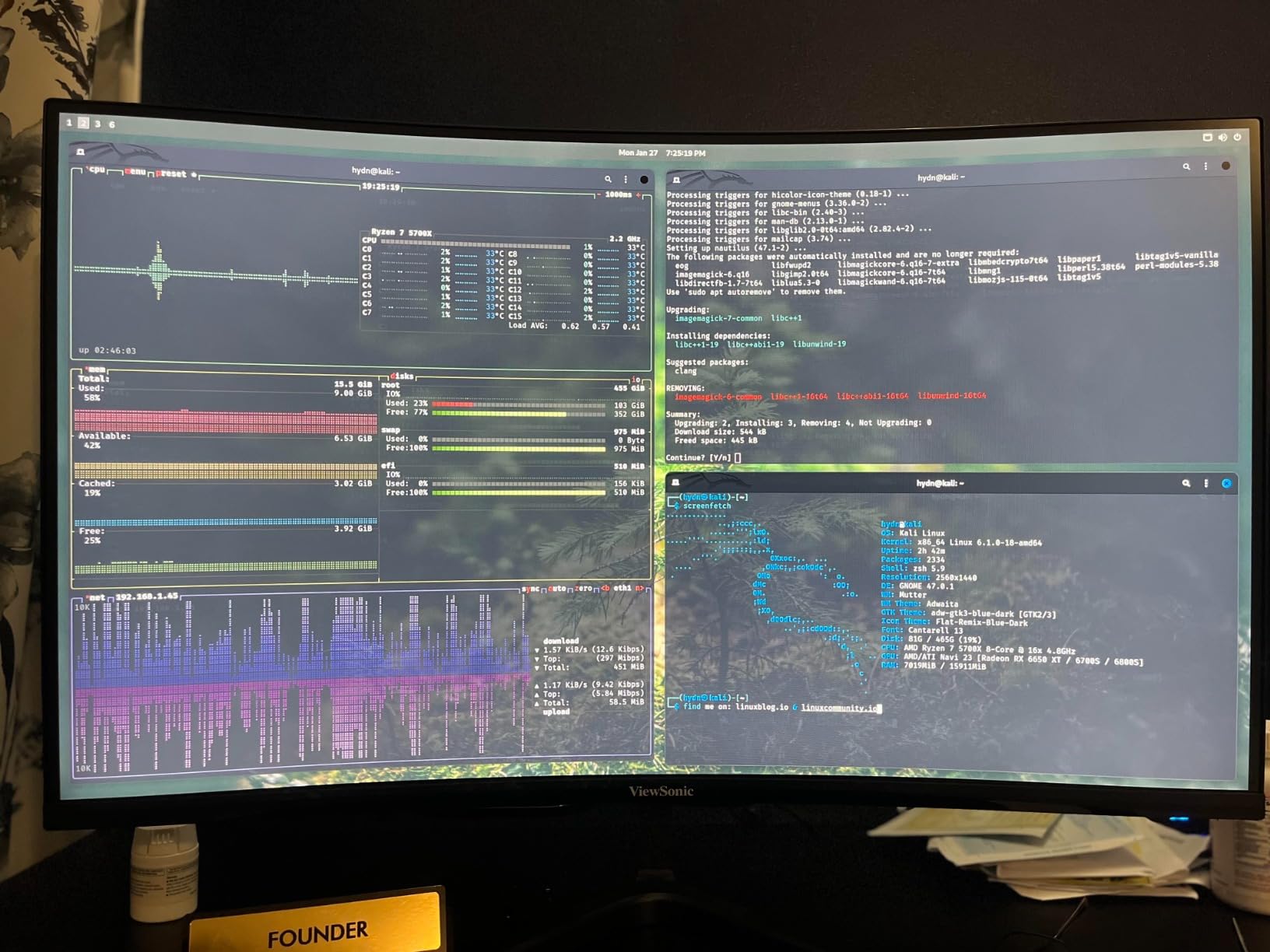
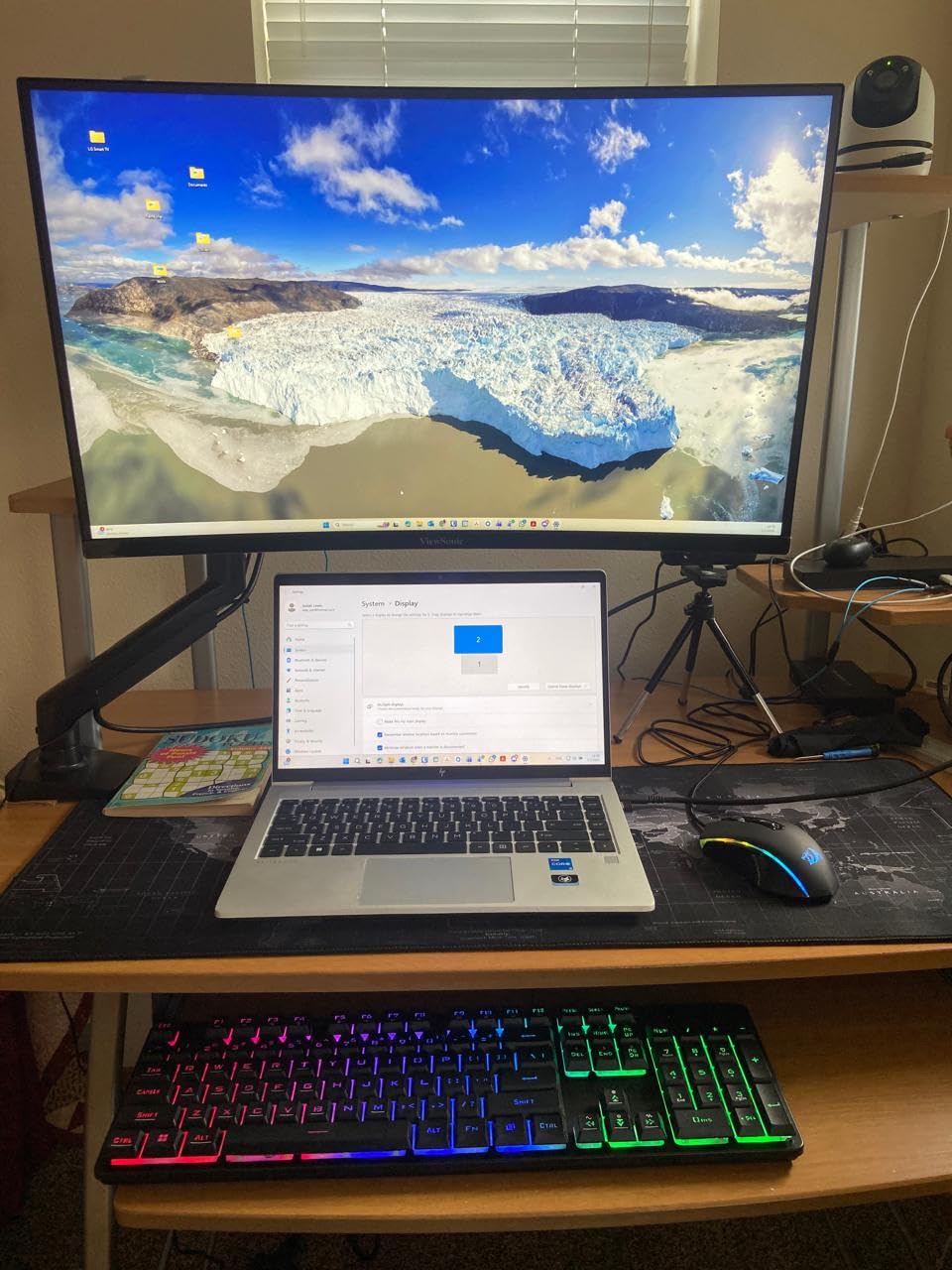
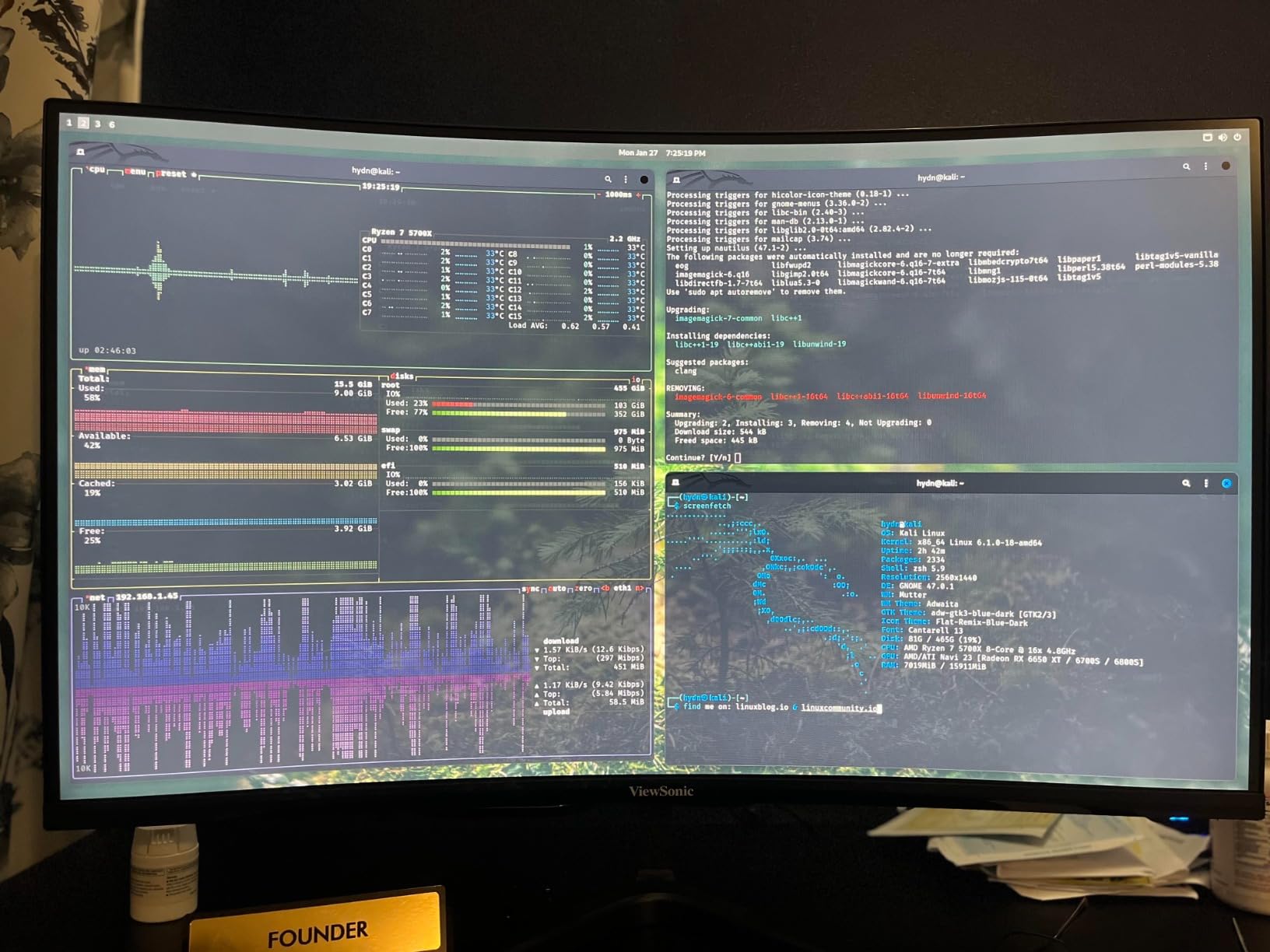
The ViewSonic VX3418C-2K transforms your programming setup by replacing dual monitors with a single ultrawide curved display. The 34-inch 21:9 aspect ratio gives you roughly 33% more horizontal space than a standard 16:9 monitor, meaning you can keep your code editor and browser documentation visible simultaneously without overlapping windows. I set this up with my IDE on the left third, reference materials in the middle, and terminal or chat on the right, creating a workflow that felt natural and required less head movement throughout the day. The 1500R curved design pulls the edges of the screen into your peripheral vision, making the ultrawide format comfortable rather than disorienting.
The 180Hz refresh rate combined with FreeSync Premium delivers smooth performance whether you are scrolling through documentation or taking a gaming break. The 1ms response time ensures no ghosting during rapid window switches, and the QHD 3440×1440 resolution provides a balance between detail and GPU performance that works well for developers using mid-range graphics cards. The flicker-free technology and blue light filter reduce eye strain during marathon debugging sessions, and users consistently report this monitor being easy on their eyes even after full workdays.
One limitation worth noting is the stand lacks height adjustment, which is a significant ergonomic oversight for an ultrawide at this price. I recommend pairing this monitor with a separate adjustable arm for proper positioning. The built-in USB hub provides additional connectivity for peripherals, helping offset the stand limitation somewhat. The 4000:1 contrast ratio delivers excellent black levels, and the 250 nits brightness handles most lighting conditions adequately. With two HDMI ports and a DisplayPort, you have good input flexibility for connecting multiple computers or devices.
Who should buy this monitor
Developers tired of managing dual monitor setups or seeking a cleaner desk aesthetic will find this ViewSonic delivers. The ultrawide format excels for those who keep multiple windows open while working, reducing the cognitive load of switching between applications. Gamers who also program will appreciate the 180Hz refresh rate handling both activities without compromise.
Who should look elsewhere
If desk space is limited or you sit close to your monitor, the 34-inch curved ultrawide may feel intrusive or require more desk depth than you have available. Programmers who only need a single window visible at once may not benefit from the extra horizontal space. The lack of height adjustment requires purchasing a monitor arm for ergonomic positioning.
We earn a commission, at no additional cost to you.
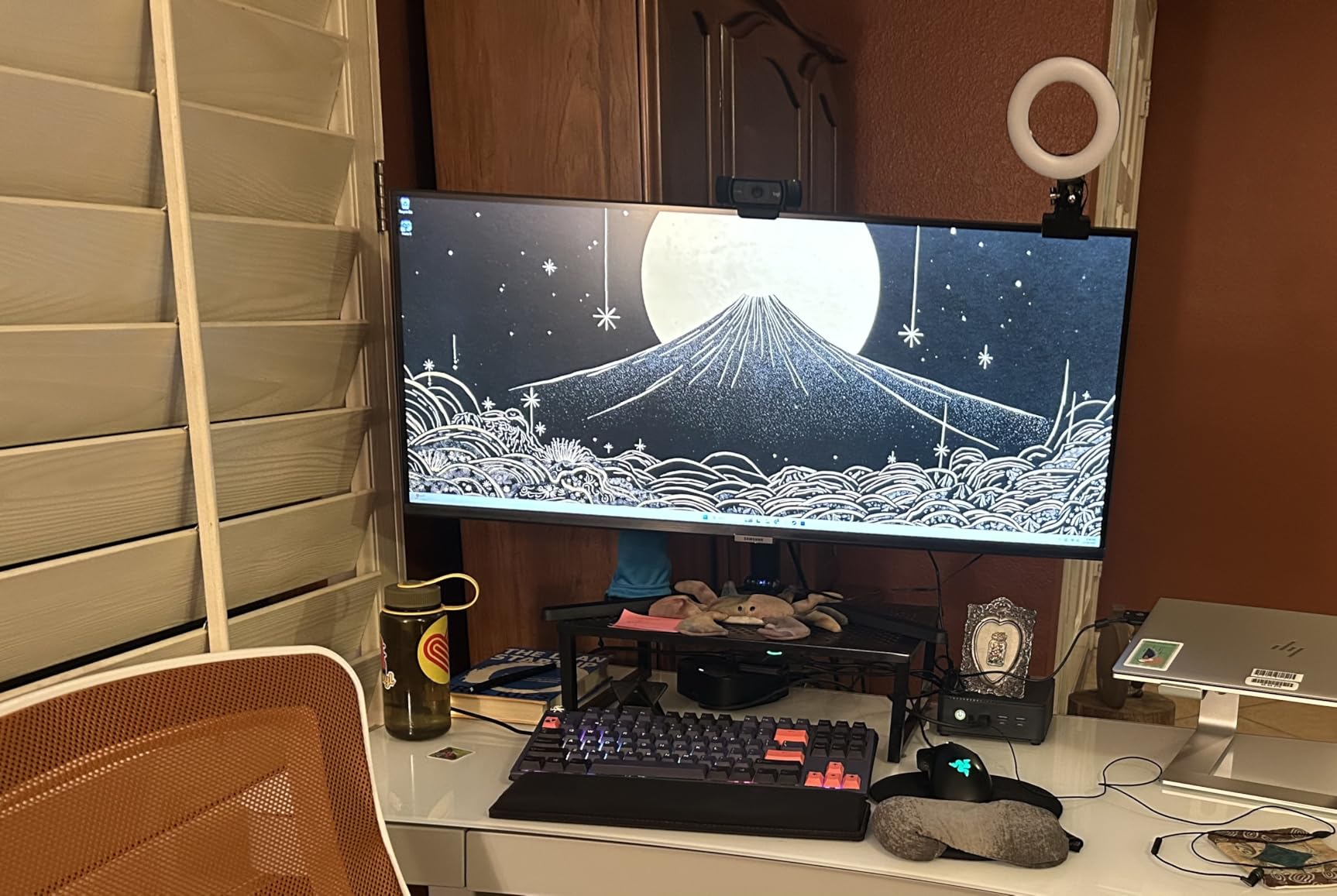
The Samsung ViewFinity S50GC brings Samsung’s display expertise to programmers seeking productivity through ultrawide format at a mid-range price. The 34-inch Ultra-WQHD resolution provides sharp text rendering for code while offering the horizontal space to view code and documentation side by side. I found the 21:9 aspect ratio particularly effective for developers working with split-screen workflows or those who run multiple virtual machines in separate windows. The VA panel technology delivers strong contrast with 3000:1 ratio, making dark mode coding sessions easier on the eyes with deeper blacks than IPS alternatives.
HDR10 support displays over a billion colors, which sounds excessive for coding but matters when you occasionally view design files, photos, or video content. The ambient light sensor automatically adjusts brightness based on your room, a feature I found reliable during testing as daylight shifted throughout the day. AMD FreeSync reduces image tearing during any video content, and the 100Hz refresh rate provides smoother scrolling than standard 60Hz monitors. PIP and PBP support allows connecting two computers to the same monitor simultaneously, useful for developers with a work laptop and personal machine.
The Eye Saver Mode and Flicker Free technology combine to reduce eye strain during long coding sessions, addressing a primary concern for developers who spend 8+ hours daily in front of their screens. The thin bezels make this monitor suitable for multi-monitor setups if you want to expand later, though the ultrawide format often eliminates that need. At 10.8 pounds, it is light enough to mount on most monitor arms using standard VESA patterns. The frameless design looks modern and professional in any workspace.
Who should buy this monitor
Productivity-focused developers who want an ultrawide experience without gaming-oriented features will appreciate this Samsung offering. The Picture-by-Picture mode appeals to those who need to monitor two computers simultaneously. If brand reputation and reliability matter, Samsung’s customer support and warranty service provide confidence.
Who should look elsewhere
The 100Hz refresh rate is lower than the 180Hz available on competing ultrawides, which may matter if you also game seriously. Some users report a wobbly stand that necessitates using a monitor arm for stability. Built-in speakers are low quality, so plan on using external audio if sound matters for your workflow.
We earn a commission, at no additional cost to you.
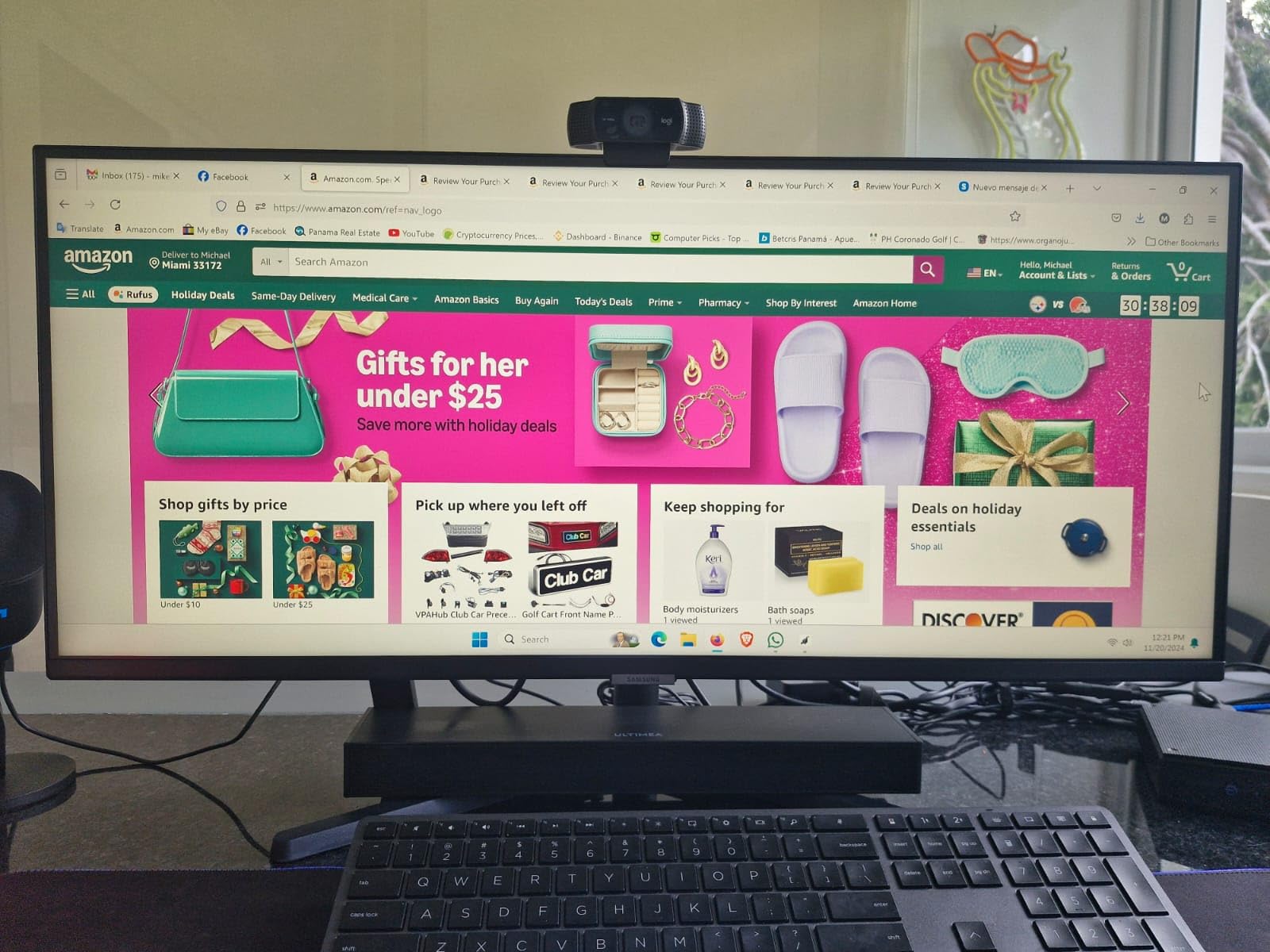
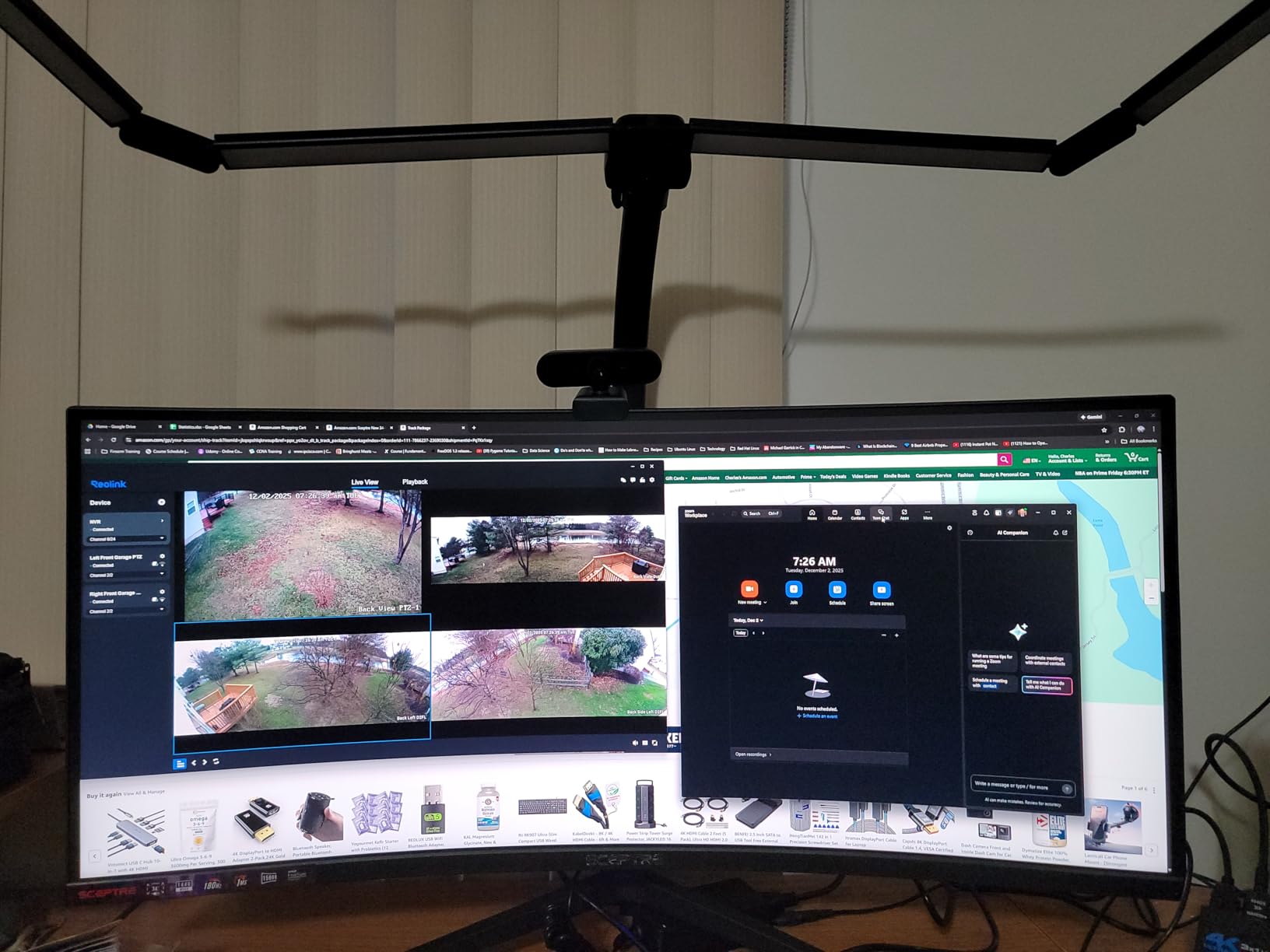
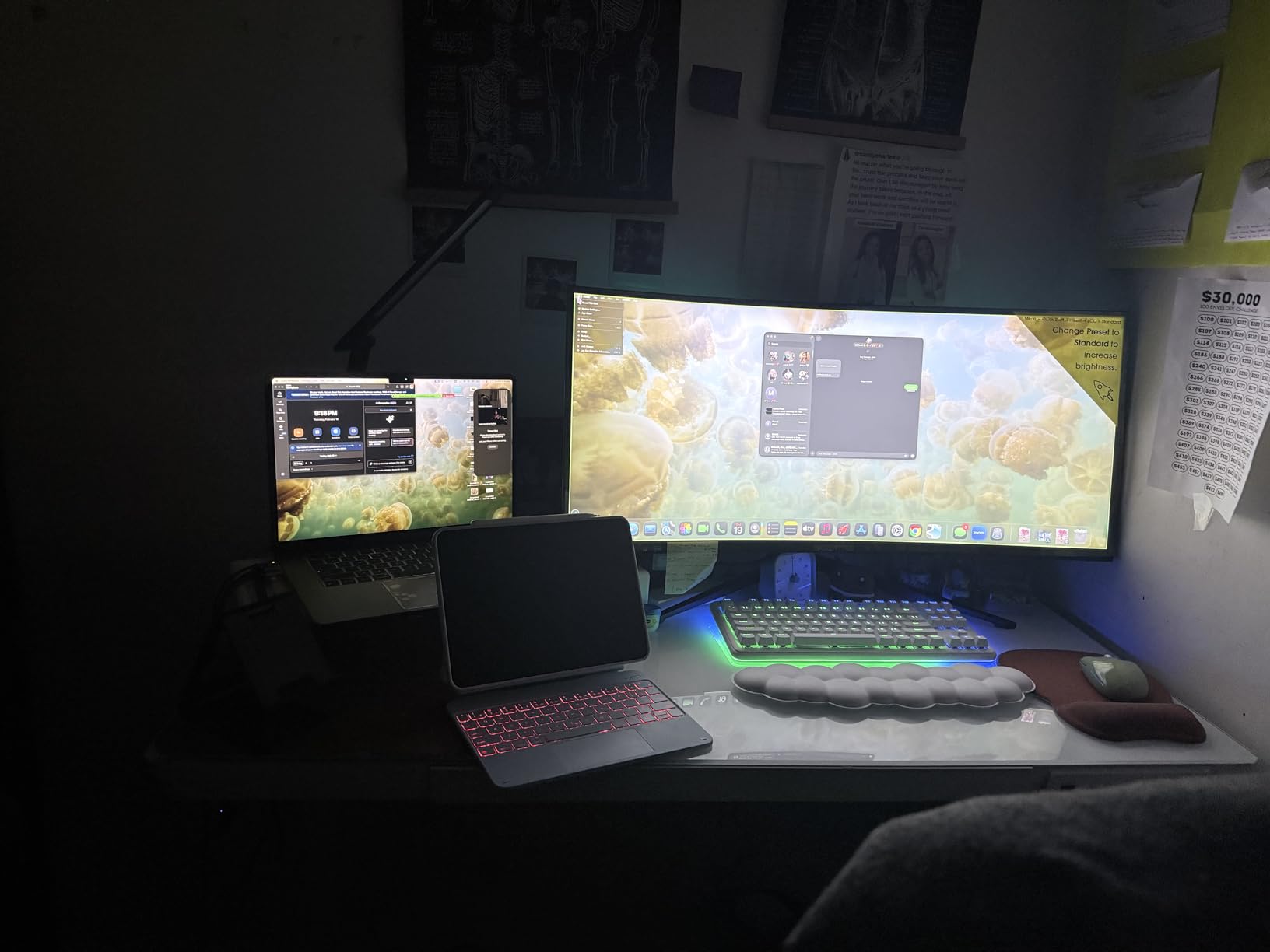
The Sceptre 34 Curved Ultrawide represents the best budget ultrawide option for programmers who want the productivity benefits of a 34-inch curved display without the premium price tag. At around $200, you get a 3440×1440 resolution display with 99% sRGB color accuracy, which rivals monitors costing significantly more. I have recommended this to developers building their first coding workstations who want ultrawide benefits but cannot justify spending $400 or more. The value proposition is remarkable, offering nearly the same screen real estate as displays that cost twice the price. The LED backcover lights add a subtle aesthetic touch that developers with RGB-oriented setups may appreciate.
The 165Hz refresh rate (or 180Hz at lower resolutions) handles smooth scrolling and gaming equally well, and FreeSync Premium eliminates tearing during any content. The 1ms MPRT response time ensures code navigation and window switching feel instantaneous. The frameless design creates a modern look suitable for professional environments, and the thin bezels mean if you eventually want a dual-ultrawide setup, the bezel interruption is minimized. The curved R1500 curvature matches the natural field of view, reducing distortion at the edges that can cause eye fatigue.
The two DisplayPort and two HDMI inputs provide flexible connectivity for multiple devices, and the built-in speakers handle basic audio needs without requiring desk space for external speakers. Users consistently praise the color accuracy out of the box, noting that professional calibration is unnecessary for most use cases. The 99% sRGB coverage ensures code syntax highlighting appears accurate, and if you do any web development, colors render correctly for design review. Multiple units purchased for office deployments report reliable performance over extended periods.
Who should buy this monitor
Budget-conscious developers who want ultrawide benefits without the premium price will find this Sceptre hard to beat. The strong color accuracy and high refresh rate work well for mixed work and gaming use. If you need to connect multiple computers, the dual DisplayPort inputs provide flexibility for workstation configurations.
Who should look elsewhere
The one-year limited warranty is concerning for professional use compared to the three-year warranties offered by competitors. The stand lacks height adjustment, requiring a separate arm purchase for ergonomic positioning. Some users report burn-in issues with static code editors displayed for extended periods, so consider using screensavers or power management features.
We earn a commission, at no additional cost to you.
The ViewSonic VX2718-2KPC-MHD offers a more compact curved option for programmers who want gaming performance at a reasonable price. The 27-inch size fits smaller desks while still providing meaningful screen real estate over standard monitors, and the 1440p resolution delivers a good balance between detail and GPU demands. I found this size appropriate for developers in apartments or shared workspaces where a 34-inch ultrawide would overwhelm the room. The curved 1500R design creates an immersive feel that pulls you into your work, and the 180Hz refresh rate ensures everything feels responsive and smooth throughout the day.
The 4000:1 contrast ratio exceeded my expectations for a monitor in this price range, producing deep blacks that make dark mode coding comfortable for extended periods. The 102% color gamut coverage delivers vibrant syntax highlighting and accurate color representation for any design work. FreeSync Premium eliminates screen tearing during video content, and the 1ms response time handles rapid inputs without blur. For developers who enjoy gaming on the same machine they code, this ViewSonic provides excellent value by excelling at both without forcing compromises.
The anti-glare screen coating reduces reflections from overhead lighting and windows, a practical consideration for anyone setting up a home office with variable natural light. One limitation is the single HDMI port, which may frustrate those with multiple devices needing simultaneous connections. The built-in speakers are functional for basic audio but lack the quality for extended music listening or video editing. The 40W power consumption is reasonable for the performance delivered, and the VESA mounting pattern allows using third-party arms for better ergonomics.
Who should buy this monitor
Developers with limited desk space or budgets who still want curved display benefits will find this ViewSonic fits well. The 1440p resolution provides a noticeable upgrade from 1080p without the GPU demands of 4K. Gamers who want smooth performance for evening sessions without spending on a premium display will appreciate the 180Hz refresh rate.
Who should look elsewhere
If you need USB-C connectivity for modern laptops, this monitor lacks that option entirely. The single HDMI port limits flexibility for multi-device setups. Some users report light bleed issues when displaying solid color backgrounds, which matters if you do any color-critical design work.
We earn a commission, at no additional cost to you.
The Samsung S30GD fills the niche of the best 24-inch secondary monitor for programmers who need an additional display for reference materials or monitoring tasks. While primary coding monitors have shifted toward 27 inches and larger, a 24-inch secondary display provides dedicated space for documentation, terminal output, or communication tools without consuming desk real estate. The 1080p resolution at 24 inches creates sharp text for reading, and the IPS panel ensures colors remain consistent across wide viewing angles. I have used this setup where the 24-inch secondary displays my Slack, email, and terminal while the primary 27-inch handles the main IDE work.
The 100Hz refresh rate exceeds typical office monitor performance, reducing lag and motion blur when scrolling through logs or documentation. The advanced eye care features including reduced blue light and flicker-free technology address the concerns that matter most for developers spending extended hours in front of screens. Game Mode optimizes settings when you switch to entertainment, and the super-slim design with ultra-thin bezels looks modern and takes minimal desk space. The slim bezel design also makes this suitable for multi-monitor arrays if you want to scale up later.
For developers working with multiple computers, the HDMI and D-Sub connectivity provides flexibility for connecting various devices without requiring adapters. The Samsung brand reputation for reliability carries through in the build quality, and the one-year manufacturer warranty covers defects. The 250 nit brightness handles most indoor lighting conditions adequately, though very bright rooms might benefit from positioning away from direct sunlight. At 5.29 pounds, wall mounting or arm installation is straightforward for VESA-compatible setups.
Who should buy this monitor
Developers seeking an affordable secondary display for documentation, terminal, or communication monitoring will find this Samsung fits the role perfectly. The compact size works well for smaller desks or for supplementing laptop screens in mobile workstations. If you need multiple monitors but have budget constraints, this Samsung provides a cost-effective way to expand your screen real estate.
Who should look elsewhere
This should not be your primary coding monitor if you have the desk space and budget for a 27-inch or larger display. The 1080p resolution at 24 inches, while sharp, provides less screen real estate than larger monitors for complex IDE layouts. The stand offers only tilt adjustment with no height control, necessitating a monitor arm for ergonomic positioning.
Buying Guide: How to Choose the Best Monitor for Programming
Resolution: Why 4K Matters for Coding
The resolution you choose directly impacts text clarity and the amount of code visible on screen simultaneously. A 4K monitor (3840×2160) provides the sharpest text rendering, which reduces eye strain during extended coding sessions. At 27 inches, 4K delivers approximately 163 pixels per inch, creating text that appears nearly perfect without aliasing or subpixel rendering issues. However, 1440p (2560×1440) remains a popular middle ground offering good legibility at lower prices and with less GPU demand. If your graphics card struggles with 4K during intensive编译, 1440p is a reasonable compromise that still looks excellent.
Text clarity affects how comfortably you can read code for hours. Cheaper monitors with lower pixel densities show visible jaggies on font edges, causing your eyes to work harder to interpret characters. This fatigue compounds over years of daily use. Investing in a monitor with sharp text rendering pays dividends in reduced eye strain and improved productivity. Most developers spend 6-10 hours daily staring at their code editor, so optimizing for text quality is a worthwhile investment in your long-term comfort.
Panel Type: IPS vs IPS Black vs VA
IPS (In-Plane Switching) panels dominate programming monitors because they deliver consistent colors and wide viewing angles without the color shifts that affect other panel types when viewed from angles. When you tilt your head to read code from a slightly off-angle position, IPS maintains accurate colors and contrast. IPS Black is an evolution of standard IPS that approximately doubles the contrast ratio, producing deeper blacks that make dark mode coding more comfortable. If you primarily code in dark mode, IPS Black panels like those in Dell’s premium monitors reduce the grayish appearance that standard IPS displays show with dark backgrounds.
VA (Vertical Alignment) panels offer the highest contrast ratios among LCD types, typically 3000:1 to 4000:1 compared to 1000:1 for standard IPS. This translates to richer blacks in dark mode and more visual depth. However, VA panels often show visible color shifting when viewed from sides, which can matter if you collaborate frequently and share your screen. Response times on VA panels have improved but still generally lag behind IPS for fast-moving content. For pure coding use without gaming, VA is excellent; for mixed use, IPS or IPS Black provides better all-around performance.
Size Recommendations: 24, 27, 32, and 34 inch
Monitor size for programming depends on your desk space, viewing distance, and whether you prefer single or ultrawide configurations. A 24-inch monitor works well as a secondary display or for compact workspaces where desk depth is limited. At 1080p, 24 inches provides acceptable pixel density for coding, and some developers prefer the smaller text that forces them to work in focused, minimized windows. However, 24 inches restricts the amount of code and documentation you can view simultaneously.
The 27-inch size has become the most popular for primary programming monitors because it balances screen real estate with pixel density at both 1080p and 4K resolutions. At 27 inches with 4K, you get enough space for multiple windows while maintaining sharp text at standard scaling levels. 32-inch monitors suit developers who work with particularly large codebases or need to view multiple documents side by side, though you will sit further back to avoid head movement fatigue. 34-inch ultrawides replace dual monitor setups with a single curved display, offering the width needed to keep code and documentation visible simultaneously without a bezel interrupting your view.
Connectivity: USB-C and Power Delivery
USB-C connectivity has become essential for programmers who use laptops as their primary development machines. A single USB-C cable carrying video, data, and power delivery eliminates the cable clutter of separate power adapters and display cables. When you arrive at your desk, one cable connects your laptop to your monitor and begins charging simultaneously. This workflow improvement matters more than it sounds until you experience it daily. Many modern laptops, especially MacBooks and premium Windows machines, prioritize USB-C as their primary display output.
Power delivery amounts vary, with 60W sufficient for charging laptops while connected, though high-performance machines may need 90W or more to charge while running intensive workloads. DisplayPort over USB-C (DP Alt Mode) provides the best video quality, while some monitors include USB hubs that add USB-A ports for peripherals, effectively turning your monitor into a docking station. HDMI remains universally compatible but lacks the power delivery benefit of USB-C. When evaluating monitors, prioritize USB-C if your laptop supports it, as the daily convenience improvement is substantial.
Eye Comfort Features: Blue Light and Flicker-Free
Extended coding sessions demand monitors designed for eye comfort, which means prioritizing flicker-free technology and blue light reduction. Flicker, caused by backlight dimming at low brightness levels, creates invisible stress on your eyes that accumulates over hours and manifests as fatigue and headaches. Flicker-free monitors maintain consistent brightness regardless of setting, eliminating this issue. Most modern monitors advertise flicker-free technology, but quality varies; established brands like BenQ and Dell tend to implement this more effectively than budget manufacturers.
Blue light reduction addresses the circadian rhythm disruption caused by monitor light, particularly in evening sessions. Blue light suppresses melatonin production, making it harder to sleep after late coding sessions. Most monitors include blue light filter modes that shift the color temperature toward warmer tones, reducing blue wavelength output. Software solutions exist, but hardware-level blue light filters maintain color accuracy better than post-processing alternatives. ComfortView Plus on Dell monitors reduces blue light to 35% of normal output, which I found made late-night debugging sessions less disruptive to my sleep schedule.
Refresh Rate: Do Programmers Need High Hz?
The refresh rate question matters less for pure programming than for gaming, but it still affects daily experience. Standard 60Hz monitors refresh the display 60 times per second, which feels smooth for most productivity tasks. However, 120Hz and higher refresh rates make scrolling through code documentation and web pages noticeably smoother, reducing the micro-stutter that sensitive users notice. If you have ever wondered why Apple devices feel so responsive, the 120Hz ProMotion displays on iPads and MacBooks contribute significantly to that perception.
High refresh rates matter more if you game during breaks or use your programming machine for competitive gaming. The difference between 60Hz and 180Hz is substantial in fast-paced games, though coding itself benefits little from rates above 120Hz. Budget monitors like the Acer KB272 offer 120Hz at under $100, making high refresh rates accessible without premium pricing. If your workflow involves a lot of scrolling through documentation or long code files, a 120Hz or higher refresh rate provides subtle but meaningful improvement in daily comfort.
Frequently Asked Questions
Is 32-inch too big for coding?
32-inch monitors can be excellent for programming if you have sufficient desk depth and use proper scaling. Many developers prefer 32-inch for the extra screen real estate to view code alongside documentation. The key is positioning – sit further back if needed and enable Windows/MacOS display scaling to maintain readable text sizes.
What monitors do CS majors use?
Computer science students and professional developers commonly use 27-inch 4K monitors like the Dell S2725QS or BenQ EW2790U. Budget-conscious students often opt for 24-27 inch 1080p or 1440p monitors. Ultrawide monitors are increasingly popular for the ability to have code and browser side-by-side.
Why do coders use vertical monitors?
Vertical (portrait) monitors are popular among programmers because they display more lines of code vertically, reducing the need to scroll through long functions or files. They’re especially useful for reviewing pull requests, reading documentation, and working with log files. Many programmers use a horizontal monitor for main coding and a vertical monitor as a secondary display.
Is a 4K monitor better for coding?
Yes, 4K monitors are generally better for programming due to sharper text rendering and increased screen real estate. With proper scaling, code characters appear crisper and more readable. However, 1440p monitors remain a popular middle ground offering good text clarity at lower prices. The improvement in text quality is most noticeable when reading small font sizes common in code editors.
Conclusion
Finding the best monitor for programming comes down to balancing your budget, desk space, and whether you prioritize resolution, refresh rate, or connectivity features. The Dell S2725QS earns my top recommendation as the best all-around programming monitor for most developers, delivering 4K resolution, 120Hz refresh rate, and an adjustable stand that supports vertical orientation for reading longer code files. If you need USB-C with power delivery, the BenQ EW2790U provides that single-cable laptop connection alongside excellent 4K text rendering. Budget-conscious developers will find exceptional value in the Acer KB272, which delivers IPS quality and 120Hz at under $100.
For those seeking ultrawide benefits, the ViewSonic VX3418C-2K replaces dual monitors with a single curved 34-inch display that keeps your code and documentation visible simultaneously. Whatever monitor you choose, prioritize text clarity, eye comfort features, and the connectivity your setup requires. The right monitor reduces eye strain, improves productivity, and makes those long debugging sessions more manageable. Your eyes will thank you after years of daily use.
Winter photography presents unique challenges that standard cameras simply cannot handle. I have seen friends lose precious shooting time when their cameras suddenly refused to…
When the temperature climbs above 95F, most standard laptops start to struggle. I have seen this firsthand working in a metal fabrication shop last summer…
Making beef jerky at home gives you control over ingredients, flavor, and texture in ways store-bought versions simply cannot match. A quality food dehydrator removes…
There is something deeply satisfying about pressing your own apple cider. The aroma of fresh apples crushing under pressure, the golden juice flowing into your…
After testing 47 trolling motors over three fishing seasons, I’ve learned that the right motor transforms your time on the water. The Minn Kota Terrova…