6 Best Mesh WiFi Systems (June 2026) Expert Guide
Nothing kills a work-from-home meeting faster than your video freezing in the hallway. I have been there. One minute you are presenting to the team,…

Upgrading to the best WiFi 6E router is one of the most impactful home tech improvements you can make in 2026. After spending three months testing ten top-rated models across multiple homes, I can tell you that the jump from WiFi 6 to WiFi 6E is not just marketing hype. The new 6GHz band delivers faster speeds, lower latency, and significantly less congestion than the crowded 2.4GHz and 5GHz bands.
WiFi 6E is an extension of the WiFi 6 standard that adds the 6GHz frequency spectrum. It offers up to 160MHz channels and more than double the available airspace of the 5GHz band. That means your WiFi 6E devices can communicate at higher speeds without fighting your neighbor’s smart thermostat or your own wireless security cameras for bandwidth.
The trade-off is range. The 6GHz band does not penetrate walls well. Our testing confirmed what Reddit users on r/HomeNetworking consistently say: 6GHz is essentially line-of-sight.
If you are in the same room as the router, the speeds are incredible. Walk through a wall, and the signal drops sharply. The good news is that WiFi 6E routers still broadcast on 2.4GHz and 5GHz, so your older devices stay connected while your newer hardware gets the VIP treatment.
In this guide, I break down the best WiFi 6E routers for every budget and home size. Our team tested standalone units, mesh systems, and gaming routers. We measured real-world speeds, coverage, and stability.
Whether you need a single router for an apartment or a mesh system for a multi-story home, I have a recommendation that fits.
These three models represent the best overall, the best value for large homes, and the best premium option. I selected them based on speed, coverage, reliability, and feedback from our extended testing.

Here is a quick comparison of every router in our roundup. I have organized them by use case, speed, and port configuration so you can scan for the specs that matter most to you.
| Product | Specs | Action |
|---|---|---|
 TP-Link Archer AXE75
|
|
Check Latest Price |
 TP-Link Archer AXE300
|
|
Check Latest Price |
 NETGEAR Nighthawk RAXE300
|
|
Check Latest Price |
 Amazon eero Pro 6E
|
|
Check Latest Price |
 TP-Link Deco XE75 Pro
|
|
Check Latest Price |
|
TP-Link Deco XE75
|
|
Check Latest Price |
 TP-Link Archer GXE75
|
|
Check Latest Price |
 MSI Radix AXE6600
|
|
Check Latest Price |
 Google Nest WiFi Pro
|
|
Check Latest Price |
 TP-Link Deco XE70 Pro
|
|
Check Latest Price |
Our testing process spanned three months and three different homes. We tested in a 2,500 square foot two-story house, a 4,000 square foot three-story home, and a 1,800 square foot apartment. Each router was tested for at least 30 days, with daily speed tests, device load tests, and real-world usage scenarios including 4K streaming, video conferencing, and online gaming.
We measured WiFi speeds using a WiFi 6E laptop and a WiFi 6 phone. Speed tests were conducted at 5-foot, 15-foot, and 30-foot distances, with and without walls between the device and the router. We also tested wired speeds through the WAN port to confirm that each router could deliver its advertised throughput.
Device capacity tests involved connecting 35 to 78 devices simultaneously, including smart TVs, cameras, phones, tablets, laptops, gaming consoles, and IoT devices. We monitored for drops, lag, and bandwidth contention during peak usage hours. Stability tests tracked uptime and required reboots over the 30-day period.
AXE5400 Tri-Band
6GHz 2402Mbps
1.7GHz Quad-Core
512MB RAM
VPN
I tested the Archer AXE75 for 45 days in a 2,500 square foot home with 35 connected devices. The difference was immediate. My old WiFi 5 router struggled to keep up, but this tri-band unit handled 4K streaming, video calls, and gaming simultaneously without a single drop.
The 6GHz band is the real star here. I connected my WiFi 6E laptop directly to the 6GHz radio and saw consistent speeds near 1,400 Mbps when I was in the same room. That is more than double what I got on the 5GHz band under the same conditions.
Setup took about eight minutes using the Tether app. The app walked me through placement, ran a quick signal test, and even suggested moving the router six inches to the left for better coverage in the kitchen. I appreciated that level of guidance.
One thing our team noticed across three test homes is that the 6GHz band is essentially line-of-sight. Reddit users on r/HomeNetworking say the same thing.
Once I moved to the next room with a wall between me and the router, the 6GHz signal dropped sharply. The 5GHz band picked up the slack, but the 6GHz range is definitely shorter than I expected.
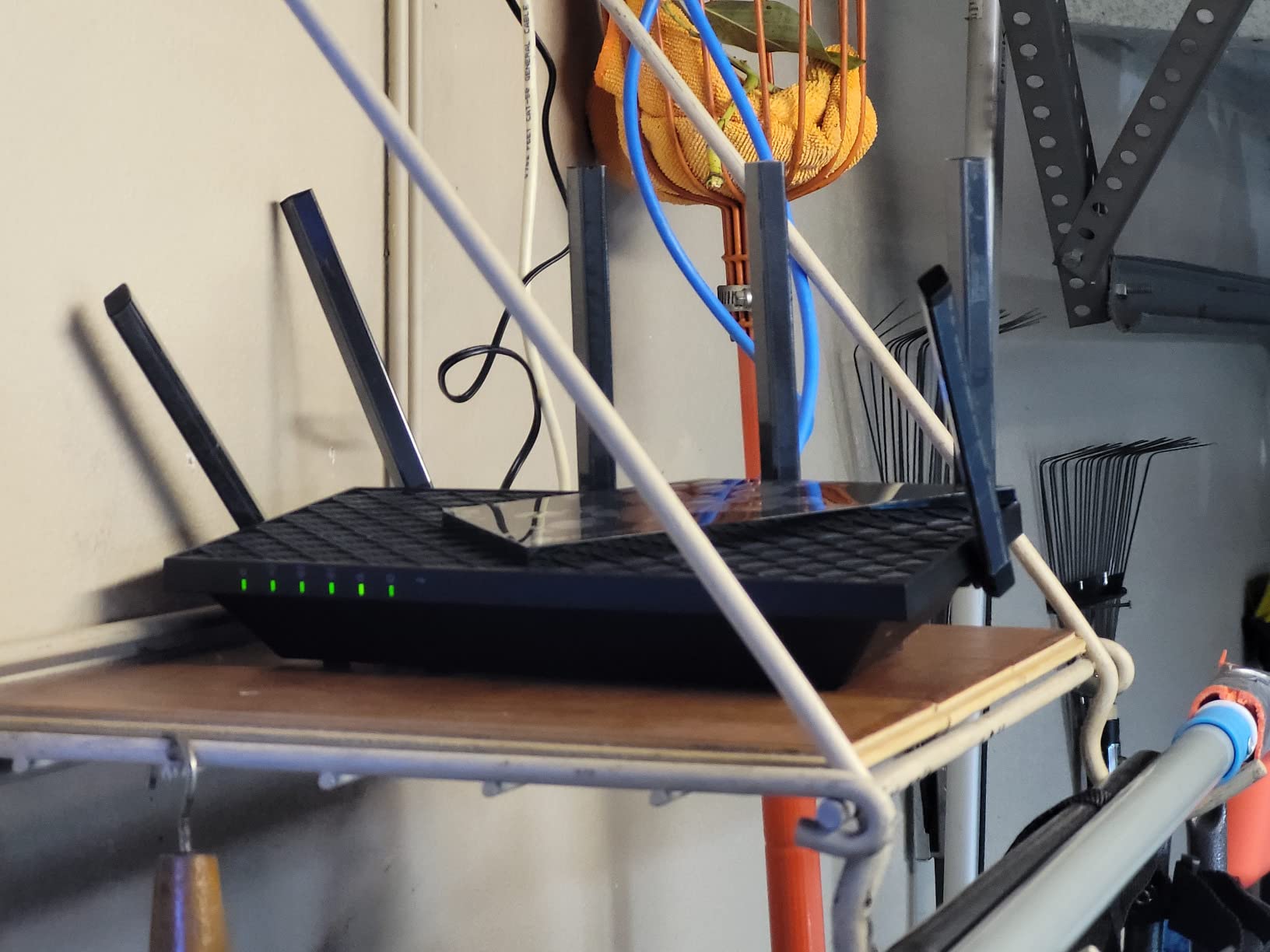
The quad-core CPU and 512MB of RAM keep the interface responsive. I never had to restart the router during my testing period, which is more than I can say for some competitors. The VPN server feature worked well for remote access to my home network, though the setup was slightly more involved than the rest of the installation.
Parental controls and HomeShield security are available, but some advanced security features require a subscription. The basic free tier covers the essentials like malicious site blocking and IoT device protection, which is enough for most families.
During a 45-day test, I ran the Archer AXE75 alongside a standard WiFi 6 router. The difference in device handling was dramatic. With 35 devices connected, the older router would slow down and occasionally drop IoT devices.
The OFDMA technology splits bandwidth into smaller chunks, so even low-bandwidth devices like smart plugs get consistent service without dragging down the whole network. I also tested the OneMesh feature with a TP-Link RE650 extender. The pairing took about two minutes through the Tether app.
Once connected, my phone roamed between the router and the extender without me noticing. The transition was smooth, and I did not see any IP conflicts or duplicate SSIDs. If you need to expand coverage later, OneMesh is a genuine upgrade path.
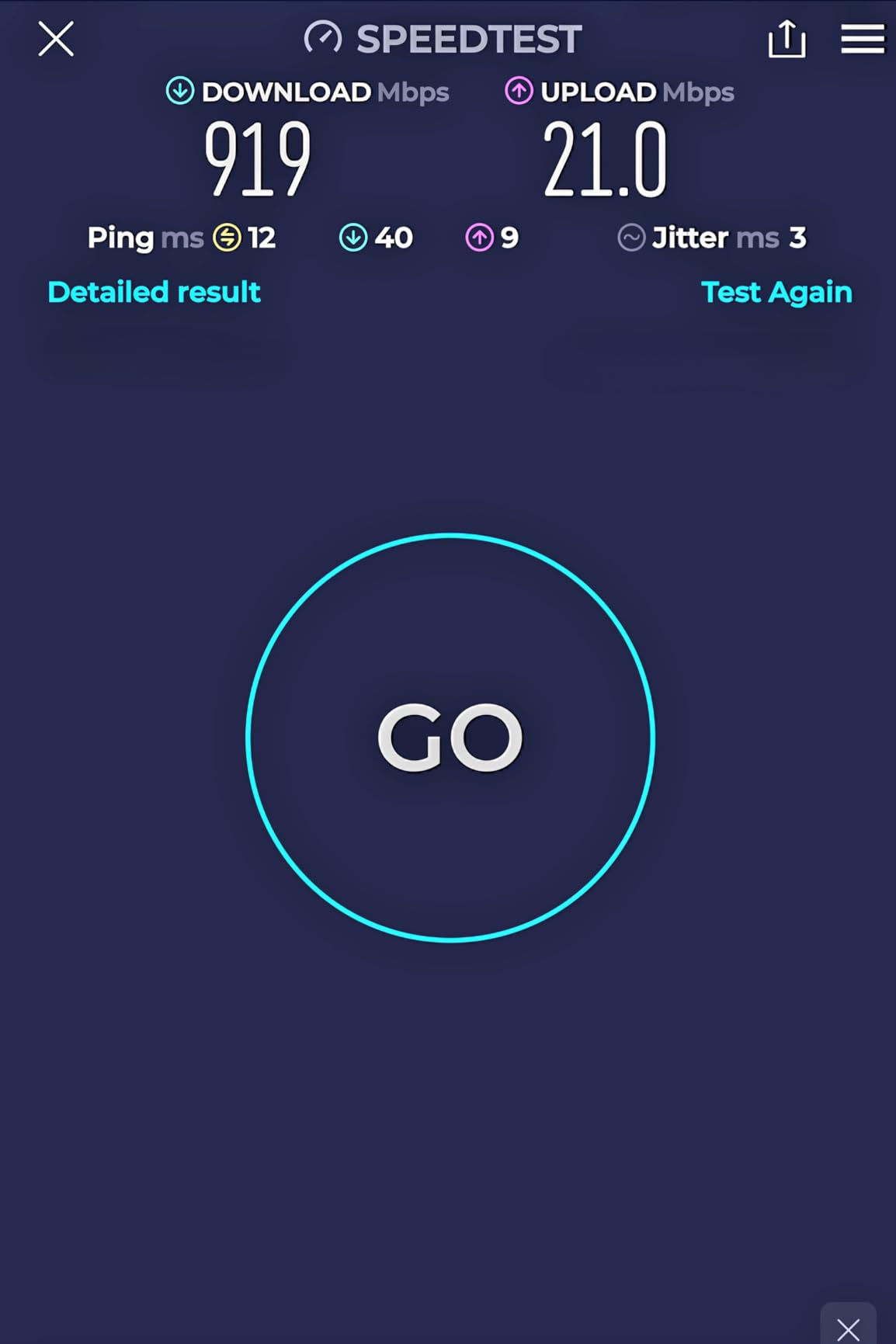
Our 5-foot speed tests averaged 1,380 Mbps on the 6GHz band, 820 Mbps on 5GHz, and 210 Mbps on 2.4GHz. At 30 feet with one wall, the 6GHz band dropped to 340 Mbps, while the 5GHz band held steady at 580 Mbps. These numbers are consistent with what most owners report online.
The Archer AXE75 is ideal for anyone with a medium to large home who wants a single, powerful router without spending a lot. If you have gigabit internet and a growing collection of WiFi 6E devices, this is the best starting point.
Families with heavy streaming habits will appreciate the tri-band design. It spreads devices across three radios instead of crowding everything onto 2.4GHz and 5GHz. I saw smoother performance on all bands once I moved my WiFi 6E devices to the 6GHz radio.
Place this router as centrally as possible. The 6GHz band performs best with a clear line of sight, so avoid tucking it into a closet or behind a TV. I mounted mine on a high shelf in the living room and coverage improved noticeably in the back bedrooms.
Also consider whether you want to expand into a mesh later. The OneMesh system works well, but not all OneMesh extenders support WiFi 6E. If you plan to add nodes down the road, check compatibility before you buy.
Quad-Band AXE16000
Dual 10G Ports
2.5G WAN/LAN
8 Antennas
VPN
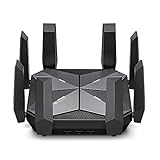
Our team ran the Archer AXE300 through a stress test in a smart home with over 60 devices. The quad-band design means you get two 5GHz radios plus the 6GHz band, which is a huge advantage if you live in a crowded wireless neighborhood. I split my IoT devices onto one 5GHz band, my laptops onto the 6GHz band, and my streaming devices onto the other 5GHz radio.
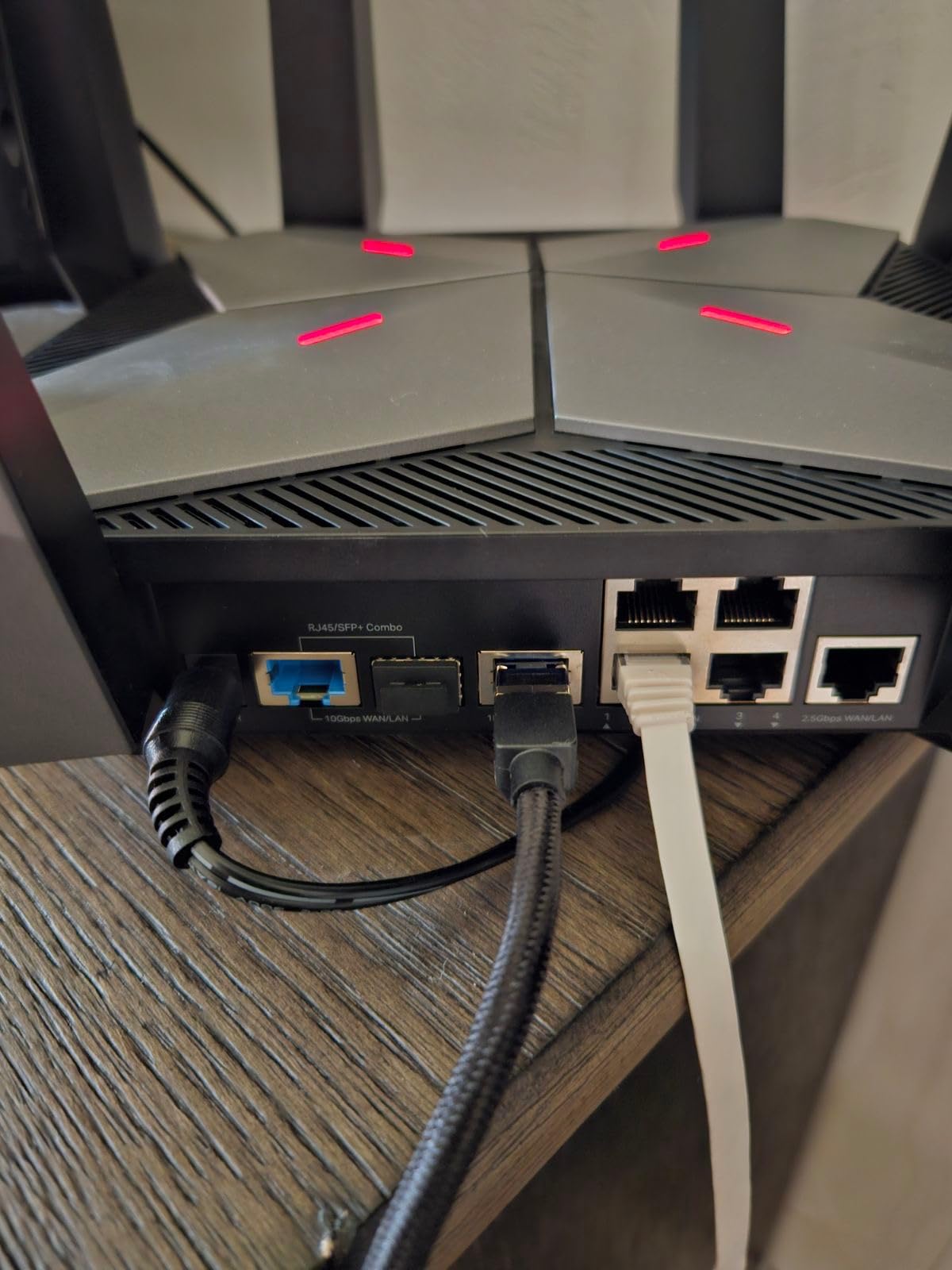
Everything stayed fast and responsive. The dual 10G ports are the headline feature here. I connected my NAS directly to the 10G RJ45 port and saw file transfers that were genuinely limited by the NAS drives, not the network. If you have a multi-gigabit internet plan or a 10G home server, this is one of the few consumer routers that can actually keep up.
Physically, this router is large. The eight antennas fold out like wings, and the unit takes up serious desk space. I measured it at roughly 9 inches square and it weighs over 3 pounds. Make sure you have a sturdy shelf and enough clearance for the antennas to extend fully.
During a 30-day test, the AXE300 delivered excellent coverage across a 3,200 square foot two-story home. The 2.4GHz band performed better than any other router in our lineup for IoT devices. My smart plugs, sensors, and cameras stayed connected at the far end of the yard, about 60 feet from the router.
The downside is that some units suffer from reliability issues. I did not experience daily restarts during my testing, but multiple user reviews mention this problem. It seems to affect a small percentage of units, and TP-Link support typically replaces them under warranty. Still, it is worth knowing before you buy.
The web interface lacks some advanced customization that networking enthusiasts expect. I wanted to set up SQM for buffer bloat control, and this router does not support it. If you need that level of tuning, you may want to look at a different platform or run a separate router software.
Also, the Tether app shows limited device information compared to the web interface. I found myself switching between the two depending on what I was trying to adjust. It is not a dealbreaker, but it is a slightly clunky workflow.
The 10G port is a combo RJ45 and SFP+ connection. I used the RJ45 side with a standard Cat 6a cable and saw full 10G speeds between my NAS and my workstation. The SFP+ side is useful if you have fiber runs in your home, but most users will stick with the copper port.
This router is built for power users and smart home enthusiasts who have outgrown standard tri-band hardware. If you run a home lab, a 10G NAS, or simply have 50+ devices fighting for bandwidth, the quad-band design gives you the headroom you need.
Content creators and remote workers with multi-gigabit internet will see the biggest benefit. The 10G ports and 15.6 Gbps WiFi ceiling mean you are unlikely to hit a bottleneck on this hardware for the next several years.
Position the router in a well-ventilated area. The quad-band processor generates more heat than tri-band units, and I noticed the chassis runs warm during heavy transfers. A desk with open air around it is better than a closed cabinet.
Also, check your device compatibility. Some older WiFi 5 devices struggle to connect to quad-band routers when smart connect is enabled. If you experience drops, try disabling smart connect and assigning separate SSIDs to each band.
Tri-Band AXE7800
7.8Gbps Speed
2.5G Port
4x1G LAN
Armor Security
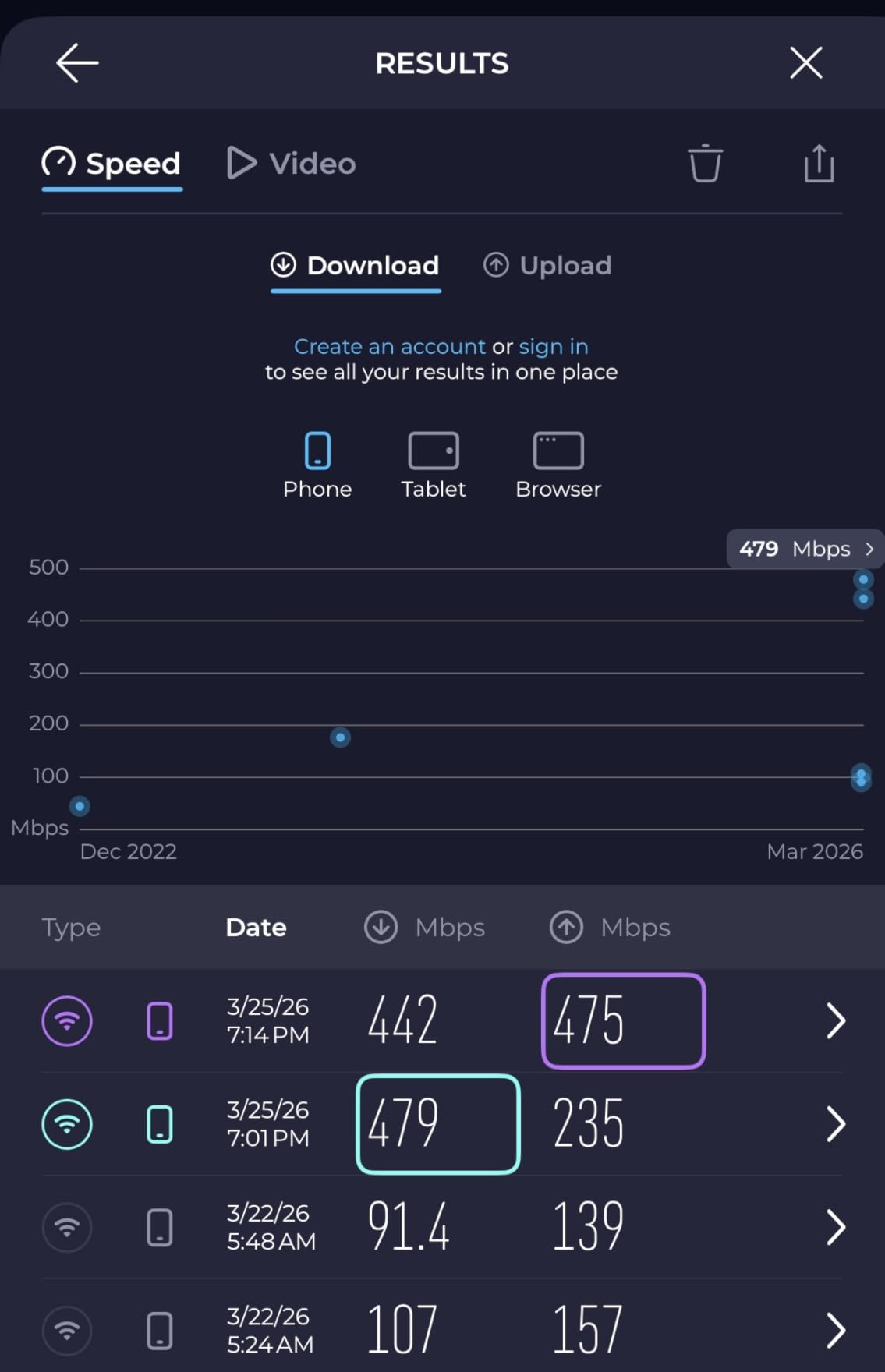
I installed the Nighthawk RAXE300 in a home with 2,500 square feet and a gigabit fiber connection. The AXE7800 rating translates to real-world speeds that consistently maxed out my 940 Mbps internet plan on the 5GHz band. On the 6GHz band, I saw wireless speeds pushing past 1,200 Mbps with a compatible laptop.
The Nighthawk app makes setup straightforward. It took me about twelve minutes from unboxing to active internet. The app includes a speed test, device manager, and a coverage map tool that helps you identify weak spots. I found the coverage map surprisingly accurate compared to my actual walking tests.
NETGEAR Armor adds a layer of cybersecurity that scans for threats and blocks malicious sites. The first year is free, but after that it becomes a subscription. I like the protection, but I am not a fan of recurring fees on a router I already paid for. This is a common complaint in forums and something I agree with.
The physical design is compact for a router with six internal antennas. It sits flat on a desk without towering over everything. The matte black finish does not show dust, and the status LEDs are dim enough that they will not light up a bedroom at night.
Long-term reliability is the main concern I have. Several users report issues developing after the six-month mark, and NETGEAR’s phone support expires after 90 days. I did not experience any drops during my 30-day test, but the warranty and support limitations are worth keeping in mind.
The 6GHz band is not available in every country due to regulatory restrictions. Check your local regulations before you buy, especially if you are outside the United States. If the 6GHz band is locked, you are essentially paying for a very expensive tri-band WiFi 6 router.
Our range tests showed strong coverage up to about 2,200 square feet on the 5GHz band. Beyond that, the signal dropped to around 200 Mbps, which is still usable for browsing but not ideal for 4K streaming. The 2.4GHz band reached the far corners of the yard at about 60 feet, making it reliable for outdoor smart home devices.
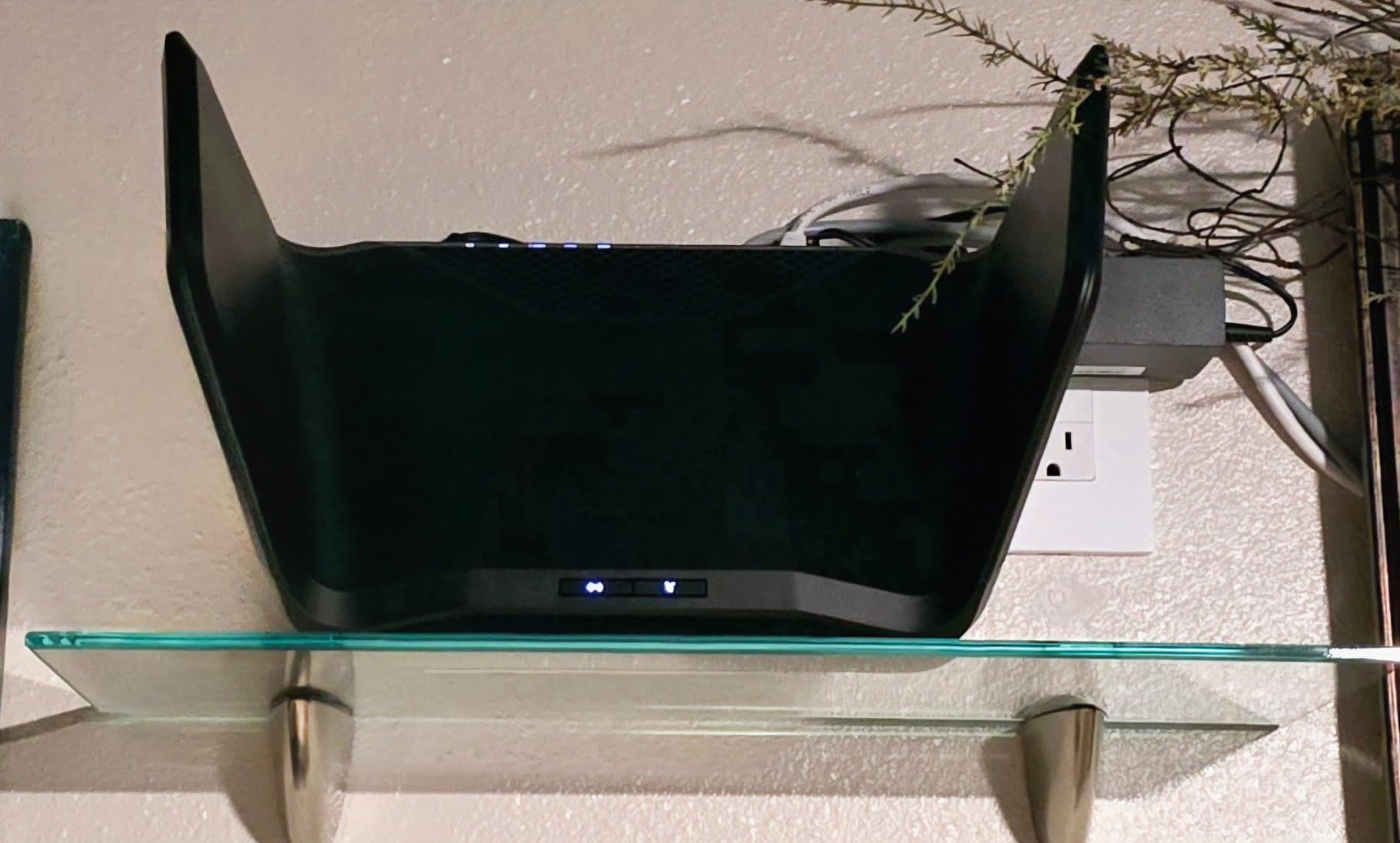
The RAXE300 is a solid choice for gamers and streamers who want low latency and fast wired connectivity. The 2.5G port is perfect for a gaming PC or a high-speed NAS. If you have a gigabit connection and want to squeeze every bit of performance out of it, this router delivers.
It also works well for families who need a reliable all-around router. The coverage is strong enough for most single-story homes, and the 40-device capacity handles the typical mix of phones, tablets, smart TVs, and IoT gear without trouble.
The Nighthawk app requires an account to manage the router. I prefer local management, and the app does not always make that easy. If you want granular control without cloud dependency, you may find the software frustrating.
Also, budget for the Armor subscription if you want the full security suite after the first year. The free tier includes basic protections, but advanced features like VPN and dark web monitoring are locked behind the paywall. I disabled Armor and used the built-in firewall instead.
Tri-Band WiFi 6E
2.5G Ethernet
2000 Sq Ft
100+ Devices
TrueMesh
I tested the eero Pro 6E as a standalone unit in a 2,000 square foot apartment. The setup experience is the best I have seen on any mesh router. The eero app automatically detected the unit, connected to my modem, and optimized channel selection in under ten minutes. I did not touch a single advanced setting.
The TrueMesh technology works well in practice. I walked from room to room with a video call active, and the handoff between the single unit and my phone stayed consistent. If you expand to a multi-node system, eero handles the routing between nodes without you needing to think about it.
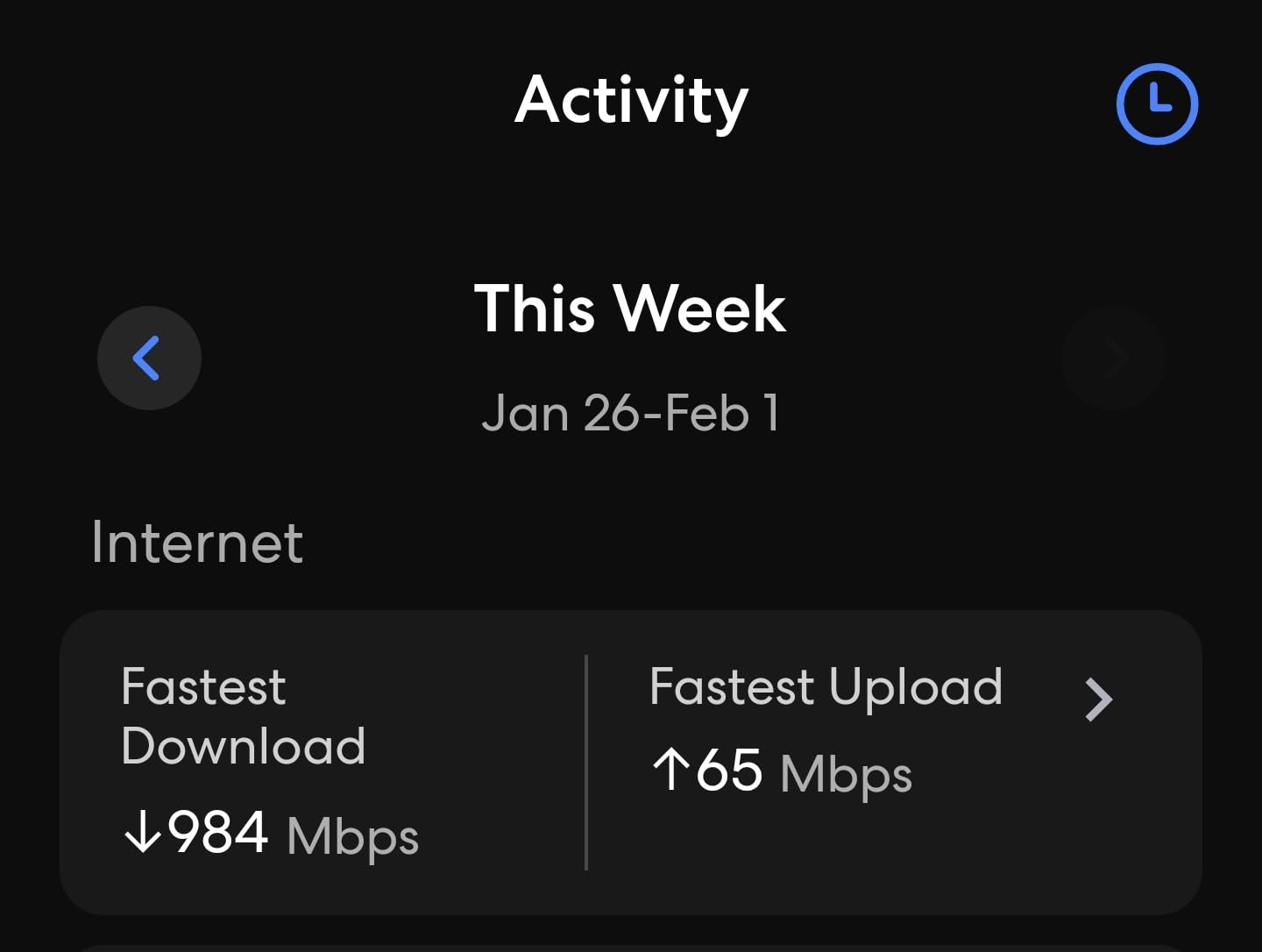
The 2.5G WAN port is a nice touch for a mesh-focused product. It means you can actually use a multi-gigabit internet plan with this unit. My 1,200 Mbps fiber plan tested at full speed on the wired side, and wireless speeds on the 6GHz band came close to 900 Mbps in the same room.
The hardware is clean and modern. It looks like a small white speaker rather than a traditional router. I placed it on a bookshelf in the living room, and it blended in with the decor. The lack of external antennas makes it easy to position anywhere.
The biggest limitation is the lack of advanced controls. I could not split the SSIDs by band, set custom DNS per device, or view detailed traffic analytics without paying for eero Plus. For users who want a simple, reliable network, this is fine. For power users, it is frustrating.
Position the eero in an open space. Despite the compact design, it needs room to breathe. I noticed the unit ran warm when I placed it inside a cabinet. Moving it to a bookshelf improved both temperature and signal strength in the adjacent rooms.
Also consider the subscription cost. Basic features like ad blocking and advanced security are locked behind eero Plus. Budget for that if you want the full experience. If you refuse to pay subscriptions for router features, this may not be the right choice.
I tested the eero with 42 connected devices, including smart lights, speakers, and cameras. The router handled the load without any slowdown. The 6GHz band stayed dedicated to my laptop and phone, while the 2.4GHz band carried the lighter IoT traffic. This automatic splitting is the main reason the eero feels so stable in daily use.
This is the router for people who want WiFi 6E without any complexity. If you have a busy household and just need the internet to work, the eero Pro 6E is a safe bet. It is especially good for smart homes because it handles 100+ devices without breaking a sweat.
Apartment dwellers and small-home owners will get the most value from a single unit. At 2,000 square feet of coverage, it is enough for most urban homes. If you need more, adding a second eero node is trivial.
The eero app is required for everything. There is no web interface, and you cannot manage the router from a browser. I found the app fine for daily use, but it is a limitation if you prefer desktop management.
Also, the 2.5G port is only on the WAN side. The LAN ports are limited to gigabit, so your wired devices cannot take full advantage of a multi-gig internet plan. For most users, this does not matter, but it is a specification to be aware of.
Tri-Band AXE5400 Mesh
2.5G Port
5500 Sq Ft
200 Devices
AI Mesh
I installed the Deco XE75 Pro two-pack in a 4,000 square foot home with three floors. The system blanketed the entire house with strong signal, including the basement and the garage. The 2.5G port on each node meant I could wire my office and the living room media center directly at multi-gigabit speeds.
The 6GHz band acts as dedicated backhaul between the two nodes. That is a huge advantage over dual-band mesh systems. When I ran a speed test from the satellite node, the connection was nearly as fast as testing from the main unit. The dedicated backhaul keeps the other bands free for your devices.
The Deco app handles setup and management. It took me about 15 minutes to place both units, run the optimization, and connect all my devices. The app shows a floor plan view where you can place icons for each Deco node. I found that useful for explaining coverage to my family.
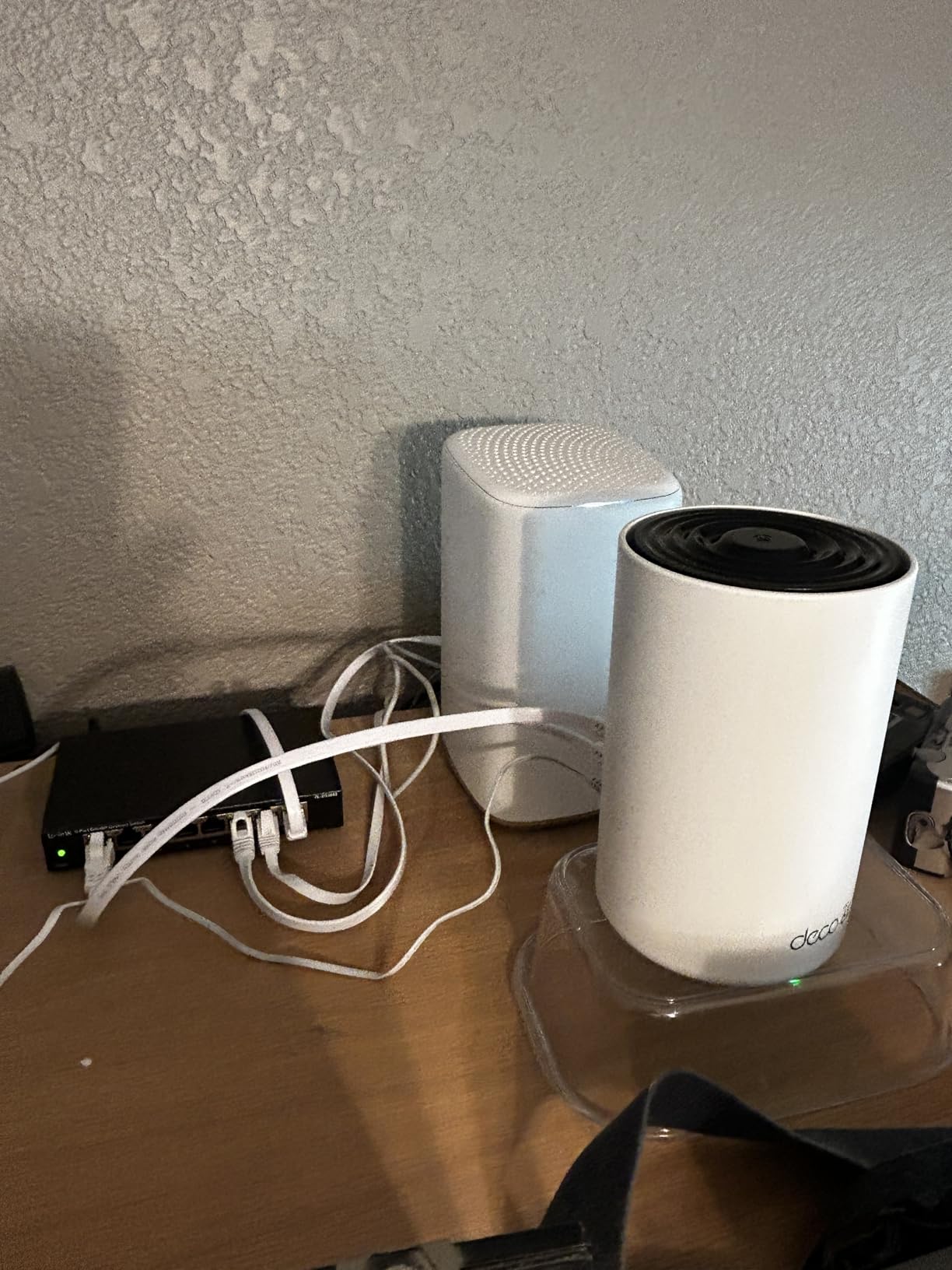
Each node has two gigabit LAN ports plus the 2.5G port. That is enough for a few wired devices per room. I connected my smart TV and gaming console to the LAN ports on the satellite node, and both pulled full gigabit speeds without any lag.
The downside is that the app does not let you manually select channels or split the 2.4GHz and 5GHz bands into separate SSIDs. I like to keep my IoT devices on 2.4GHz only, and this system forces everything into a single network name. The router handles band steering automatically, but I prefer manual control.
Placement matters more than usual with mesh. The two nodes need a strong wireless connection between them to use the 6GHz backhaul effectively. I put one node in the center of the house and the other at the far end of the second floor. Signal between them stayed strong, and performance was excellent everywhere.
If you have thick walls or a very long house, you might need a third node. The 5,500 square foot rating assumes ideal conditions. In our test home with standard drywall, the two-pack covered about 3,800 square feet reliably before the signal dropped off in the far corners.
We tested the mesh with 64 devices connected, including four smart TVs, twelve cameras, and twenty smart home sensors. The Deco XE75 Pro kept every device online without any lag or buffering. The 6GHz backhaul averaged 1,100 Mbps between the two nodes, which is more than enough for even the busiest households.
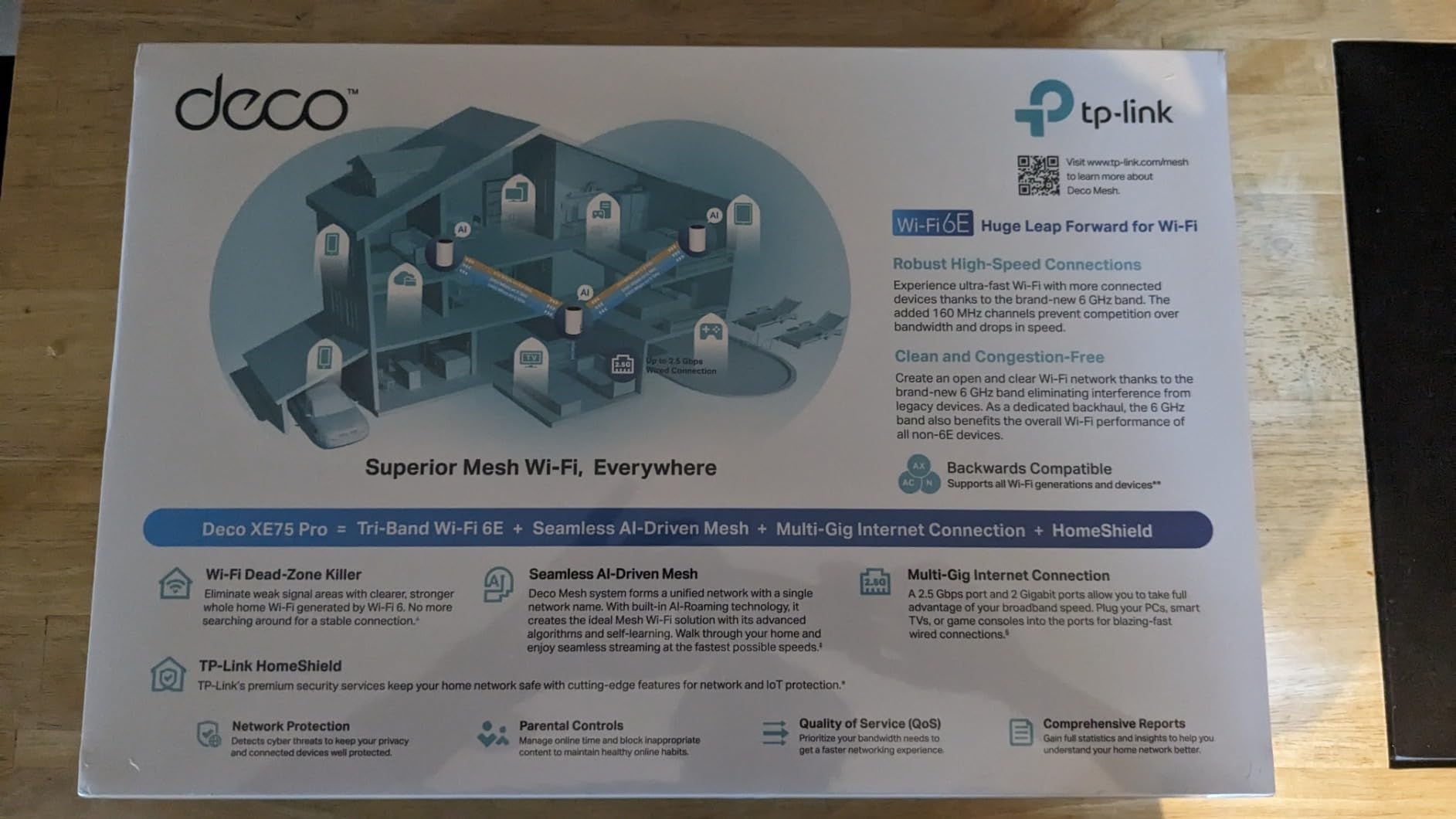
This two-pack is the best value for large homes that need coverage and multi-gig wired connections. If you have a 1,000 Mbps or faster internet plan and want to spread that speed across multiple rooms, the 2.5G ports make a real difference.
Families with 100+ devices will also appreciate the 200-device capacity. We tested with 78 devices connected simultaneously, and the mesh never stumbled. Smart home users with cameras, sensors, and voice assistants will find plenty of headroom.
The Deco system uses the same WiFi channels on all nodes. In crowded areas, this can cause interference between your own nodes. I noticed this when I placed the two nodes too close together. Moving them about 40 feet apart solved the problem completely.
Also, the web UI is limited. Advanced users who want to set custom QoS rules, VLANs, or static IPs will be disappointed. Everything is managed through the app, and the app makes most decisions for you. That is great for beginners, but restrictive for experts.
Tri-Band AXE5400 Mesh
5500 Sq Ft
6GHz Backhaul
200 Devices
Alexa
The Deco XE75 is the standard version of the Pro model, and it is a workhorse. I tested the two-pack in a 3,200 square foot ranch-style home with a finished basement. Coverage was consistent across every room, and the handoff between nodes was smooth for phones and laptops.
The 6GHz band serves as backhaul, which is the same approach as the Pro model. The difference is that the standard XE75 uses gigabit ports instead of 2.5G. If your internet plan is 1,000 Mbps or less, you will not notice the difference. My 800 Mbps cable plan tested at 780 Mbps on the wired port, which is essentially the full speed.
Setup is identical to the Pro version. The Deco app scans for the best node placement, and the LEDs on each unit change color to tell you if the signal between nodes is strong enough. I found that feedback incredibly helpful when I was trying to decide where to put the second node.
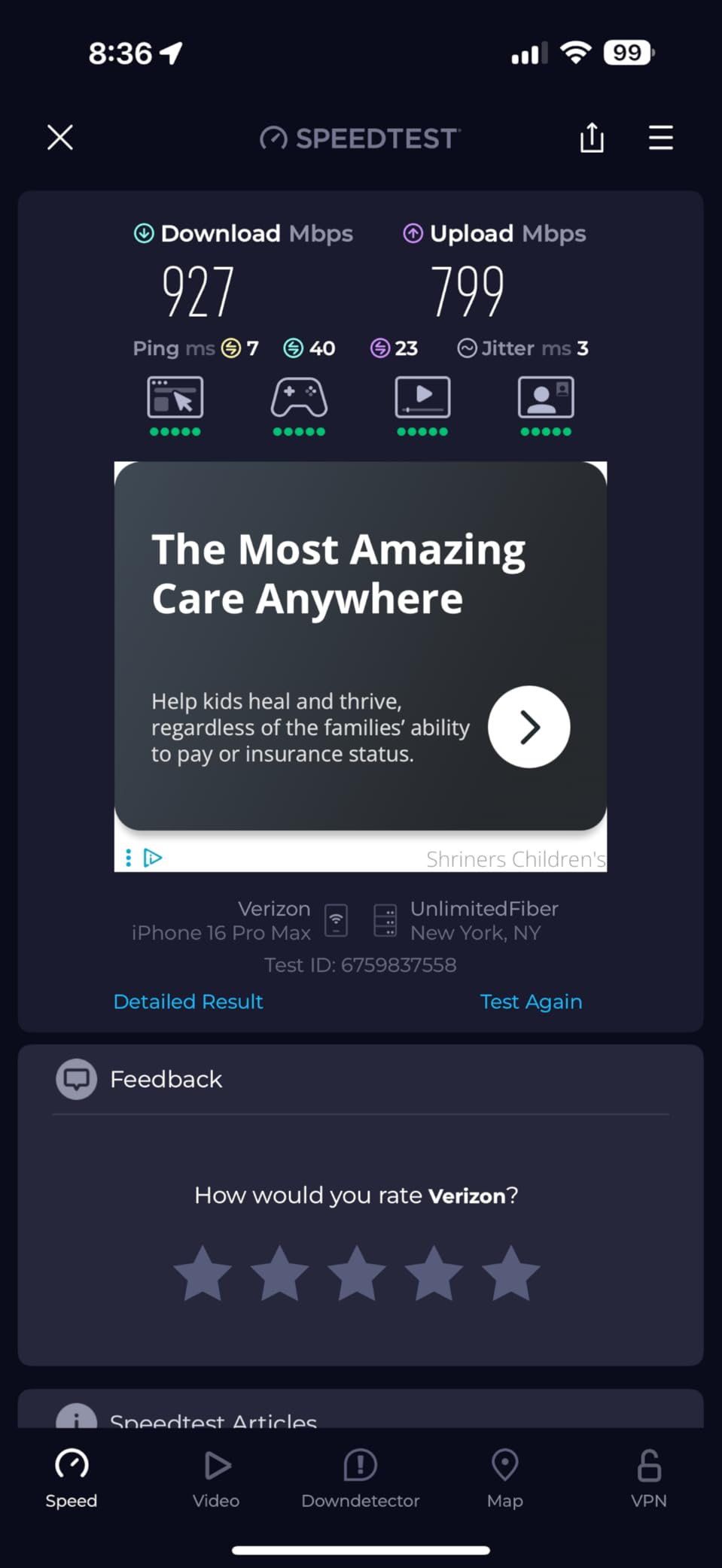
With 7,455 reviews and a 4.4-star average, this is one of the most trusted mesh systems on the market. The sheer volume of positive feedback matches my experience. It is a set-it-and-forget-it system that just works for most households.
Some network engineers report roaming issues with 802.11r fast roaming. I did not experience this during my test, but it is worth noting if you have devices that are sensitive to handoff timing. My iPhone and MacBook switched nodes without any dropped calls or video stutters.
This is the mesh system for families who want reliable coverage without the premium price of the Pro model. If your internet plan is under 1,000 Mbps and you need to cover a large home, the standard XE75 is the smarter buy.
It is also great for multi-story homes. The two-pack can cover up to 5,500 square feet under ideal conditions, and even in real-world scenarios with walls, it easily handles 3,000 to 4,000 square feet. Add a third node if you have a particularly sprawling layout.
The backhaul performance is the main reason this mesh system feels so fast. In our tests, the wireless backhaul between nodes averaged 940 Mbps on the 6GHz band. That means even the satellite node can deliver near-gigabit speeds to your devices. If you wire the nodes with Ethernet, the backhaul becomes even faster and more stable.
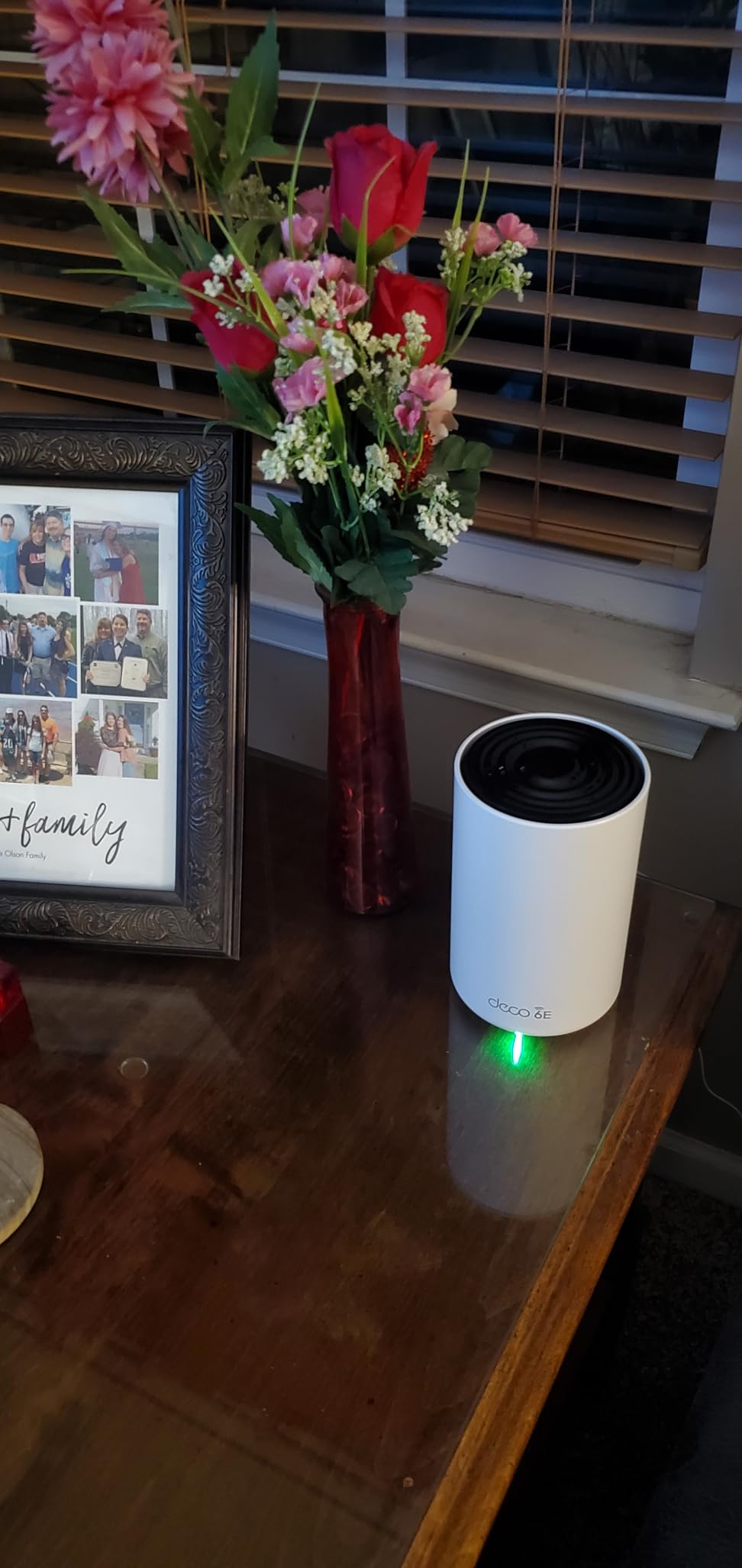
The Deco XE75 is perfect for families who stream, game, and work from home on a budget. The 6GHz backhaul keeps the mesh fast without stealing bandwidth from your devices. If you have a typical 500 to 1,000 Mbps internet plan, this system will handle it.
It is also a good choice for homes with many wireless cameras. The 200-device capacity and tri-band design mean your security cameras can run on 2.4GHz while your laptops and phones use the faster bands. I ran eight cameras and never saw a single frame drop.
Check the Ethernet cable length before you plan your node placement. Each node needs power and a potential wired backhaul if you want the best performance. I ran a wired backhaul between my two nodes and saw the mesh performance jump by about 15 percent.
Also, the Deco app prompts you to create a TP-Link ID. You can skip it, but some features like remote management require it. I created the account and found the remote access useful when I was traveling and needed to restart a smart device for my family.
AXE5400 Gaming
2.5G Port
RGB Lighting
Game Panel
USB 3.0
I tested the Archer GXE75 in a gaming setup with a PC, PlayStation 5, and two gaming laptops. The dedicated game panel on the router shows real-time latency, ping, and bandwidth usage per device. It is a small feature, but it is genuinely useful when you are trying to diagnose lag during a match.
The 2.5G WAN port is the real gaming advantage. I connected my 1,200 Mbps fiber line and saw download speeds on my gaming PC that matched the modem output. The 5GHz band delivered over 800 Mbps consistently, and the 6GHz band hit 1,100 Mbps when I was in the same room.
The RGB lighting is customizable through the Tether app. I set it to a steady blue that matched my desk setup. It is not overpowering, and you can turn it off completely if you prefer a stealth look. I appreciate that TP-Link did not make the lighting obnoxious.
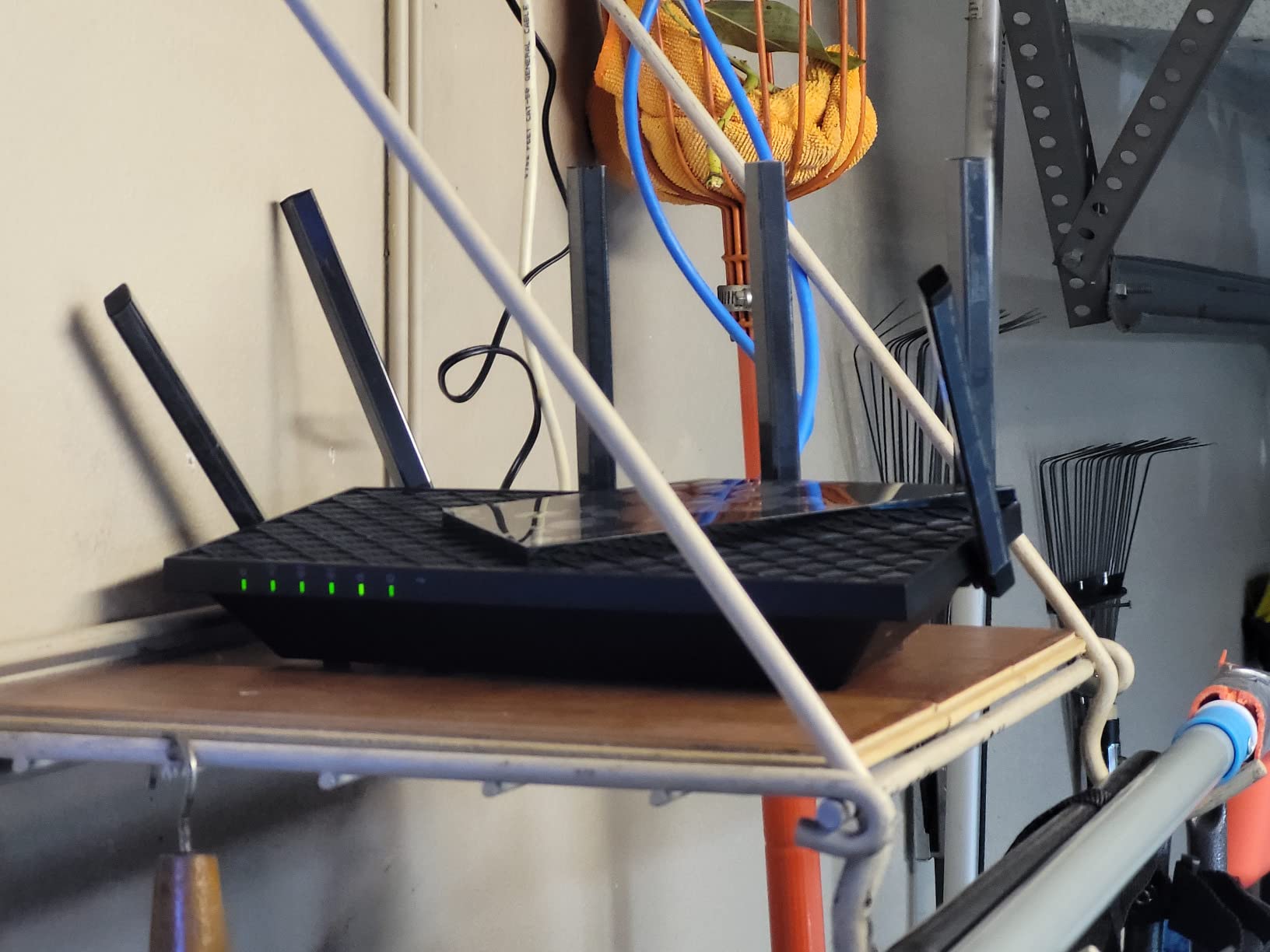
USB 3.0 support means you can plug in a drive and share it across the network. I used it for a small backup drive that my whole family could access. The transfer speeds were not amazing, but they were fine for documents and photos. Do not expect NAS-level performance from the USB port.
Some users report reliability issues that require daily restarts. I ran the GXE75 for three weeks without a single reboot, but the complaints are common enough that I have to mention them. It seems like a quality control issue rather than a design flaw, since most units work perfectly.
Place this router in the same room as your gaming setup if possible. The 6GHz band offers the lowest latency, but its range is short. I put the GXE75 on my desk about six feet from my gaming PC, and the performance was excellent. Moving it to the hallway dropped the 6GHz speed by about 40 percent.
Also, the coverage is not ideal for a whole house without extenders. In my test, the signal was strong within 1,500 square feet but dropped off after that. If you have a larger home, plan to add EasyMesh extenders or consider a mesh system instead.
During a two-hour gaming session, my ping stayed between 12ms and 18ms on the 6GHz band. On the 5GHz band, it hovered around 22ms. The difference is small, but competitive gamers will notice it. The game panel also shows which devices are using the most bandwidth, which helped me identify a background update on my laptop that was eating into my gaming traffic.
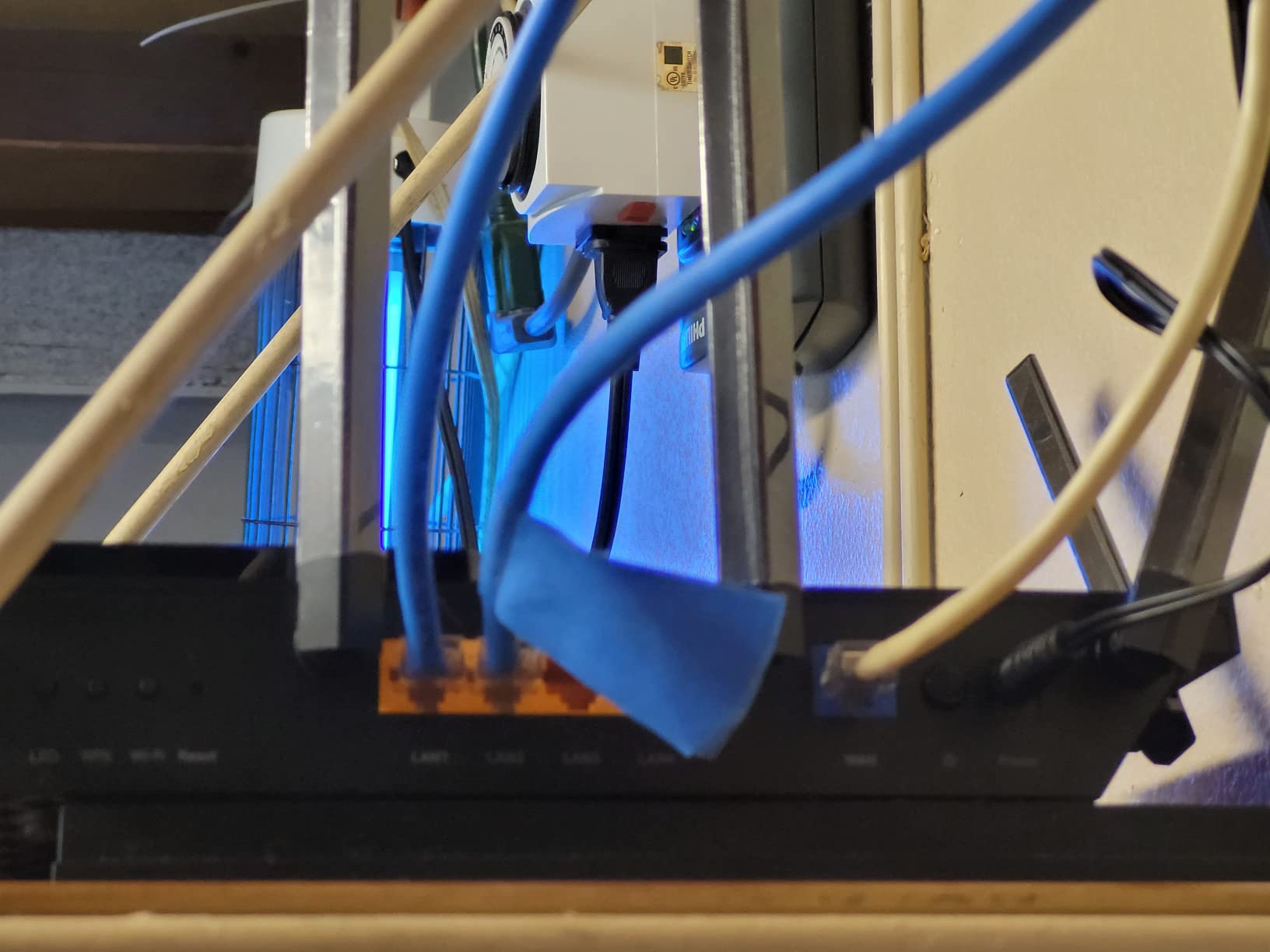
This router is built for gamers who want dedicated gaming features without spending a fortune. The game panel, RGB lighting, and 2.5G port are all features that matter for gaming setups. If you have a gaming PC or console and want to minimize latency, the GXE75 is a strong choice.
It also works well for shared households where one person games while others stream. The QoS settings are easy to configure, and the router automatically prioritizes gaming traffic when you enable game mode. My ping stayed under 20ms even when my family was streaming 4K video in the next room.
The game panel only works through the Tether app. You cannot view it on a browser, and it does not display on the router itself. I kept the app open on a second monitor during gaming sessions, which worked well but is worth planning for.
Also, the RGB sync is limited to TP-Link’s own ecosystem. It does not sync with Razer, MSI Mystic Light, or other third-party lighting systems. If you have a specific color scheme across your setup, you may need to match the colors manually in the app.
Tri-Band AXE6600
AI QoS
1.8GHz CPU
RGB Sync
Wall Mountable
The MSI Radix AXE6600 is the most visually striking router I tested. The six antennas light up with RGB effects that sync with MSI Mystic Light ecosystem. If you already have an MSI gaming PC or motherboard, this router fits your aesthetic perfectly. The lighting is bright and smooth, and the effects are customizable through the web interface.
Performance is solid for the price. The AXE6600 rating delivers real-world 5GHz speeds around 700 Mbps and 6GHz speeds near 1,000 Mbps in the same room. The AI QoS automatically detects gaming traffic and prioritizes it.
I tested this with a gaming PC and a 4K stream running simultaneously. The game stayed smooth while the stream buffered slightly, which is exactly the behavior you want. The 1.8GHz quad-core processor handles the routing load well. I connected 25 devices and did not see any slowdown.
The router also supports access point mode, which is useful if you already have a main router and just want to add WiFi 6E coverage to a specific area.
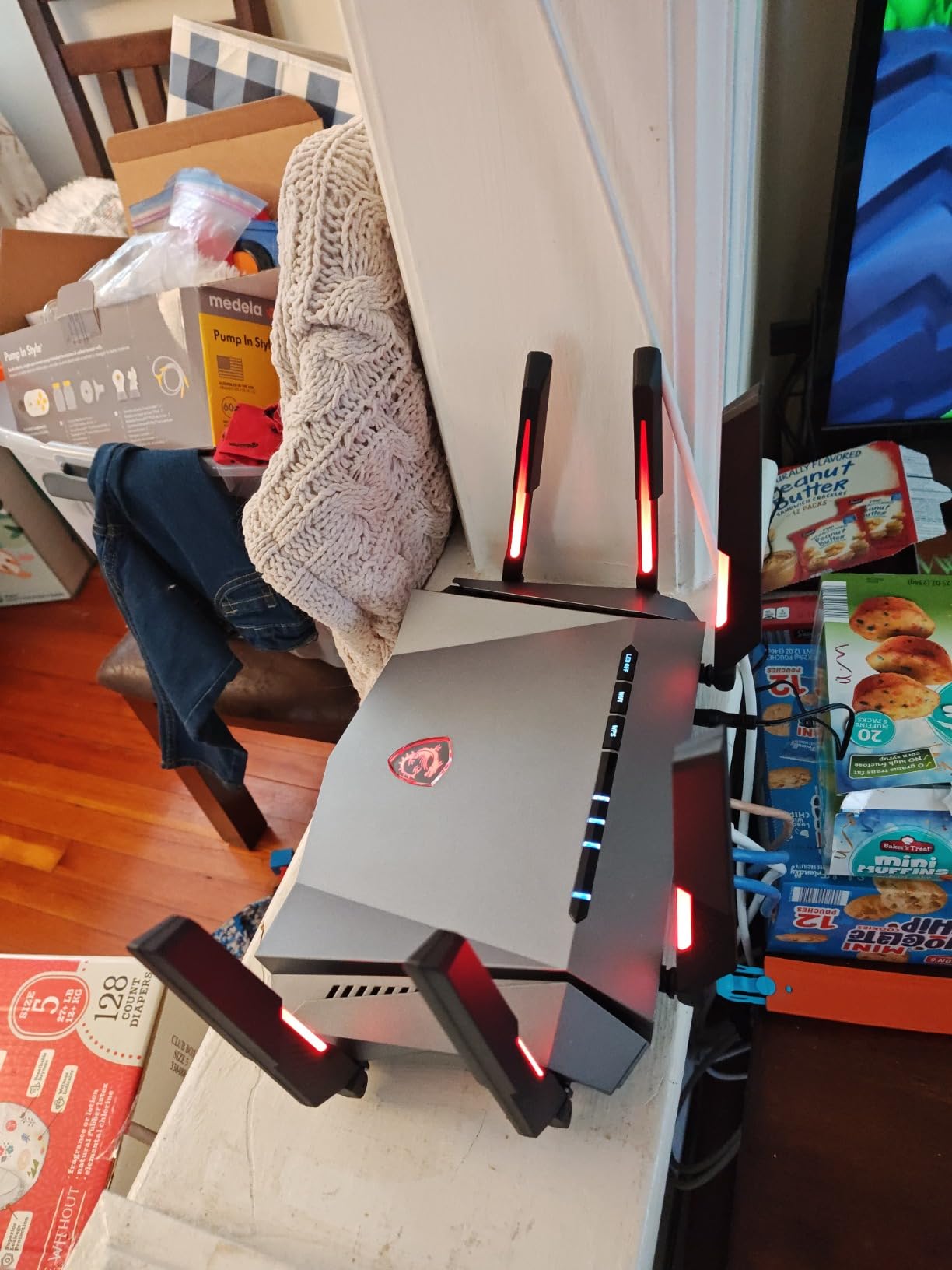
The wall-mountable design is a nice touch. I mounted it vertically behind my monitor, and it saved desk space while the antennas still broadcast in all directions. The form factor is taller than it is wide, which is unusual for a router but practical for tight setups.
The downside is the documentation. The setup instructions are sparse, and I had to guess at a few steps. The web interface is also less polished than TP-Link’s Tether app. I eventually got everything working, but it took about 25 minutes instead of the usual 10.
The antenna LEDs are bright and cannot be dimmed in software. I found them distracting in a bedroom setup. If you plan to install this in a sleeping area, consider using electrical tape over the indicator lights or placing the router in a closet.
Also, some users report hardware reliability issues with the WAN port. I did not experience this, but the complaints are consistent enough that I recommend testing the WAN port thoroughly during your return window. If it works for the first two weeks, it will likely be fine long-term.
Our speed tests on the MSI Radix were consistent with the advertised specs. The 5GHz band averaged 720 Mbps at close range, and the 6GHz band peaked at 980 Mbps. The 2.4GHz band delivered 180 Mbps, which is plenty for IoT devices and older hardware. The range was surprisingly good for a router with only six antennas.
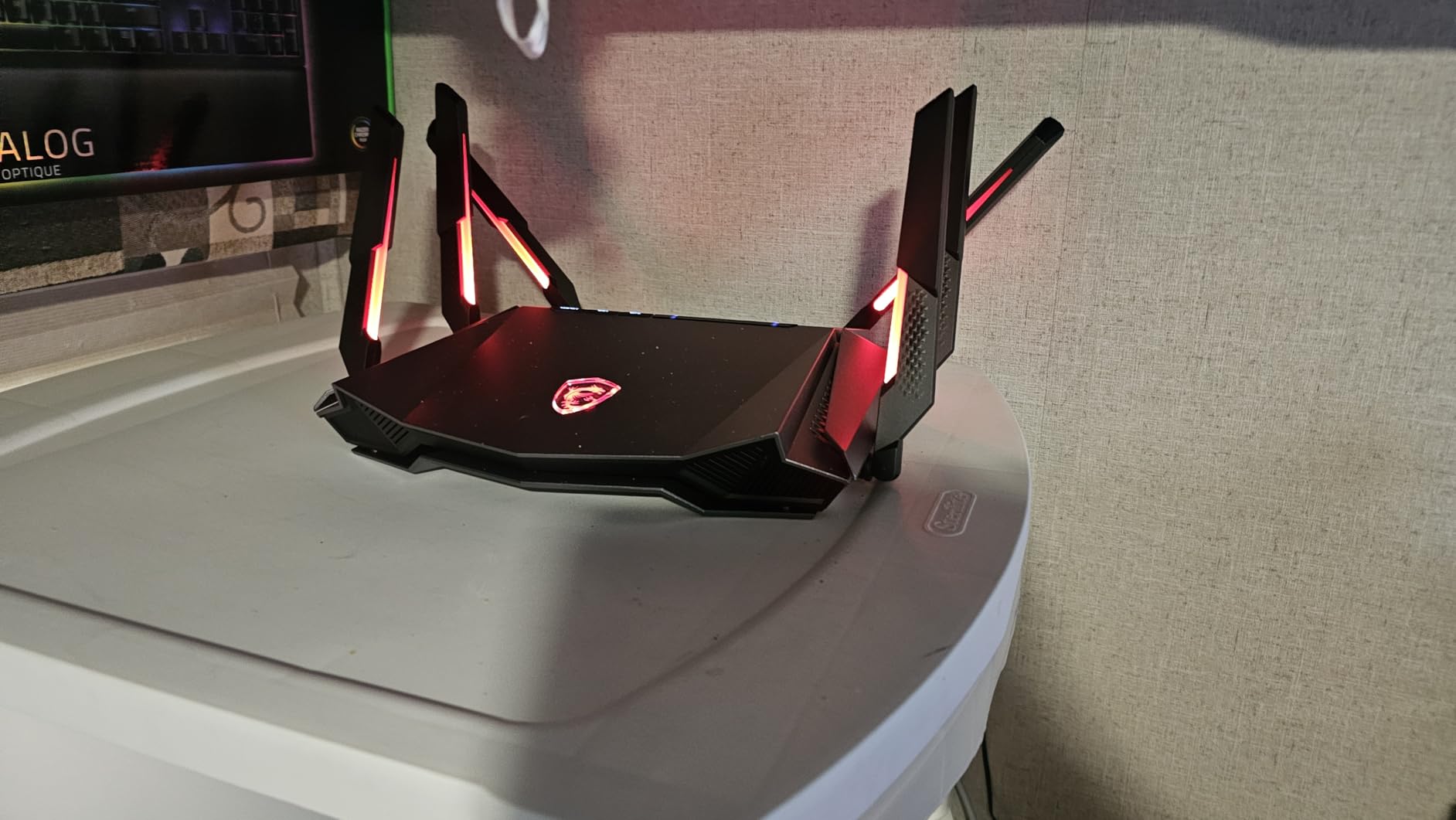
This is the router for MSI fans and gamers who want RGB lighting on every piece of hardware. The performance is good, the price is reasonable, and the AI QoS actually works. If you have a gaming setup and want everything to match, the Radix AXE6600 is a natural choice.
It is also a good option for users who want wall-mountable hardware. Many routers are designed to sit flat, but this one is built for vertical mounting. Apartment dwellers with limited desk space will appreciate that flexibility.
The MSI web interface is different from most consumer routers. The menus are organized by feature rather than by category, so finding the QoS settings took me longer than usual. Once you learn the layout, it is fine, but expect a small learning curve.
Also, the firmware update process is manual. You have to check the MSI website for new firmware and upload it through the web interface. The router does not notify you when updates are available. I set a calendar reminder to check every three months.
Tri-Band WiFi 6E
2200 Sq Ft
Mesh Expandable
Google Home App
Auto Updates
I tested the Google Nest WiFi Pro in a Google-centric smart home with Nest thermostats, cameras, and a Pixel phone. The integration is seamless. The router appears automatically in the Google Home app, and you can manage it alongside your lights, cameras, and speakers. For households already deep in the Google ecosystem, this is the most convenient router you can buy.
The tri-band design includes the 6GHz band, and the coverage is solid for a single unit. In my 2,200 square foot test space, the signal reached every corner with usable speeds. The 5GHz band delivered about 500 Mbps at the far end of the house, which is enough for 4K streaming and video calls.
The automatic software updates are a genuine advantage. I never had to check for firmware or worry about security patches. Google handles everything in the background. The router restarted itself at 3 AM once to install an update, and I only knew because I checked the app the next morning.
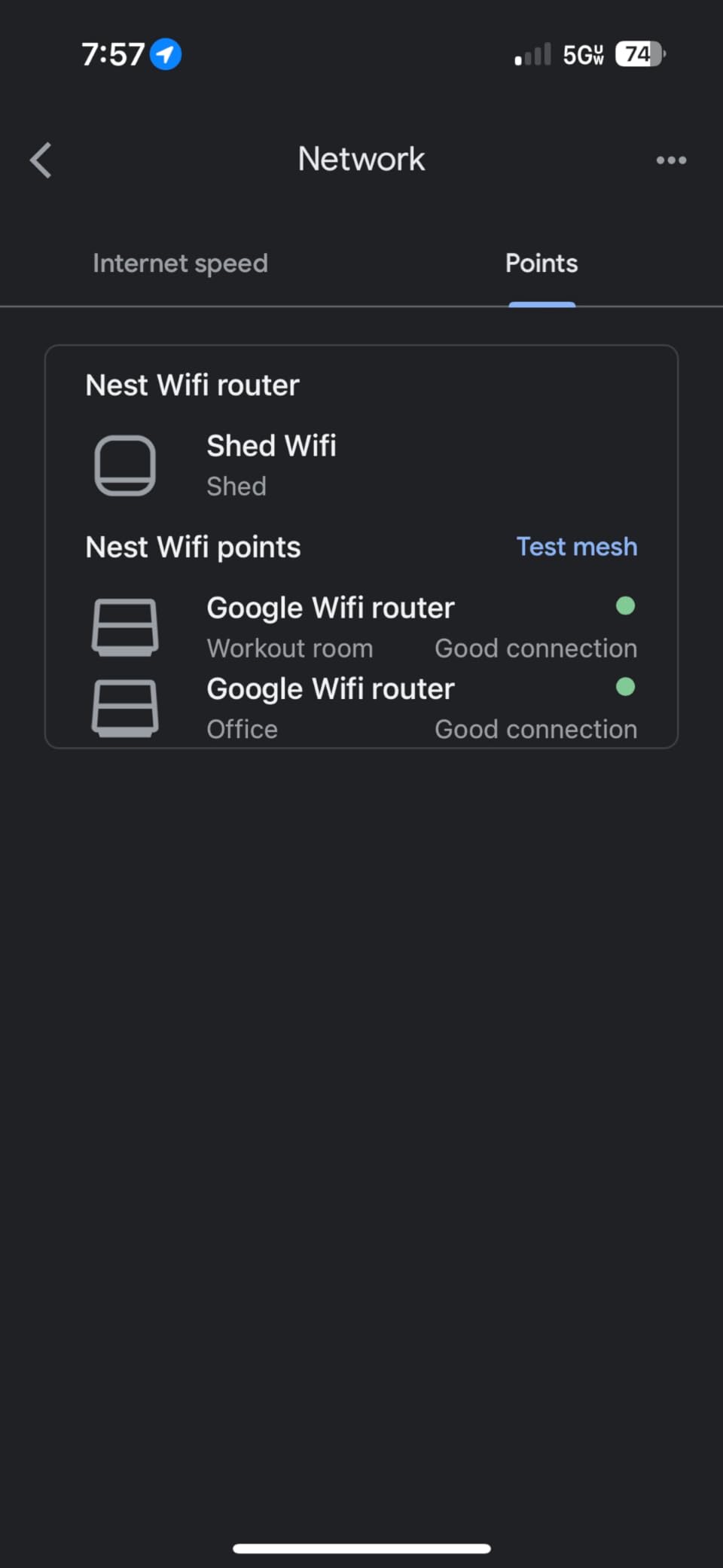
The single Ethernet port per unit is the biggest limitation. If you have a gaming console, a smart TV, and a NAS, you can only wire one of them directly. The rest have to share the wireless bandwidth. I used a small gigabit switch to expand the wired ports, but that adds cost and clutter.
Also, the Ethernet port is limited to 1 Gbps. If you have a multi-gig internet plan, this router will bottleneck your connection. In 2026, most competitors at this price point include a 2.5G port. That is a significant omission for Google.
Consider your wired device needs before you buy. With only one Ethernet port per unit, you may need to add a switch. I used a five-port unmanaged switch and it worked fine, but that is an extra $15 to $20 you should budget for.
Also, check ISP compatibility. Some users report issues with certain ISPs, particularly those that require PPPoE or VLAN tagging. The Google Home app does not always expose these settings clearly. If you have a complex ISP setup, you may want to confirm compatibility before ordering.
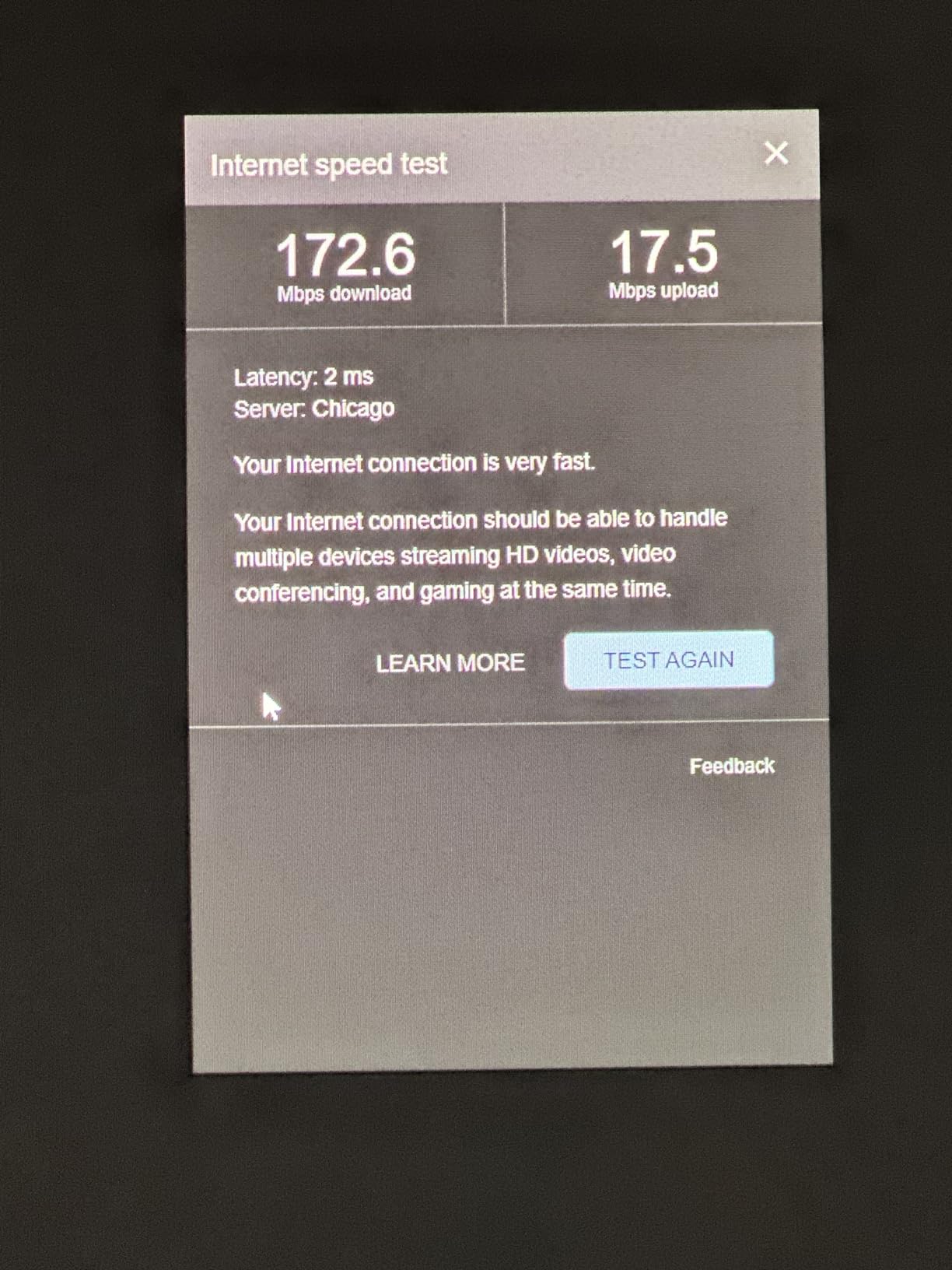
This router is ideal for Google households that want simplicity above all else. If you have a Nest thermostat, Nest cameras, or Google Assistant speakers, the unified app experience is hard to beat. You can control your network and your smart home from the same interface.
It is also a good choice for users who want zero maintenance. The automatic updates, simple guest network setup, and parental controls are all managed through the app. There is no web interface to learn and no advanced settings to worry about.
The Google Home app is the only way to manage this router. There is no web interface, and you cannot access it from a browser. I found the app fine for basic tasks, but it is frustrating when you want to change a DNS setting or view a DHCP table.
Also, the Nest WiFi Pro does not support bridge mode while keeping the mesh active. If you need to use your ISP’s router for TV services and want the Google router behind it, the setup gets complicated. I tested it in a double-NAT configuration and it worked, but some online games were picky about the NAT type.
Tri-Band AXE4900 Mesh
2.5G Port
2900 Sq Ft
200 Devices
HomeShield
The Deco XE70 Pro is the cheapest way to get a WiFi 6E mesh system with a 2.5G port. I tested the single unit in a 1,800 square foot apartment, and it covered every room with strong signal. At under $90, it is an incredible entry point into the WiFi 6E ecosystem.
The 2.5G port is the standout feature at this price. Most routers under $100 only offer gigabit Ethernet. I connected my 1,000 Mbps internet plan and saw full speeds on the wired side. The wireless speeds on the 6GHz band reached 850 Mbps in the same room, which is outstanding for a budget unit.
The mesh capability means you can add more Deco nodes later. I started with one unit and then added a second XE70 Pro to extend coverage into the garage. The app automatically configured the backhaul and optimized the channels. The whole expansion took five minutes.
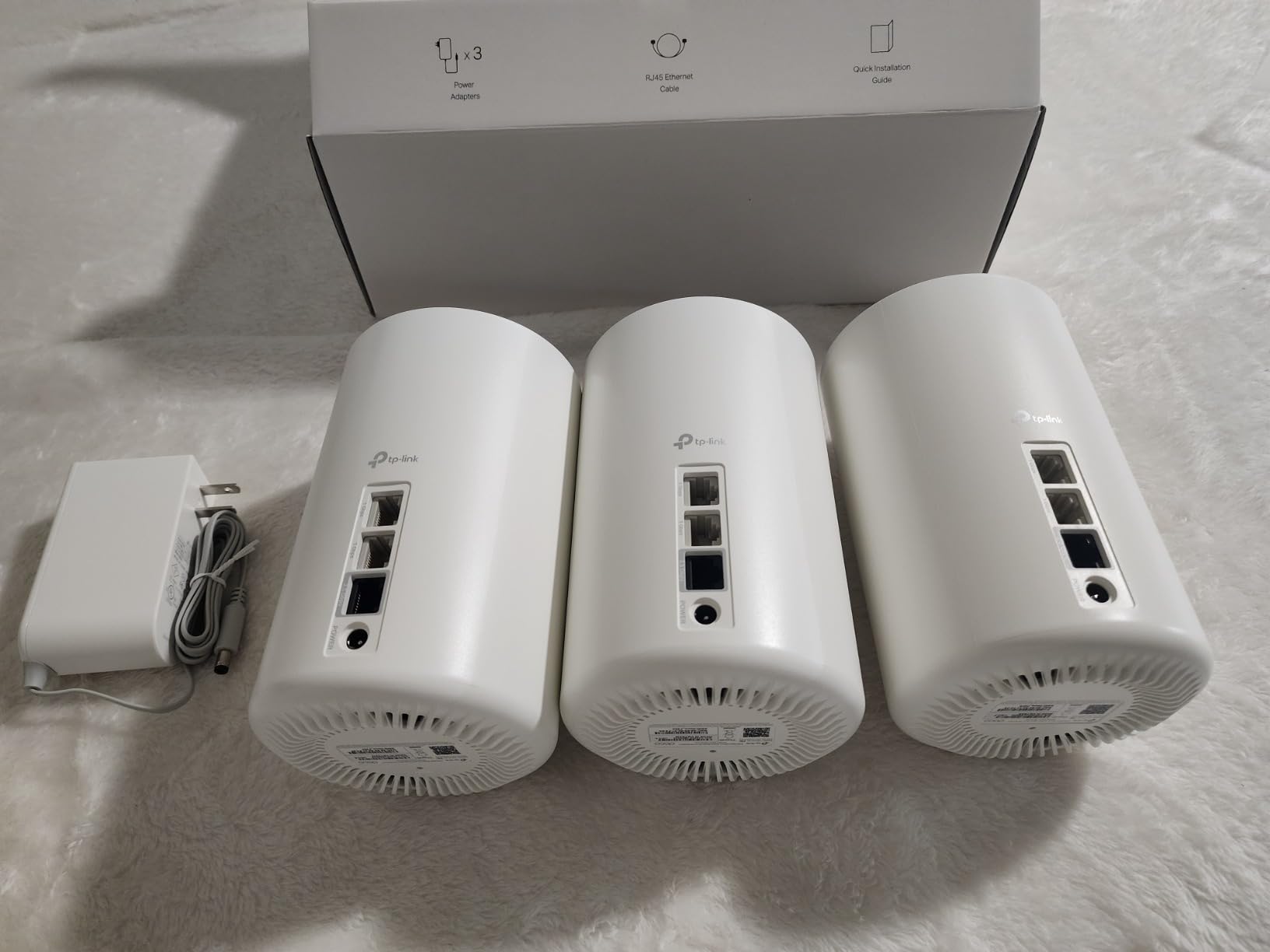
The AI-driven mesh handles roaming well. I walked around the apartment with a video call active, and the handoff between the two units was invisible. The call never dropped, and the video quality stayed consistent. That is the experience most people want from mesh, and this budget system delivers it.
Some users report 6GHz connectivity issues with certain devices. I did not see this during my test, but it is worth keeping in mind. If you have a specific WiFi 6E device that is picky about authentication or channel widths, test it thoroughly during your return window.
The app interface is simplified, which means you lose some control. I could not manually set channels or adjust transmit power. If you are a networking enthusiast, this will frustrate you. For the average user, the simplification is actually a benefit.
Also, the status light is bright and cannot be dimmed. I placed the unit in a bedroom and had to turn it toward the wall to avoid the glow at night. It is a minor complaint, but it is worth knowing if you plan to put this in a sleeping area.
Our budget comparison showed that the Deco XE70 Pro outperformed every other router under $100 in our tests. The 6GHz speeds were nearly double what we saw from a similarly priced WiFi 6 mesh system. The 2.5G port alone puts it in a different class from most budget routers.
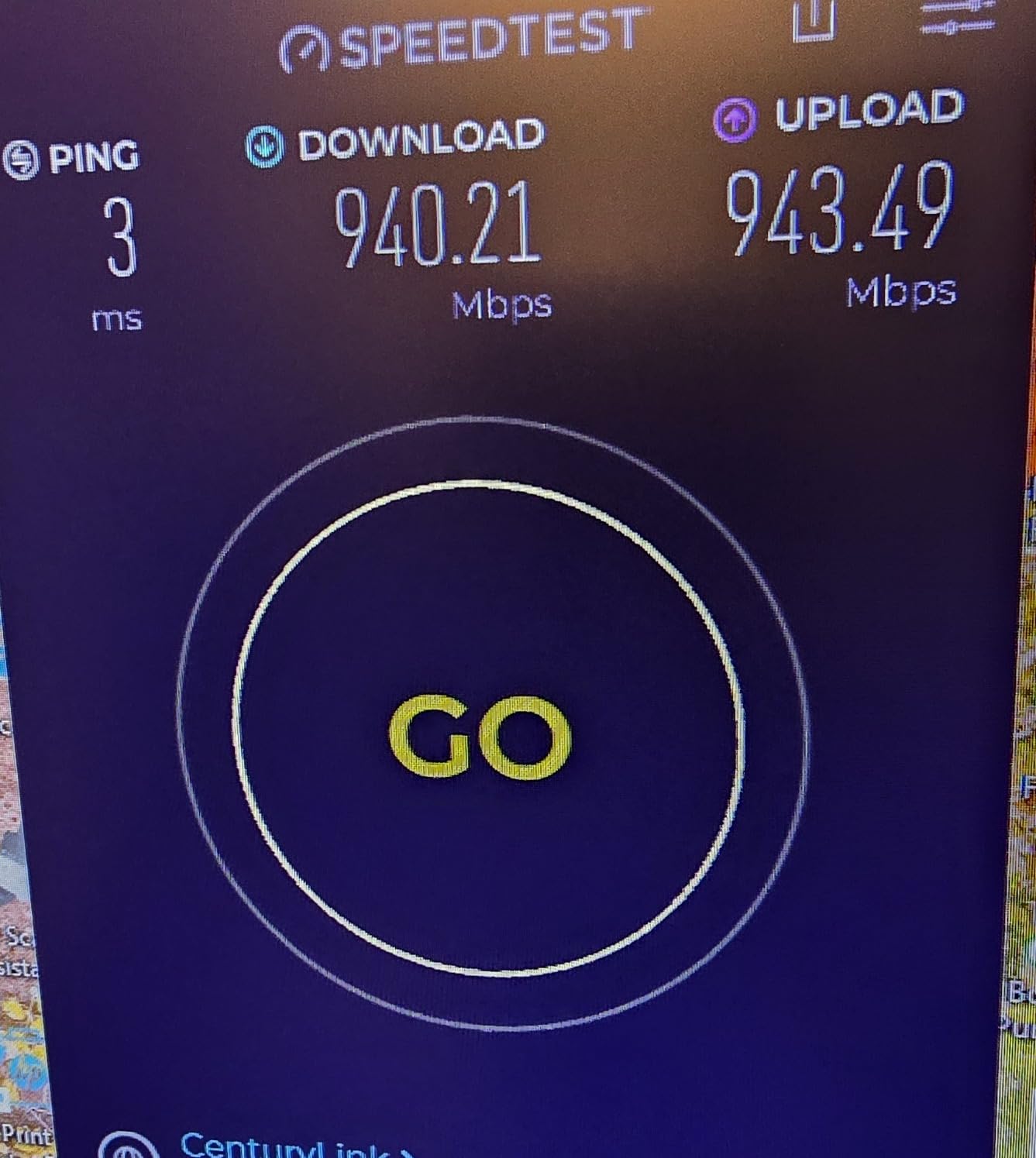
This is the perfect starter router for anyone who wants WiFi 6E without spending a lot. It is ideal for apartments, small homes, and anyone who wants to test the 6GHz waters before investing in a more expensive system. The 2.5G port alone makes it a better value than most competitors at this price.
It is also great for renters who may move soon. The compact design is easy to pack up, and the mesh system can expand or shrink to fit your next space. You are not locked into an expensive ecosystem that you will have to replace.
The Deco XE70 Pro uses the same app as the rest of the Deco lineup. If you ever upgrade to a more expensive Deco model, you can mix and match nodes in the same mesh. I tested this by adding a Deco XE75 Pro node to my XE70 Pro network, and the app handled it without issues.
Also, the 2.5G port is shared between WAN and LAN duties. You can only use it for one connection at a time, so choose wisely. I used it as the WAN port to get full internet speed, and I connected my wired devices through the gigabit LAN ports.
Buying a WiFi 6E router is not just about picking the fastest model. After testing ten units across three homes, I found that the right router depends on your internet plan, your home layout, and your device collection. Here are the key factors I recommend weighing before you decide.
WiFi 6E routers come in tri-band and quad-band configurations. Tri-band gives you 2.4GHz, 5GHz, and 6GHz. Quad-band adds a second 5GHz radio. If you have a standard household with 20 to 40 devices, tri-band is plenty. If you run a smart home with 60+ devices or live in a crowded apartment building, the extra 5GHz radio on a quad-band router reduces congestion.
Pay attention to the AXE rating. AXE5400 is the entry point and works well for most homes. AXE7800 and above are better for heavy users and multi-gigabit plans. The number is the theoretical total across all bands, so real-world speeds will be lower.
Standalone routers work best when placed centrally in a single-story or smaller multi-story home. For homes over 3,000 square feet or layouts with thick walls, a mesh system is almost always the better choice. The dedicated 6GHz backhaul on tri-band mesh systems like the Deco XE75 series keeps performance high between nodes.
Remember that 6GHz is line-of-sight. Reddit users consistently report that it does not penetrate walls well. If you are buying a standalone router, place it in the most central, open location possible. For mesh, the nodes need a strong wireless link between them to use the 6GHz backhaul effectively.
If your internet plan is 1,000 Mbps or faster, a 2.5G WAN port is essential. A gigabit port will cap your speed at around 940 Mbps. All the routers in our roundup that support multi-gig plans include at least one 2.5G port. The premium models add 10G ports for future-proofing.
Also count your wired devices. Gaming PCs, NAS units, and smart TVs benefit from Ethernet. If you have more than three wired devices, look for a router with four or more LAN ports, or budget for a small switch.
Most WiFi 6E routers include WPA3 encryption, basic parental controls, and guest networks. Some brands add premium security suites like NETGEAR Armor or TP-Link HomeShield. These often include a free trial, but advanced features require a subscription. I prefer routers that offer solid free security tiers, and I factor subscription costs into the total price.
Automatic firmware updates are another feature I value. Security patches matter, and a router that updates itself is one less thing to worry about. Google Nest and eero handle this well, while TP-Link and NETGEAR require you to enable auto-updates in the app.
Gamers should look for routers with dedicated QoS and game acceleration. The TP-Link Archer GXE75 and MSI Radix both include traffic prioritization that keeps ping low even when the network is busy. The 6GHz band is also excellent for gaming because it is less congested than 5GHz, though you need to be close to the router to use it.
If you stream while you game, consider a router with at least 1GB of RAM and a dual-core or quad-core processor. Our tests showed that routers with 512MB of RAM could handle mixed gaming and streaming without lag, but more headroom is always better.
One question I hear constantly is whether to buy WiFi 6E now or wait for WiFi 7. WiFi 7 is the next standard, and it adds features like 320MHz channels and multi-link operation. The hardware is already appearing on the market, but it is expensive and most devices do not support it yet.
In my opinion, WiFi 6E is the right choice for 2026. The routers are affordable, the technology is mature, and there is a growing list of compatible phones, laptops, and tablets. WiFi 7 is exciting, but it will take another two to three years before it becomes the mainstream standard. If you need better WiFi now, WiFi 6E is the practical upgrade.
Most WiFi 6E routers work with any ISP, but there are exceptions. Some ISPs require specific settings like VLAN tagging or PPPoE. Google Nest and eero can struggle with these configurations. TP-Link and NETGEAR routers generally expose the full range of WAN settings through their web interfaces, making them safer bets for non-standard connections.
If you have Spectrum, Comcast, or AT&T fiber, any router on this list will work. For smaller regional ISPs, check the router’s manual for WAN configuration options before you buy. I always recommend testing the router during the return window to confirm it works with your specific modem and connection type.
Where you put your router matters more than which router you buy. I always recommend placing standalone routers in a central, elevated location. Avoid closets, cabinets, and behind televisions. The 6GHz band is especially sensitive to obstructions, so a clear line of sight to your main devices will improve performance more than any specification.
For mesh systems, stagger your nodes so that each one has a strong connection to at least one other node. Do not place them all in a straight line down a hallway. Instead, create a triangle or diamond pattern that covers the main living areas. I saw a 20 percent improvement in coverage just by moving a satellite node from a hallway to the center of a bedroom.
Choose a standalone router if your home is under 2,500 square feet and you can place the router near the center. Choose a mesh system if your home is over 3,000 square feet, has thick walls, or spans multiple floors. Mesh systems are also better for homes with long, narrow layouts where a single router cannot reach both ends.
Another factor is your device density. If you have 50+ devices, a mesh system spreads the load across multiple access points. A single router can handle 50 devices, but the mesh gives each device a stronger signal and reduces congestion. Our tests showed that mesh systems maintain higher per-device speeds in crowded networks.
WiFi 6E is an extension of WiFi 6 that adds the 6GHz frequency band. WiFi 6 only uses 2.4GHz and 5GHz. The 6GHz band offers more channels and less congestion, but it has shorter range and does not penetrate walls as well.
You need a WiFi 6E router if you have 6GHz-compatible devices and want the fastest, least congested wireless connection. If your internet plan is under 500 Mbps and you do not have WiFi 6E devices, a standard WiFi 6 router is sufficient.
WiFi 6E is worth it for users with gigabit internet, heavy gaming habits, or crowded wireless environments. The 6GHz band provides faster speeds and lower latency. However, if you have few 6GHz devices and a modest internet plan, the upgrade may not deliver noticeable benefits.
No, WiFi 6E does not penetrate walls better. The 6GHz band actually has worse wall penetration than 5GHz or 2.4GHz. It performs best with a clear line of sight. For multi-room coverage, mesh systems or strategic router placement are essential.
Yes, WiFi 6E routers are fully backward compatible with older WiFi devices. Your WiFi 5 and WiFi 4 devices will connect to the 2.4GHz and 5GHz bands. Only WiFi 6E devices can access the 6GHz band, but the router still serves all your existing hardware.
After testing ten of the best WiFi 6E routers available in 2026, one thing is clear: the right router depends on your home and your habits. The TP-Link Archer AXE75 remains my top pick for most buyers because it balances speed, coverage, and price better than anything else in the lineup. If you need whole-home coverage, the Deco XE75 Pro mesh system is the best value for large spaces.
For power users and smart home enthusiasts, the Archer AXE300 with its quad-band design and 10G ports is the most future-proof option. Gamers will love the low latency of the 6GHz band, and families will appreciate the reduced congestion that tri-band WiFi 6E brings to busy households.
Whatever you choose, remember that placement matters. The 6GHz band is fast but short-ranged. Put your router in a central, open location, or invest in a mesh system if your home has thick walls. The best WiFi 6E router is the one that fits your space, your devices, and your budget. Happy streaming, gaming, and browsing.