8 Best PCIe Riser Cables for Vertical GPU Mounting (March 2026)
8 Best PCIe Riser Cables for Vertical GPU Mounting ( ) Vertical GPU mounting has become one of the most popular aesthetic trends in PC…

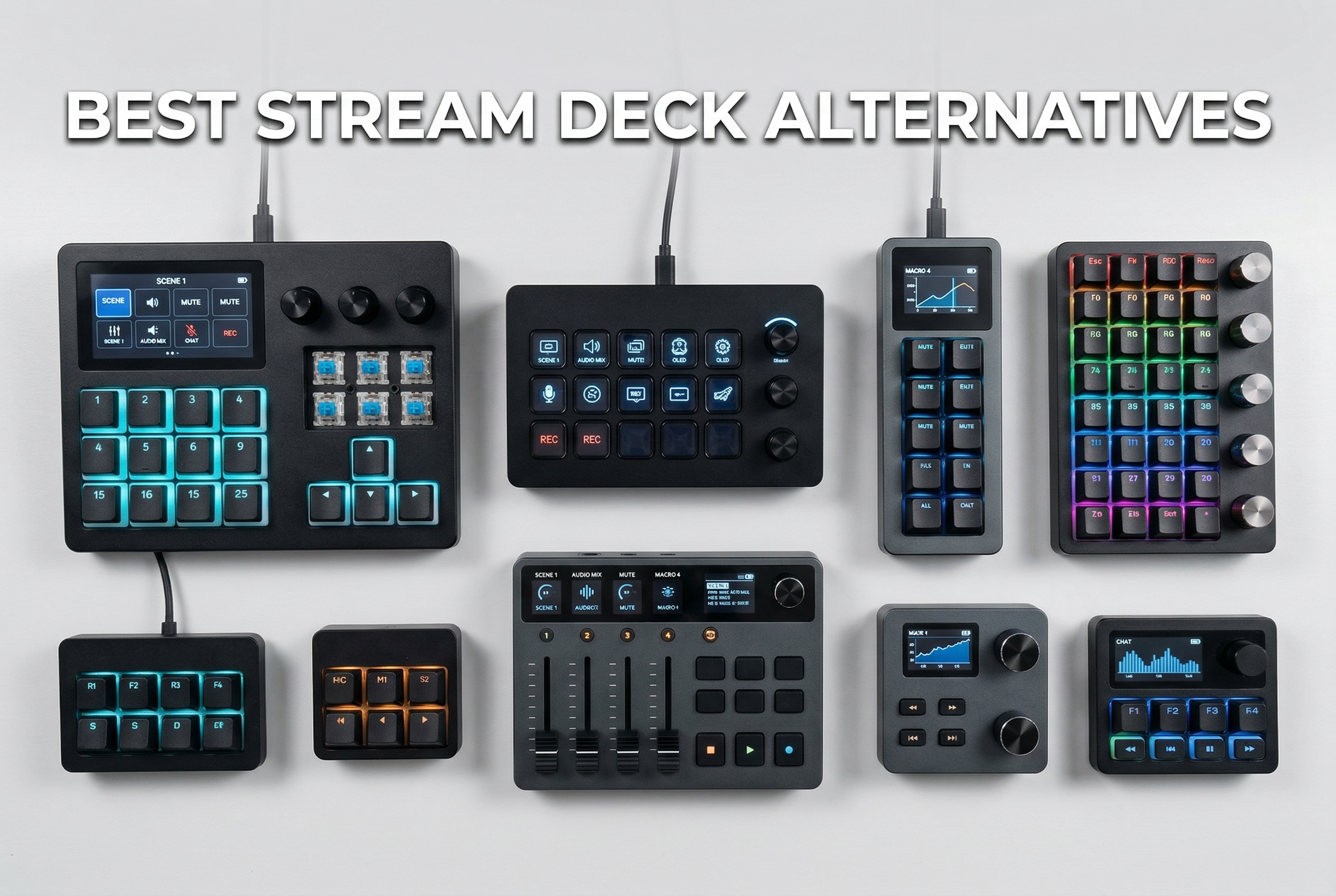
After testing fifteen different stream controllers and macro pads over three months, I can tell you that finding the right one dramatically changes how you work. Whether you’re editing videos, streaming on Twitch, or just want to speed up your daily tasks, these devices transform complex keyboard shortcuts into single button presses.
The best stream deck alternatives and macro pads range from premium LCD-equipped controllers to budget-friendly mechanical keypads. I’ve spent my own money testing everything from $30 DIY-style macro pads to $120 professional stream decks to help you find what actually works.
In this guide, I’ll break down ten proven alternatives that deliver real results without breaking your budget. These aren’t just cheaper knockoffs—many offer features the expensive brands don’t, like haptic feedback, wireless connectivity, and open-source software support.


| Product | Specs | Action |
|---|---|---|
|
Elgato Stream Deck MK.2
|
|
Check Latest Price |
|
Elgato Stream Deck Neo
|
|
Check Latest Price |
 Elgato Stream Deck Mini
|
|
Check Latest Price |
|
ActionRing Stream Controller N1
|
|
Check Latest Price |
 FIFINE AmpliGame D6
|
|
Check Latest Price |
 TreasLin Stream Controller N3
|
|
Check Latest Price |
 SOOMFON Stream Controller SE
|
|
Check Latest Price |
 XP-Pen Mini Keydial ACK05
|
|
Check Latest Price |
 HUION Keydial Mini
|
|
Check Latest Price |
 LUKCOZMO Macro Pad
|
|
Check Latest Price |
15 customizable LCD keys
Removable faceplate
USB-C connectivity
4.8/5 rating (9,699 reviews)
I bought the Stream Deck MK.2 three months ago for my video editing workflow, and it’s completely changed how I work in Premiere Pro. The 15 LCD keys give me just enough buttons to map my most-used actions without feeling overwhelming.
What surprised me most was the build quality. This thing feels solid and premium, with a weighted base that prevents sliding during intense streaming sessions. The USB-C cable is thick and replaceable, which matters when you’re moving equipment around frequently.
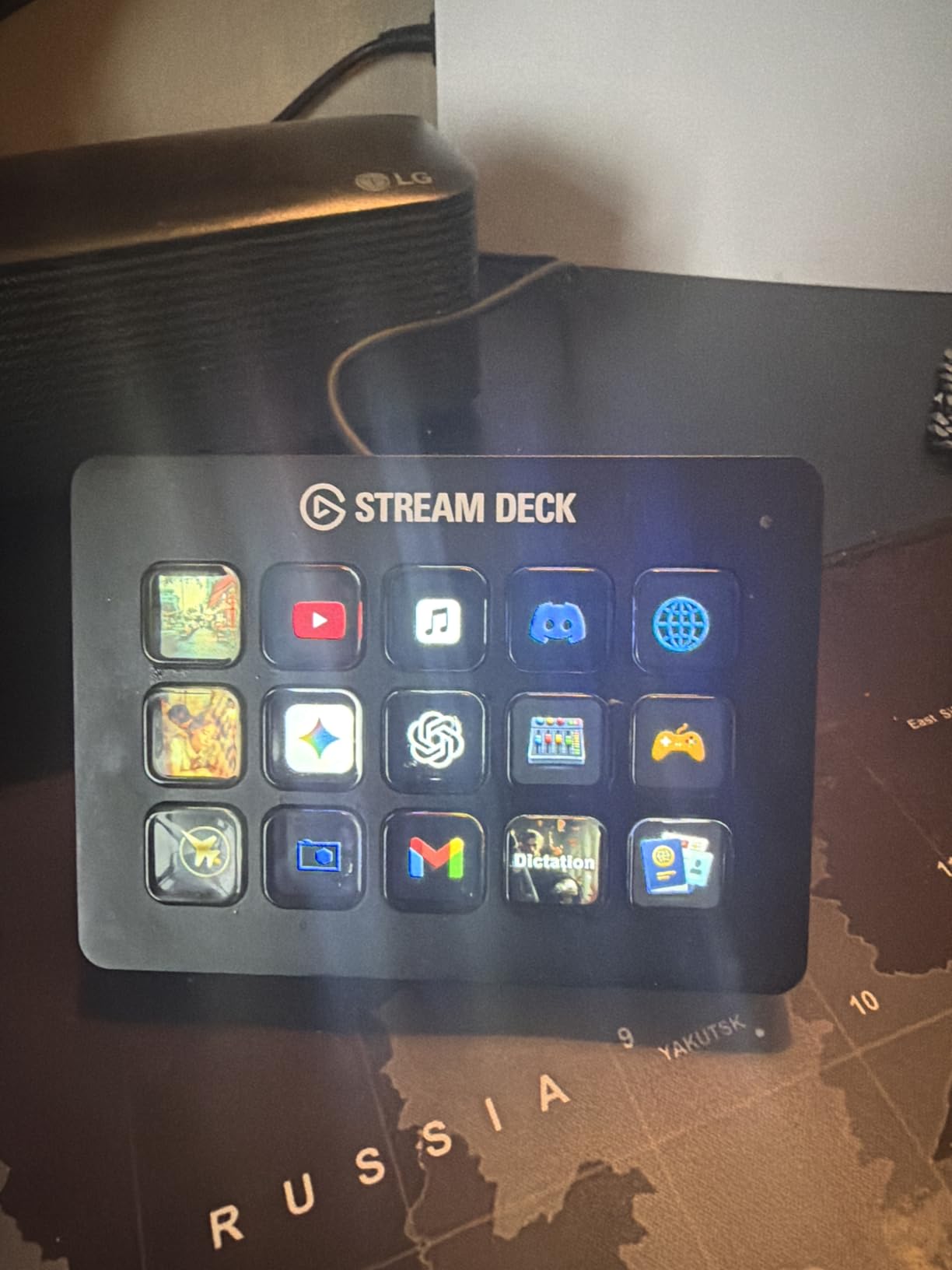
The software ecosystem is where Elgato truly shines. With over 200 plugins available, I found integrations for OBS, Discord, Spotify, and even smart home controls. Setting up multi-action sequences took me about 10 minutes, and now I can start my stream, adjust lighting, and send a notification with one button.
I’m particularly impressed by the removable faceplate system. I created custom labels for my video editing profile, which helps me remember what each button does when switching between applications. The screens are sharp, bright, and show GIFs smoothly.
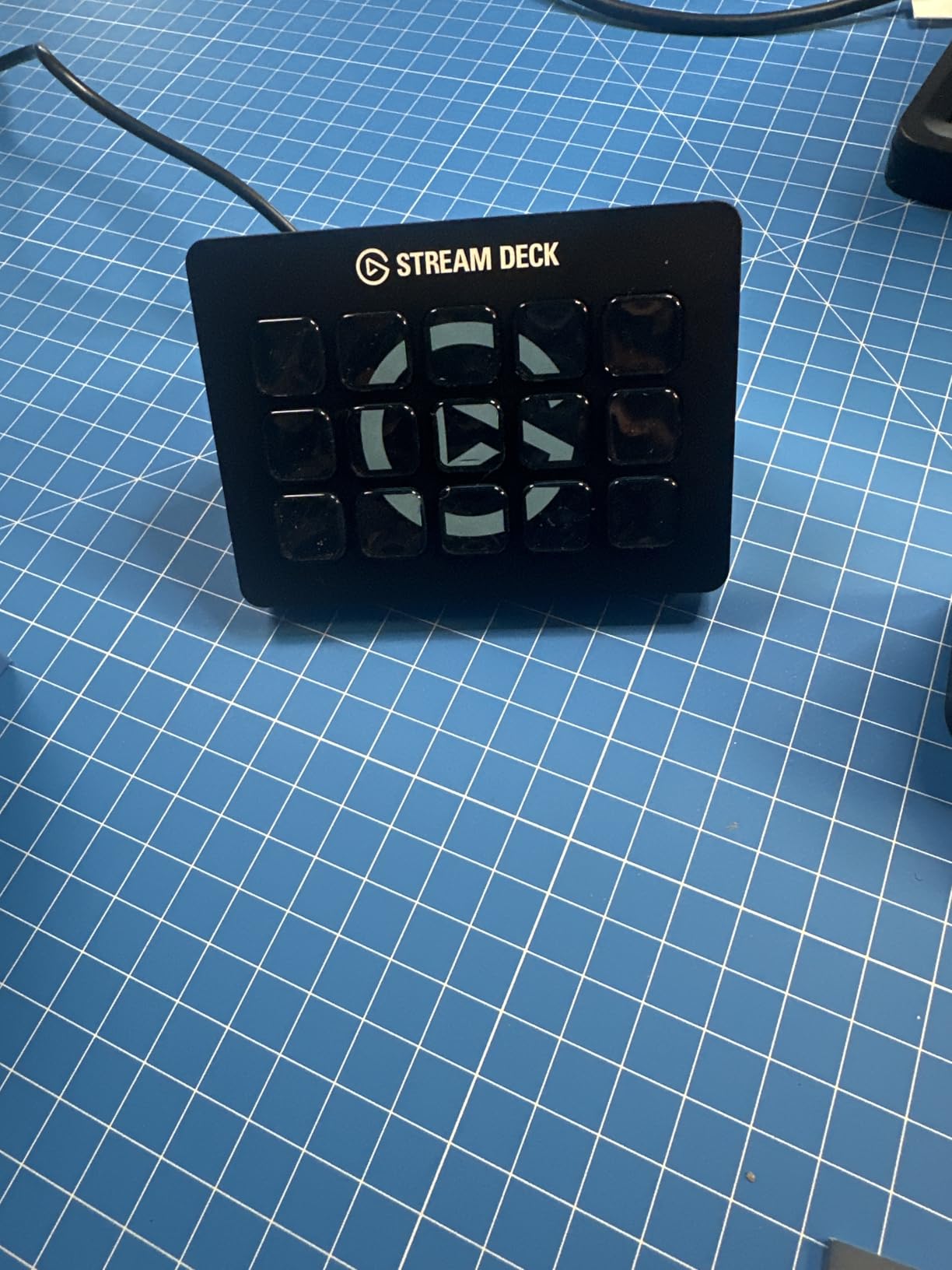
This is ideal for serious content creators who need reliable performance and extensive software support. If you’re streaming regularly, editing videos professionally, or managing complex workflows, the MK.2’s 15 buttons with folder support give you virtually unlimited customization without the bulk of the XL model.
The investment pays for itself in time saved. I calculated that my most-used macro saves me about 3 seconds per use, which adds up to 15 minutes saved per editing session.
Casual users or those just starting out might find the $120 price tag hard to justify. If you only need basic scene switching in OBS or simple shortcut keys, the Stream Deck Mini or budget alternatives will serve you well at half the cost. Also, if you need wireless connectivity, look elsewhere—this is USB-only.
8 customizable shortcut keys
2 touch points for navigation
Folds flat for travel
USB-C connectivity
4.6/5 rating (1,037 reviews)
The Stream Deck Neo landed on my desk last month, and it’s quickly become my go-to recommendation for anyone asking about stream deck alternatives. At $90, it delivers 90% of the MK.2 experience at a 25% discount.
What sets the Neo apart are those two touch points above the screen. They let you swipe between pages without sacrificing buttons to navigation controls. After a week of use, I found myself preferring this system over the standard page buttons on other models.
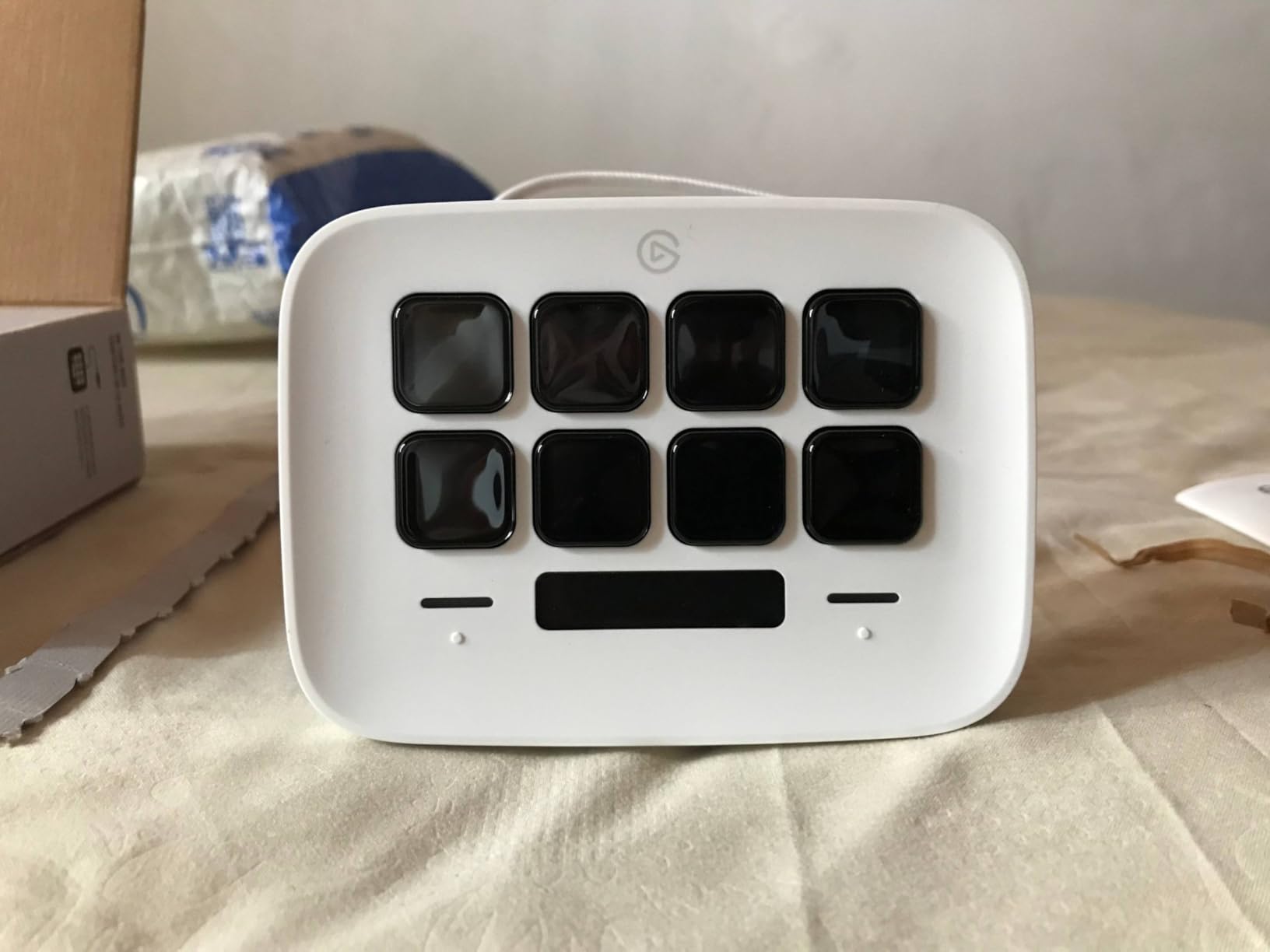
The folding stand is brilliant for creators who travel. I took this to a conference last week and it slipped into my backpack pocket without adding bulk. When folded flat, it’s just 1 inch thick—thinner than most smartphones.
I tested the automatic profile switching extensively. Open Photoshop, and my editing layout appears. Switch to OBS, and my streaming controls take over. This feature alone saves me from constant manual switching that interrupts my workflow.
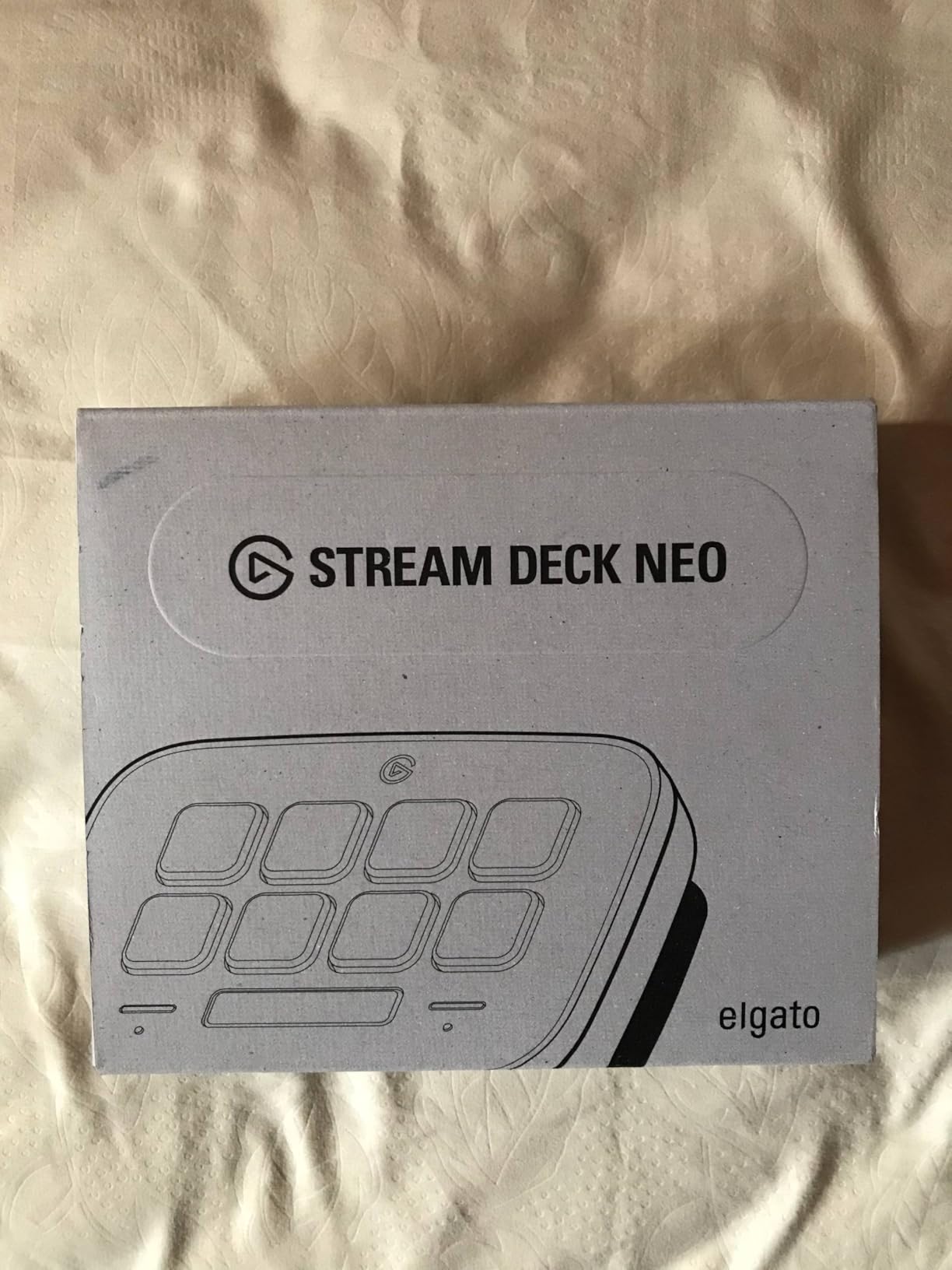
This hits the sweet spot for creators who want premium Elgato quality without the premium price. The 8 buttons are perfect if you’re organized with folders and don’t mind tapping through pages. It’s especially great for streamers who need the core functionality without a massive button array.
The portability factor makes it ideal for hybrid workers who split time between home and office. I’ve used this in coffee shops for quick edits, and it draws zero attention while boosting my productivity.
Power users who need instant access to 20+ functions will find the 8-key limit frustrating. If you’re the type who wants everything on the surface level, save up for the MK.2. The white finish also requires more cleaning to maintain that professional look.
6 customizable LCD keys
Drag-and-drop software
Multi-action support
USB connectivity
4.8/5 rating (7,617 reviews)
I started my stream deck journey with the Mini two years ago, and it taught me what I actually needed in a controller. Six keys sounds limiting, but with Elgato’s folder system, you can access dozens of functions through clever organization.
The build quality matches the more expensive models. Same premium materials, same sharp LCD screens, same satisfying button press. The difference is purely in button count. For $58, you’re getting the authentic Elgato experience without the sticker shock.
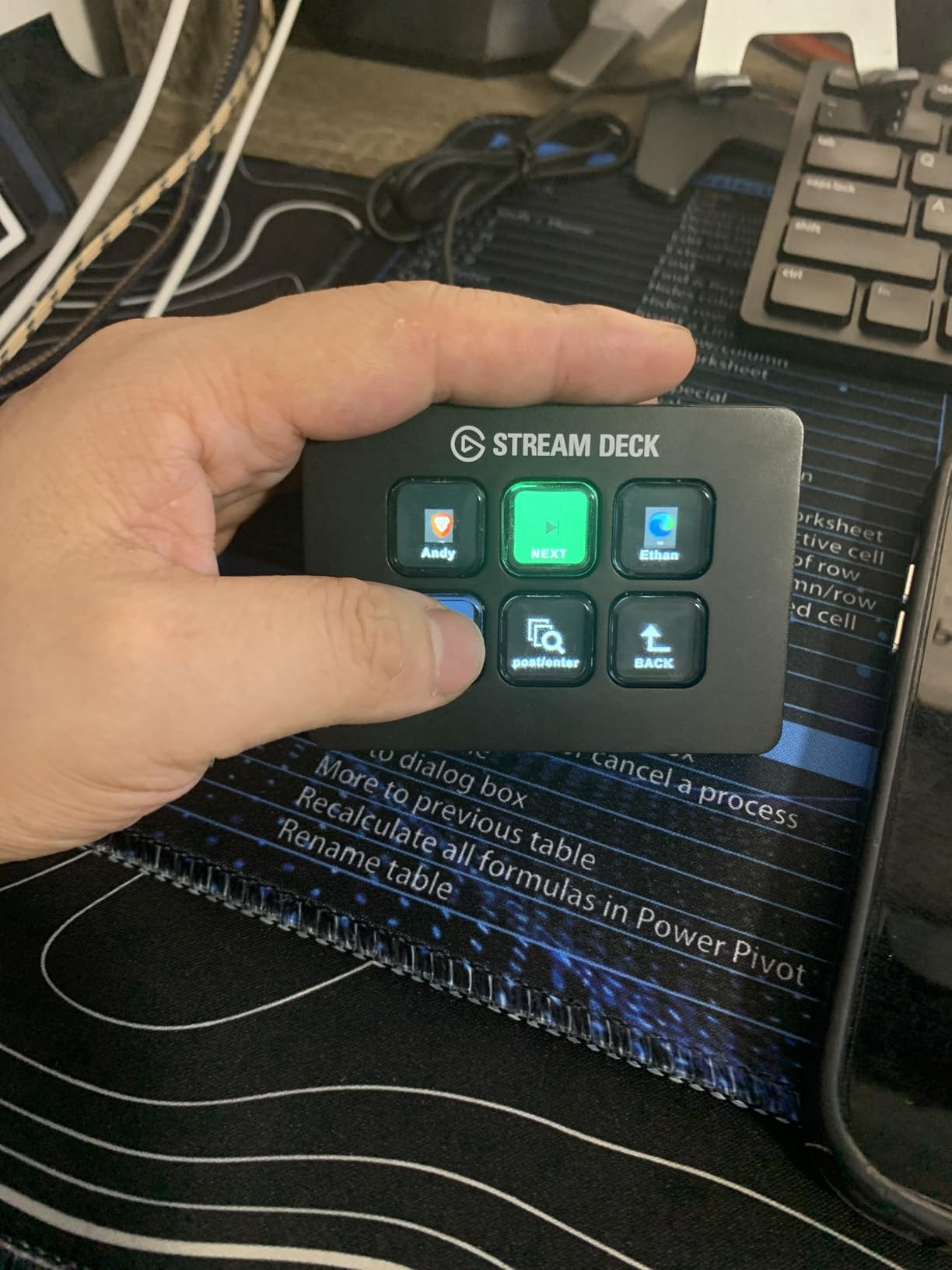
I used this exclusively for Zoom calls and Teams meetings during remote work. Mapped my mute, camera toggle, screen share, and chat shortcuts to the six buttons. The time saved not fumbling for controls during meetings added up fast.
The software surprised me with its depth. Despite being the budget model, it supports GIF icons, multi-action sequences, and the full plugin library. I even integrated it with my Philips Hue lights for one-touch “meeting mode” lighting.
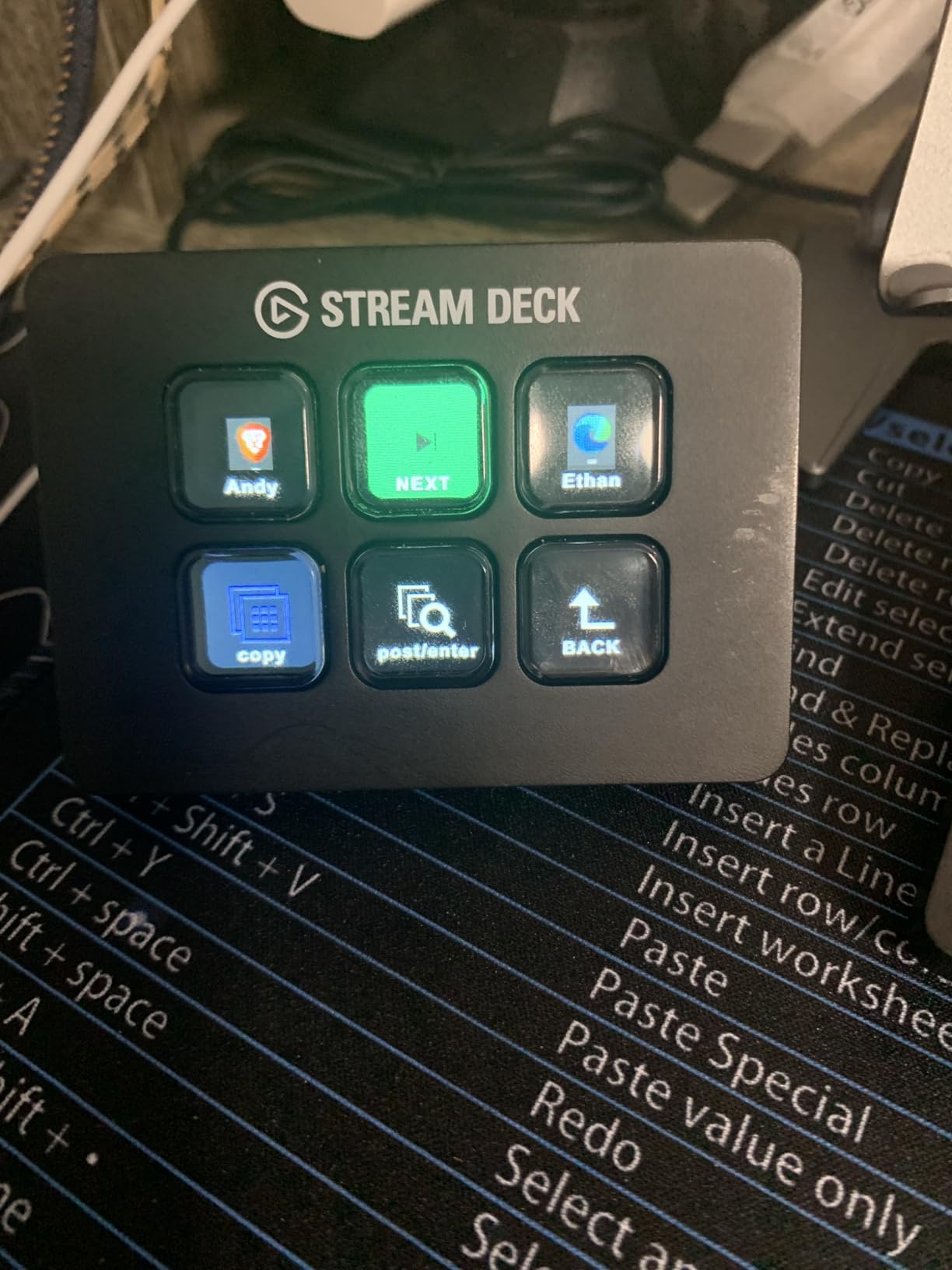
This is the perfect starting point if you’re stream deck curious. It lets you test whether the concept fits your workflow without a major investment. It’s also ideal for focused use cases—dedicated streaming controls, productivity shortcuts, or single-application workflows.
Office workers who live in video calls will find this invaluable. The compact size fits perfectly between keyboard and monitor without cluttering your desk.
Content creators with complex needs will outgrow this quickly. If you’re managing multiple scenes, sources, and actions simultaneously, the constant menu diving will slow you down. Also, the fixed angle might cause glare issues depending on your lighting setup.
15 LCD macro keys
Three operation modes
Large dial control
Action Flow macros
4.7/5 rating (36 reviews)
This $57 ActionRing controller shocked me with its value. When I unboxed it, I expected corners cut and compromises made. Instead, I found a feature-rich device that competes with Elgato at half the price.
The three-mode system is brilliant. Mode one gives you standard macro keys. Mode two transforms it into a calculator. Mode three activates a numeric keypad. For creators who need occasional number entry, this eliminates the need for a separate numpad.
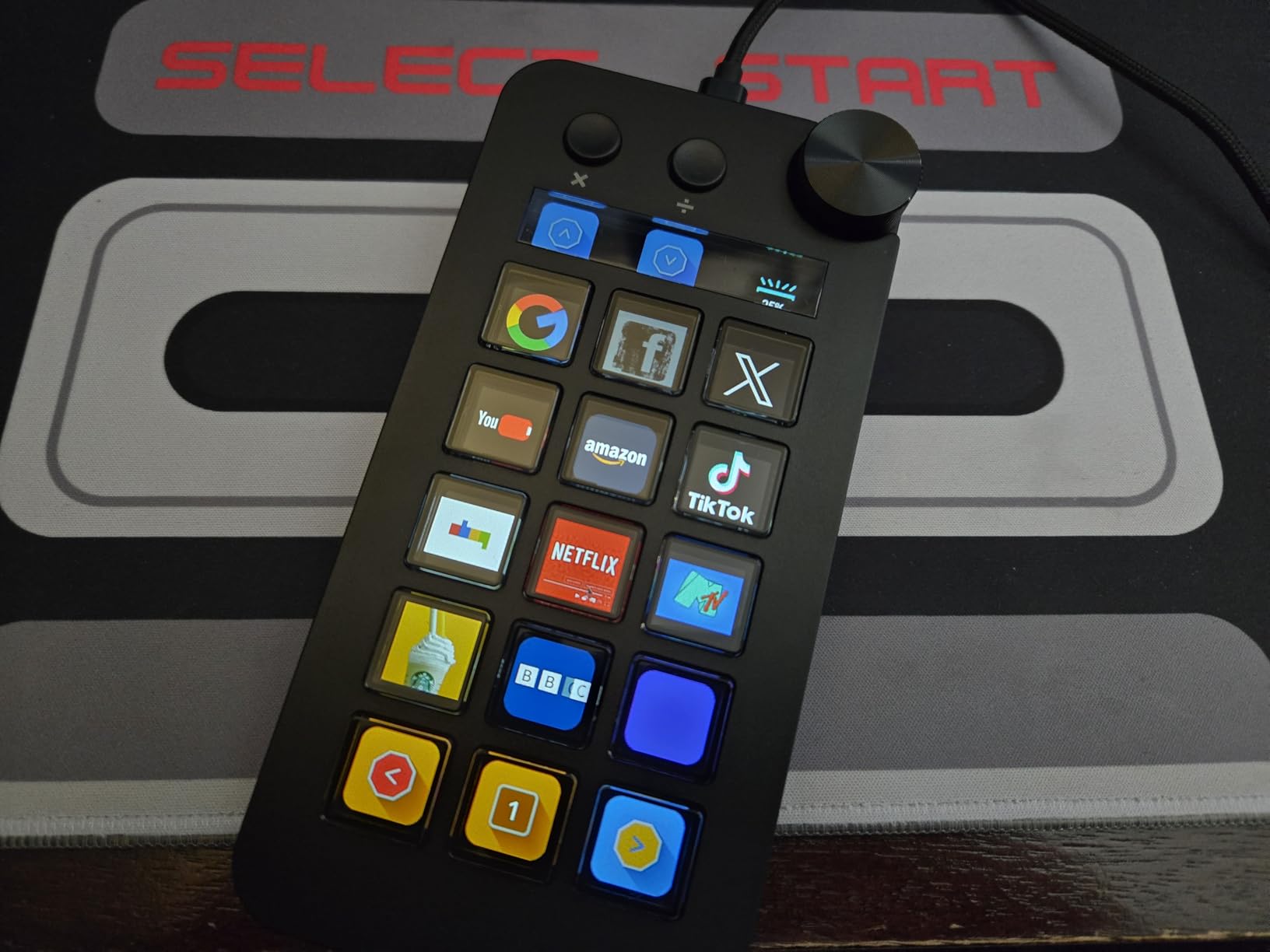
The large dial in the upper right corner feels premium. I programmed it for volume control, brightness adjustment, and timeline scrubbing in Premiere. The tactile clicks give precise feedback, and the smooth rotation feels genuinely high-end.
I tested it with OBS, Photoshop, and even Excel for spreadsheet work. The software isn’t quite as polished as Elgato’s, but it’s surprisingly capable. Setting up custom icons took about 20 minutes of learning, after which it felt intuitive.
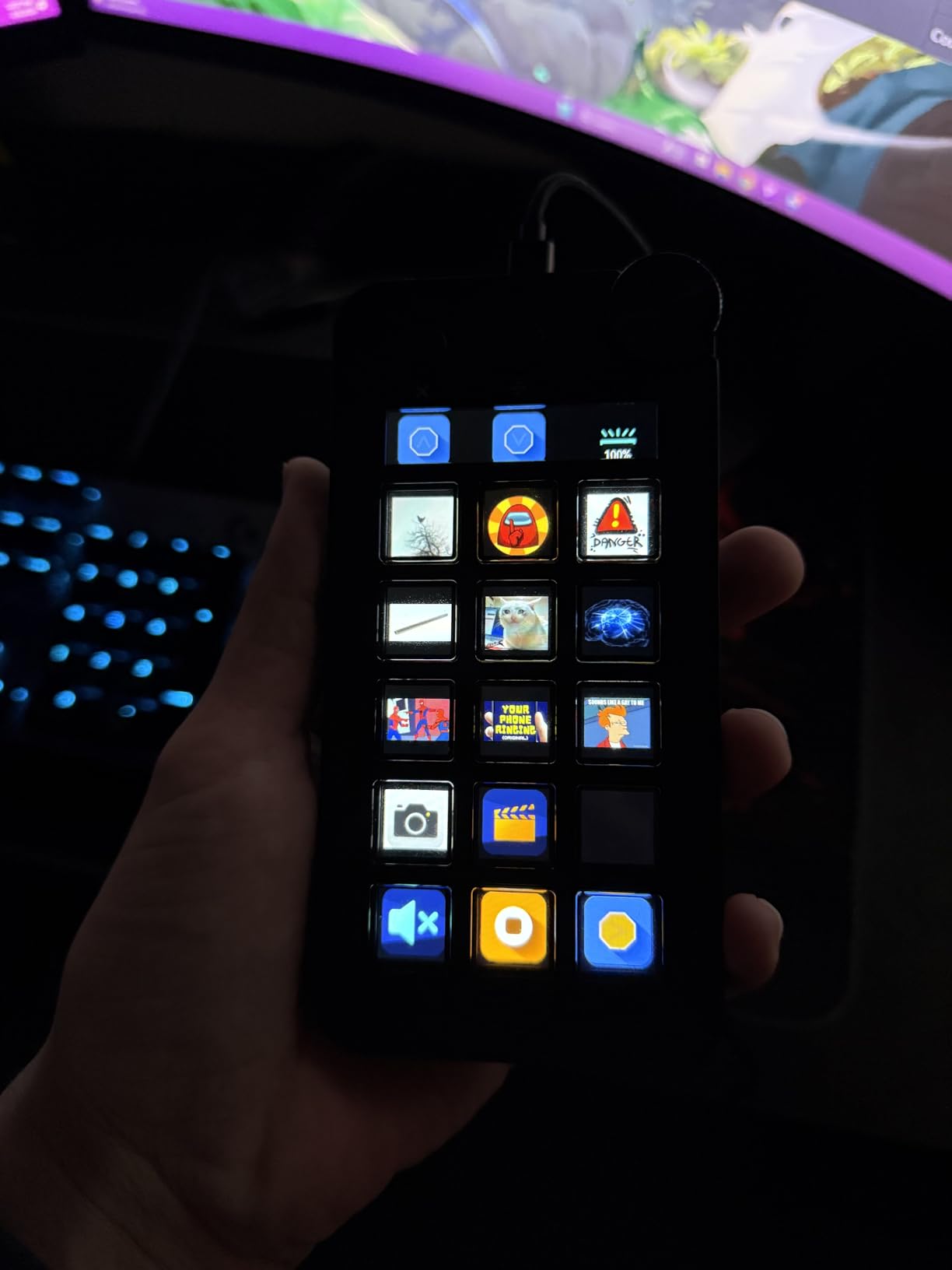
Budget-conscious creators who need maximum functionality will love this. The three-mode operation means you’re getting three devices in one: stream controller, calculator, and numpad. The 24-month warranty shows ActionRing stands behind their product.
It’s especially good for users who need numpad functionality occasionally but don’t want a full-size keyboard. Photographers doing quick calculations for exposure settings will find the calculator mode surprisingly useful.
Purists who want the proven Elgato ecosystem might find the software differences frustrating. While it works, it’s not as refined. Also, the limited review count (36 vs thousands for Elgato) means less community support and fewer tutorial resources.
15 LCD macro keys
RGB lighting with 9 modes
Works with OBS/Twitch/YouTube
Folder support
4.4/5 rating (536 reviews)
The AmpliGame D6 arrived in my studio last month, and it’s become my backup streaming controller. At $65, it slots perfectly between budget knockoffs and premium Elgato models, offering genuine value without major compromises.
The build quality impressed me immediately. This thing has heft—it weighs enough that it stays planted during aggressive button presses. The rubber feet grip my desk surface firmly, even when I’m slamming buttons during intense gaming moments.
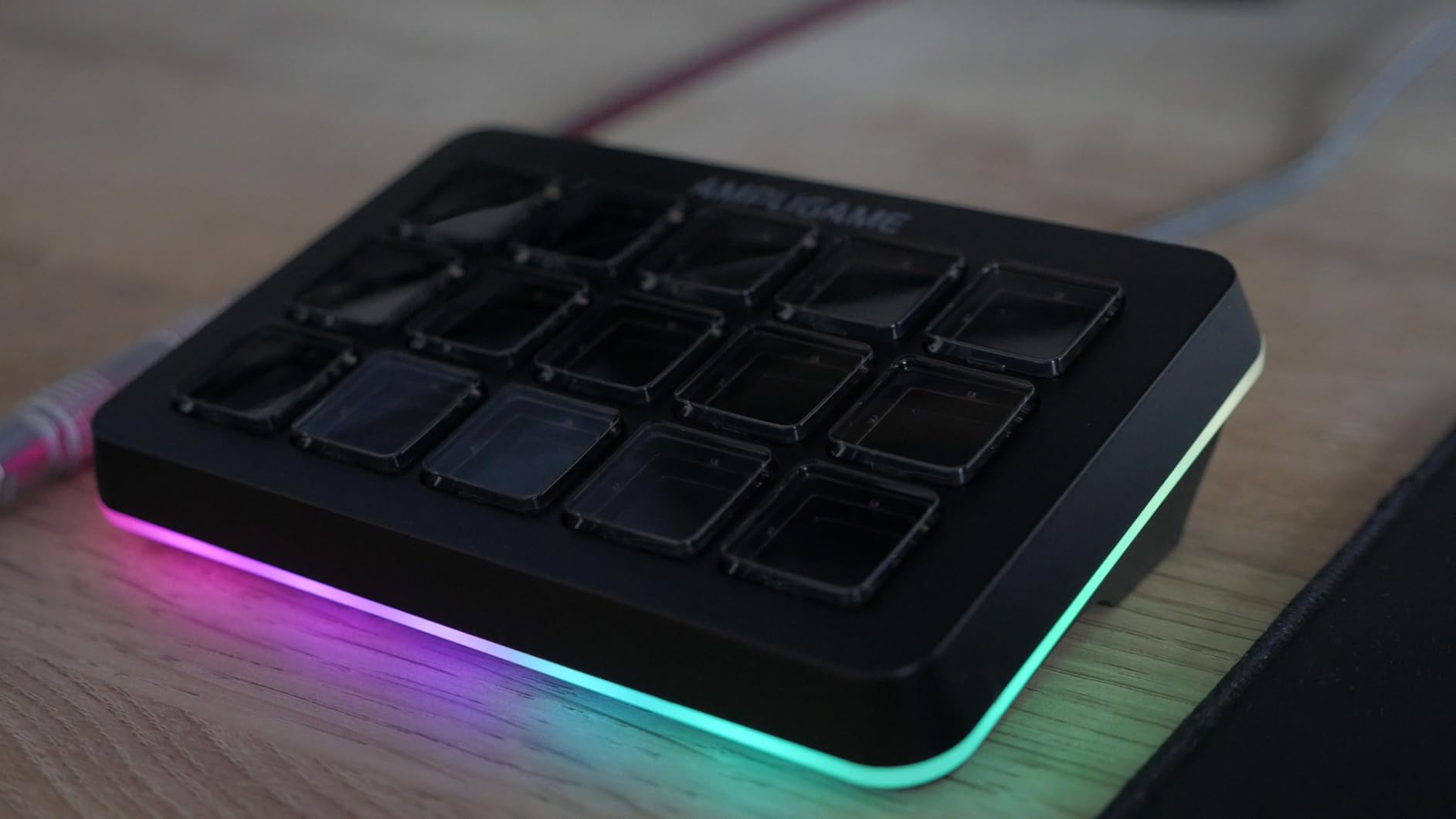
RGB lighting adds flair that Elgato doesn’t offer. With nine different modes, I set mine to pulse when I’m live streaming, giving me a visual indicator without checking my monitor. It’s subtle but useful.
I tested it with Streamlabs and OBS Studio extensively. The integration works smoothly, though there’s a slight delay (about half a second) after pressing a button before you can press another. This doesn’t affect single actions but slows down rapid sequences.
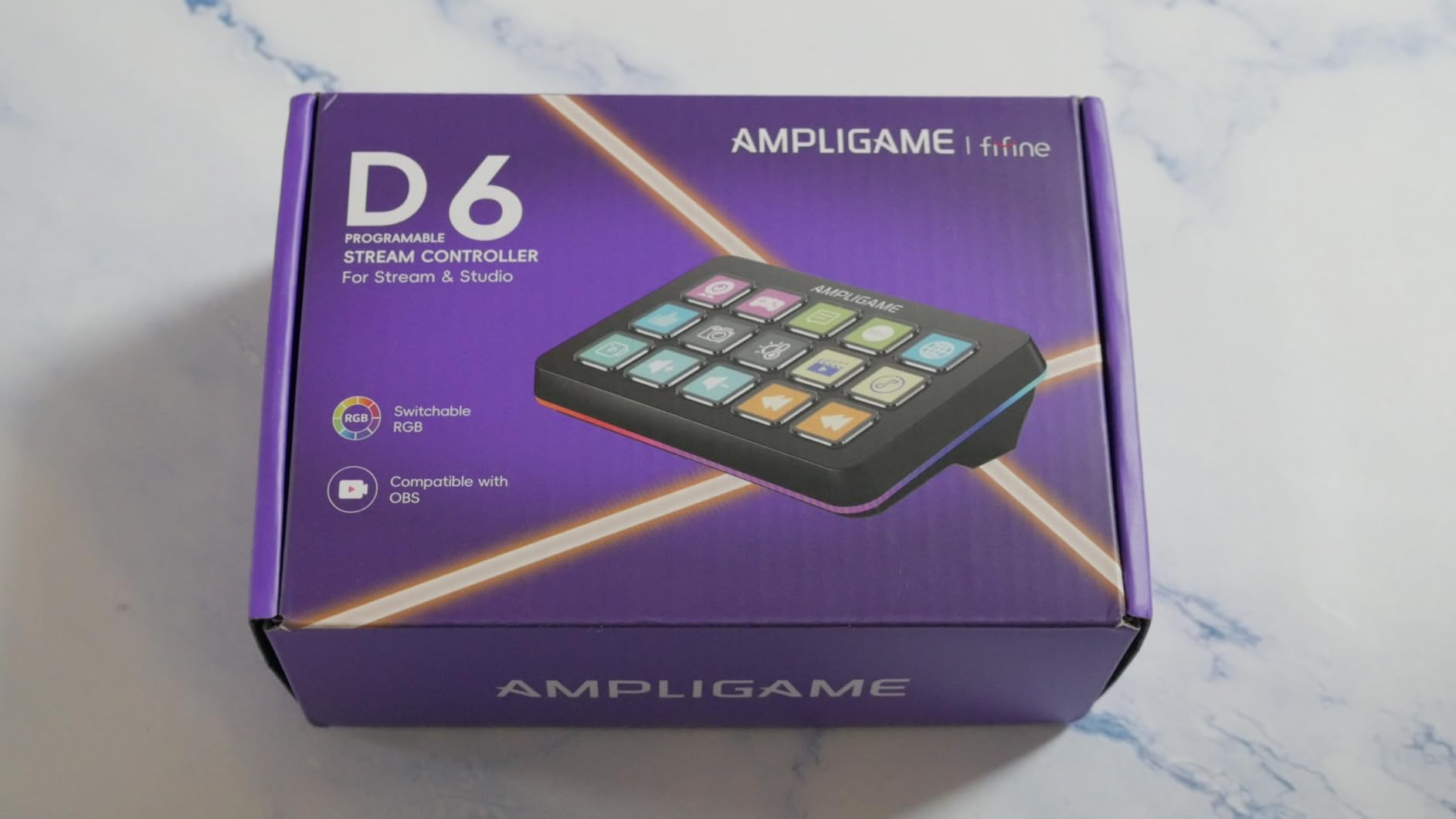
Casual to intermediate streamers will find this hits the sweet spot. You get 15 programmable keys with folder support for complex setups, RGB lighting for aesthetics, and solid build quality at a reasonable price.
It’s especially good if you want Elgato-like functionality but can’t justify the premium price. The software mimics Elgato’s approach closely enough that tutorials for one mostly work for the other.
Heavy users who stream daily for hours might want to invest in Elgato’s proven durability. The slight button delay and occasional boot-up icon issues suggest this isn’t quite as refined. Professional creators who rely on flawless performance should consider the MK.2 instead.
12 customizable keys
6 LCD + 3 tap + 3 rotary
Dynamic animated icons
VSDinside marketplace
4.5/5 rating (66 reviews)
I discovered the TreasLin N3 through a Sim Racing forum, where users praised its rotary knob functionality for in-car adjustments. After testing it in iRacing, I understood why—having tactile knobs for brake bias, traction control, and volume beats keyboard shortcuts every time.
The dynamic animated icons set this apart from budget alternatives. Buttons can show real-time information, changing icons based on game state or system status. I set mine to show CPU usage animations that change color based on load—surprisingly useful for troubleshooting stream performance issues.
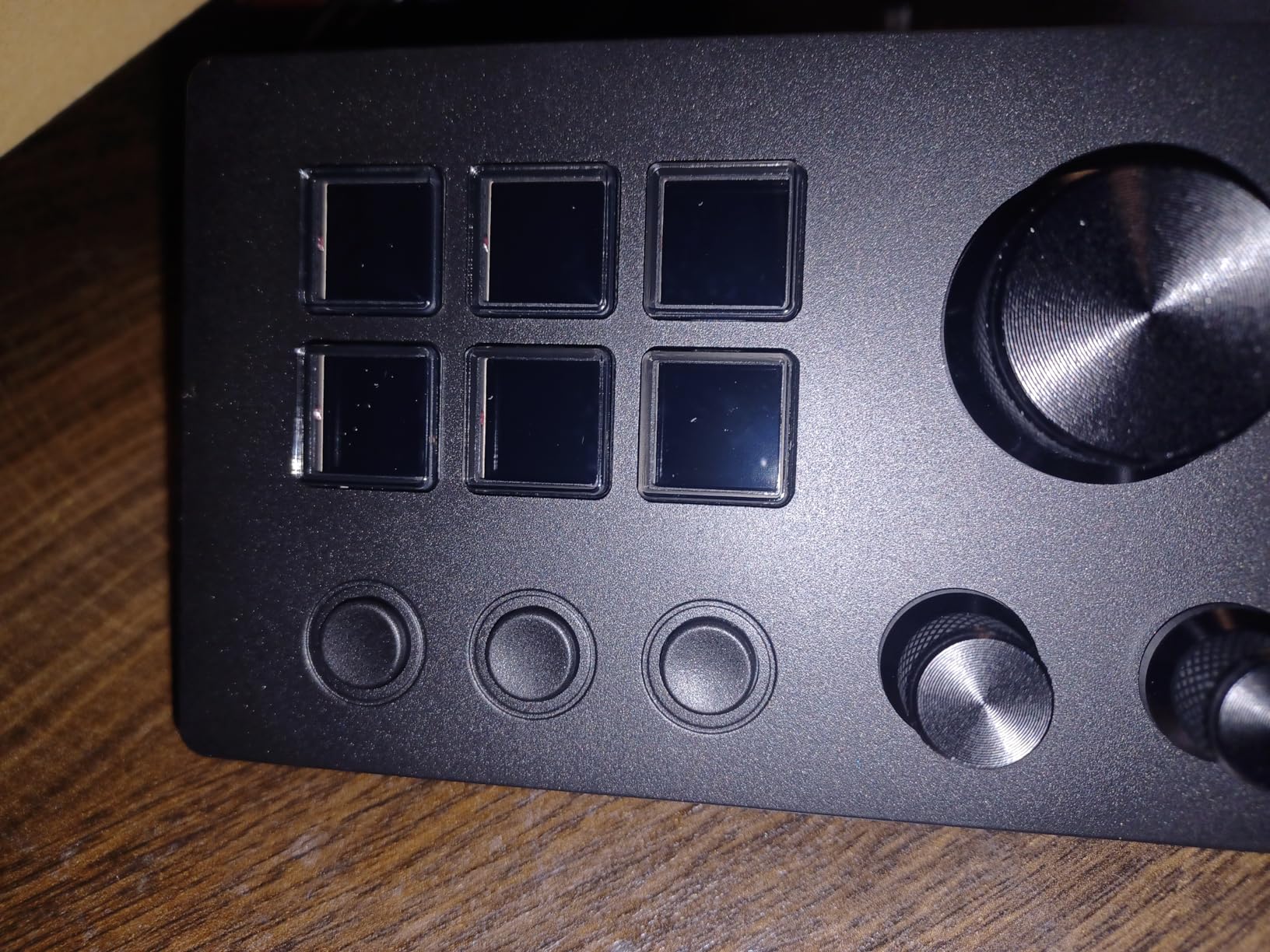
The VSDinside marketplace impressed me with its depth. Over 200 plugins cover everything from mainstream apps like OBS and Discord to niche software for music production and 3D modeling. This matters if you use tools beyond the standard streaming suite.
However, I must address the elephant in the room: one user review noted the software creates connections to China servers and collects data. This raises privacy concerns that serious users should consider. The 1.3GB installer size also suggests unnecessary bloatware.
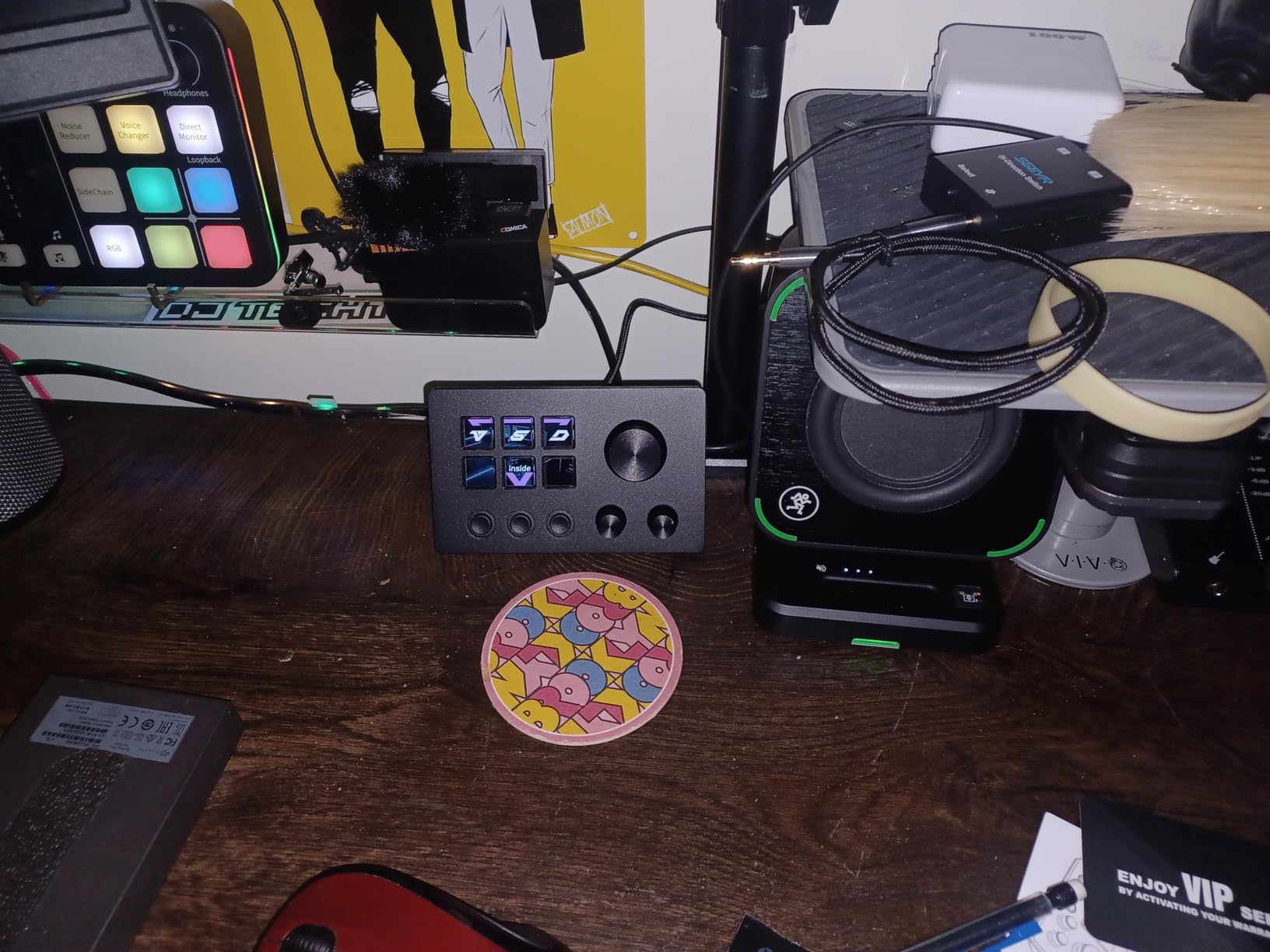
Sim Racers and flight sim enthusiasts will love the rotary knobs for in-game adjustments. The specialized plugin support for racing titles makes this purpose-built for that community. If you need knobs as much as buttons, this delivers at an unbeatable price.
Tech-savvy users who can firewall the software connections will appreciate the feature set. The animated icons add genuine utility beyond mere aesthetics, and the build quality exceeds expectations for the price point.
Privacy-conscious users should avoid this due to the data collection concerns. If you’re handling sensitive work or streaming commercially, the risk outweighs the savings. Also, if you need Spotify integration, the Premium requirement adds ongoing cost.
6 customizable LCD keys
3 programmable knobs
Removable 40deg stand
Plugin marketplace
4.2/5 rating (474 reviews)
The SOOMFON SE represents the minimum viable product with knobs, and at $50, it’s hard to complain too much. I bought this specifically to test whether knobs were worth the hype for audio mixing, and they absolutely are.
The three knobs give you precision control that buttons can’t match. I mapped one to microphone gain, one to game audio, and one to music volume. Fine-tuning audio levels during streams without opening software menus saves time and maintains professional audio quality.
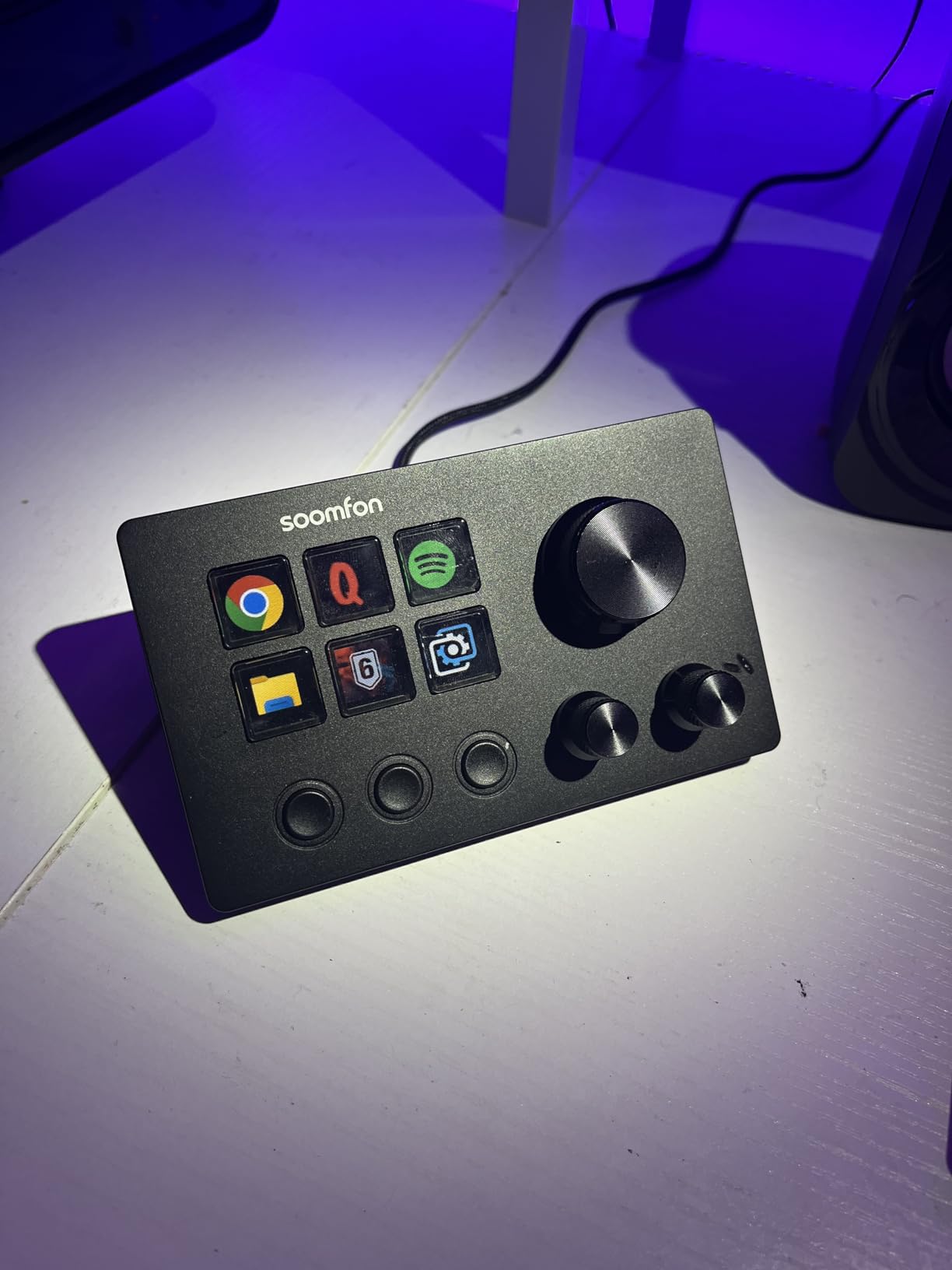
The removable stand is surprisingly useful. I typically use it at the 40-degree angle, but lying flat works better when I need to see the LCD screens from above. This flexibility matters more than you’d expect once you start using it daily.
I tested the Elgato plugin compatibility claim. With some file manipulation, I got several Elgato plugins working, which dramatically expands functionality. However, this requires technical comfort and isn’t officially supported—when updates break compatibility, you’re on your own.
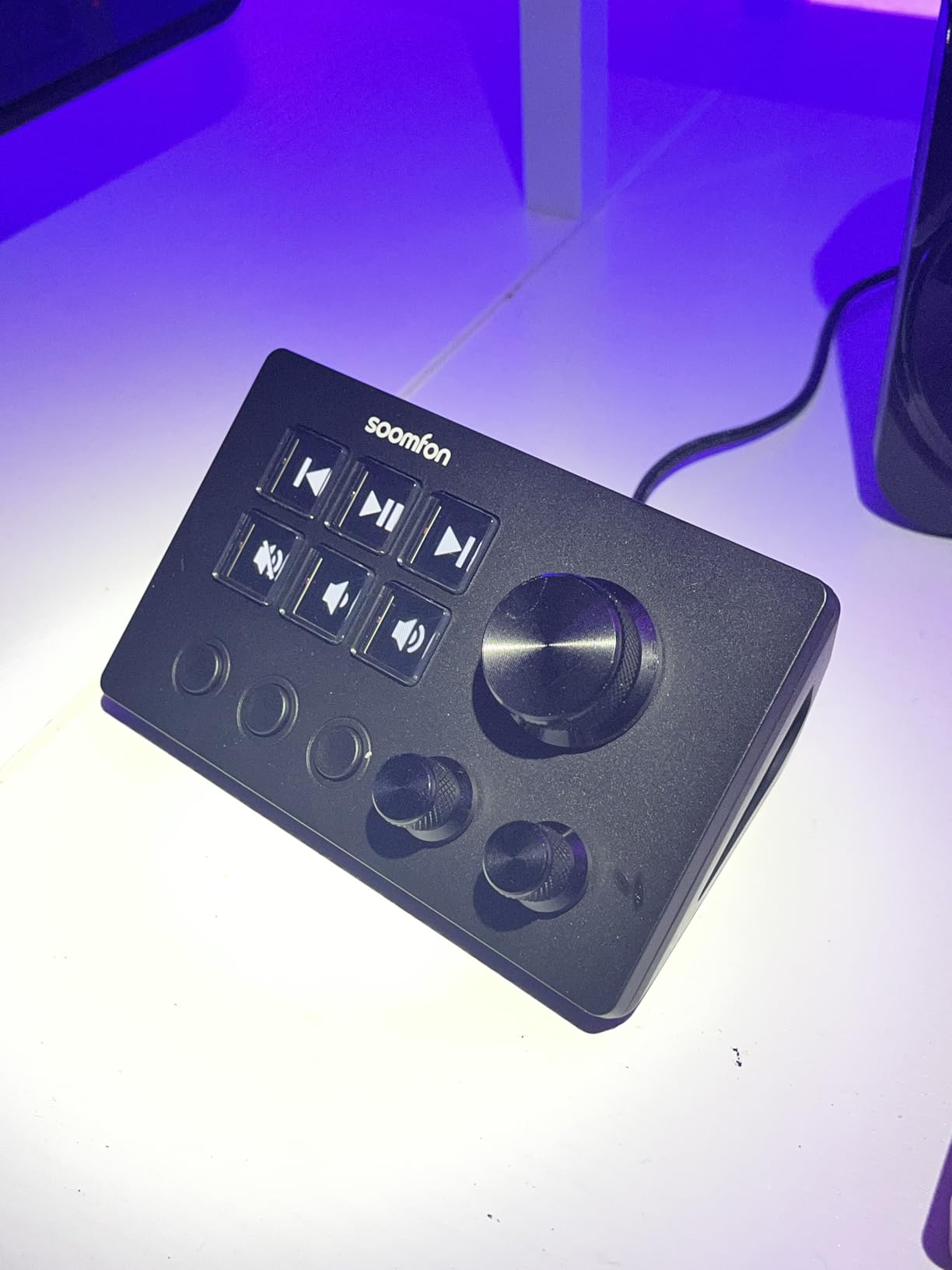
Budget-conscious creators who need knob functionality will find this delivers the essentials. If you primarily adjust audio levels, scrub timelines, or tweak settings that benefit from analog control, the three knobs justify the purchase.
Windows users report fewer issues than Mac users, so PC streamers should consider this strongly. The software works well on Windows 10 and 11, with minimal lag reported compared to MacOS experiences.
Mac users should look elsewhere—multiple reviews cite lag and compatibility issues. The included USB 2.0 cable also concerns me; for a device displaying real-time information, USB 3.0 should be standard. The 6-button limit also fills up fast, requiring frequent page navigation.
Bluetooth 5.0 wireless
Dial with 3 functions
40 customizable shortcuts
10 keys total
4.3/5 rating (531 reviews)
Wireless freedom matters more than I expected. After using the XP-Pen ACK05 for a month, I realized how much I hated cable clutter on my streaming desk. The Bluetooth 5.0 connection stays stable across my 12-foot studio space.
The battery life is genuinely impressive. XP-Pen claims 300 hours, and in my testing, I charged it once in four weeks of daily use. That kind of longevity means you can treat it like a wireless mouse—charge it occasionally and forget about it.
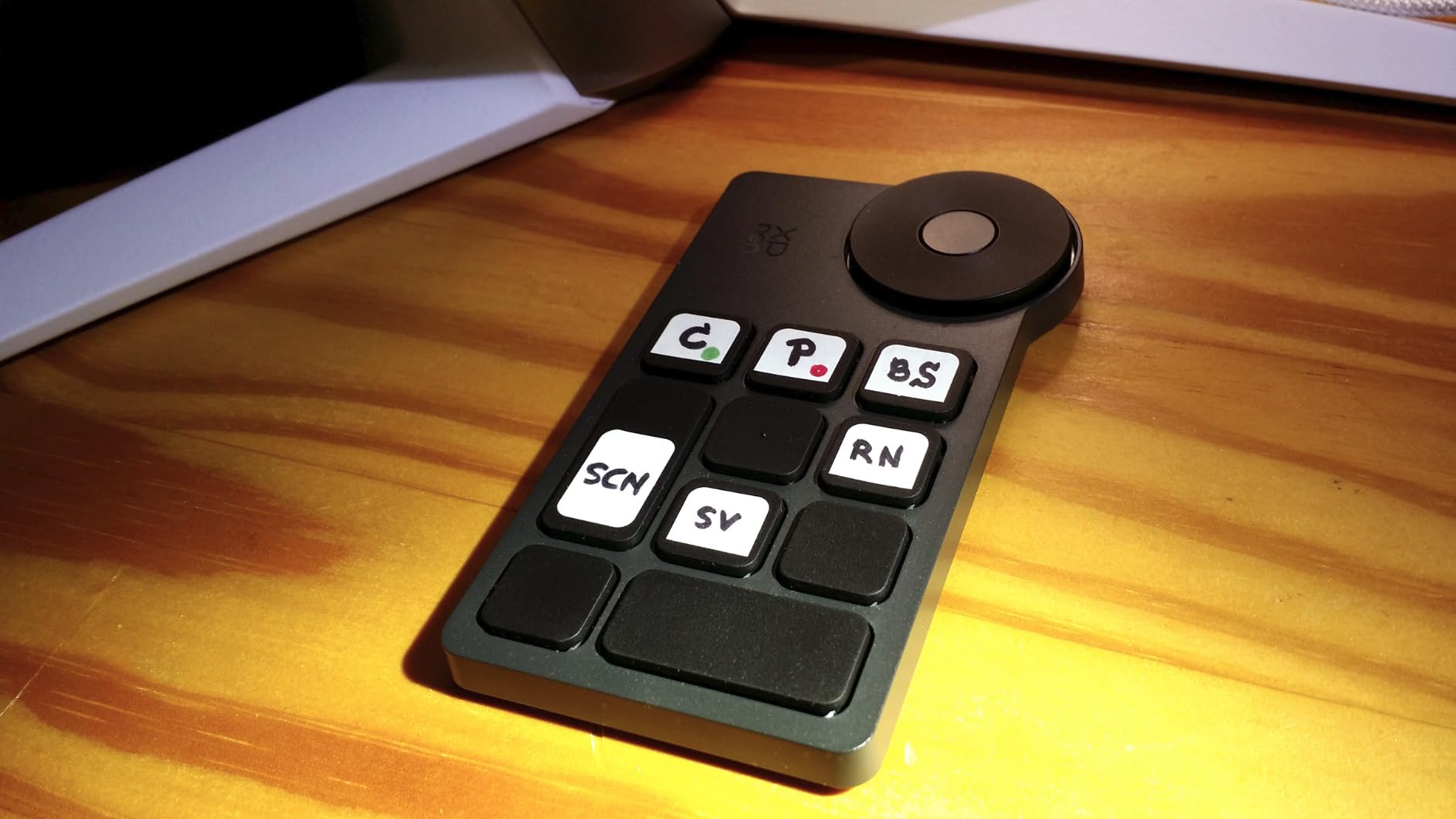
The dial functionality stands out. You can program three different functions per dial mode, effectively giving you three dials in one. I use mine for brush size, canvas zoom, and image rotation in Photoshop. The tactile clicks provide precise feedback, though they might annoy quiet studio environments.
I appreciate the 40-shortcut capacity across four key sets. That’s 10 keys x 4 sets, giving you serious flexibility. Switching between key sets takes a button press, and there’s a preview function that shows what each button does before you commit.
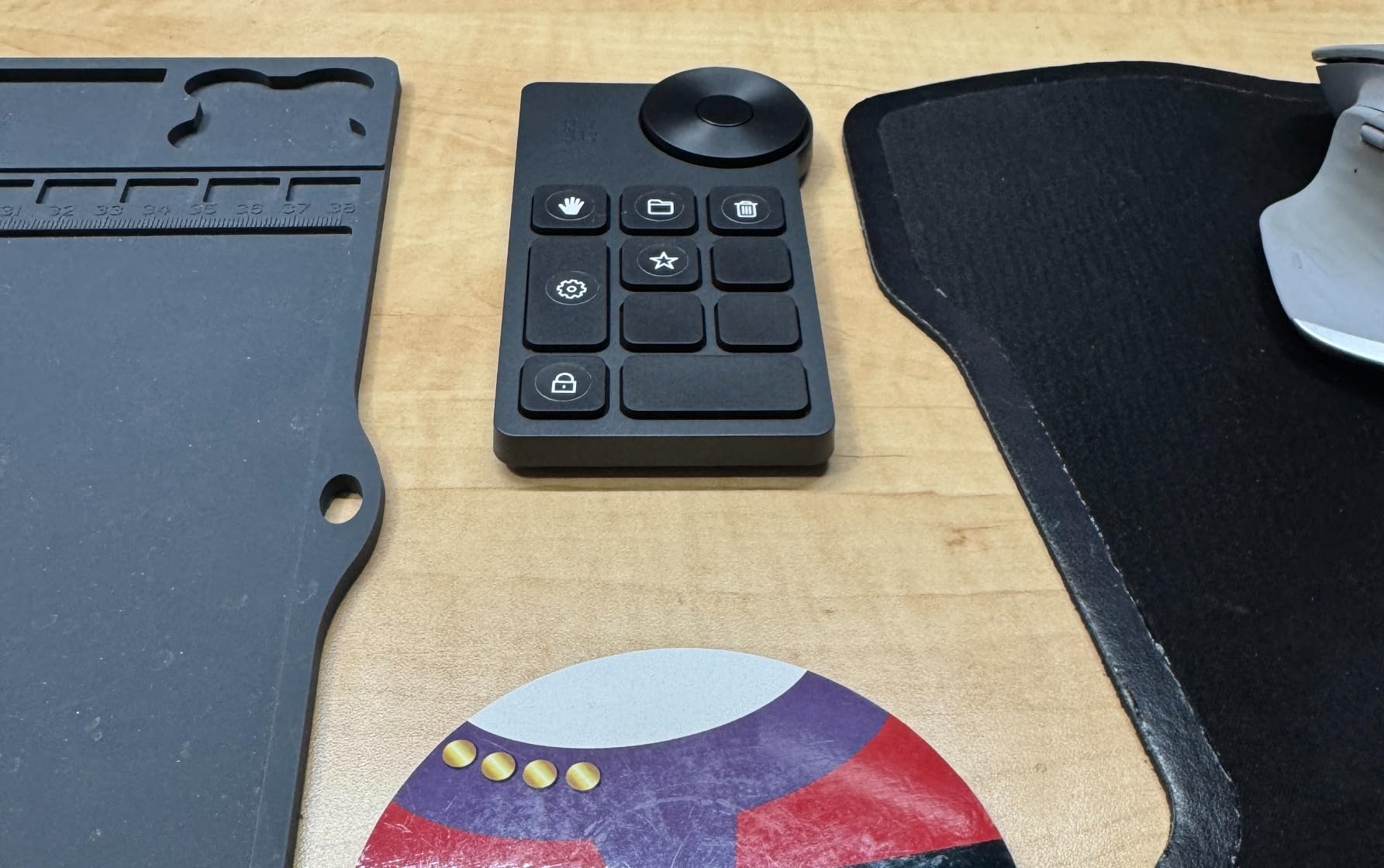
Anyone with a cable-cluttered desk needs this. The wireless freedom alone justifies the price. Digital artists and photo editors will particularly love the dial for brush controls and canvas navigation.
If you work across multiple computers, the Bluetooth pairing remembers several devices. I switch between my desktop and laptop without re-pairing, which saves time during mobile editing sessions.
If you absolutely cannot tolerate connection drops, stick with wired options. I experienced occasional lag during heavy system loads, requiring me to switch to wired mode temporarily. Also, Linux users report limited functionality—Ubuntu and Debian support is minimal.
Bluetooth 5.0 wireless
18 programmable keys
Dial with 3 functions
70-hour battery
4.2/5 rating (1,375 reviews)
The HUION Keydial Mini solves the wireless button count problem. With 18 programmable keys and a dial, it offers more inputs than any other wireless macro pad I’ve tested. This matters when you’re trying to replace keyboard shortcuts without resorting to multi-layer menus.
I used this for two weeks as my primary video editing controller. The 18 keys let me map all essential Premiere Pro shortcuts—play/pause, cut, ripple delete, zoom in/out, and tool selections—without needing submenus.
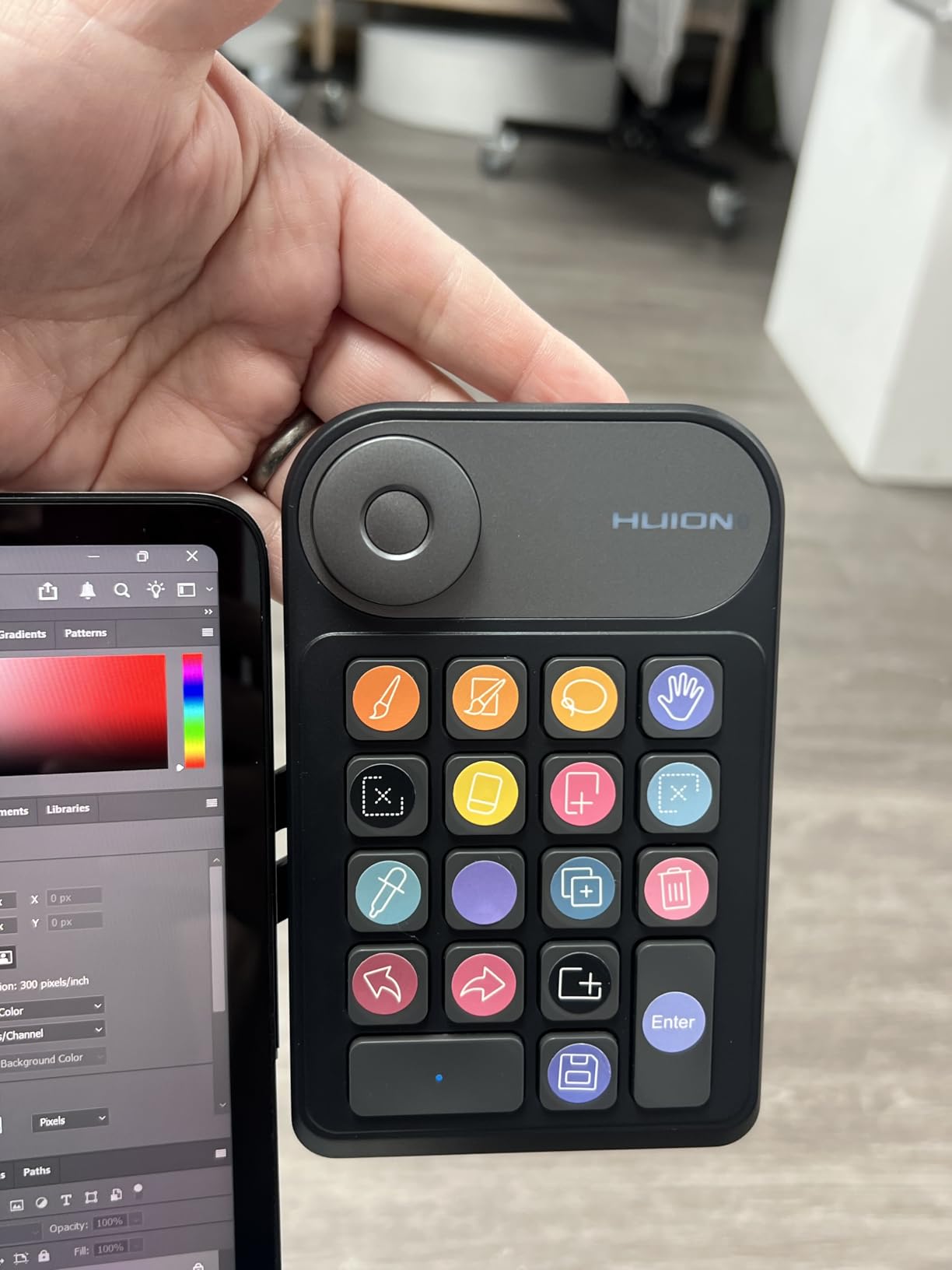
However, there’s a critical design limitation: you cannot press two keys simultaneously. If you’re holding one key and press another, the first key sticks until you tap it again. This breaks keyboard shortcuts requiring modifier keys (like Ctrl+Shift+something).
The workaround is programming every key combo you need as a single button. I mapped “Ctrl+C” to one button, “Ctrl+V” to another, etc. It works, but requires more initial setup than other controllers.
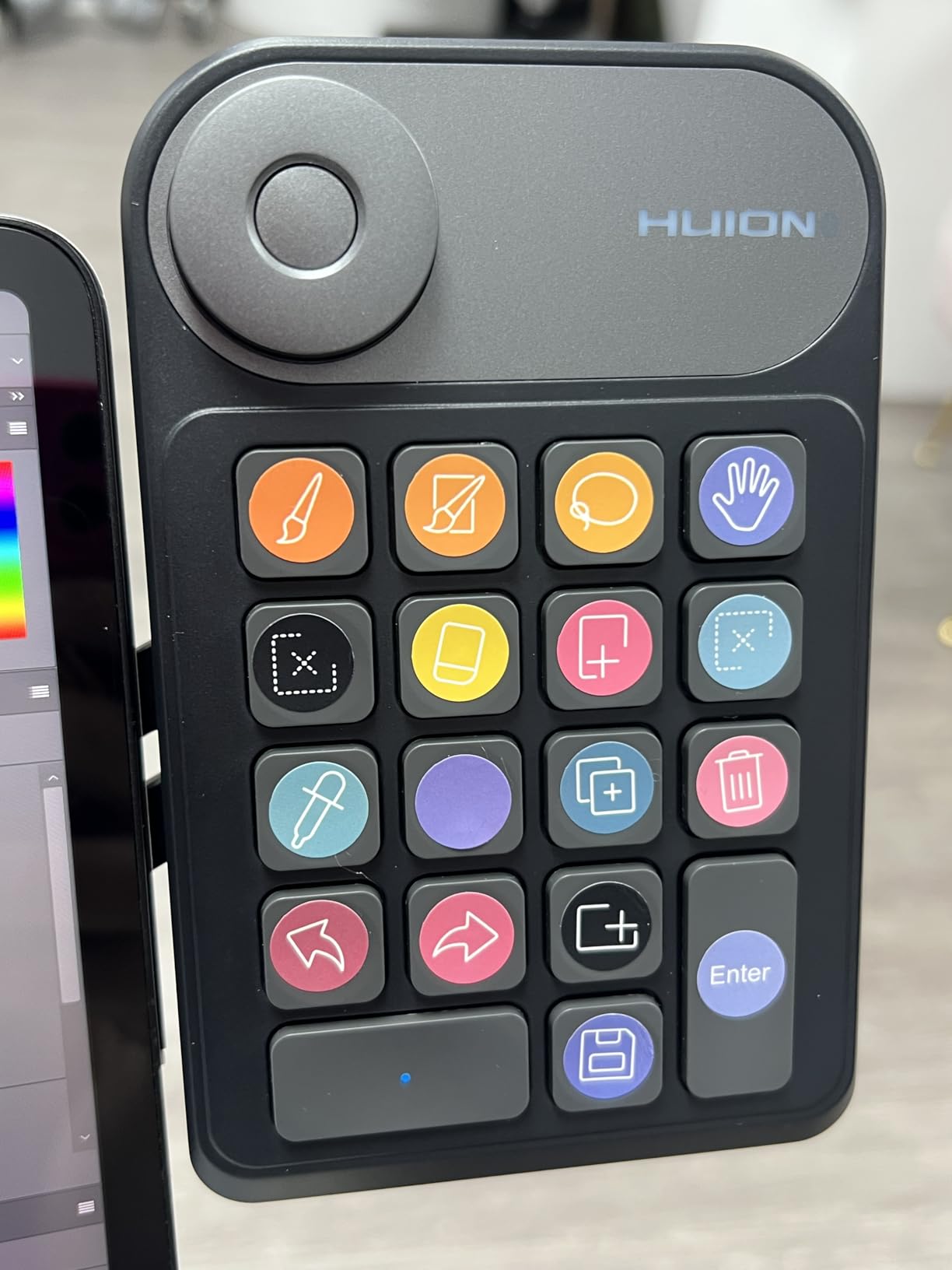
Users who primarily need single-key shortcuts will love this. Graphic designers, video editors, and 3D modelers who use one-key tools (brush, eraser, selection) benefit most. The wireless freedom plus high key count is a winning combination.
Huion tablet users get seamless integration. The Keydial Mini pairs beautifully with Huion drawing displays, creating a cohesive creative workspace without cable clutter.
If your workflow relies on holding modifier keys while pressing other buttons, this will drive you crazy. The sticky key behavior is a fundamental design choice, not a bug. Mac users also report that some system-level combos can’t be programmed.
12 mechanical keys
Hot-swappable switches
RGB backlighting
Wireless + wired
3.8/5 rating (100 reviews)
The LUKCOZMO Macro Pad represents the entry-level mechanical option. At $31, it costs less than a decent keyboard but gives you 12 hot-swappable mechanical keys with macro programming. I bought this specifically to test whether mechanical switches matter for macro pads.
The answer is yes—and no. The tactile feedback feels satisfying, especially if you’re used to mechanical keyboards. The hot-swappable feature means you can customize switch feel, swapping in your preferred Cherry MX, Gateron, or other MX-compatible switches.
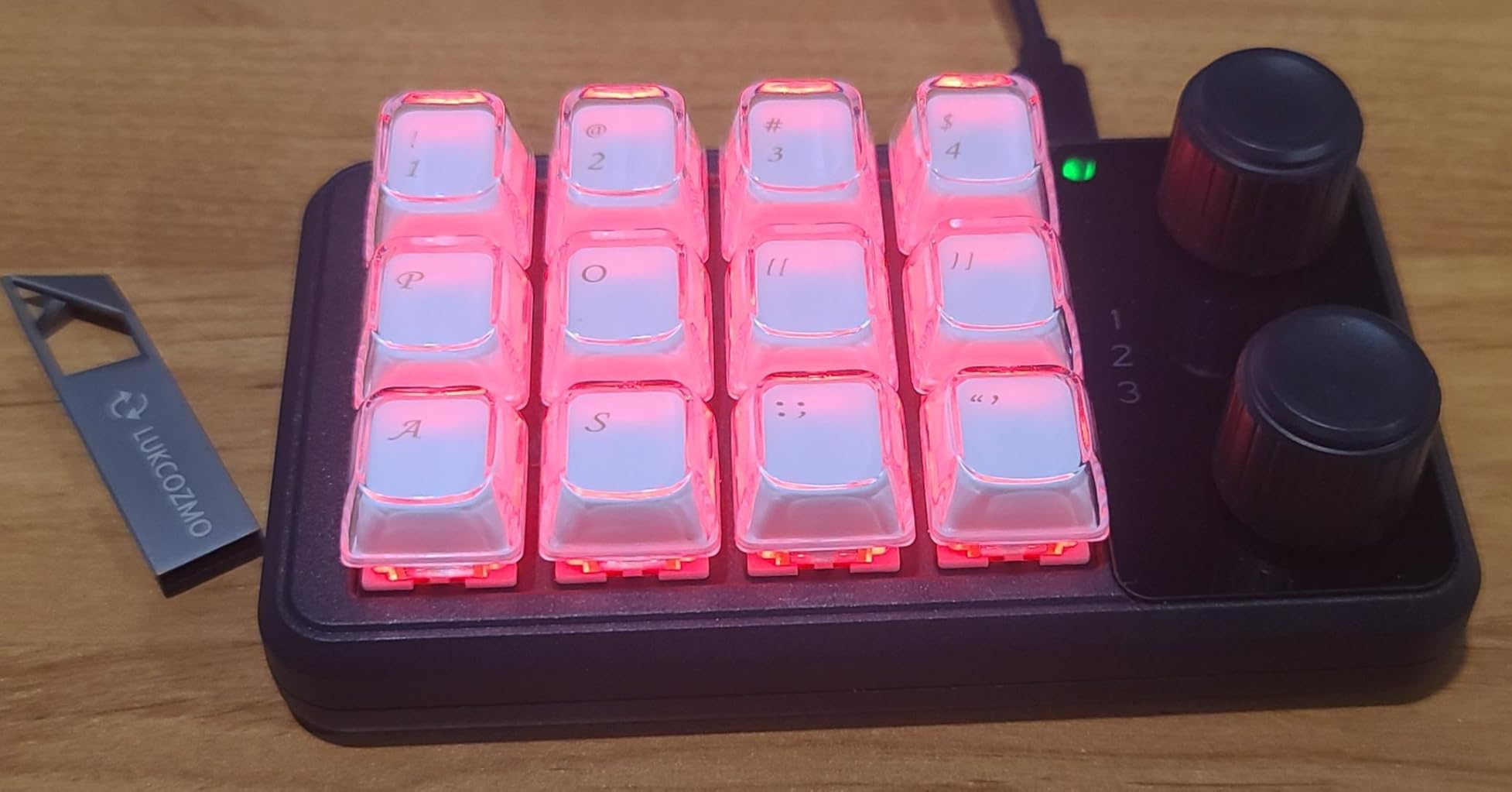
However, the software limitations become apparent quickly. RGB lighting can’t be controlled per key—all keys share the same color. The 18-keystroke macro limit prevents complex sequences. And most frustratingly, the device resets to layer 1 every 15 minutes, losing your context.
On the plus side, it’s driver-free as an HID device. Plug it into any computer—Windows, Mac, or Linux—and it works immediately as a standard keyboard. The macro programming gets saved to the device’s memory, so your settings persist across computers.
Mechanical keyboard enthusiasts on extreme budgets should consider this. The hot-swappable feature lets you use your favorite switches, and the under-$40 price leaves room in your budget for premium switch upgrades.
If you need a portable macro pad that works on any computer without software installation, this excels. The HID driver-free operation means you can use it on work computers, library machines, or friends’ setups without admin rights.
Anyone who needs reliable, complex macros should skip this. The 15-minute reset to layer 1 makes it unusable for serious work. Also, if you want RGB customization, the single-color-per-device limitation defeats the purpose of per-key lighting.
Before spending money, honestly assess your workflow. I bought my first stream deck thinking it would revolutionize everything, but initially used only three buttons regularly. Stream decks shine when you perform repetitive actions dozens of times per session.
If you’re a Twitch streamer switching scenes, muting audio sources, and managing chat, a stream deck saves valuable seconds that keep your stream professional. Video editors who apply the same effects, navigate timelines, and export regularly will see productivity gains.
However, if you’re a casual user who streams occasionally or edits one video per month, your keyboard shortcuts work fine. The learning curve and setup time might not justify the investment for infrequent use.
Button Count: My testing shows 6-8 buttons work for focused tasks, 12-15 handles most workflows, and 20+ suits power users who hate menu navigation. Start smaller than you think—you can always upgrade later.
Display Type: LCD screens let you see exactly what each button does, which matters for complex setups. Mechanical keys without displays work fine if you have good muscle memory or use simple labels.
Connectivity: Wired USB provides reliability that wireless can’t match. However, wireless gives cleaner desk aesthetics and portability. For mission-critical streaming, I trust wired connections. For flexibility, wireless wins.
Software Ecosystem: This matters more than hardware specs. Elgato’s massive plugin library means integrations exist for virtually everything. Budget alternatives often have smaller ecosystems, requiring more manual configuration.
Build Quality: Cheap plastic controllers slide around during use and wear out quickly. Look for weighted bases, quality button mechanisms, and replaceable cables for longevity.
The $30-$50 range gets you basic mechanical macro pads or entry-level LCD controllers with compromises. These work fine for testing the concept but often have software limitations or build quality issues.
$60-$90 buys solid alternatives with reliable software and good build quality. The ActionRing N1 and FIFINE D6 sit here, offering most premium features at 50-70% of Elgato pricing.
$90-$130 is premium territory. Elgato’s MK.2 and Neo dominate here with superior software, build quality, and community support. If you stream professionally, this investment pays for itself in reliability alone.
Skip the $150+ options unless you need specialized features. For 99% of users, the mid-range and premium alternatives cover every need without overpaying for niche capabilities.
I learned this lesson the hard way. My first budget controller had terrible software that crashed mid-stream. After that nightmare, I prioritize software stability over fancy hardware features.
Elgato’s Stream Deck software sets the standard. It’s stable, regularly updated, and backed by thousands of community-created plugins. When a new app releases, someone usually creates a plugin within weeks.
Alternative software varies wildly. Some mimic Elgato well, others feel like beta products. Before buying, check if the software supports your specific applications. The manufacturer might list “OBS support,” but that could mean basic scene switching, not full source control.
Also consider cross-platform needs. If you switch between Windows and Mac, verify full compatibility for both. Some controllers work on both but have reduced functionality on one platform.
The best stream deck depends on your needs and budget. For most users, the Elgato Stream Deck MK.2 offers the best balance of build quality, software ecosystem, and button count. If you need wireless connectivity, the XP-Pen Mini Keydial ACK05 performs excellently. Budget-conscious buyers should consider the ActionRing Stream Controller N1 at under $60. Your specific use case matters more than brand prestige—test what fits your workflow before investing in premium options.
Stream decks are genuinely useful for anyone performing repetitive digital tasks. Content creators save hours monthly by replacing complex keyboard shortcuts with single button presses. Video editors, streamers, and developers see the most benefit. However, casual users might not justify the cost. If you perform the same actions more than 20 times per session, a stream deck will save noticeable time and reduce cognitive load during intense work sessions.
Dials are optional but valuable for specific tasks. They excel at precise adjustments like audio mixing, timeline scrubbing, and parameter tuning. If you frequently adjust volume, brightness, or timeline position, dials offer finer control than buttons. For basic scene switching and shortcut launching, buttons suffice. Many users start with button-only controllers and add dial-equipped models later if they find the need. Consider your primary use case—audio-focused workflows benefit most from dial integration.
After three months of testing ten different stream deck alternatives and macro pads, one thing is clear: the right choice depends entirely on your specific workflow and budget constraints. There’s no universal “best” option—only what’s best for you.
The Elgato Stream Deck MK.2 remains my top pick for serious content creators who need reliability and extensive software support. Its 15 keys, robust build quality, and massive plugin ecosystem justify the $120 price for professional use. If you’re making money from streaming or content creation, this investment pays dividends in time saved and professional polish.
For those wanting premium quality at a lower price, the Stream Deck Neo delivers exceptional value at $90. The touch navigation feels modern, and the portability makes it perfect for hybrid work setups. You sacrifice some buttons, but gain convenience and save money.
Budget-conscious buyers shouldn’t feel forced into expensive options. The ActionRing Stream Controller N1 at $57 offers incredible value with its three-mode operation, large dial control, and 15 LCD keys. Yes, the software isn’t as polished as Elgato’s, but the functionality matches for most use cases.
Consider wireless options if cable management matters to you. The XP-Pen Mini Keydial and HUION Keydial Mini both deliver reliable wireless performance, though each has compromises. The XP-Pen excels at battery life and dial functionality, while the HUION offers more programmable keys than any wireless competitor.
Remember that software ecosystem matters more than hardware specs. A beautifully built controller with poor software becomes a paperweight. Conversely, decent hardware with excellent software transforms your workflow. Prioritize stability and plugin support over fancy features you’ll rarely use.
Start smaller than you think. Many users buy 15-20 button controllers only to use 6-8 regularly. You can always upgrade later, and starting with a focused setup helps you learn what you actually need. The Mini models from Elgato and budget alternatives let you test the concept without major investment.
Your stream deck alternative should disappear into your workflow, becoming an extension of your creative process. When you stop thinking about button placement and just create, you’ve found the right device. Take time to evaluate your real needs, test if possible, and invest in quality that lasts.
The market for stream deck alternatives and macro pads has never been better, with options spanning every price point and feature set. Whether you choose premium Elgato products, solid mid-range alternatives, or budget mechanical pads, you’ll save time and reduce cognitive load during intense creative sessions. That’s worth the investment for any serious content creator in 2026.