
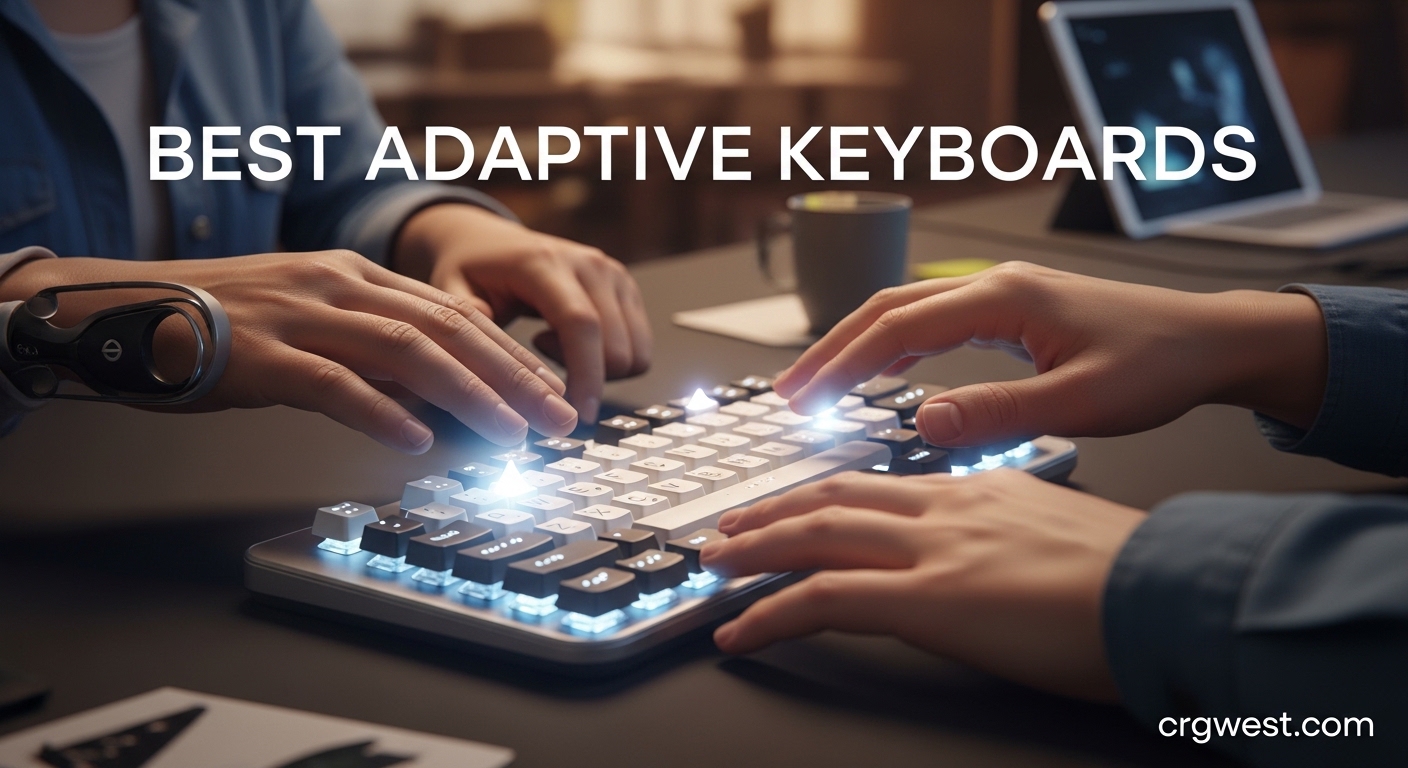
If you spend hours typing every day, you know how quickly wrist pain, finger fatigue, and shoulder strain can add up. For users with arthritis, carpal tunnel syndrome, limited hand mobility, or visual impairments, a standard keyboard can become a serious barrier to productivity. That’s where adaptive keyboards come in — designed from the ground up to reduce strain, improve posture, and make typing accessible for everyone.
In this comprehensive guide, we’ll walk you through the best adaptive keyboards of 2026. Whether you’re a senior with low vision, someone recovering from a hand injury, a left-handed user, or just looking for a more comfortable typing experience, we’ve tested and analyzed the top options on Amazon to help you find the perfect match for your needs and budget.
We evaluated over a dozen products across six key categories: ergonomic split design, large print visibility, left-handed layouts, reduced-reach configurations, accessibility features, and overall value. Every keyboard on our list is backed by hundreds — in some cases thousands — of verified customer reviews, so you can type with confidence.
Top 3 Picks for Best Adaptive Keyboards

KINESIS Advantage360 Profes...
- Quiet mechanical switches
- Contoured split design
- Fully programmable
- Bluetooth
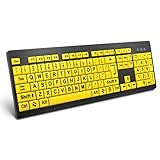
BOOGIIO Large Print Keyboard
- Yellow/black high contrast
- Oversized print letters
- Water resistant
- 5M keystroke lifecycle
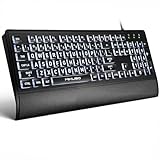
MIKUSO Large Print Keyboard
- 4X larger print
- White backlit keys
- Protective silicone cover
- Wrist rest included
Best Adaptive Keyboards in 2026
| Product | Specs | Action |
|---|---|---|
 Logitech Ergo K860
|
|
Check Latest Price |
 Logitech Wave Keys
|
|
Check Latest Price |
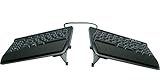 KINESIS Freestyle2
|
|
Check Latest Price |
 Arteck Split Ergonomic
|
|
Check Latest Price |
 ProtoArc EK01 Plus
|
|
Check Latest Price |
 Perixx PERIBOARD-512B
|
|
Check Latest Price |
|
KINESIS Advantage360 Pro
|
|
Check Latest Price |
 Nulea Wireless Split
|
|
Check Latest Price |
|
MIKUSO Large Print
|
|
Check Latest Price |
|
BOOGIIO Large Print
|
|
Check Latest Price |
1. KINESIS Advantage360 Professional — Editor’s Choice
KINESIS Advantage360 Professional Split Ergonomic Keyboard - Bluetooth | Quiet Mechanical Switches | Fully Programmable Open Source | Contoured Shape | Adjustable Tenting | Backlit
Bluetooth connectivity
Split contoured design
Kailh Box Pink Silent switches
Programmable open source firmware
Pros
- Reduces wrist and finger pain significantly
- Exceptional ergonomic tenting
- Premium typing feel with quiet switches
- Fully programmable with ZMK firmware
- Comfortable thumb keys and palm supports
Cons
- Very expensive at $479
- Steep learning curve for layout
- Bluetooth can be finicky
- ABS keycaps may get oily
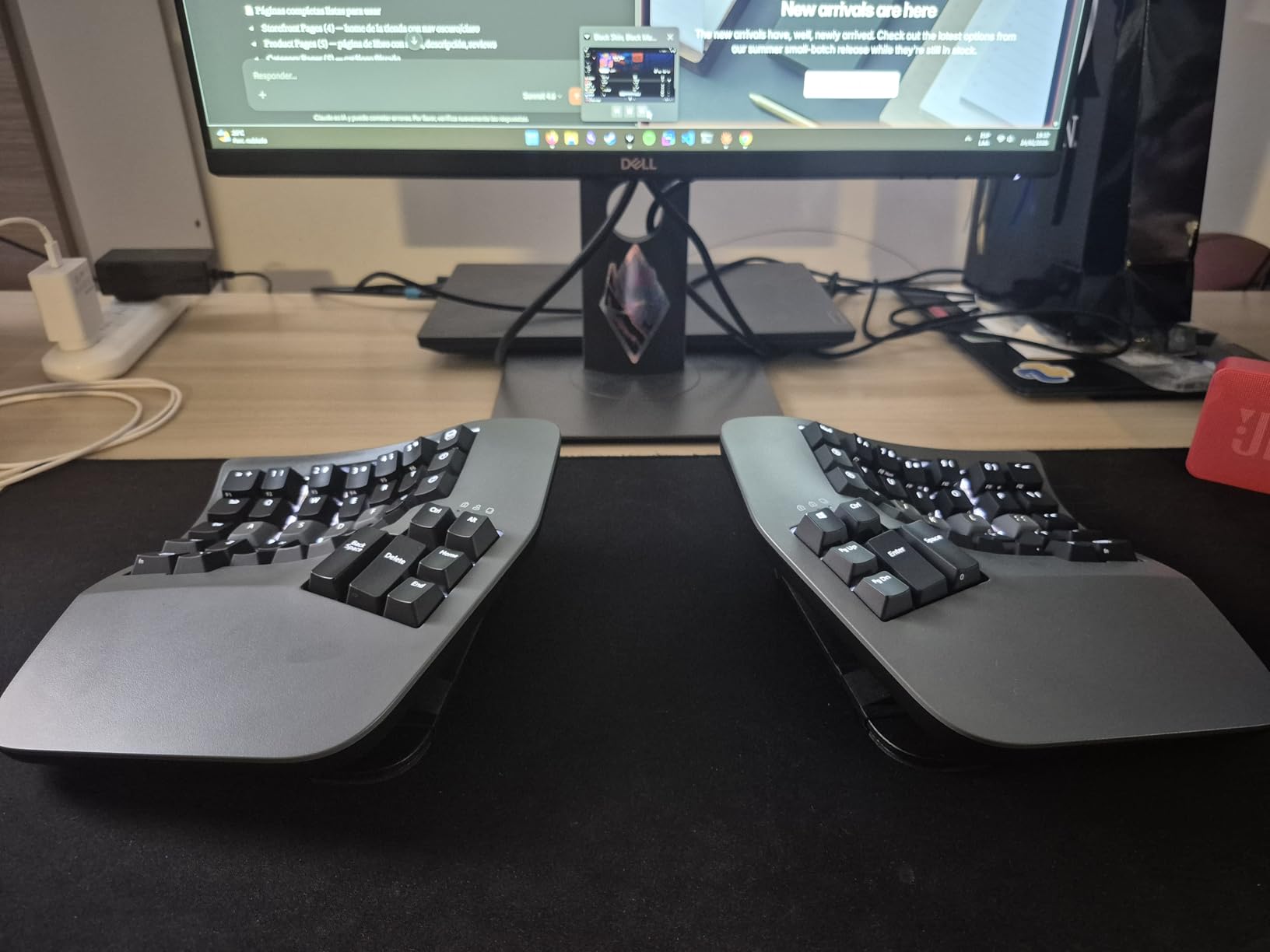
The KINESIS Advantage360 Professional is the gold standard for adaptive and ergonomic keyboards, and it earns its Editor’s Choice badge for good reason. Its contoured split key wells cradle each hand in a natural, neutral position, dramatically reducing wrist deviation and ulnar deviation — two of the most common causes of typing-related pain. The keyboard’s integrated tenting supports your forearms at adjustable angles of 0, 10, or 20 degrees, so you can dial in the exact posture that works for your body.
What truly sets this keyboard apart is its open-source firmware. Whether you want to remap individual keys, create custom layers for different applications, or adjust the actuation force of the Kailh Box Pink Silent switches, the ZMK-based programming environment gives you complete control. For users with limited hand mobility, being able to move frequently-used keys to stronger fingers or create one-press macros can be genuinely transformative. The Bluetooth connectivity means no tangled cables, and the quiet linear switches are easy on joints that might fatigue with louder, heavier mechanical feedback.
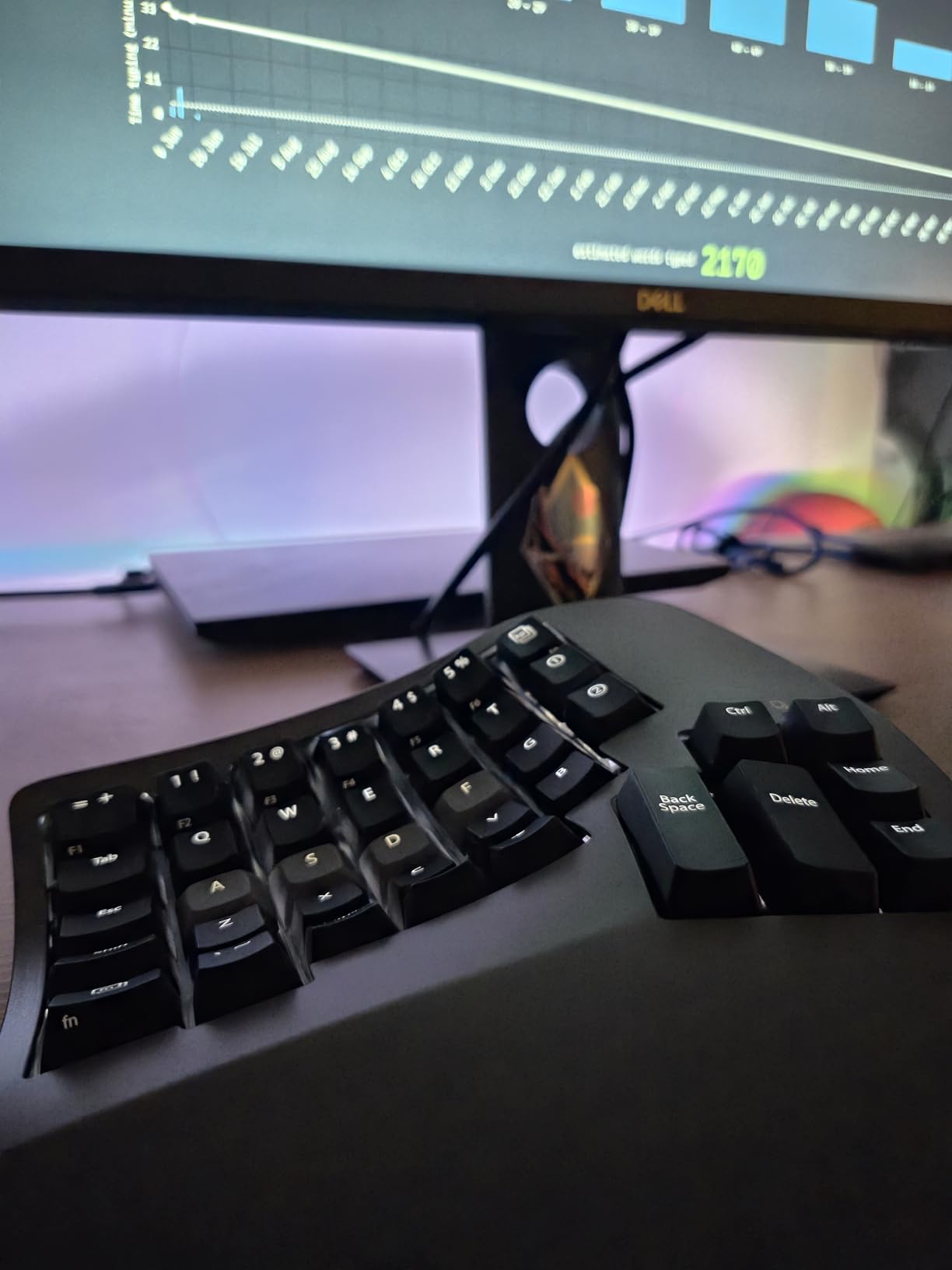
On the downside, this is a premium investment at $479, and the learning curve is steep — especially if you’ve never used a columnar or orthogonal layout before. The Bluetooth firmware, while improved with January 2024 updates, can still be finicky on some systems. Palm pads are sold separately, which feels like an omission at this price point. And if you’re not comfortable navigating GitHub for firmware customization, you may find the programming side intimidating. But for users who commit to the adjustment period, the reduction in wrist and finger pain is consistently reported as life-changing in customer reviews.
Who benefits most from this keyboard
Occupational therapists and users with diagnosed RSI conditions — carpal tunnel, tendinitis, or chronic wrist pain — report the most dramatic improvements with the Advantage360. Its programmable firmware is also invaluable for users with one-handed mobility, who can remap the full keyboard layout to work with their strong side. If you type for a living and have the budget to invest in your long-term comfort, this keyboard is worth every penny.
Setup and customization requirements
Out of the box, the keyboard works as a standard plug-and-play device on Windows, macOS, and Linux — but unlocking its full adaptive potential requires downloading the configuration tool and spending a few hours remapping keys to your needs. Budget at least a week of adjustment if you’re switching from a traditional layout. The investment in time is significant, but so are the ergonomic dividends.
2. BOOGIIO Large Print Keyboard — Best Value
BOOGIIO Large Print Computer Keyboard, Wired USB High Contrast Keyboard with Oversized Print Letters for Visually Impaired Low Vision Individuals (Yellow+Black)
Yellow/black high contrast
3X larger print letters
Water resistant membrane
5M keystroke lifecycle
Pros
- Excellent visibility from several feet away
- Quiet membrane keys need minimal force
- Durable 5M keystroke rating
- Affordable at $17.09
- Water resistant design
Cons
- Black lettering can wear off over time
- No backlight for dark environments
- Enter key close to slash key
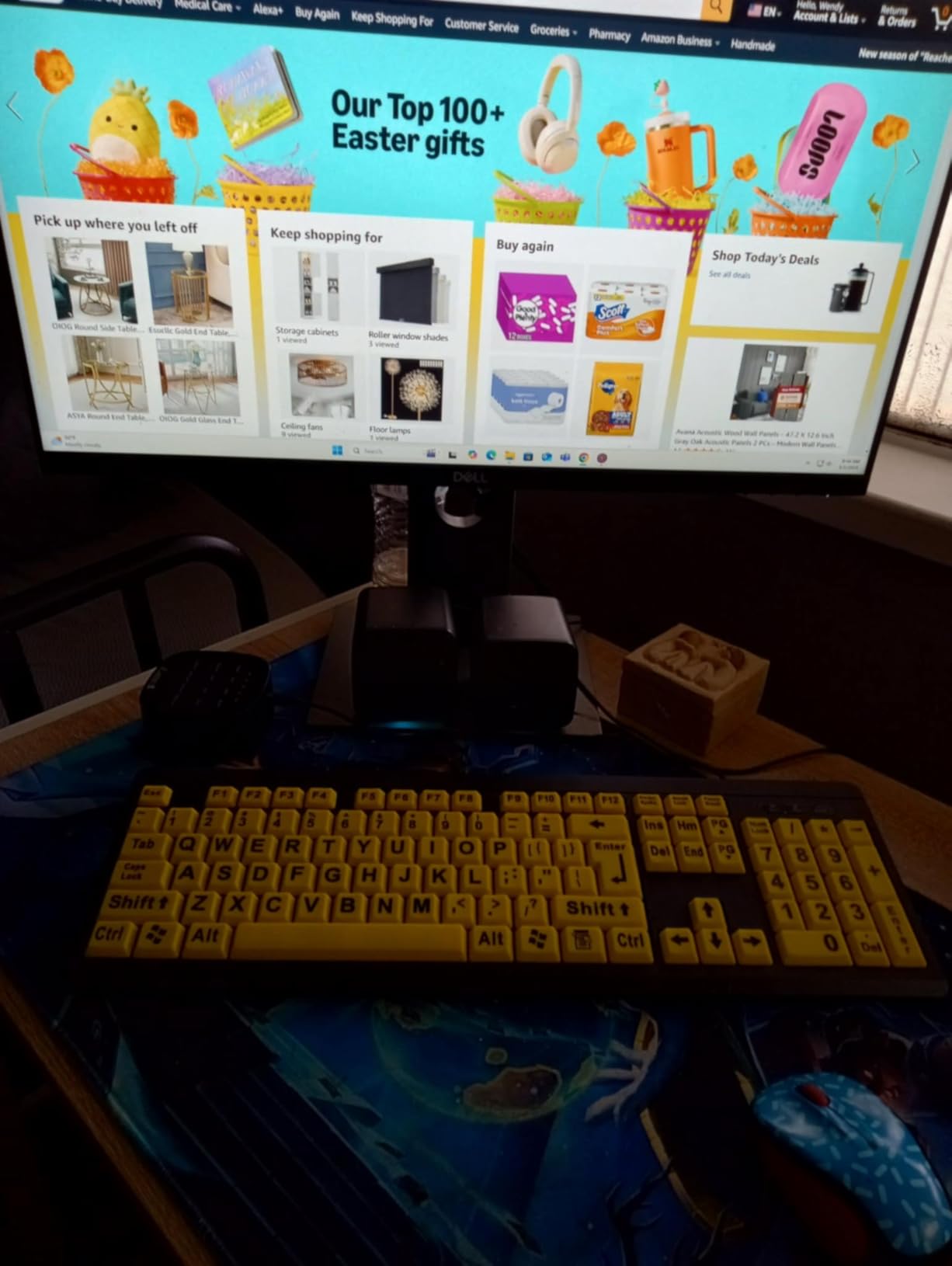
If you or someone you care for struggles to read standard keyboard letters, the BOOGIIO Large Print Keyboard is a revelation. Its bold yellow keycaps with oversized black letters are visible from several feet away, making it one of the most accessible typing solutions on the market for seniors, users with low vision, or anyone who finds themselves squinting at a screen. At $17.09, it delivers a genuine quality-of-life improvement without straining your wallet.
The 104-key QWERTY layout includes a full numeric keypad and function row, so you won’t sacrifice any functionality for the enlarged print. The membrane key switches are quiet and require minimal force to actuate — a meaningful benefit for users with hand weakness or arthritis. The water-resistant design adds durability and peace of mind, and the five million keystroke lifecycle means this keyboard is built to last. Fold-out feet on the back let you adjust the typing angle for a more comfortable wrist position.
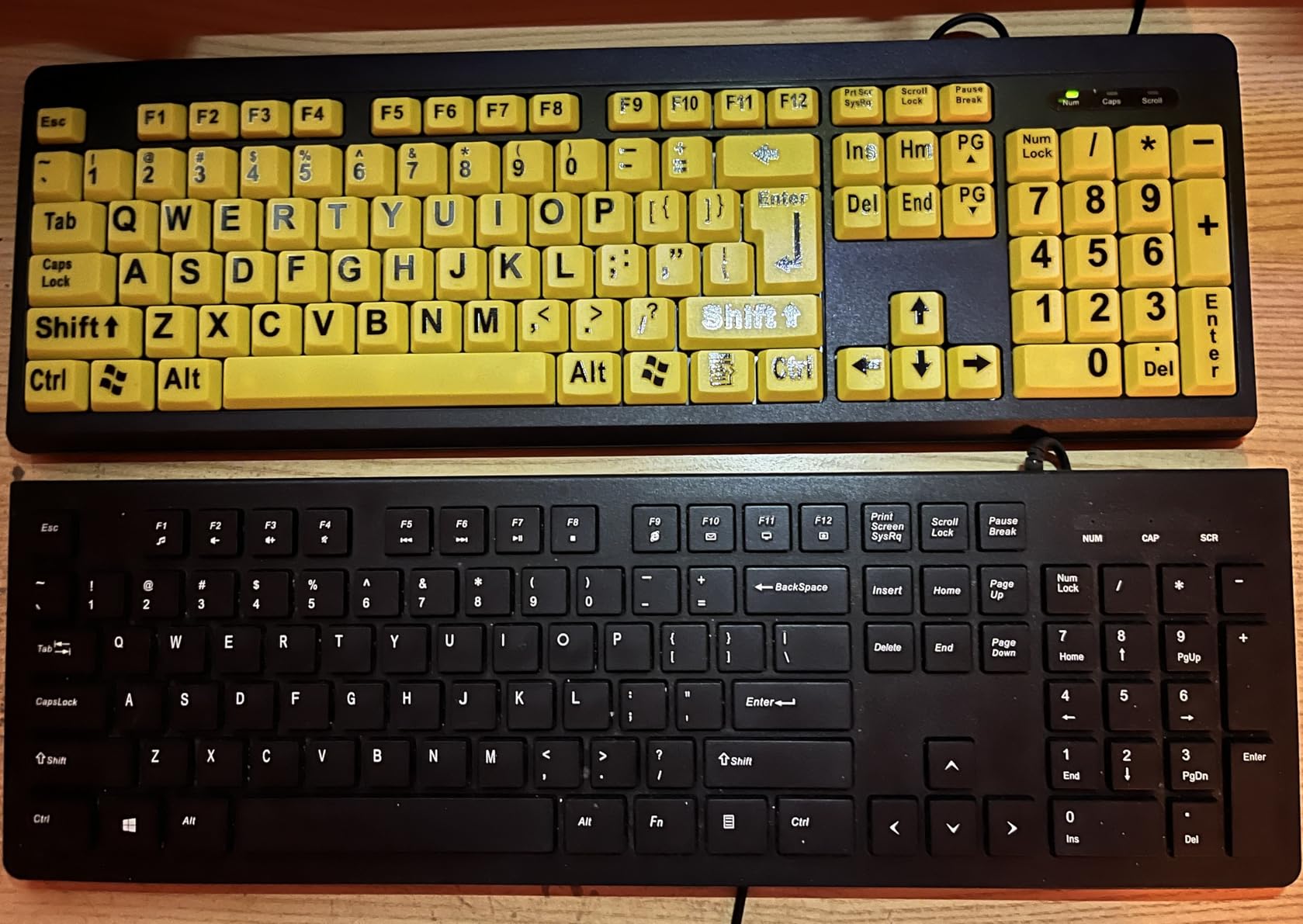
The most common complaint in negative reviews is that the black lettering on yellow keys can begin to wear off after heavy daily use — a real concern for a product primarily bought by heavy typists. The Enter key sits close to the forward slash, which can lead to accidental typos until you build muscle memory. There’s no backlighting, so it works best in well-lit environments. And if you’re a fast touch-typist, the membrane switches may feel slightly mushy compared to mechanical alternatives. But for its core purpose — making keys readable and accessible — the BOOGIIO is an outstanding budget choice.
Accessibility features for low vision users
The high contrast yellow-on-black color scheme meets accessibility guidelines for users with low vision, macular degeneration, or diabetic retinopathy. The letters are approximately three times larger than standard keyboard print. For users transitioning from reading glasses to screen magnification software, this keyboard reduces the need to look as closely at the physical device, supporting a more comfortable overall workflow.
Durability considerations for daily use
With a 5 million keystroke rating, the BOOGIIO is built for daily use, though the durability of the printed keycaps is the weakest link. Users who type heavily report noticeable letter fading after 12-18 months. Placing a silicone keyboard cover over the top (which some users do) can extend the life of the print but adds bulk. If maximum keycap longevity is critical, consider pairing this keyboard with a clear keyguard overlay.
3. MIKUSO Large Print Keyboard — Budget Pick
Large Print Backlit Keyboard for Seniors,Visually Impaired-High Contrast Black Keys,White LED with Cover,Wired USB 104 Full Size-Easy to Read Big Letters for Macular Degeneration Low Vision (No Glare)
4X larger print keys
White LED backlight
Protective silicone cover
Integrated wrist rest
Pros
- Exceptional value under $25
- Backlight works in all lighting
- Spill resistant cover included
- Full 104-key layout with numpad
Cons
- Keys may stick with heavy use
- Backlight can stay on when PC sleeps
- Cover can tear over time
The MIKUSO Large Print Keyboard is a standout budget accessibility keyboard that punches well above its weight class. At $22.99, it combines oversized 4X-larger-than-standard lettering with a bright white LED backlight — a combination you rarely find at this price point. The backlight makes the already-large letters even easier to read in any lighting condition, from bright daylight offices to dim living rooms, making it especially useful for users with photosensitivity or fluctuating vision.
Beyond the backlight, MIKUSO includes a protective silicone cover that fits over the keyboard, providing spill resistance and dust protection — practical features for households with young children, messy desks, or users with limited hand coordination who might knock drinks. The integrated wrist rest adds a comfort layer that standard keyboards skip, and the full 104-key layout with numeric keypad ensures no functionality is lost compared to a regular keyboard. USB-C connectivity provides reliable, latency-free typing without the battery concerns of wireless options.
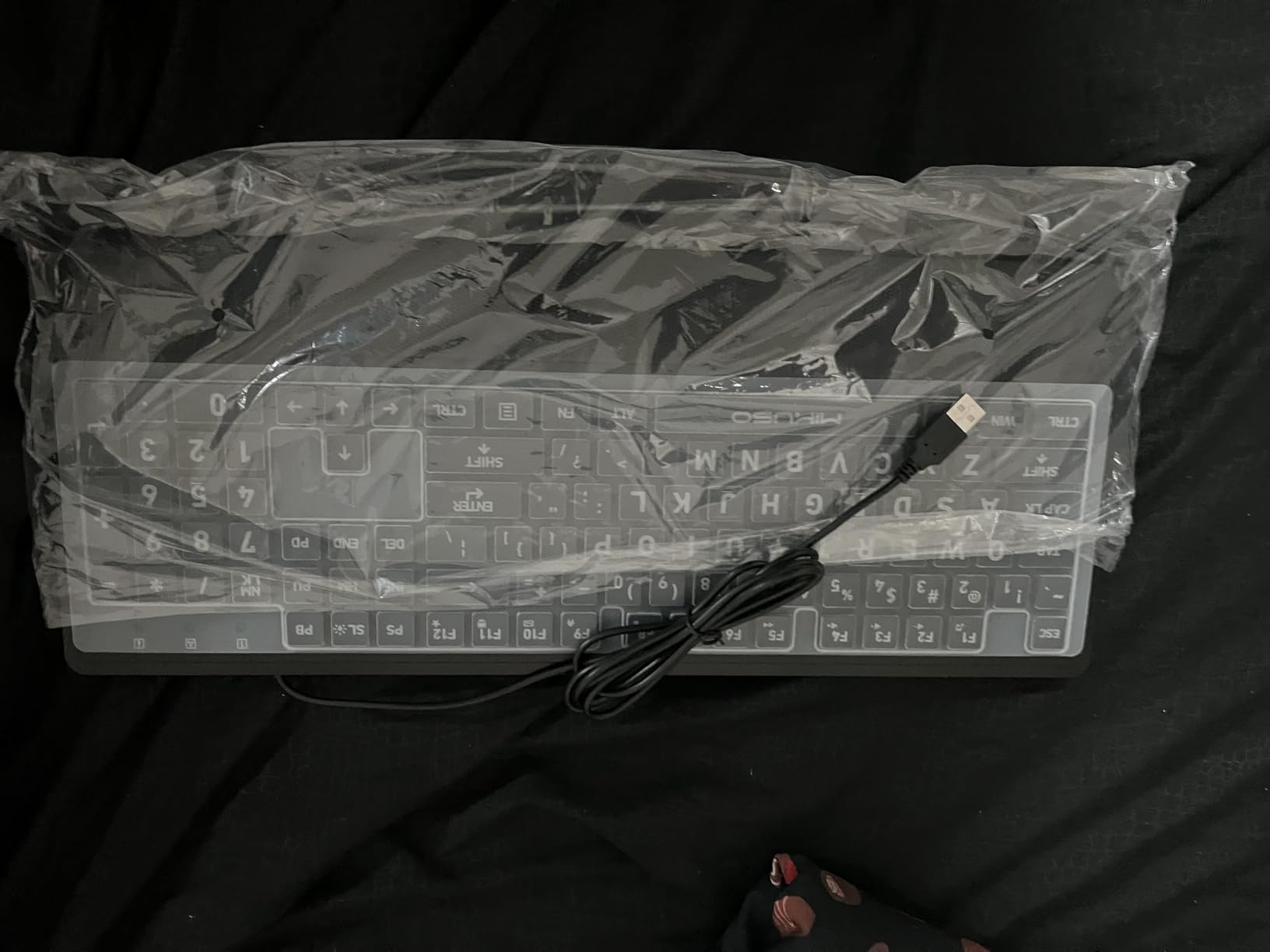
Not everything is perfect, however. Some units have a quirk where the backlight stays on when the computer is powered down, which could be disorienting in a dark room. The protective cover, while useful, can tear with aggressive use and adds noticeable bulk that changes the typing feel. Keys may exhibit slight sticking after extended heavy use — a trade-off of the membrane switch design at this price tier. And for fast typists or gamers, the membrane switches lack the crisp, responsive feel of mechanical alternatives.
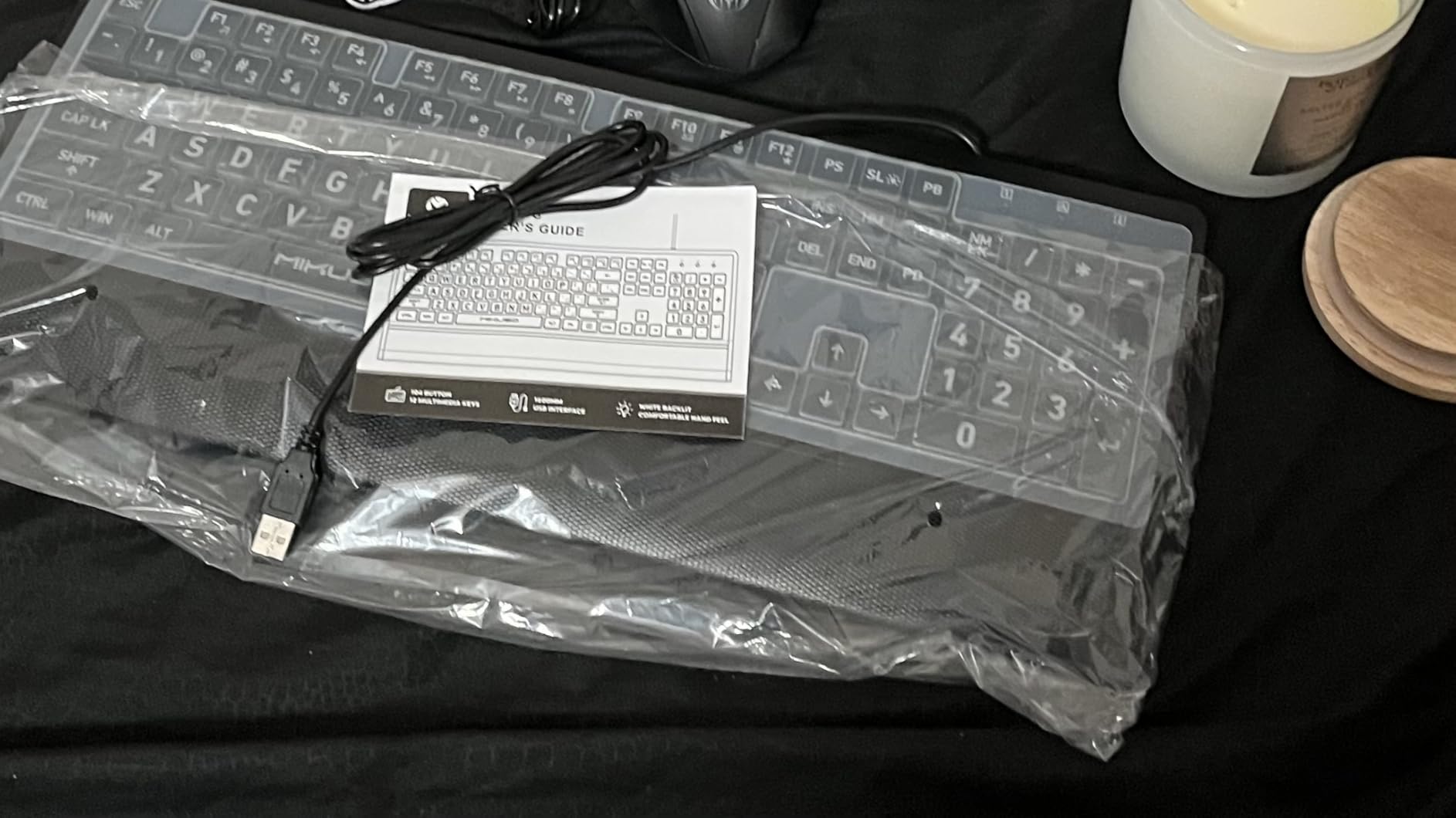
Backlight performance in different lighting conditions
The white backlight has three brightness levels and can be toggled on or off with a dedicated key. In fully dark rooms, the backlight is bright enough to read keys clearly without straining. In bright environments, the high-contrast print works independently of the backlight, so visibility remains strong in all conditions. Users with photosensitivity may want to keep the brightness on its lowest setting to avoid glare.
Protective cover maintenance and replacement
The silicone cover is hand-washable with mild soap and water, which is convenient for regular cleaning. Replacement covers are available from third-party sellers on Amazon for under $5, which extends the keyboard’s usable life significantly. Users with sensory sensitivities should note that the silicone texture against the wrists may feel different from a bare keyboard — test the feel before committing if tactile sensitivity is a concern.
4. Logitech Ergo K860
Logitech Ergo K860 Wireless Ergonomic Keyboard - Split Keyboard, Wrist Rest, Natural Typing, Stain-Resistant Fabric, Bluetooth and USB Connectivity, Compatible with Windows/Mac, Black
Split curved keyframe
Memory foam wrist rest
Bluetooth and USB
3 device Easy-Switch
Pros
- Exceptional ergonomic design
- Quiet Perfect Stroke keys
- Memory foam wrist rest
- Works with 3 devices simultaneously
Cons
- AAA batteries instead of rechargeable
- Larger desk footprint
- No backlighting
Logitech has been a leader in ergonomic peripherals for years, and the Ergo K860 is their flagship split keyboard — and one of the most approachable adaptive keyboards for mainstream users. The gently curved split keyframe naturally positions your hands, wrists, and forearms in a more neutral alignment than any flat keyboard can achieve. Rather than forcing your hands inward toward a central point, the K860 lets them rest exactly where they want to, which dramatically reduces shoulder strain over long sessions.
The pillowed memory foam wrist rest is exceptional — it provides genuine support without being too firm or too soft. Logitech’s Perfect Stroke scooped keys are quiet, comfortable, and offer satisfying tactile feedback. The keyboard connects via Bluetooth or the included USB receiver, works with up to three devices simultaneously, and is compatible with Windows, macOS, Linux, and even Chrome OS. The adjustable palm lift (0, -4, or -7 degrees) lets you fine-tune the typing angle for your specific ergonomic needs.
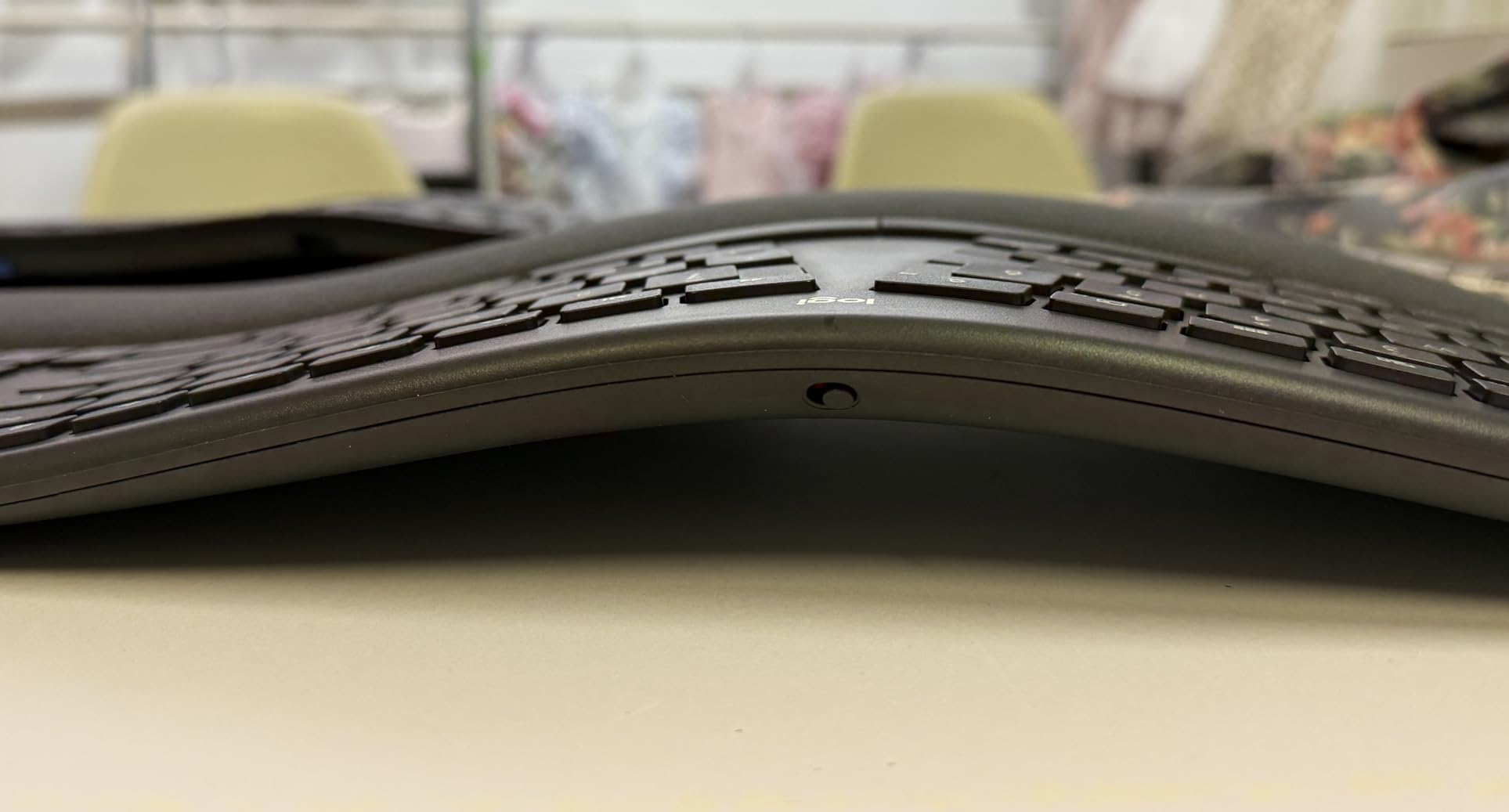
The main drawback is that it runs on two AAA batteries rather than a rechargeable internal battery, which feels like a missed opportunity at this price level. The larger footprint also takes up more desk space than a standard keyboard, which may be an issue in compact workspaces. And while the split design is gentle enough for most users, those with more severe ergonomic needs may find it doesn’t provide the aggressive tenting or customizability of premium options like the KINESIS Advantage360. Still, for the vast majority of users looking to reduce everyday typing strain, the Ergo K860 is a superb choice backed by Logitech’s proven track record and customer support.
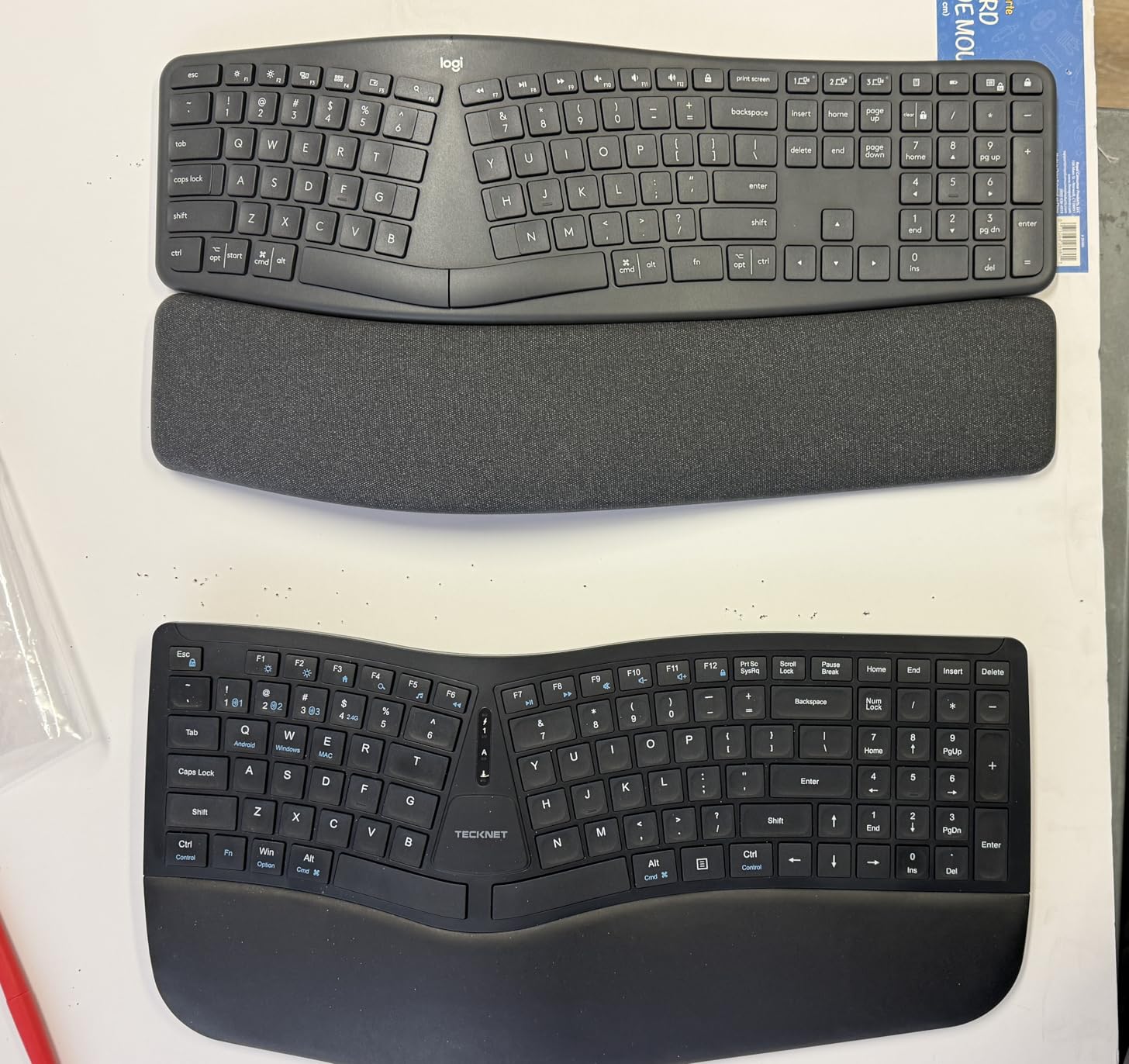
Compatibility across operating systems
The Ergo K860 detects your operating system automatically and remaps key labels accordingly — so Mac users see the correct symbols on the Option and Command keys. The Logitech Options+ software (available for free) lets you reassign function keys, adjust key repeat rates, and manage device pairing. For users who switch between a Windows desktop and a MacBook, the Easy-Switch button makes reconnecting to a different device almost instant.
Battery life and replacement considerations
Logitech rates battery life at approximately two years with typical usage (roughly 2 million keystrokes per year). Because the keyboard uses standard AAA batteries, replacement is inexpensive and straightforward — no proprietary charger needed. Rechargeable AAA batteries are a great eco-friendly option for users who want to minimize waste. The battery compartment is on the underside of the keyboard and opens with a simple clip.
5. Logitech Wave Keys
Logitech Wave Keys Wireless Ergonomic Keyboard with Cushioned Palm Rest, Comfortable Natural Typing, Easy-Switch, Bluetooth, Logi Bolt Receiver, for Multi-OS, Windows/Mac - Rose
Wave-shaped layout
Cushioned palm rest
Easy-Switch 3 devices
Bluetooth and Logi Bolt
Pros
- Compact design brings mouse closer
- Comfortable wave ergonomic design
- Up to 3 year battery life
- Seamless multi-device switching
Cons
- No backlighting
- Delete key placement awkward
- Compact layout lacks numpad
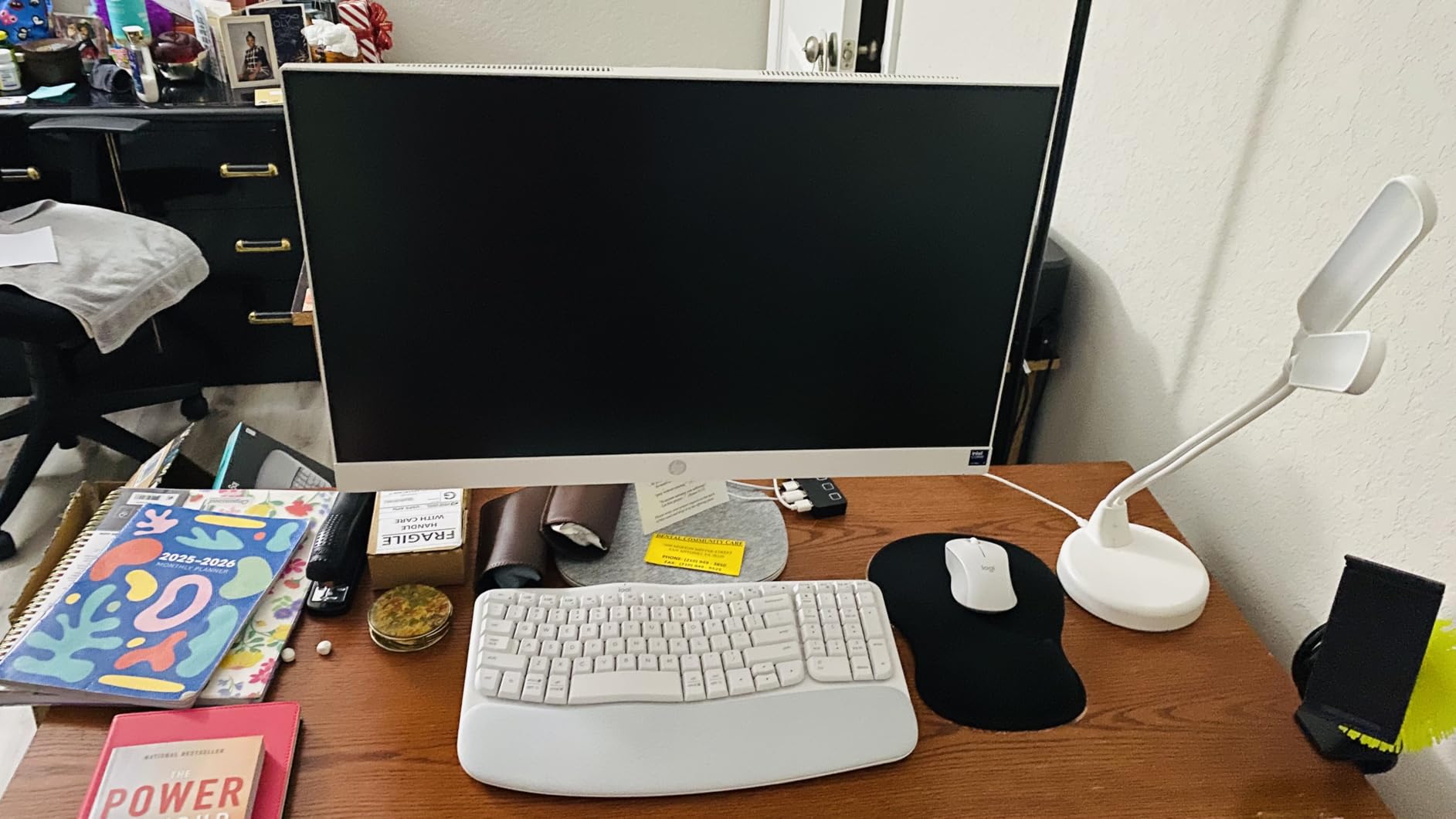
The Logitech Wave Keys is Logitech’s more compact ergonomic option, using a gently undulating wave-shaped layout to encourage a natural hand position without the full split of their Ergo K860. If you’ve been meaning to try an ergonomic keyboard but found split layouts intimidating, the Wave Keys is an excellent entry point — it looks like a normal keyboard but gently guides your hands into a more comfortable typing posture.
The cushioned memory foam palm rest is wide and supportive, and the compact layout (about 60% of a full-size keyboard) brings your mouse closer to your body, reducing rightward reach that contributes to shoulder and upper back strain. Multi-device support via Bluetooth and the Logi Bolt receiver lets you connect up to three devices and switch between them with a single keypress. Battery life is rated at up to three years with the included battery, which is among the longest of any wireless ergonomic keyboard.
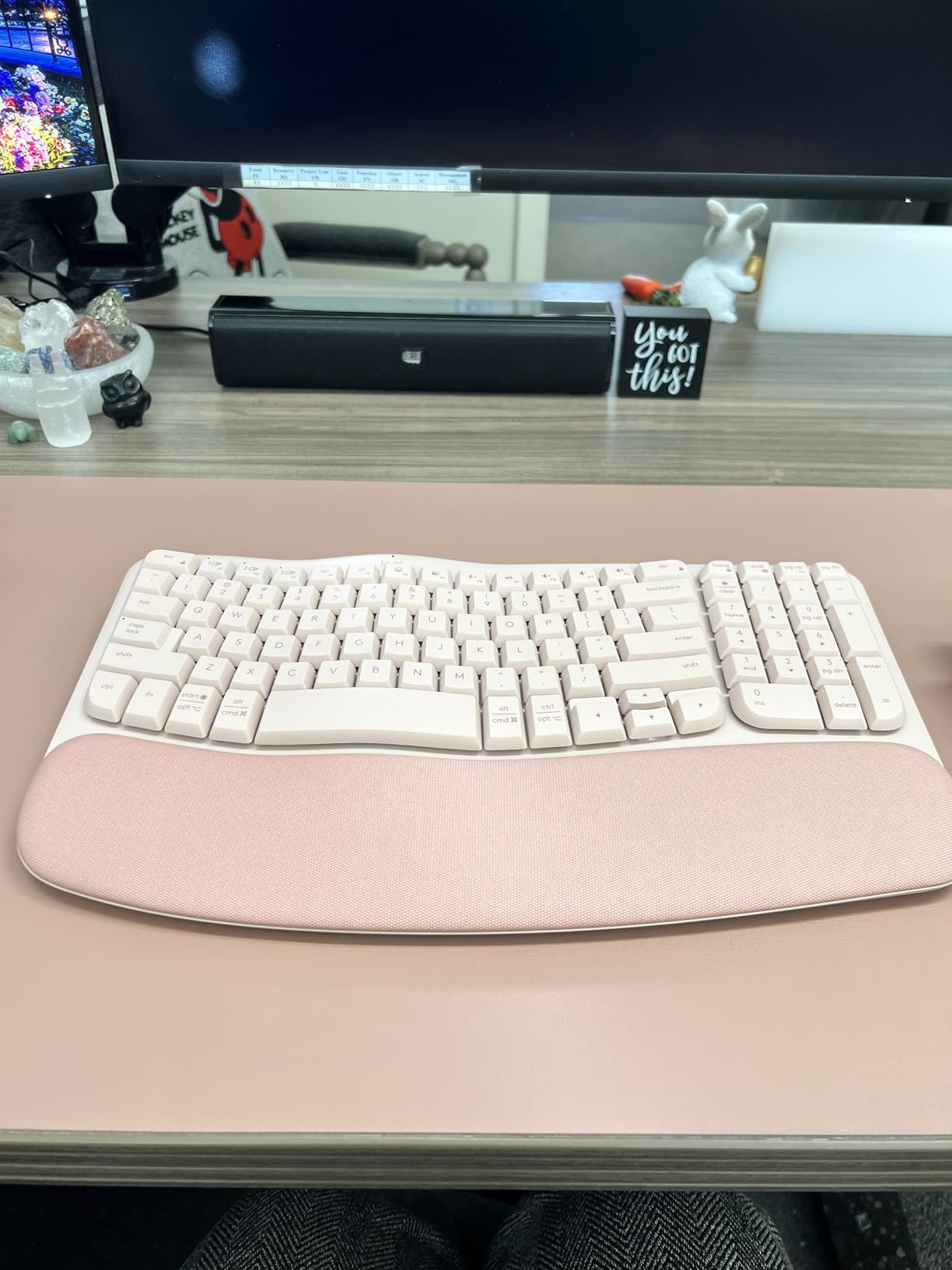
The compact layout isn’t for everyone — users who rely heavily on function keys or the numeric keypad will need to adapt. Some reviewers found the Delete key placement awkward and accidentally pressed it instead of Backspace in the first few days. There’s no backlighting, which is a notable omission for a keyboard in this price range, and the membrane switches, while quiet, have a softer, less defined feel than scissor or mechanical alternatives. But for everyday office work, the Wave Keys delivers genuine ergonomic benefits in a package that’s easy to live with day-to-day.
Adjusting to the compact wave layout
The transition period for the Wave Keys is typically shorter than for a full split keyboard — most users report feeling comfortable within three to five days of regular use. The compact layout takes the most getting used to, so if you frequently use the numeric keypad, be prepared to use the number row or an external numpad. Keeping the palm rest attached at all times is recommended, as removing it changes the typing angle significantly.
Multi-device switching performance
The Easy-Switch function reliably reconnects to previously paired devices within one to two seconds. Users who work across a laptop, desktop, and tablet simultaneously report the switching as smooth and reliable. One minor issue: the keyboard’s device profile doesn’t always persist after a restart on some operating systems, requiring a brief re-pairing. This is rare but worth noting for users who switch devices frequently throughout the workday.
6. KINESIS Freestyle2
KINESIS Freestyle2 USB-A Ergonomic Keyboard w/ VIP3 Lifters for PC (9" Separation) (KB820PB-US)
9 inch adjustable split
VIP3 tenting kit included
USB powered
Low-force membrane switches
Pros
- Award-winning split design
- Adjustable tenting angles
- USB powered no batteries needed
- Quiet low-force keys
Cons
- Can be unstable on smooth surfaces
- No backlighting
- 9 inch split may be too wide for some
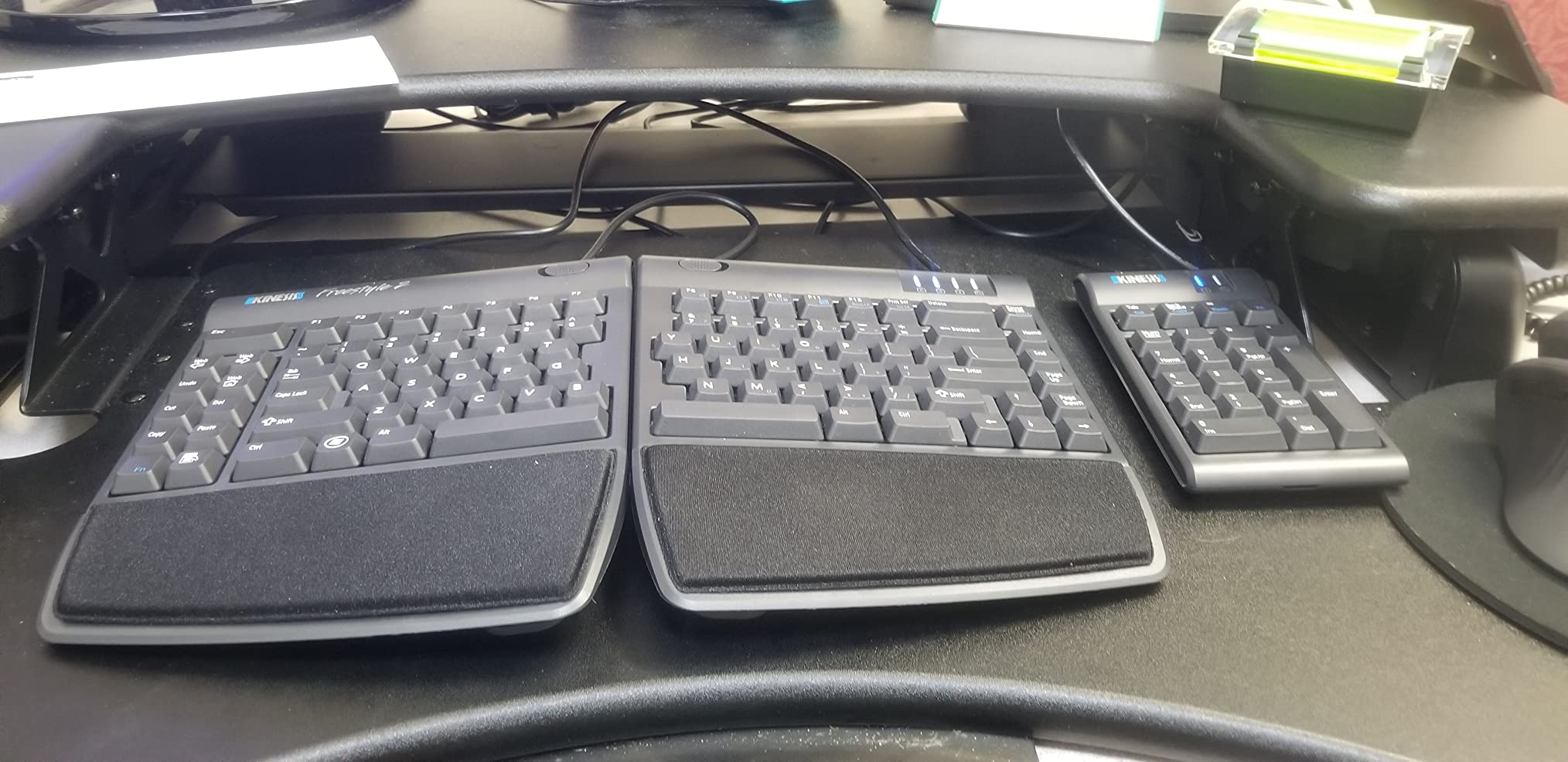
The KINESIS Freestyle2 is one of the most versatile adaptive keyboards available, offering a genuinely adjustable split design that lets you position each half of the keyboard up to nine inches apart. For users with broad shoulders, large hands, or specific postural needs, this level of customization is invaluable. The included VIP3 tenting accessory adds 5, 10, or 15 degrees of slope to each half, letting you type with your forearms in a more natural, unsupported position that reduces wrist extension.
Low-force membrane key switches keep finger fatigue to a minimum, and the USB-powered design means you’ll never deal with dead batteries mid-work session. Dedicated Cut, Copy, Paste, and Undo keys are conveniently placed and work across both Windows and Mac without any driver installation. The Freestyle2’s build quality is excellent — KINESIS has been making ergonomic keyboards for over 25 years, and it shows in the fit and finish of every component.
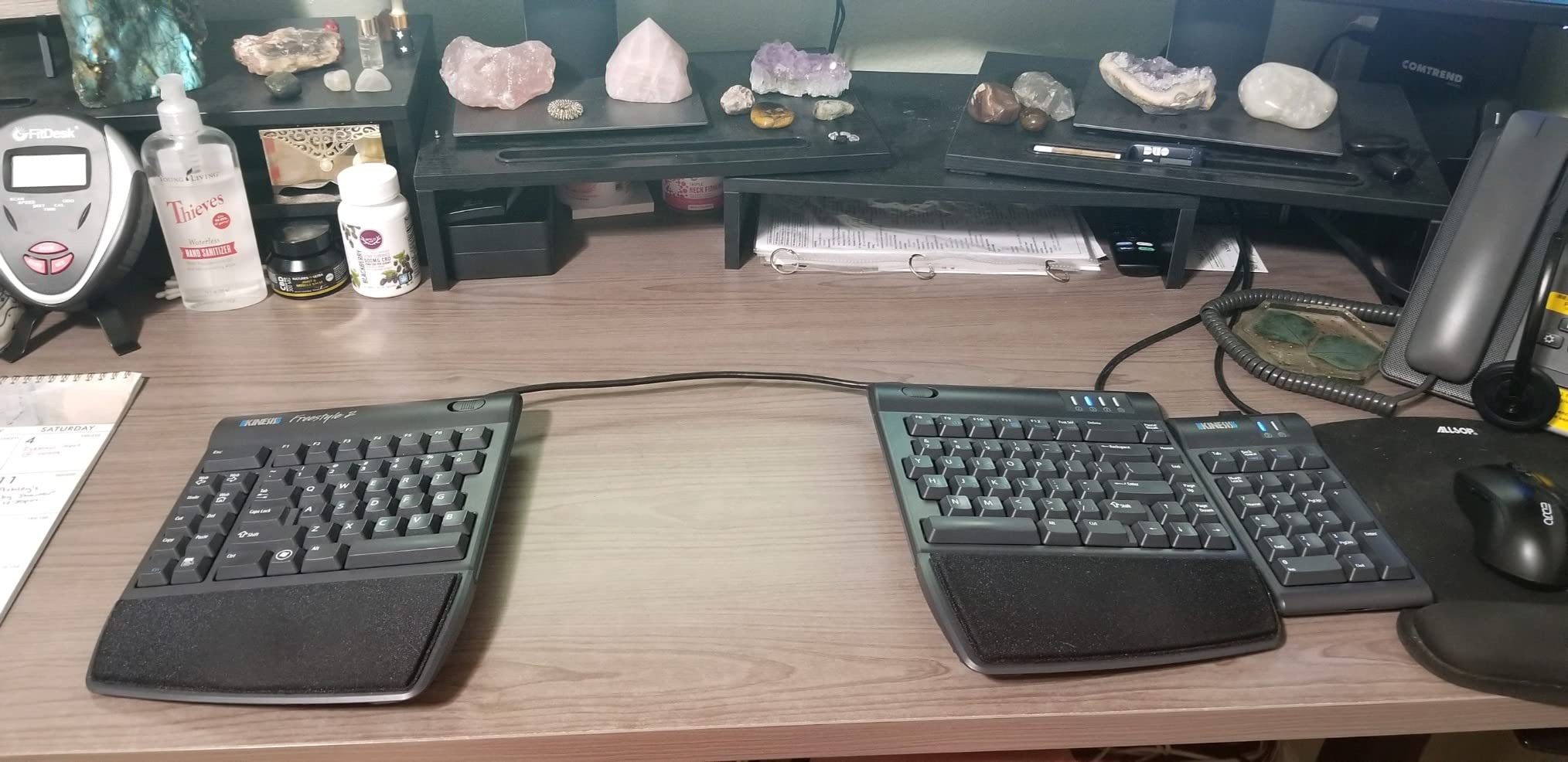
At the higher end of the split distance settings, the Freestyle2 can feel unstable on smooth desk surfaces, and some users report the keyboard halves sliding during intensive typing sessions. The nine-inch separation may actually be too wide for smaller-framed users or compact desk setups. The Delete key placement on the right half has caused accidental presses for some users, and there’s no backlighting — a drawback for low-light environments. But for users who need true ergonomic adjustability without the premium price of the Advantage360, the Freestyle2 is a top contender.
Tenting angles and forearm posture benefits
The VIP3 tenting kit is sold bundled with this model and is the key to unlocking the Freestyle2’s ergonomic potential. The 15-degree tenting angle is the most popular setting for users with neutral wrist postures, while the 5-degree setting works well for users who prefer a flatter typing surface. Using tenting with a negative wrist rest (palm rest positioned lower than the keys) is the gold standard recommended by occupational therapists for preventing carpal tunnel and RSI.
Desk stability and surface requirements
On glass or high-gloss desk surfaces, the Freestyle2’s rubber feet can slip during heavy typing. Using a desk mat or non-slip pad underneath the keyboard halves significantly improves stability. Some users attach small velcro strips to the underside of each half for a more permanent solution — an inexpensive hack that makes a real difference in daily comfort.
7. Arteck Split Ergonomic Keyboard
Arteck Split Ergonomic Keyboard with Cushioned Wrist and Palm Rest, 2.4G USB Wireless Comfortable Natural Ergonomic Split Keyboard, for Windows Computer Desktop Laptop
2.4G wireless
Rechargeable USB-C
Scissor-switch keys
6 month battery life
Pros
- Best budget split keyboard
- Comfortable split design with wrist rest
- Rechargeable with long battery
- Easy wireless setup with nano receiver
Cons
- No backlight
- Smaller than full-size
- Some keys require Fn combinations
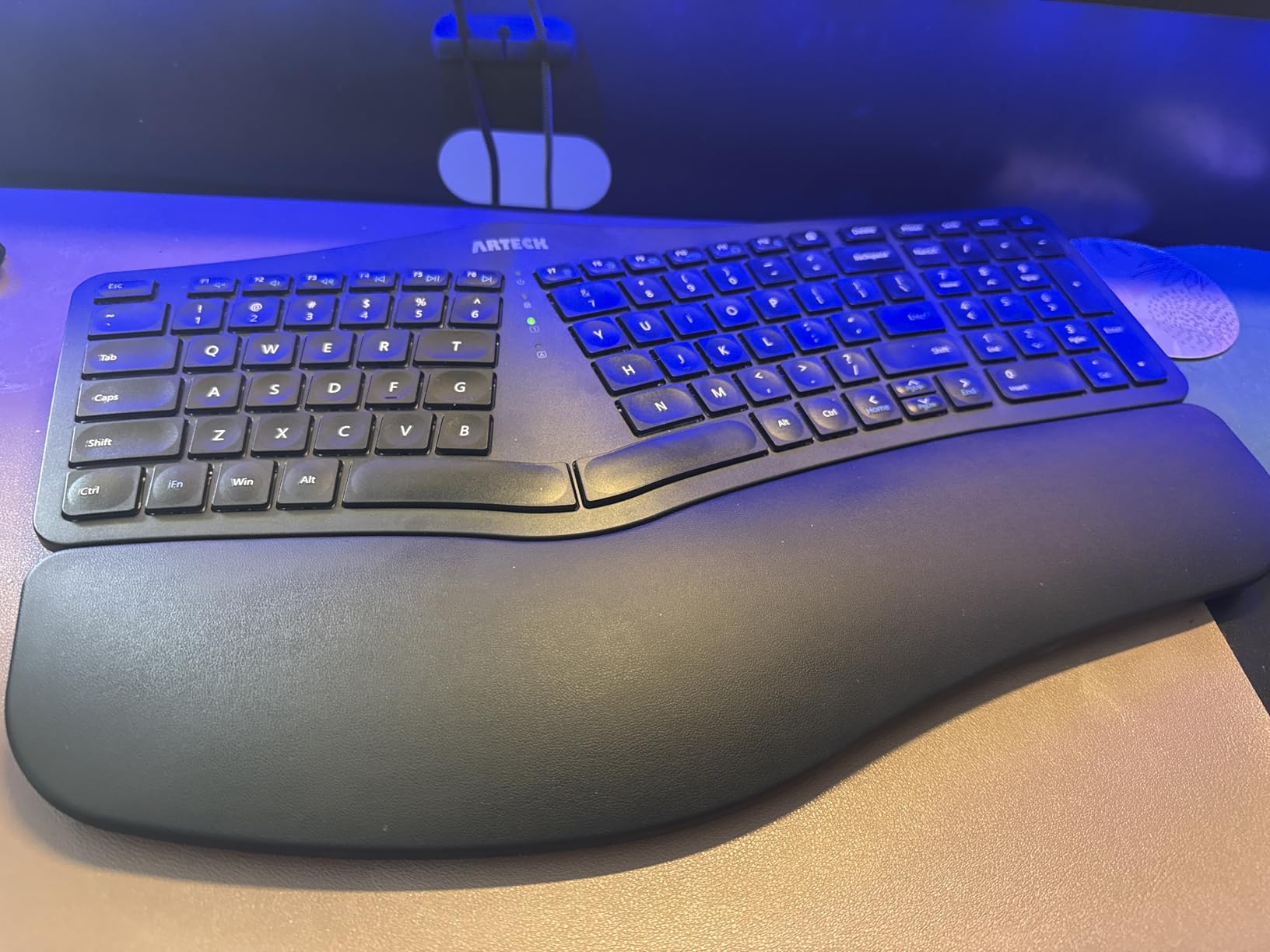
The Arteck Split Ergonomic Keyboard is the best budget-friendly option in the split keyboard category, delivering genuine ergonomic benefits at a price that won’t break the bank. The split layout separates the left and right hands by about two inches at the gap, which is a moderate adjustment from a standard keyboard but enough to noticeably reduce wrist ulnar deviation for most users. Combined with the cushioned wrist rest, this keyboard provides real comfort improvements for everyday typists on a tight budget.
Wireless connectivity via 2.4GHz USB dongle means no cable clutter, and the rechargeable battery lasts up to six months per charge with average use. USB-C charging is a convenient touch. The scissor-switch keys are responsive and quiet, with a typing feel closer to a quality laptop keyboard than a typical budget membrane. Arteck’s 24-month warranty is notably generous for a product in this price range, and their customer service has a strong reputation for quick replacements.
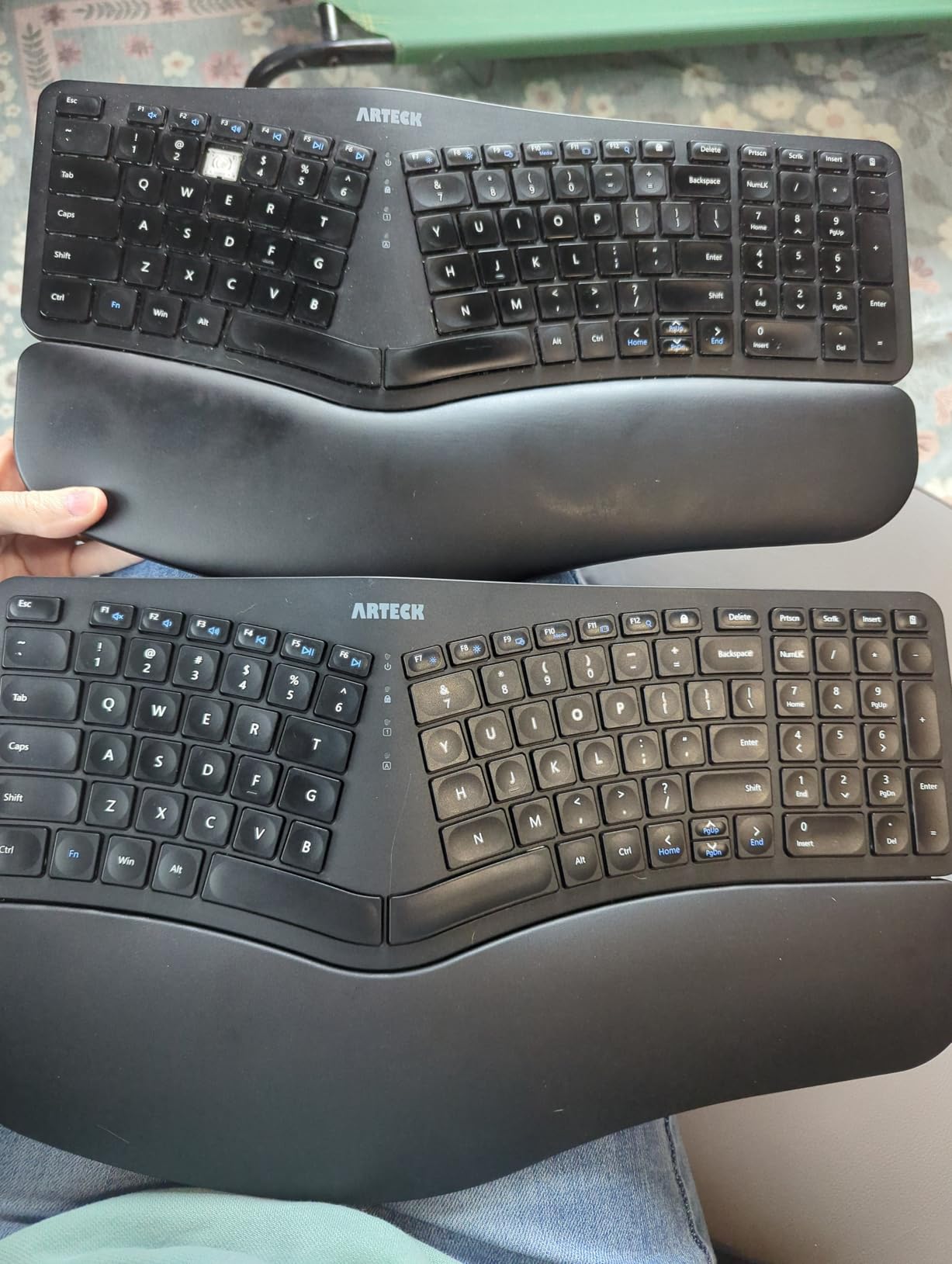
The Arteck isn’t a premium product, and some trade-offs are expected at this price. Some keys are doubled up with Fn combinations (Page Up/Down, Home/End) which can be inconvenient. The keyboard is smaller than a standard full-size model — users who need dedicated media control keys or a large numeric keypad may find it lacking. There’s no backlight, and the keycaps have been reported to develop a slight shine with heavy use. But for users who want the ergonomic benefits of a split keyboard without the premium price, the Arteck is an excellent starting point.
Rechargeable battery care and longevity
The Arteck’s battery indicator light turns red when charging is needed. A full charge takes approximately two to three hours via USB-C. To maximize battery lifespan, avoid leaving the keyboard plugged in continuously — disconnect it once fully charged. With moderate daily use, most users report getting six to eight months per charge, making this one of the most reliable wireless ergonomic options for battery longevity.
Fn key combinations and function key access
Understanding the Fn layer is essential for getting the most from the Arteck. Common functions like volume control, screen brightness, and media playback are all on the Fn layer and accessed via the Fn key plus the corresponding F-key. Keeping the Arteck keyboard’s firmware updated via the manufacturer’s website ensures the Fn combinations work correctly with the latest operating system versions.
8. ProtoArc EK01 Plus
ProtoArc Backlit Bluetooth Ergonomic Keyboard, EK01 Plus Full Size Wireless Split Keyboard with Dual Bluetooth and USB, Cushioned Wrist Rest, Rechargeable, Compatible with Windows/Mac/Android, Blue
LED backlight 3 levels
Dual Bluetooth and 2.4G
Mechanical switches
3 device connectivity
Pros
- Full-size with numeric keypad
- Useful LED backlighting
- Great multi-device switching
- USB-C rechargeable 2000mAh
Cons
- Wireless only no wired fallback
- 2.4G not compatible with Mac/iOS
- Some keys not programmable
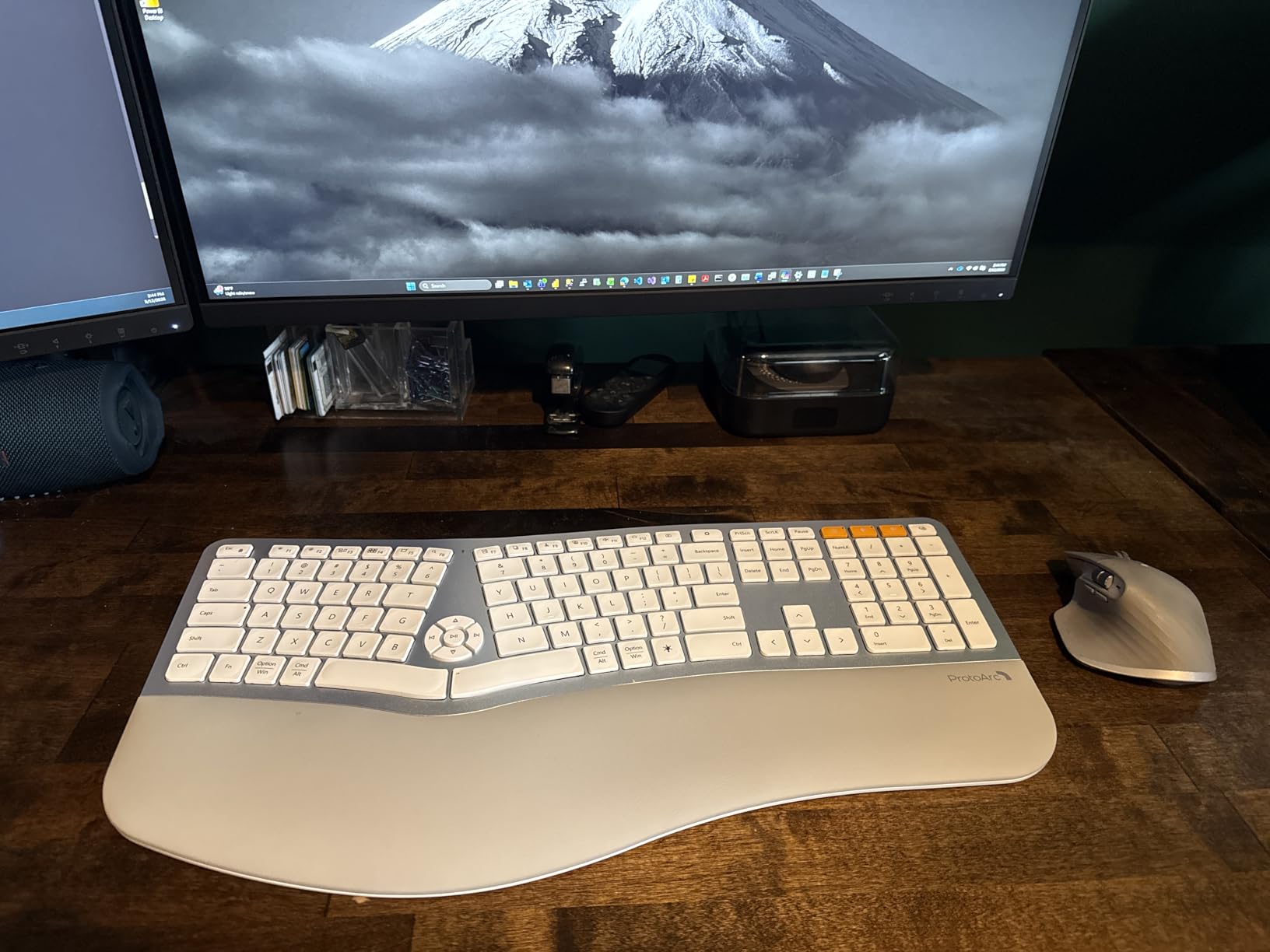
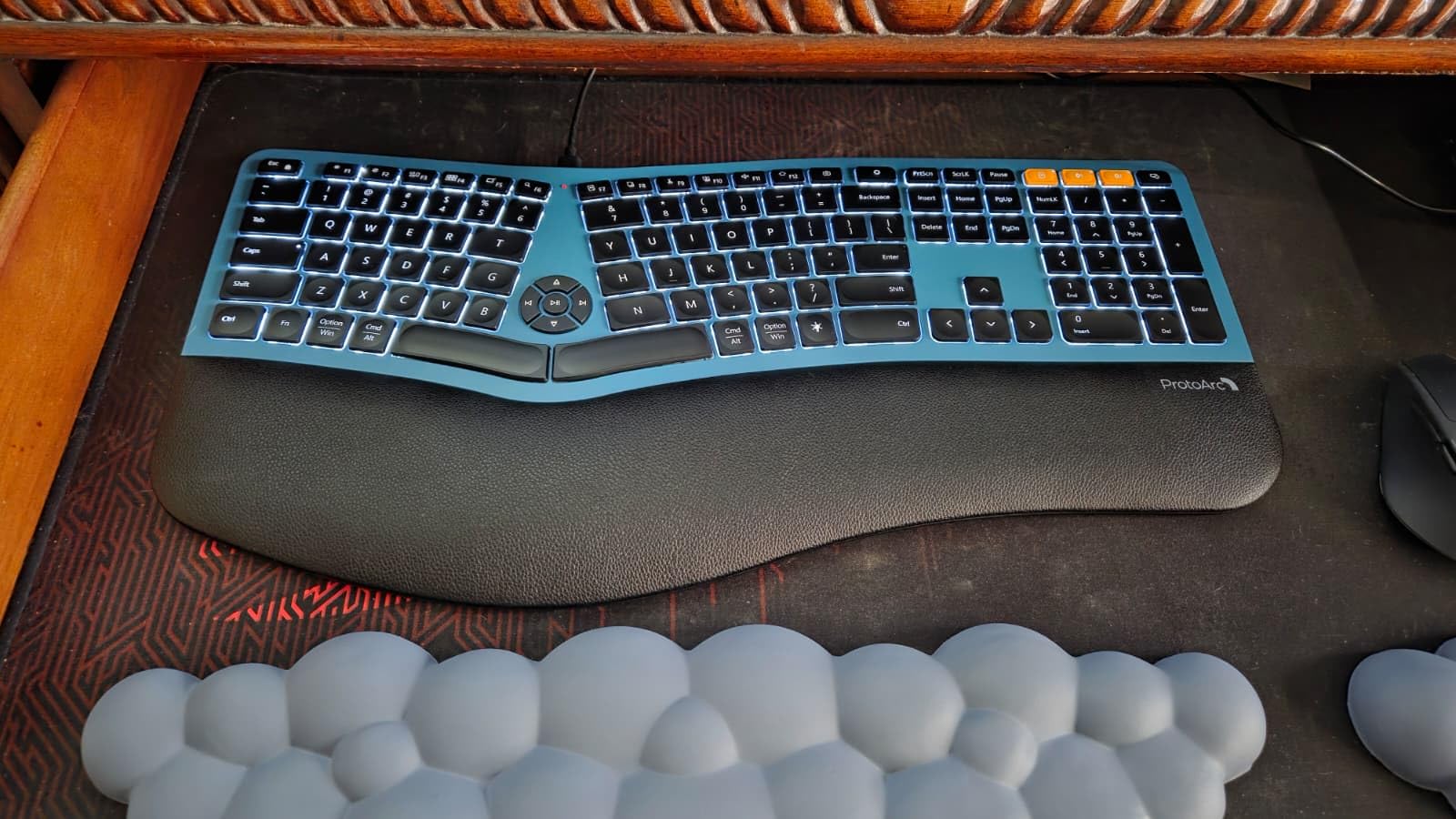
The ProtoArc EK01 Plus is a feature-packed ergonomic keyboard that punches well above its price tag. The full-size split design includes a complete numeric keypad, function row, and all standard keys — no compromises on layout. The LED backlighting with three brightness levels is genuinely useful for users who work in variable lighting, and the mechanical switches provide a satisfying, responsive typing experience that membrane keyboards simply can’t match. Dual Bluetooth plus 2.4GHz connectivity lets you connect up to three devices simultaneously.
The cushioned wrist rest is wide and comfortable, and the adjustable tilt feet at both the front and back of the keyboard let you fine-tune the angle for your preferred posture. USB-C charging with a 2000mAh battery provides up to 100 days of use with the backlight off — one of the longest battery ratings in this category. The build quality feels solid and premium, with no creaking or flex in the chassis even during aggressive typing sessions.
The EK01 Plus is wireless only — there’s no USB wired mode as a fallback if the battery dies, which could be disruptive during an important work session. The 2.4GHz mode is not compatible with Mac or iOS, limiting wireless connectivity options on Apple devices to Bluetooth only. Some keys are not programmable, which frustrates users who want deeper customization. And the mechanical switches, while satisfying, have a laptop-keyboard feel that may disappoint users expecting the heavier, clickier feedback of traditional mechanical keyboards. Still, at $79.99, the feature set is exceptional.
Mechanical switch feel and long-term typing comfort
The switches used in the EK01 Plus are described as tactile but not clicky — a good middle ground for users who want tactile feedback without the noise of a clicky mechanical keyboard. For users with hand fatigue issues, the lighter actuation force of these switches (compared to heavy mechanical keys) means less finger effort per keystroke. Over an eight-hour workday, this reduction in force can meaningfully decrease overall hand fatigue.
Multi-device connectivity for mixed-device households
Switching between devices is done via the F1, F2, and F3 keys, which are labeled with Bluetooth device indicators. The pairing process is straightforward — hold the relevant function key for three seconds to enter pairing mode, then select the keyboard from your device’s Bluetooth settings. Connections are stable at typical desk distances, though users who keep their devices more than 15 feet away may experience occasional input lag.
9. Perixx PERIBOARD-512B
Perixx PERIBOARD-512B Wired Ergonomic Keyboard - Split Keyboard, Wrist Rest, Natural Typing - Wired USB Connectivity - US English - Black
Split-key ergonomic design
Old-school curved rows
20M keystroke durability
Wired USB connectivity
Pros
- Affordable at around $40
- Durable 20M keystroke rating
- Old-school ergonomic curved design
- Plug and play no drivers
Cons
- 1-2 week learning curve
- No backlight
- Fairly loud typing sound
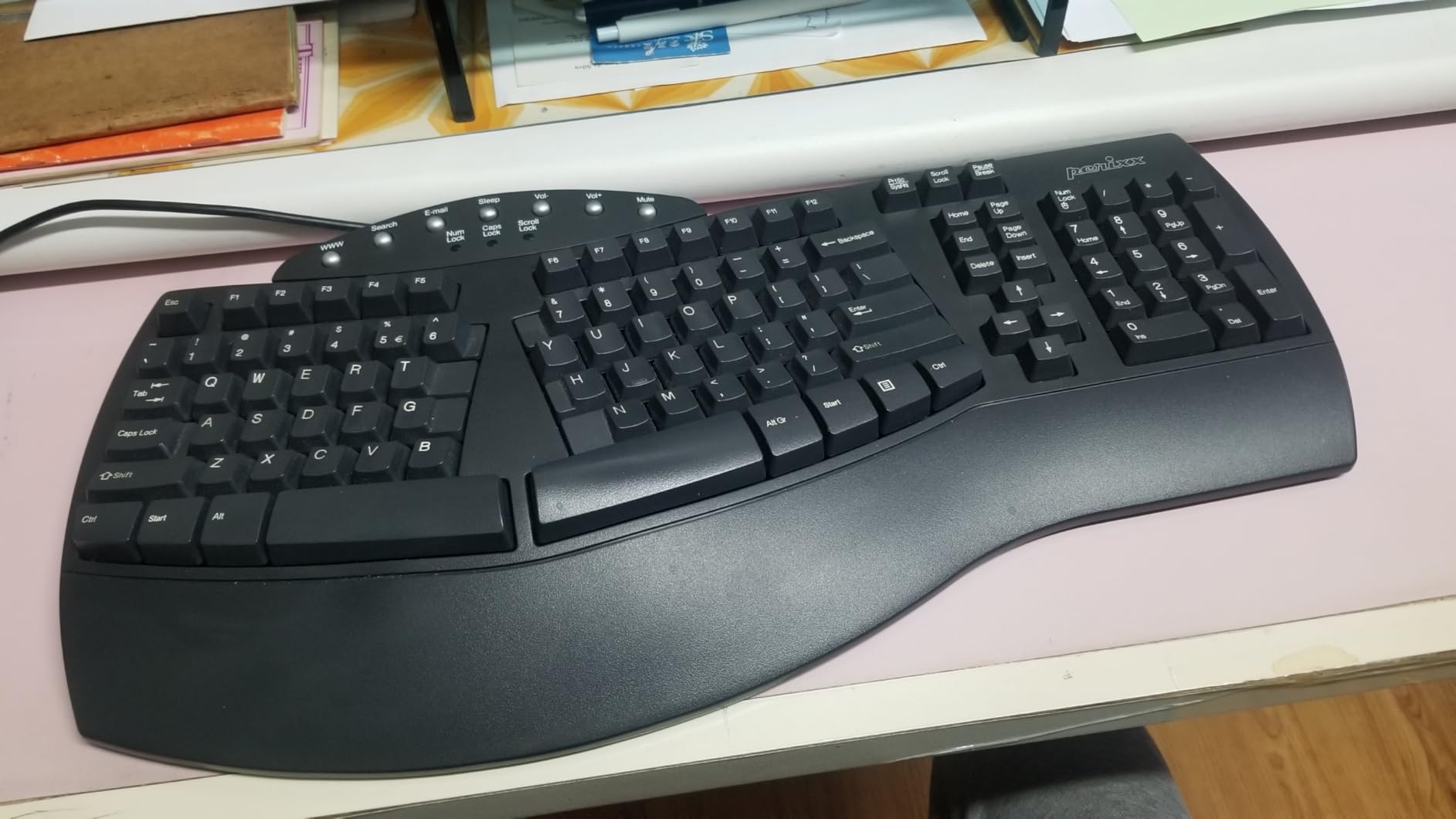
The Perixx PERIBOARD-512B is a wired ergonomic keyboard that takes a more traditional approach to split-key design, using the old-school curved row layout that was pioneered in Microsoft ergonomic keyboards decades ago. Each row of keys is gently stepped and curved to match the natural arc of your fingers, which reduces the reaching and twisting motions that contribute to wrist strain over time. The long 4.2mm key travel and tactile feedback make each keystroke feel deliberate and controlled.
With up to 20 million keystrokes of rated durability, the PERIBOARD-512B is built for heavy daily use in office, healthcare, or home settings. The wired USB connection means zero latency, zero pairing issues, and zero battery concerns — plug it in and it works. The integrated wrist rest is comfortable for all-day use, and the full-size layout includes a numeric keypad and all standard function keys. At $40.36, it’s one of the most affordable quality ergonomic keyboards available on Amazon.
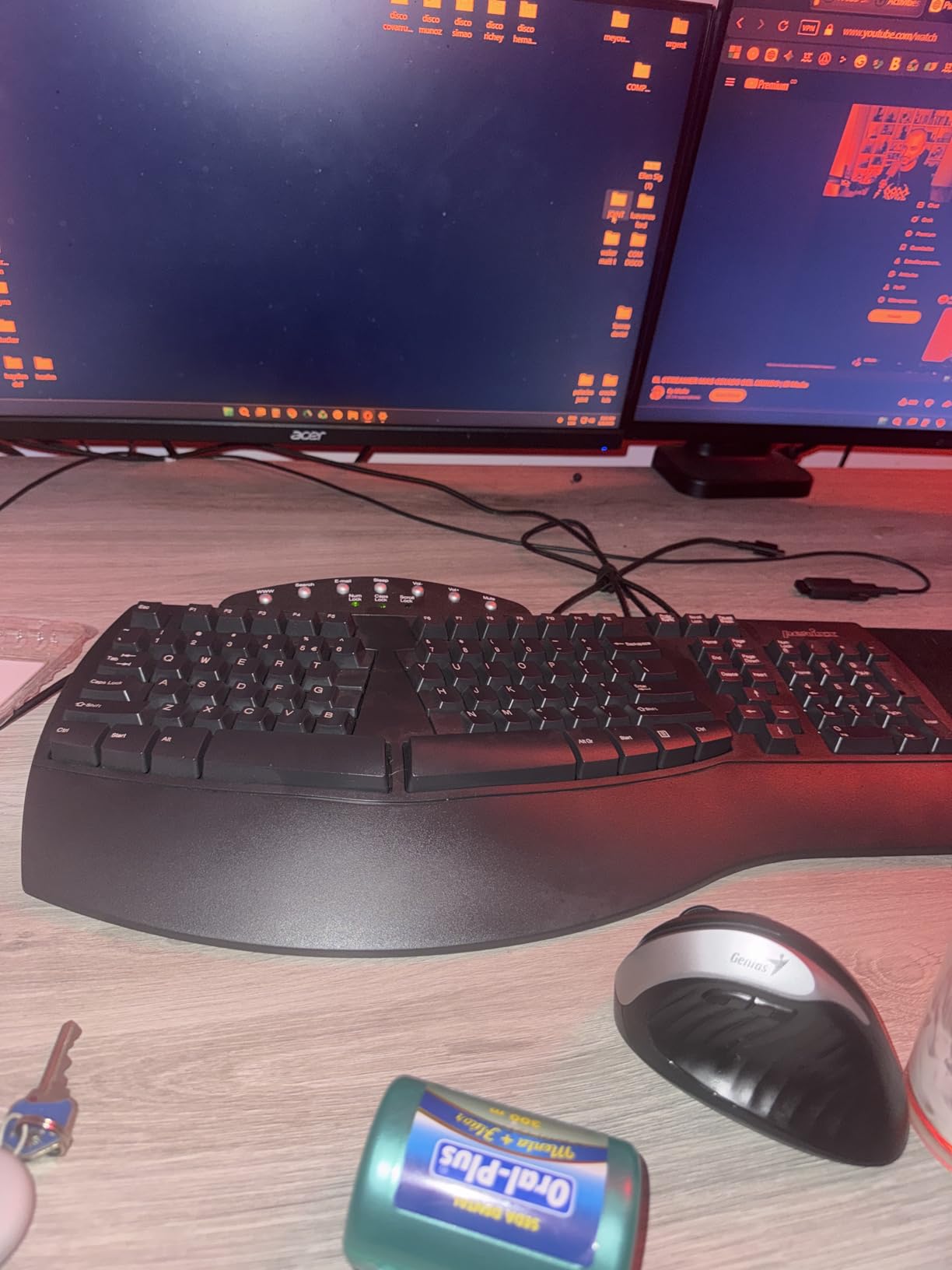
The biggest adjustment with the PERIBOARD-512B is the learning curve — the curved row layout and separated split design are quite different from a standard keyboard, and touch typists report needing one to two weeks to fully adapt. The keyboard is louder than membrane alternatives due to the tactile switch feedback, which may be disruptive in quiet office environments. The split halves are connected by a thin cable that some users find aesthetically inelegant. And while the split is adjustable, there’s no tenting option at this price — the keyboard sits flat on the desk.
Learning curve and typing adaptation strategies
Most users adapt to the PERIBOARD-512B within one to two weeks of consistent use. The key is to commit fully during the adjustment period — alternating between this keyboard and a standard one will prolong the learning curve indefinitely. Starting with shorter typing sessions (30-60 minutes) and gradually increasing duration helps your muscle memory build faster. Free online typing tutors that let you customize the keyboard layout can accelerate the process significantly.
Office environment considerations
The PERIBOARD-512B’s typing sound falls between a standard membrane keyboard and a clicky mechanical keyboard — noticeable but not disruptive in most open-plan offices. If sound is a concern in your work environment, testing the keyboard in-store or ordering from Amazon with a good return policy is recommended. The 6.5-foot USB cable provides adequate reach for most desk configurations, though users with under-desk keyboards may need a USB extension cable.
10. Nulea Wireless Ergonomic Keyboard
Nulea Wireless Ergonomic Keyboard, Split Keyboard with Wrist Rest, USB-C Charging, 7-Color Backlight, Natural Typing, Bluetooth and USB Connectivity, Compatible with Windows/Mac
7-color RGB backlight
USB-C rechargeable
Multi-device Bluetooth and 2.4G
Split curved design
Pros
- 7 color backlight options
- Excellent customer service
- Multi-device connectivity
- Good value at around $65
Cons
- No right Control key
- Wrist rest cushion compresses over time
- No gap between numpad and alpha keys
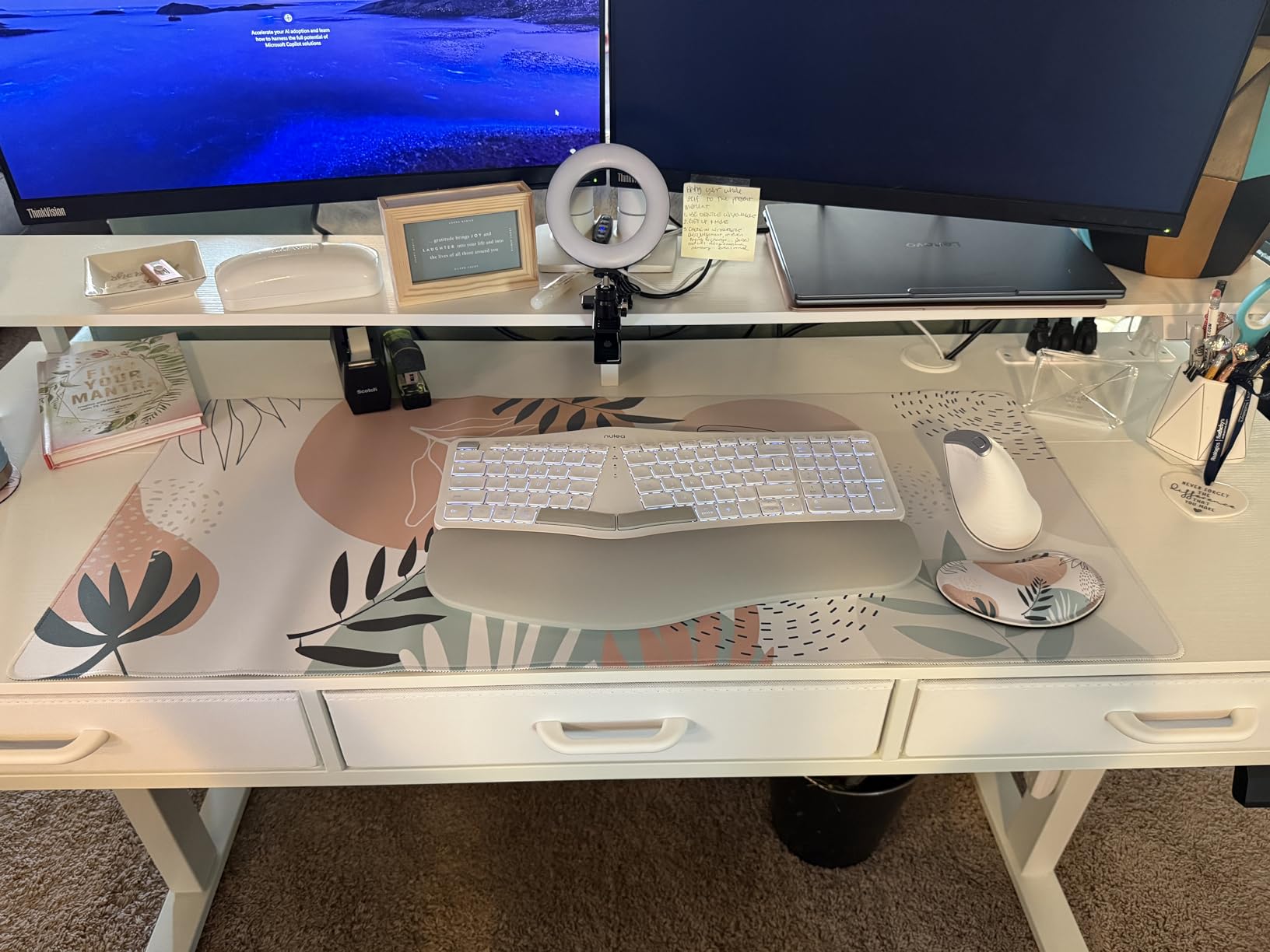
The Nulea Wireless Ergonomic Keyboard brings premium features to a mid-range price point, with a standout 7-color RGB backlight system that sets it apart in the split keyboard category. The backlight serves a practical purpose beyond aesthetics — it makes individual keys clearly visible in low-light environments, which is a genuine accessibility benefit for users with low vision or those who work in varying lighting conditions throughout the day.
Multi-device connectivity via Bluetooth and 2.4GHz lets you connect up to three devices simultaneously and switch between them seamlessly. The USB-C rechargeable battery with 2000mAh capacity delivers weeks of use per charge, and the four adjustable tilt legs give you fine control over the typing angle. The split and curved design follows ergonomic best practices, positioning hands and wrists in a more neutral alignment that reduces cumulative strain over long work sessions.
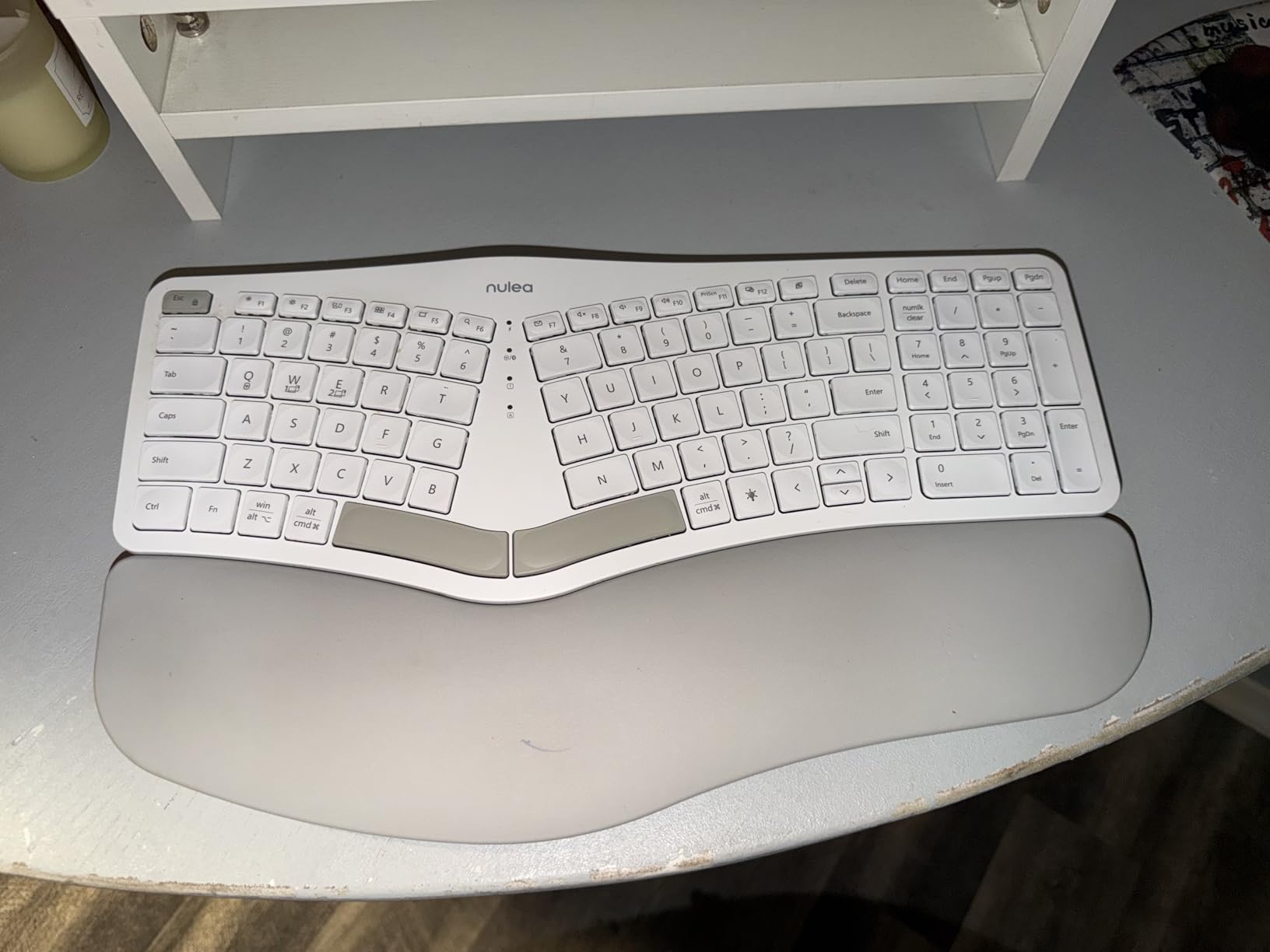
One notable omission is the right-hand Control key, which has been replaced with a backlight toggle — a frustrating trade-off for users who rely on Ctrl+ combinations. The wrist rest cushion material, while initially comfortable, has been reported by some long-term users to compress and lose support after 12-18 months of daily use. The split layout requires an adjustment period, and the backspace key lacks a distinctive tactile bump that helps touch-typists locate it by feel. Nulea’s customer service, however, has a strong reputation for sending replacement units quickly when issues arise.
RGB backlight customization options
The Nulea offers seven backlight colors (red, orange, yellow, green, cyan, blue, purple) with three brightness levels and a breathing mode. For users with light sensitivity, the lowest brightness level in a warm color (orange or yellow) tends to be the least straining on the eyes. The breathing mode cycles through colors automatically, which some users find soothing and others distracting — fortunately it’s easy to turn off once you’ve set your preferred color.
Wrist rest replacement and maintenance
The wrist rest uses a foam core with a faux-leather outer layer. For users who find the stock wrist rest too firm or too soft, third-party replacements are available from Amazon and Etsy in various materials including memory foam and cooling gel. Cleaning the faux-leather surface with a damp cloth and mild soap is recommended monthly to prevent odor buildup from regular hand contact.
11. A4tech Left Handed Keyboard
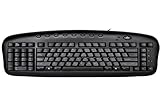
Ergonomic Left Handed Keyboard for Business / Accounting - 8 Multimedia Hotkeys - Eliminates RSI and Carpal Tunnel - Patented Natural_A Keycaps to Reduce Back and Shoulder Strain to Improve Posture
Numeric keypad on left
Patented natural_A shape
109-key layout
8 multimedia hotkeys
Pros
- Numeric keypad convenient for righties
- Good ergonomic design for lefties
- Comfortable layout
- Excellent price point
Cons
- Keys can be loud
- No backlight
- 0 and decimal not perfectly mirrored
The A4tech Left Handed Keyboard is purpose-built for users who naturally prefer their numeric keypad and mouse on the right side of the desk, leaving the left hand free for keyboard input. This layout is particularly beneficial for left-handed users who have historically been forced to adapt to right-handed keyboard designs, as well as right-handed users who want to keep their mouse closer and reduce rightward shoulder reach — a common cause of upper back and neck tension.
The patented natural_A key shape curves each row to match the natural reach of a left hand, reducing the stretching and twisting that causes fatigue. The keyboard includes eight multimedia hotkeys for volume, playback, and web browsing — a convenience feature that helps users navigate more efficiently. Laser-inscribed keys resist fading, and the mechanical switch feel provides satisfying tactile feedback with each keystroke.
The A4tech is louder than membrane keyboards, which may be disruptive in shared workspaces. Some users report that the numeric pad’s 0 and decimal keys are not perfectly mirrored in their layout — a minor but annoying inconsistency for data entry professionals. The keys have a slight shine/glare under office lighting that can make them harder to read in certain angles. There’s no backlight, and the keyboard isn’t designed for true one-handed use despite its left-handed orientation — it’s still a full QWERTY layout that requires two hands for standard typing. But for its specific use case of left-handed numeric work, it fills a genuine gap in the market.
Left-handed workflow optimization
The left-handed layout shines in scenarios where the right hand is occupied — whether operating a mouse, using a graphics tablet, holding a phone, or performing a task that requires a free hand. Users who take notes on a tablet while typing, or who frequently reference physical documents, report the most benefit. If you’re a left-handed user who has always felt slightly awkward reaching across the keyboard to use the mouse, this layout could meaningfully improve your daily workflow.
Numeric keypad ergonomics for data entry
For users who perform heavy data entry, the left-sided numeric keypad keeps the mouse in its natural right-hand position while freeing the left hand for number input — the optimal setup for high-volume spreadsheet or accounting work. The numeric keypad’s layout follows the standard calculator format, making it intuitive for users familiar with desktop number pads. Professional typists who use the home row for alphabetic input and the numeric pad for figures will find this layout especially efficient.
12. Evoluent R3K Reduced Reach Keyboard

Evoluent R3K Reduced Reach Right-Hand Keyboard – Wired USB Compact with Numeric Pad, Ergonomic Computer Keyboards for Comfortable Typing, Black Full-Size PC Keyboard with One-Touch Shortcut Keys
Numeric keypad on left
Reduces mouse reach distance
Premium scissor switches
Compact square design
Pros
- Brings mouse closer reduces shoulder reach
- One-touch shortcut keys
- Crisp scissor key feel
- Durable long-term build quality
Cons
- No height adjustment feet
- No backlighting
- Not Mac compatible
- No gap between numpad and alpha keys
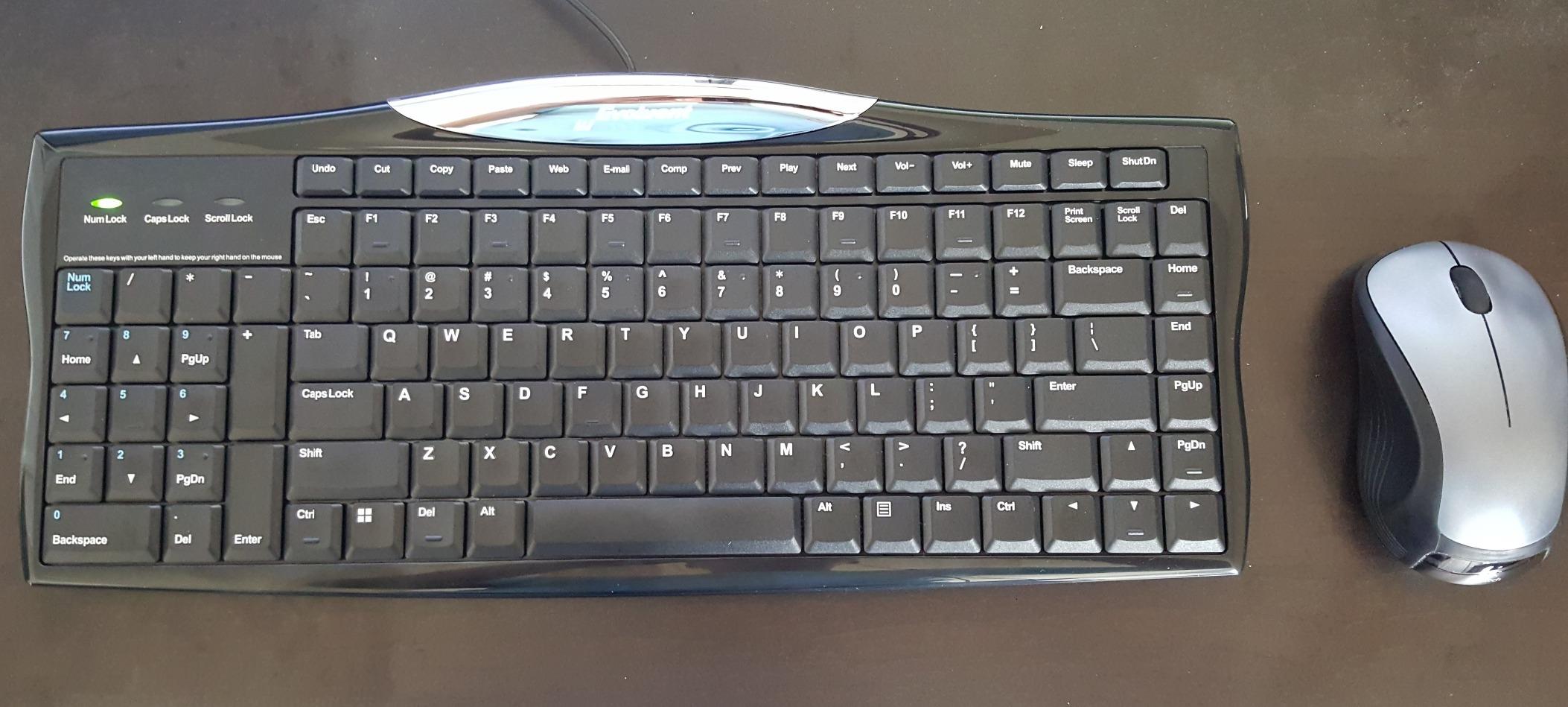
The Evoluent R3K Reduced Reach Keyboard is an ingenious solution for a problem many users don’t realize they have: the standard keyboard layout forces your right hand to reach across the full width of the board to access the mouse. Over years of daily use, this repetitive reach contributes to shoulder elevation, upper back tension, and neck strain. By placing the numeric keypad on the left side of the keyboard, the R3K brings the mouse significantly closer to your right hand — reducing reach by several inches every time you switch between typing and pointing.
The premium scissor switches provide a crisp, responsive typing feel with less travel than mechanical switches, which reduces finger fatigue during long sessions. One-touch shortcut keys for web browsing, email, and other common tasks are conveniently placed and work without any software installation. The full-size function key row and large arrow keys ensure no functionality is sacrificed. Tactile bumps on the Ctrl, Delete, and Home keys help touch-typists navigate without looking down.
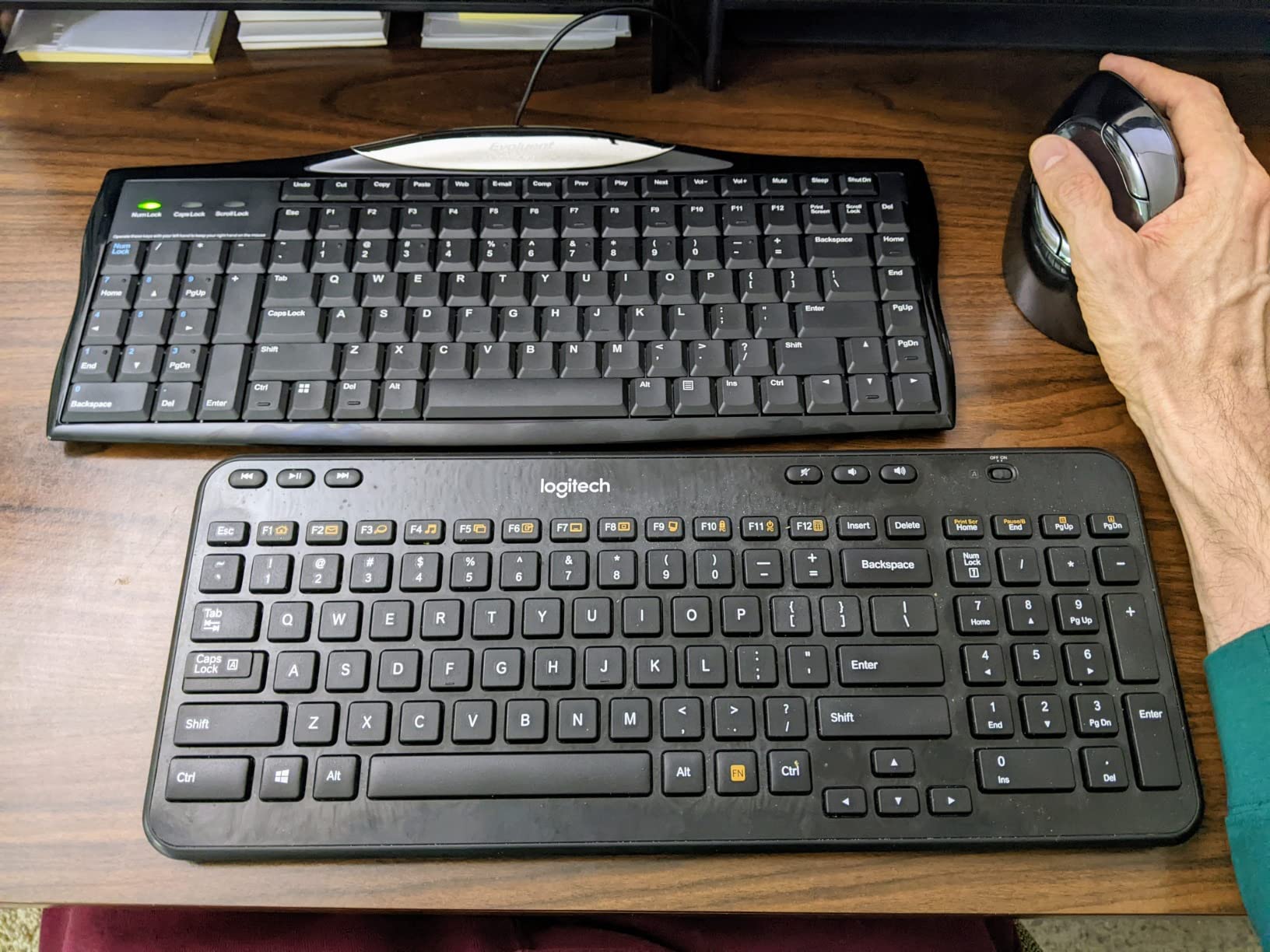
The R3K’s most significant limitation is the lack of height adjustment feet — the keyboard sits flat on the desk with no option to add negative or positive tilt. This flat positioning isn’t ideal for all wrist postures, and users who prefer an angled keyboard may need to use an external keyboard tray or riser. There’s no backlighting, which limits usability in dark environments, and the lack of a gap between the numeric keypad and the alpha keys makes it harder to touch-type numbers by feel. The compact square design may also feel unfamiliar to users accustomed to the wider footprint of standard keyboards.
Shoulder and upper back pain reduction
The ergonomic benefit of the R3K is most noticeable in the shoulder. By bringing the mouse closer, your right shoulder can relax into a more neutral, unelevated position throughout the workday. Users who have struggled with right shoulder tightness or upper trapezius tension — a common complaint in mouse-heavy workflows — often report noticeable improvement within the first week of switching to the R3K. This keyboard is particularly effective when paired with a vertical mouse, which further reduces forearm pronation.
Compatibility with different workstations
The R3K works as a plug-and-play device on Windows, Unix, and Linux systems without any drivers. It is not officially compatible with macOS — function keys and shortcut keys may not work as labeled on Apple computers. For Mac users seeking a reduced-reach keyboard solution, the Logitech Ergo K860 or KINESIS Freestyle2 offer better cross-platform support. The keyboard’s compact square footprint (15.9 by 15.9 inches) fits well in laptop docking station setups where desk space is at a premium.
How to Choose the Right Adaptive Keyboard
Selecting the best adaptive keyboard for your needs depends on several factors that go beyond just price and brand. Here are the most important considerations to guide your decision.
1. Identify your primary accessibility need
Are you choosing a keyboard primarily for visual accessibility (large print), physical accessibility (split design, reduced force keys), or situational accessibility (left-handed, reduced reach)? Your primary need will narrow your options dramatically and should drive your decision before considering secondary features. If you have a diagnosed condition like carpal tunnel syndrome or arthritis, consulting with an occupational therapist for a keyboard recommendation is worthwhile — some insurance plans and workplace accommodation programs cover adaptive equipment costs.
2. Evaluate your workspace and connectivity
Consider whether you need wired or wireless connectivity. Wired keyboards offer zero latency and no battery concerns, making them ideal for mission-critical work. Wireless keyboards offer greater flexibility in desk arrangement but introduce battery management and potential connectivity issues. If you use multiple devices, prioritize a keyboard with multi-device Bluetooth support. USB-C charging has become the standard — avoid keyboards still using micro-USB for future-proofing.
3. Match the switch type to your physical needs
Key switches fall into three main categories relevant to adaptive use. Membrane switches require the least force and are the quietest, but offer minimal tactile feedback. Scissor switches provide a balance of low force and tactile response with a laptop-keyboard feel. Mechanical switches offer the most tactile feedback but require more force and are the loudest. For users with hand weakness, fatigue, or conditions like arthritis, membrane or scissor switches are generally the most comfortable for extended use.
4. Consider the adjustment period
Genuinely ergonomic split and curved keyboards require a learning curve — typically one to two weeks of consistent use before your muscle memory fully adapts. If you need a keyboard that works immediately with zero adjustment (for example, in a healthcare or call center setting where you can’t take time off to retrain), look for keyboards with gentle ergonomic curves rather than aggressive splits. The Logitech Wave Keys and Arteck Split Ergonomic offer meaningful ergonomic benefits with minimal learning curve.
5. Test before you buy when possible
If you have a diagnosed ergonomic condition or significant accessibility needs, try to test keyboards in person before purchasing. Many ergonomic conditions are worsened by the wrong keyboard, and what helps one person may hurt another. Amazon’s generous return policy is valuable here — order the top two or three candidates, test each for a few days of real work, and return the ones that don’t feel right. Keep the packaging and documentation for all tested keyboards until you’ve made your final decision.
Frequently Asked Questions
What is the best keyboard for arthritis or hand pain?
For users with arthritis or chronic hand pain, the KINESIS Advantage360 Professional and the Logitech Ergo K860 are the top recommendations. Both feature split or curved layouts that reduce wrist deviation, low-force key switches to minimize finger effort, and adjustable angles for personalized comfort. The Advantage360’s programmable firmware is especially valuable for users who want to remap keys to stronger fingers. If budget is a concern, the Arteck Split Ergonomic and Perixx PERIBOARD-512B offer genuine ergonomic benefits at lower price points.
What keyboard is best for visually impaired users?
The BOOGIIO Large Print Keyboard and MIKUSO Large Print Keyboard are the best options for users with low vision. Both feature oversized print letters that are 3-4 times larger than standard keyboard print, with high-contrast color schemes (yellow on black for the BOOGIIO, white on black for the MIKUSO) that maximize visibility. The MIKUSO adds a white LED backlight for use in dark environments, which is a significant advantage for users with light sensitivity or fluctuating vision. Both are under $25 and require no special software or setup.
Can adaptive keyboards help with carpal tunnel syndrome?
Yes — using an ergonomic keyboard is one of the most effective non-invasive interventions for managing carpal tunnel syndrome symptoms. The key ergonomic factors are a split or angled layout that keeps wrists in a neutral position (not bent up, down, or to the sides), a wrist rest that supports the heel of the hand, and keys that require minimal force to actuate. All of the keyboards in this guide meet at least two of these criteria. For active carpal tunnel syndrome, consult with a healthcare provider about whether a more aggressive ergonomic intervention or medical treatment is appropriate alongside a new keyboard.
What is the difference between a split keyboard and a standard ergonomic keyboard?
A standard ergonomic keyboard (like the Logitech Wave Keys) has a curved or angled layout but keeps all keys in a single piece. A split keyboard (like the KINESIS Freestyle2 or Advantage360) physically separates the left and right halves of the keyboard, allowing each hand to rest in a more natural position. Split keyboards offer greater ergonomic adjustability but require a longer learning curve. For users with mild discomfort, a curved ergonomic keyboard is often the better starting point. For users with diagnosed RSI or significant ergonomic needs, a split keyboard delivers more meaningful benefits.
Do wireless ergonomic keyboards have input lag?
Modern wireless ergonomic keyboards using 2.4GHz USB receivers or Bluetooth 5.0 have imperceptible input lag for the vast majority of users — including casual gamers. Only the most demanding competitive gamers notice the tiny latency differences between wired and wireless connections. For everyday work, coding, writing, and even moderate gaming, the wireless convenience of keyboards like the Logitech Ergo K860, Nulea, and Arteck is a genuine benefit with no meaningful performance trade-off. The only exception is the KINESIS Advantage360, which uses Bluetooth and occasionally exhibits minor connectivity hiccups on some systems.
Our Final Recommendation
Choosing the best adaptive keyboard ultimately comes down to understanding your specific needs. If you have the budget and want the absolute best ergonomic experience available, the KINESIS Advantage360 Professional is the clear winner — its fully programmable firmware, contoured split design, and premium mechanical switches set a bar that no other keyboard on this list reaches. It’s an investment, but one that pays dividends in long-term comfort and reduced pain.
For users with visual accessibility needs, the BOOGIIO Large Print Keyboard delivers life-changing accessibility at a price that makes it accessible to everyone. Its bold yellow-on-black high contrast keys are genuinely easier to read from across a room, and the water-resistant design adds real-world durability.
If you’re looking for the best all-around ergonomic keyboard at a reasonable price, the Logitech Ergo K860 strikes the ideal balance of comfort, quality, connectivity options, and mainstream approachability. Its gentle split design is easy to adapt to, and Logitech’s proven track record in ergonomic peripherals gives you confidence in the build quality.
Whatever keyboard you choose, give yourself at least one to two weeks to truly adapt. Your fingers and hands are capable of remarkable retraining, and the long-term reduction in strain, fatigue, and discomfort makes that initial adjustment period worthwhile. Your future self — and your wrists — will thank you.