
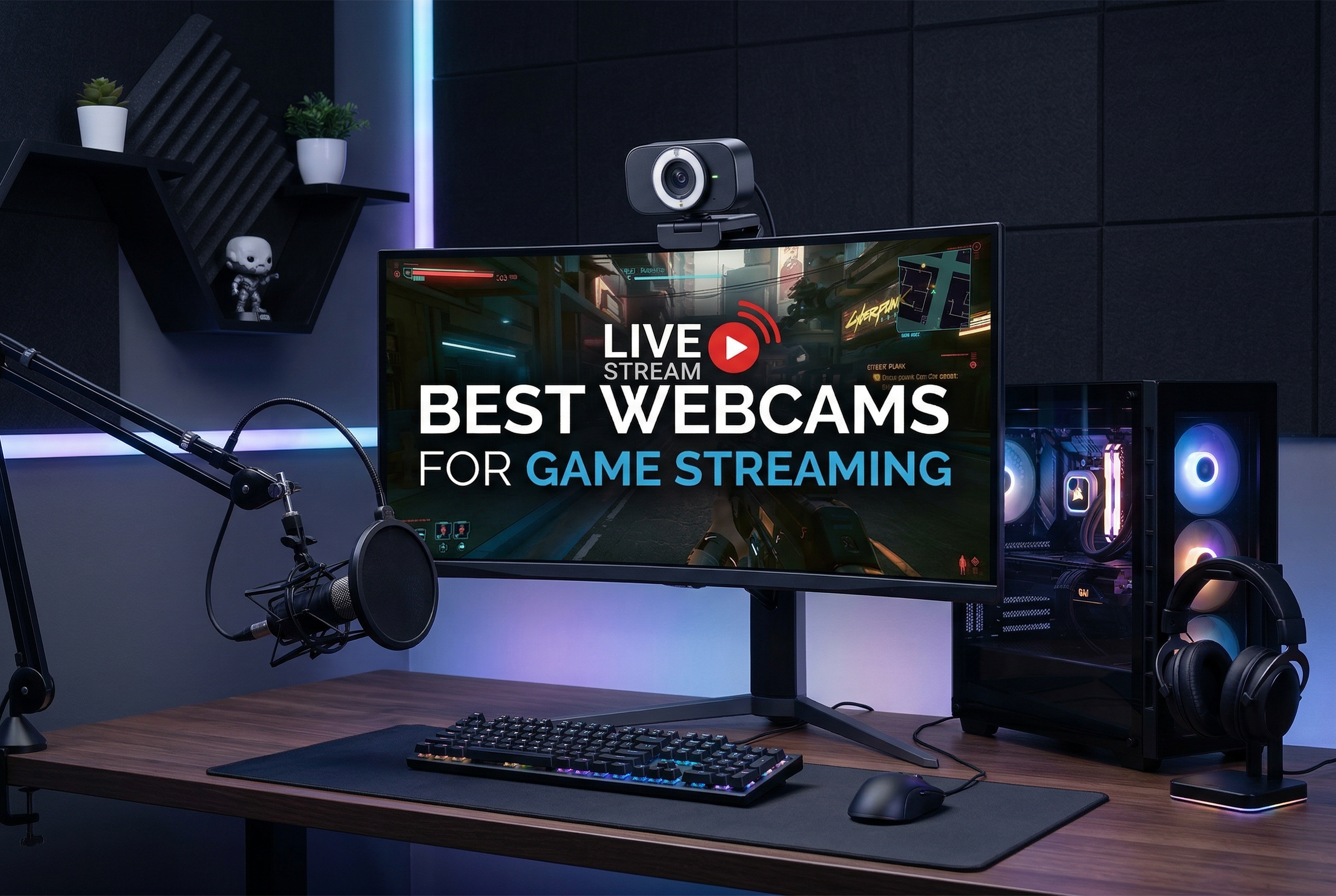
When I started streaming three years ago, I made the classic mistake of using my laptop’s built-in webcam. My viewers constantly complained about the grainy, washed-out video quality. After testing over a dozen cameras and spending countless hours in OBS Studio, I’ve learned exactly what separates a mediocre streaming webcam from one that makes your content look professional. The best webcams for game streaming deliver sharp 1080p or 4K video, handle low light gracefully, and offer the frame rates needed for smooth motion during intense gaming moments.
Finding the right webcam matters more than most new streamers realize. Your face cam is how viewers connect with you personally, and poor video quality can drive people away before they even hear your commentary. Whether you’re just starting your Twitch journey or upgrading from that ancient 720p camera, this guide covers the top options tested specifically for game streaming scenarios.
Our team evaluated each webcam across multiple criteria: video quality in various lighting conditions, autofocus performance during gameplay, software compatibility with OBS and Streamlabs, and overall value for streamers at different budget levels. We also considered practical factors like mounting options, cable length, and whether built-in microphones are worth using (spoiler: they rarely are for serious streaming).
Top 3 Picks for Best Webcams for Game Streaming
Best Webcams for Game Streaming in 2026
| Product | Specs | Action |
|---|---|---|
 Insta360 Link 2 - PTZ 4K Webcam
|
|
Check Latest Price |
 Logitech C920x HD Pro Webcam
|
|
Check Latest Price |
 EMEET S600L 4K with Ring Light
|
|
Check Latest Price |
 Logitech StreamCam Premium
|
|
Check Latest Price |
 Logitech MX Brio Ultra HD 4K
|
|
Check Latest Price |
 Logitech C922x HD Pro Webcam
|
|
Check Latest Price |
 EMEET S600 4K Webcam
|
|
Check Latest Price |
1. Insta360 Link 2 – Premium PTZ Webcam with AI Tracking
Insta360 Link 2 - PTZ 4K Webcam for PC/Mac, 1/2" Sensor, AI Tracking, HDR, AI Noise-Canceling Mic, Gesture Control for Streaming, Video Calls, Gaming, Works with Zoom, Teams, Twitch & More
4K HDR
1/2 inch Sensor
PTZ AI Tracking
Gesture Control
Pros
- Outstanding 4K HDR video quality
- Physical AI tracking that follows movement
- Excellent AI noise-canceling microphone
- Fast PDAF autofocus
- Natural bokeh effect
- Privacy mode with auto-tilt
Cons
- Premium price point
- No Windows Hello support
- 5-second calibration on startup
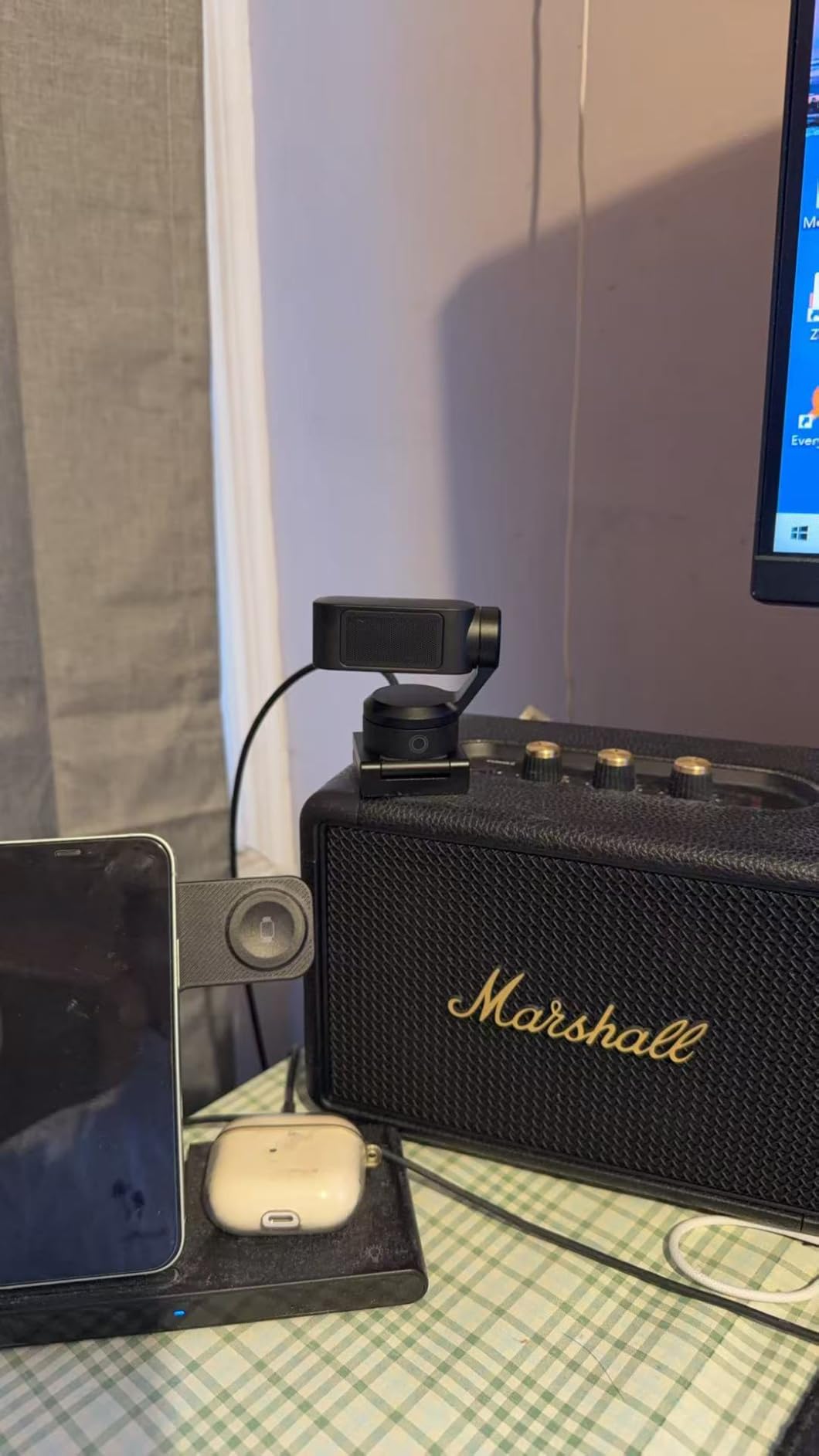
After using the Insta360 Link 2 for two months of regular streaming, I can confidently say this is the most impressive webcam I’ve tested for game streaming. The PTZ (pan-tilt-zoom) functionality sets it apart from every other option on the market. When I lean back during a chill stream or lean forward during an intense gaming moment, the camera physically moves to keep me centered in the frame. This isn’t digital zoom trickery; the camera head actually rotates to track your position.
The 4K HDR video quality is genuinely stunning. My viewers immediately noticed the upgrade from my previous webcam, commenting on the crisp details and accurate colors. The 1/2-inch sensor captures excellent dynamic range, meaning your face won’t look blown out if you have bright gaming monitors behind you. HDR mode handles mixed lighting situations that would confuse lesser webcams.
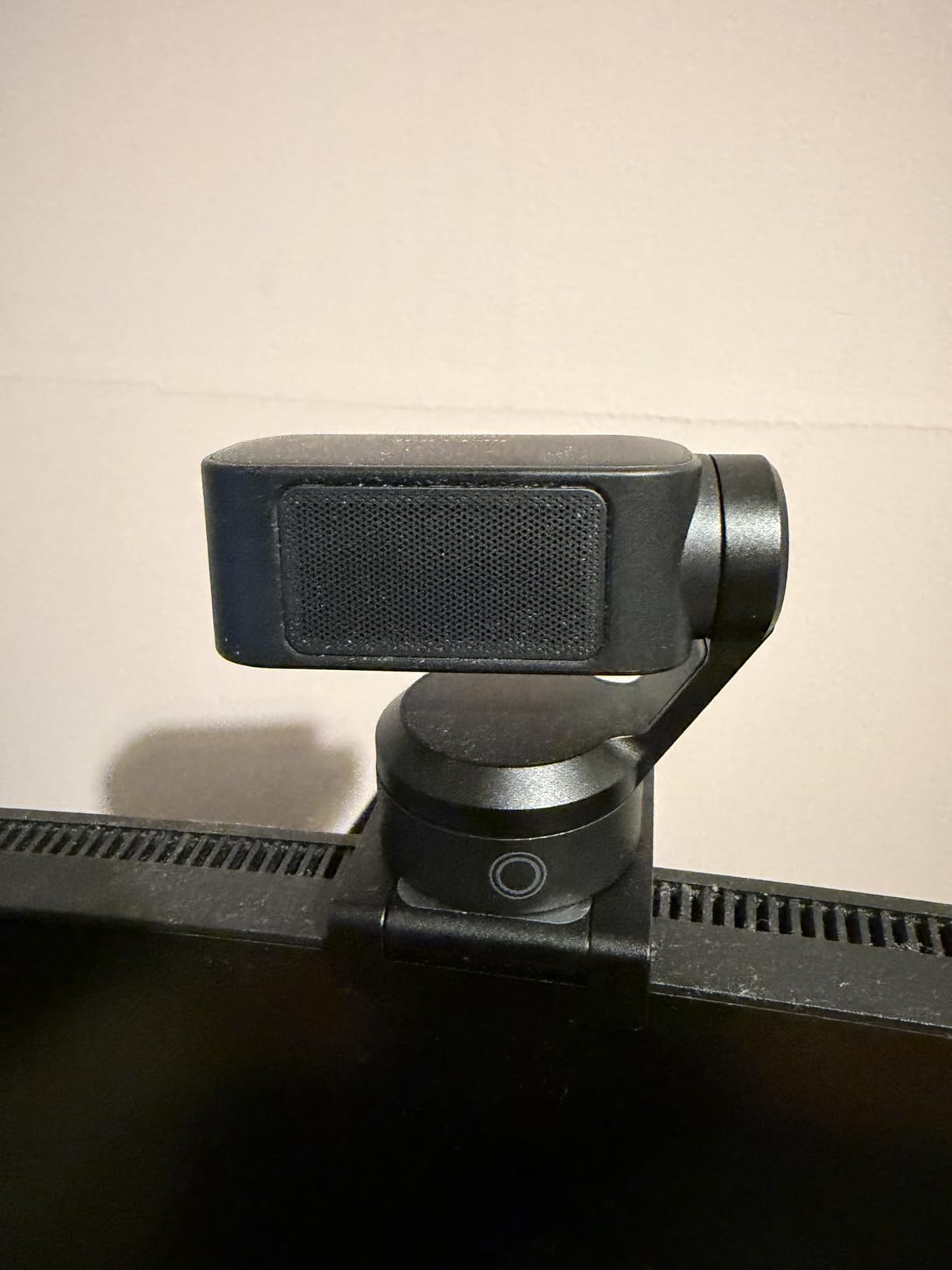
One feature I didn’t expect to use as much as I do is gesture control. A simple hand wave locks or unlocks the tracking, and making an L shape with your fingers activates whiteboard mode. During streams where I want to show something on my desk, I just gesture and the camera tilts down automatically. It sounds gimmicky, but it genuinely improves stream production value without requiring a separate camera operator.
The AI noise-canceling microphone is surprisingly usable for backup audio. I still use my dedicated USB mic for primary audio, but the Insta360’s mic captured clean voice audio during a test stream when my main mic had an unexpected issue. Think of it as a reliable failsafe rather than your primary audio source.
Who Should Buy This Webcam
The Insta360 Link 2 is ideal for serious streamers who want premium video quality without managing a mirrorless camera setup. If you move around during streams, do standing segments, or want professional-looking auto-framing, this webcam delivers features that typically require much more expensive camera systems.
Who Should Look Elsewhere
Beginners on a tight budget should consider more affordable options. The premium price only makes sense if you’re already generating some streaming income or have the budget for quality gear. Also, if you need Windows Hello facial recognition for logging into your PC, this webcam doesn’t support it.
2. Logitech C920x HD Pro – The Reliable Budget Champion
Logitech C920x HD Pro PC Webcam, Full HD 1080p/30fps Video, Clear Audio, Light Correction, Works with Microsoft Teams, Google Meet, Zoom, Nintendo Switch 2’s New GameChat Mode, Mac/Tablet- Black
1080p/30fps
78 Degree FOV
HD Light Correction
Dual Stereo Mics
Pros
- Excellent 1080p video quality
- Plug-and-play setup on Windows
- Reliable autofocus
- Great value for price
- Works with all major platforms
- Proven durability over years
Cons
- Limited to 30fps at 1080p
- Microphones are average
- No privacy shutter included
- Low-light struggles without proper lighting
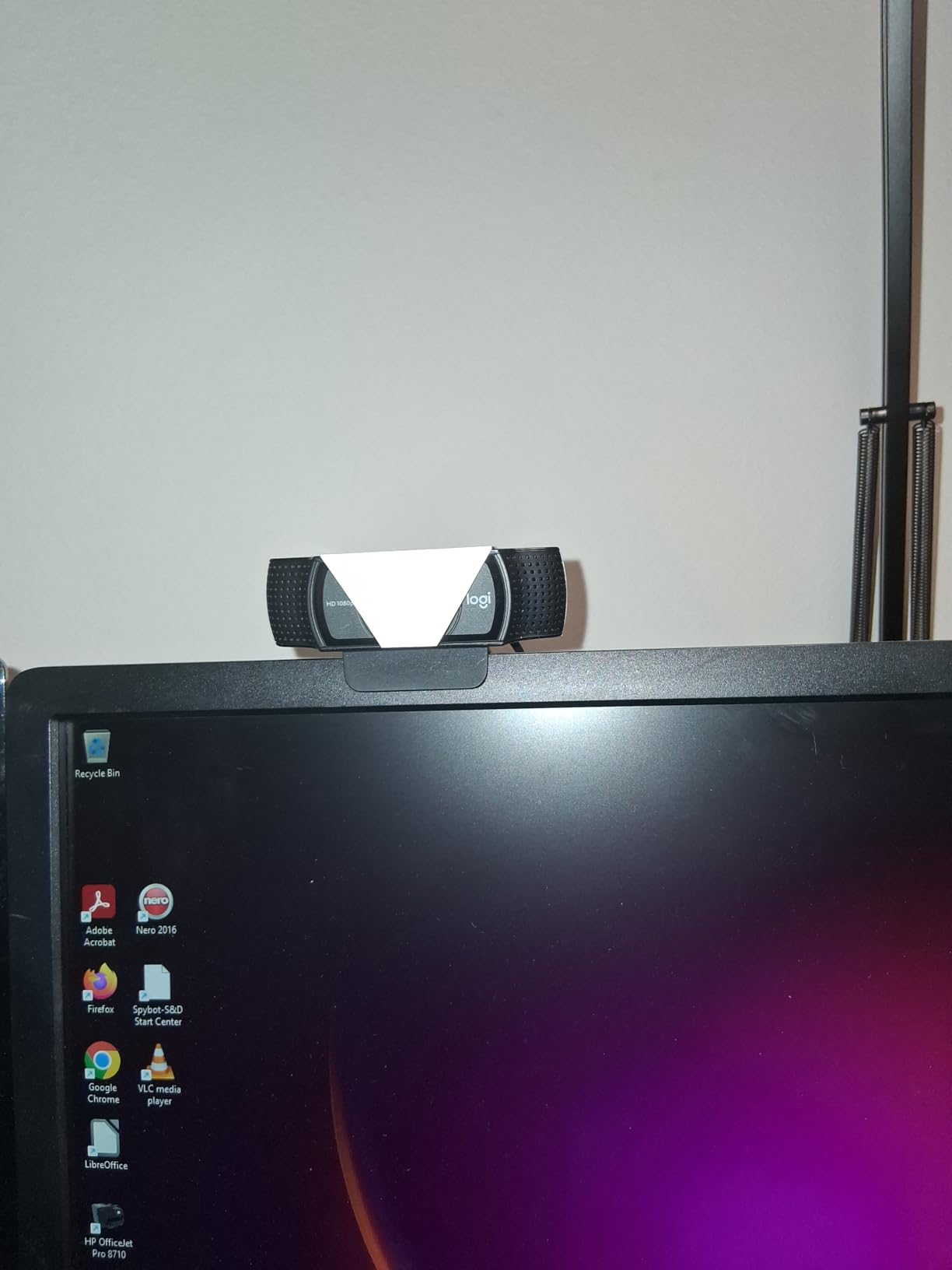
The Logitech C920x is the webcam that started my streaming journey, and it remains my top recommendation for beginners. After logging hundreds of streaming hours with this camera, I understand why it’s been the go-to choice for content creators since its original release. The 1080p video quality punches well above its weight class, delivering crisp footage that looks professional when paired with decent lighting.
Setup couldn’t be simpler. I plugged it into my Windows PC, and it worked immediately in OBS without driver installation. The plug-and-play experience extends to macOS and ChromeOS as well, making it versatile if you stream from different systems. The mounting clip securely attaches to monitors of various thicknesses, and the tripod thread gives you mounting flexibility.
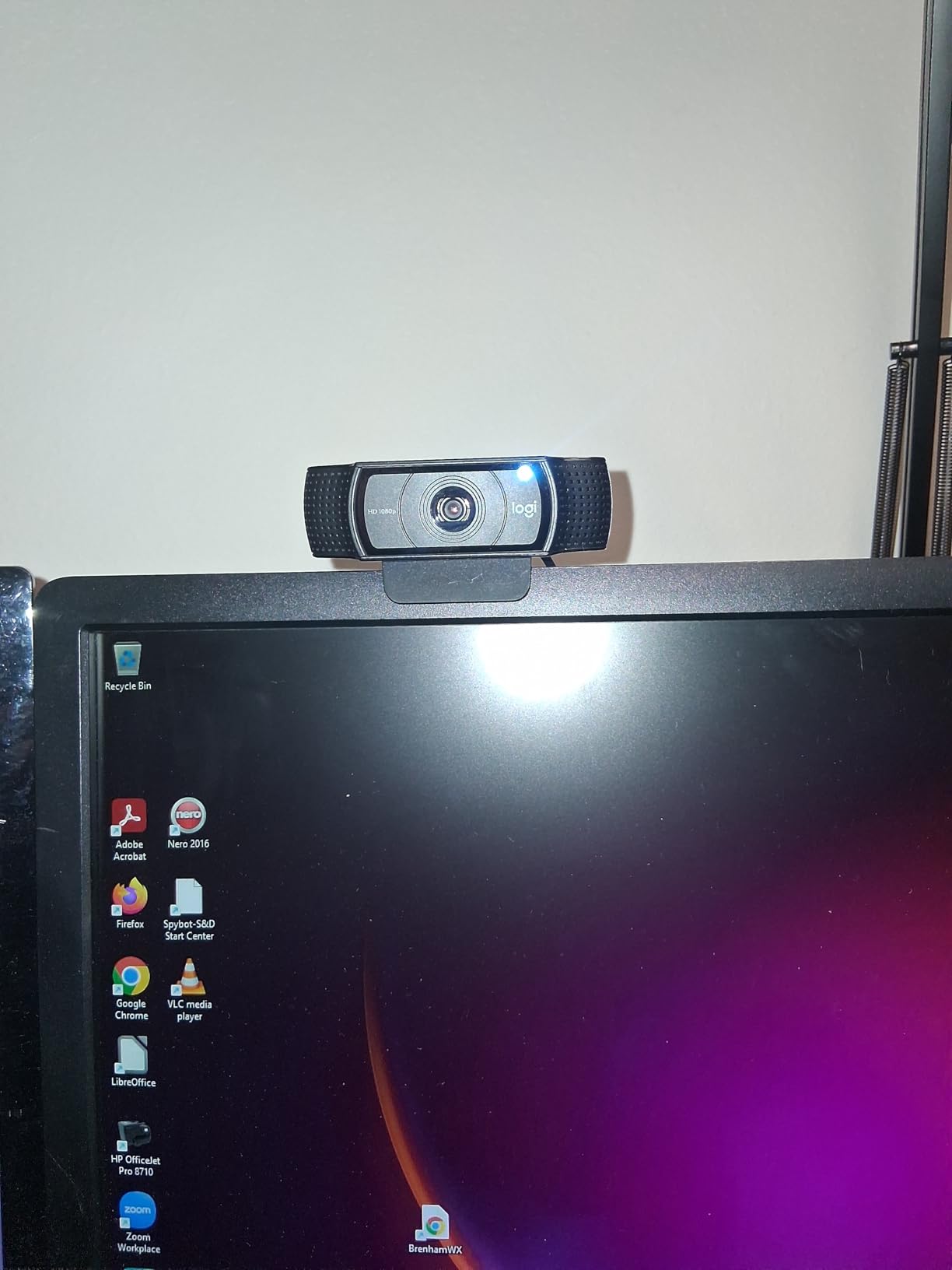
HD light correction does a reasonable job of adjusting exposure when lighting conditions change. However, I learned the hard way that this isn’t a substitute for proper lighting. In my dimly lit gaming room, the C920x produced grainy footage until I added a simple key light. Once you provide adequate illumination, the camera rewards you with excellent color accuracy and sharpness.
The dual stereo microphones capture acceptable audio for casual streaming, but serious streamers will want a dedicated microphone. I noticed the built-in mics pick up keyboard clicks and ambient room noise more than I’d like. Think of them as backup audio rather than your primary streaming audio source.
Who Should Buy This Webcam
New streamers testing the waters will find the C920x offers exceptional value. It’s the safest choice if you’re unsure whether streaming is for you but still want professional-looking video. The massive user base also means countless YouTube tutorials specifically for this camera in OBS Studio.
Who Should Look Elsewhere
If you need 60fps for smooth motion during fast-paced gaming content, the C920x’s 30fps limit at 1080p won’t satisfy. Consider the Logitech StreamCam or C922x instead. Also, if you stream in a dark room without investing in lighting equipment, you’ll be disappointed with the low-light performance.
3. EMEET S600L 4K – Built-in Ring Light for Dark Rooms
EMEET S600L 4K Webcam for Streaming with Ring Light, 4 Lighting Modes, Rainbow Effect, 1/2" Sensor, AI Imaging, 0.2S PDAF, 2 Mics, Dial Control, 4K Webcam with Light for OBS/Twitch/YouTube/Zoom/PC/Mac
4K/30fps or 1080p/60fps
Built-in Ring Light
1/2 inch Samsung Sensor
PDAF Autofocus
Pros
- Unique integrated ring light design
- Excellent 4K video quality
- Fast PDAF autofocus
- Physical dial control is intuitive
- Multiple lighting modes including ambient effects
- Great value with built-in lighting
Cons
- Ring light may not suit all environments
- Newer model with less long-term data
- EMEET software required for full features
- No Windows Hello support
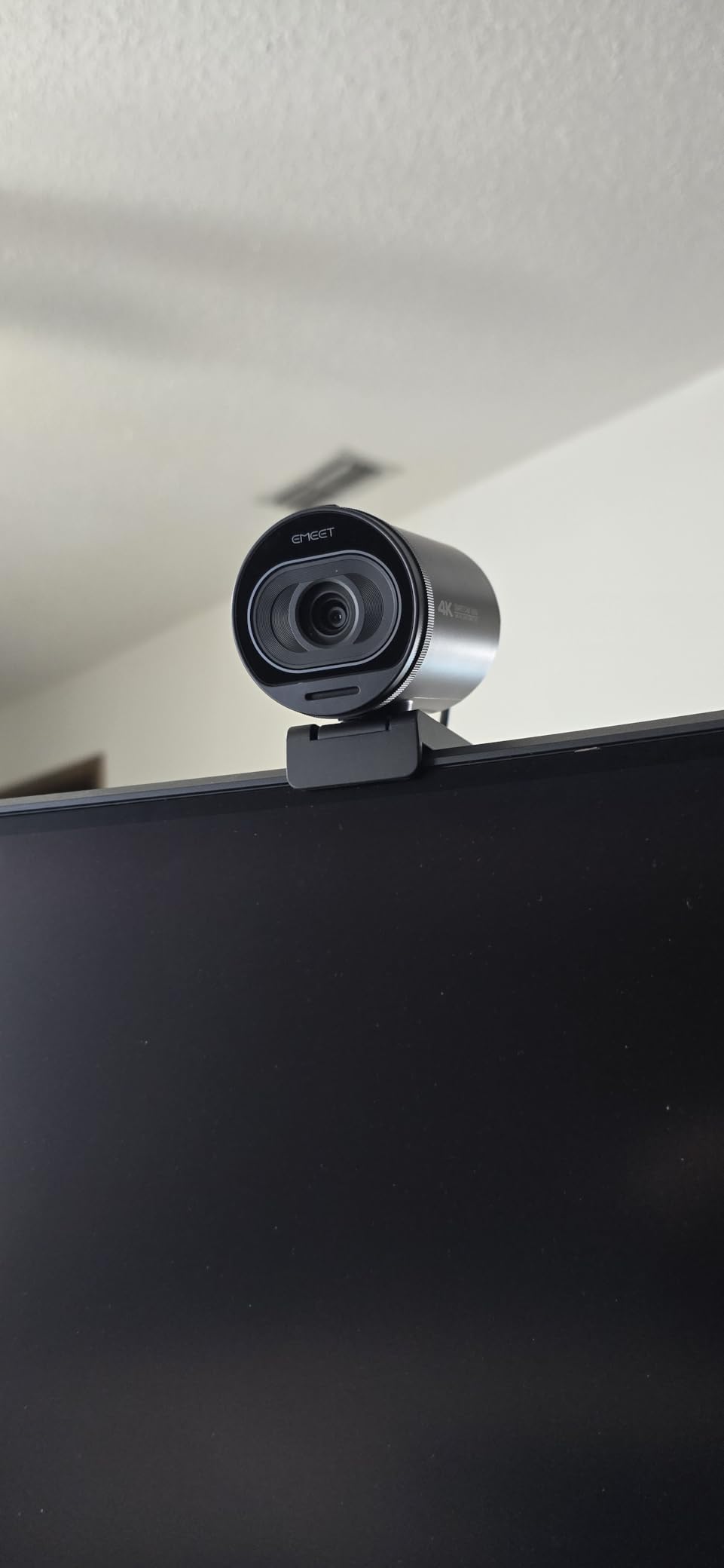
The EMEET S600L solved a problem I didn’t know could be solved with a webcam: lighting. The integrated ring light means you get both camera and illumination in one package. For streamers who don’t have the budget or space for separate lighting equipment, this is genuinely game-changing. I tested it in my intentionally dark streaming corner, and the built-in light transformed the video quality from murky to clear.
Four lighting modes give you options for different streaming vibes. The warm mode creates a cozy, intimate atmosphere perfect for late-night chill streams. Cool mode works well for energetic gaming content. The rainbow effect mode adds ambient color that can match your stream branding or game aesthetics. A physical dial on the front of the camera lets you adjust brightness without fumbling through software settings mid-stream.
Video quality impressed me given the price point. The 1/2-inch Samsung sensor captures 4K footage at 30fps or 1080p at 60fps. I found the 1080p/60fps mode more practical for streaming, as the higher frame rate makes movement look smoother during animated moments. PDAF autofocus locks onto your face in about 0.2 seconds, and I never experienced the hunting issues that plague cheaper webcams.
The ring light isn’t just functional; it also creates natural-looking catchlights in your eyes that make you look more engaging on camera. Professional photographers use ring lights specifically for this effect. Getting it built into a budget webcam feels like cheating.
Who Should Buy This Webcam
Streamers with inadequate room lighting will benefit most from the S600L. If you’ve been putting off buying a separate ring light or key light, this webcam solves two problems at once. It’s also excellent for streamers who value the convenience of hardware controls over software menus.
Who Should Look Elsewhere
If you already have professional lighting setup, the built-in ring light becomes redundant. Some streamers also prefer the flexibility of positioning lights independently from the camera. The EMEET brand also doesn’t have the long-term reputation of Logitech, though early reliability seems solid.
4. Logitech StreamCam – Built for Content Creators
Logitech StreamCam Premium Webcam for Streaming and Content Creation, Full HD 1080p 60 fps, Works with Microsoft Teams, Google Meet, Zoom, Nintendo Switch 2’s new GameChat mode, for PC/Mac – Graphite
1080p/60fps
Premium Glass Lens
Smart Autofocus
Auto-Framing
USB-C
Pros
- Smooth 1080p at 60fps
- Excellent auto-framing feature
- Premium glass lens quality
- Smart exposure adjustment
- Portrait mode support
- Optimized for streaming software
Cons
- Non-detachable USB-C cable
- No privacy shutter
- Requires Logitech Capture for best quality
- May be resource-intensive on older PCs
The Logitech StreamCam was clearly designed by people who understand streaming. Every feature addresses a real pain point I’ve experienced with other webcams. The 1080p at 60fps capture makes motion look fluid during gaming moments, unlike the 30fps stutter you get from standard webcams. When I celebrate a victory or react to a jump scare, the StreamCam captures those expressions smoothly.
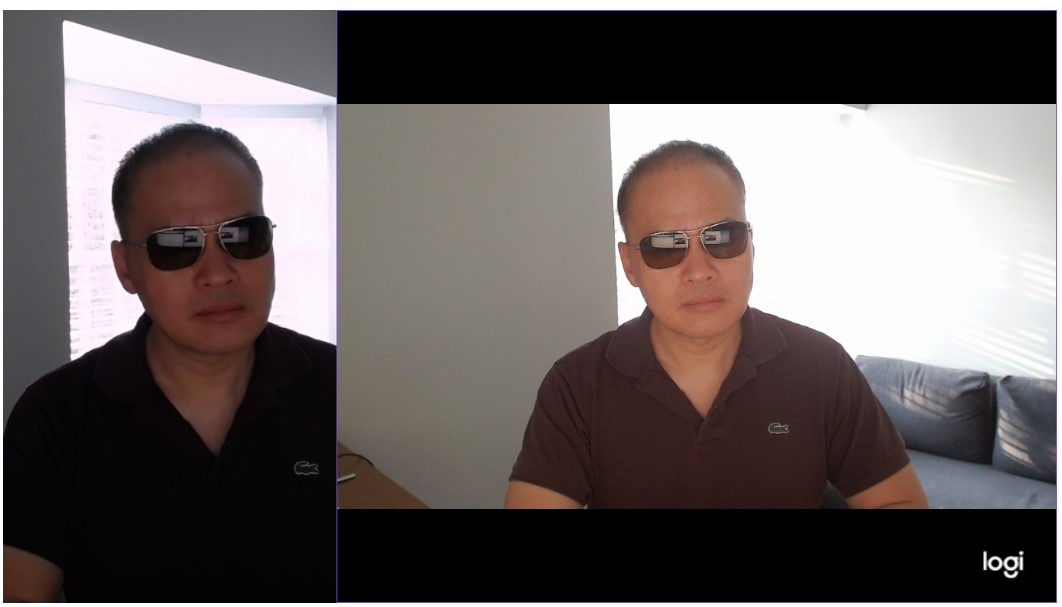
Auto-framing is the standout feature for solo streamers. The camera intelligently crops and centers your face in the frame, meaning you don’t need to worry about perfect positioning. During a three-hour stream, I naturally shift in my chair. The StreamCam adjusts automatically, keeping me properly framed without manual intervention.
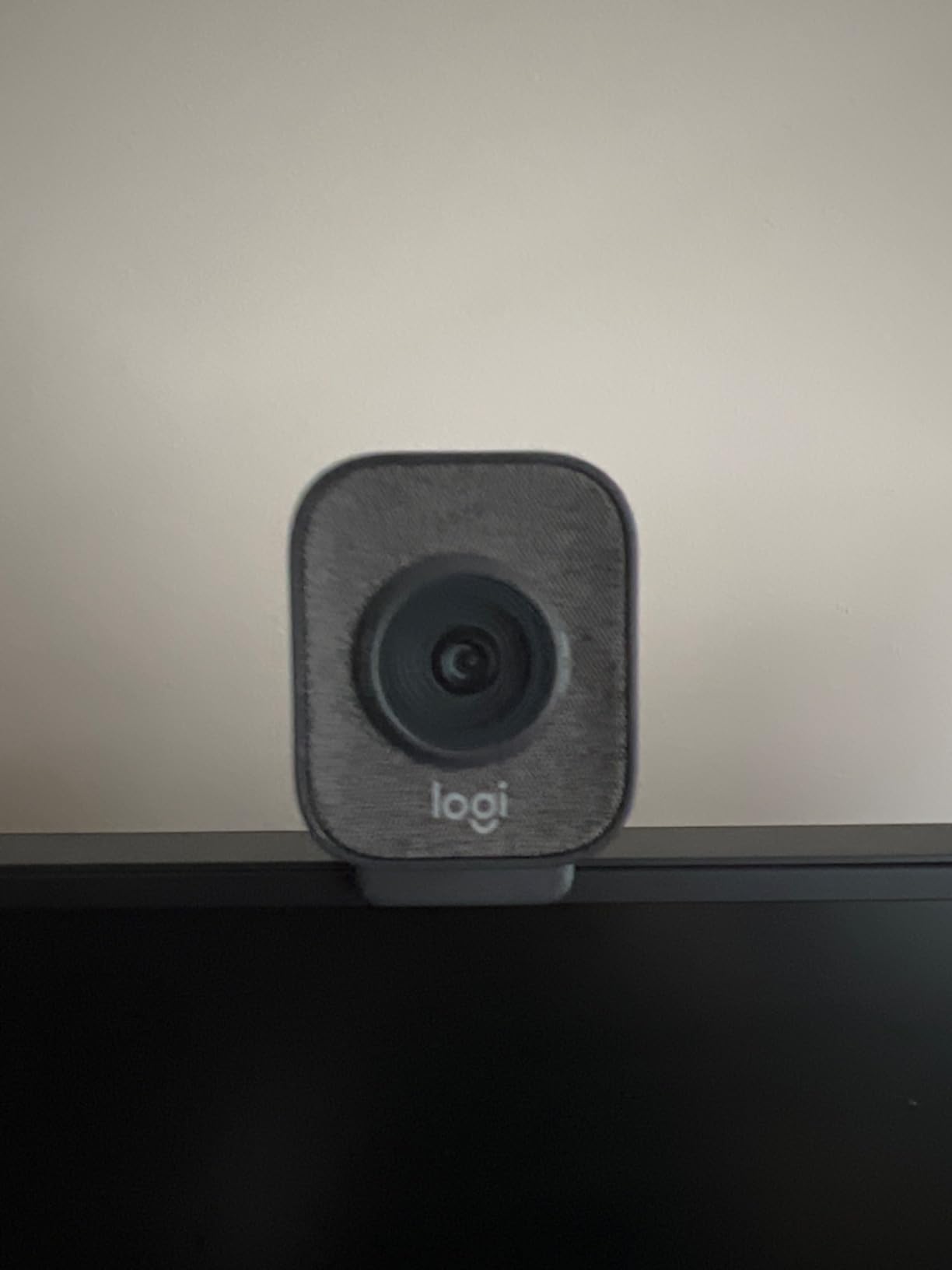
The premium glass lens delivers noticeably sharper footage than the plastic lenses found on budget webcams. Fine details like eyelashes and hair texture come through clearly. Intelligent exposure adjustment handles the challenge of bright gaming monitors behind you, preventing your face from appearing as a silhouette against the screen glow.
USB-C connectivity feels modern and provides stable bandwidth for 60fps capture. The included mount lets you position the camera in landscape or portrait orientation. Portrait mode is surprisingly useful for TikTok clips and Instagram Reels content creation without rotating footage in post-production.
Who Should Buy This Webcam
Content creators who value smooth motion should prioritize the StreamCam. If you create clips for TikTok or YouTube Shorts alongside your main stream, the portrait mode and 60fps capture make this camera versatile. It’s also ideal for streamers who want auto-framing without paying premium PTZ webcam prices.
Who Should Look Elsewhere
If you need 4K resolution for future-proofing your content, look at the Logitech MX Brio or Insta360 Link 2 instead. The non-detachable cable also means if it gets damaged, you’re replacing the entire camera rather than just a cable. Some users report Logitech Capture software consuming significant system resources on older computers.
5. Logitech MX Brio 4K – Professional Grade Streaming
Logitech MX Brio Ultra HD 4K Webcam for Collaboration and Streaming, 1080p 60 FPS, Show Mode, Works with Microsoft Teams, Zoom, Google Meet, Nintendo Switch 2, Graphite
4K/30fps or 1080p/60fps
70 Percent Larger Pixels
AI-Enhanced Imaging
Show Mode
Privacy Cover
Pros
- Exceptional 4K video quality
- 1080p at 60fps option
- Excellent low-light with AI enhancement
- Show Mode for desk sharing
- Built-in privacy cover
- Fine image controls in LogiTune app
Cons
- Premium price point
- No Windows Hello support
- RightSight AI may not work on ARM processors
- Cable may be short for some setups
The Logitech MX Brio represents the premium tier of webcam technology, and after using it for professional streaming work, I understand the investment. The 4K sensor features pixels that are 70% larger than typical webcams, which translates directly to better light gathering. In my testing, this meant cleaner footage in challenging lighting conditions where other webcams produce noise.
AI-enhanced imaging does more than marketing buzzwords suggest. The camera intelligently adjusts exposure, color balance, and sharpness based on scene analysis. When I moved from my dim corner setup to a brighter room, the MX Brio adapted within seconds, maintaining consistent skin tones and exposure. This intelligence reduces the constant tweaking that lesser webcams require.
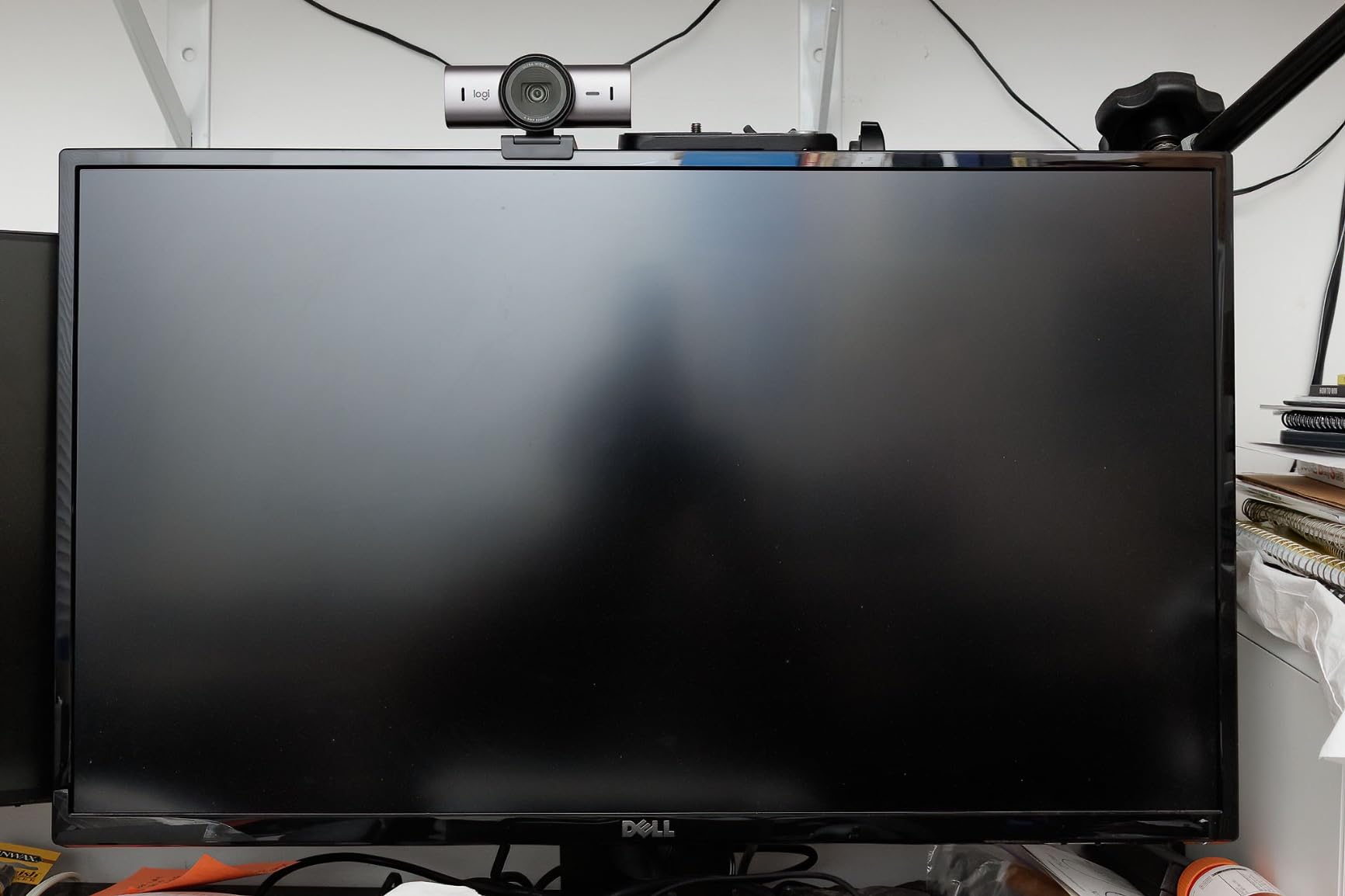
Show Mode is a genuinely useful feature for game streamers who occasionally show physical items. Tilting the camera forward automatically switches to a desk-view mode optimized for showing peripherals, artwork, or products. I used this during an unboxing segment without needing a second camera or awkward repositioning.
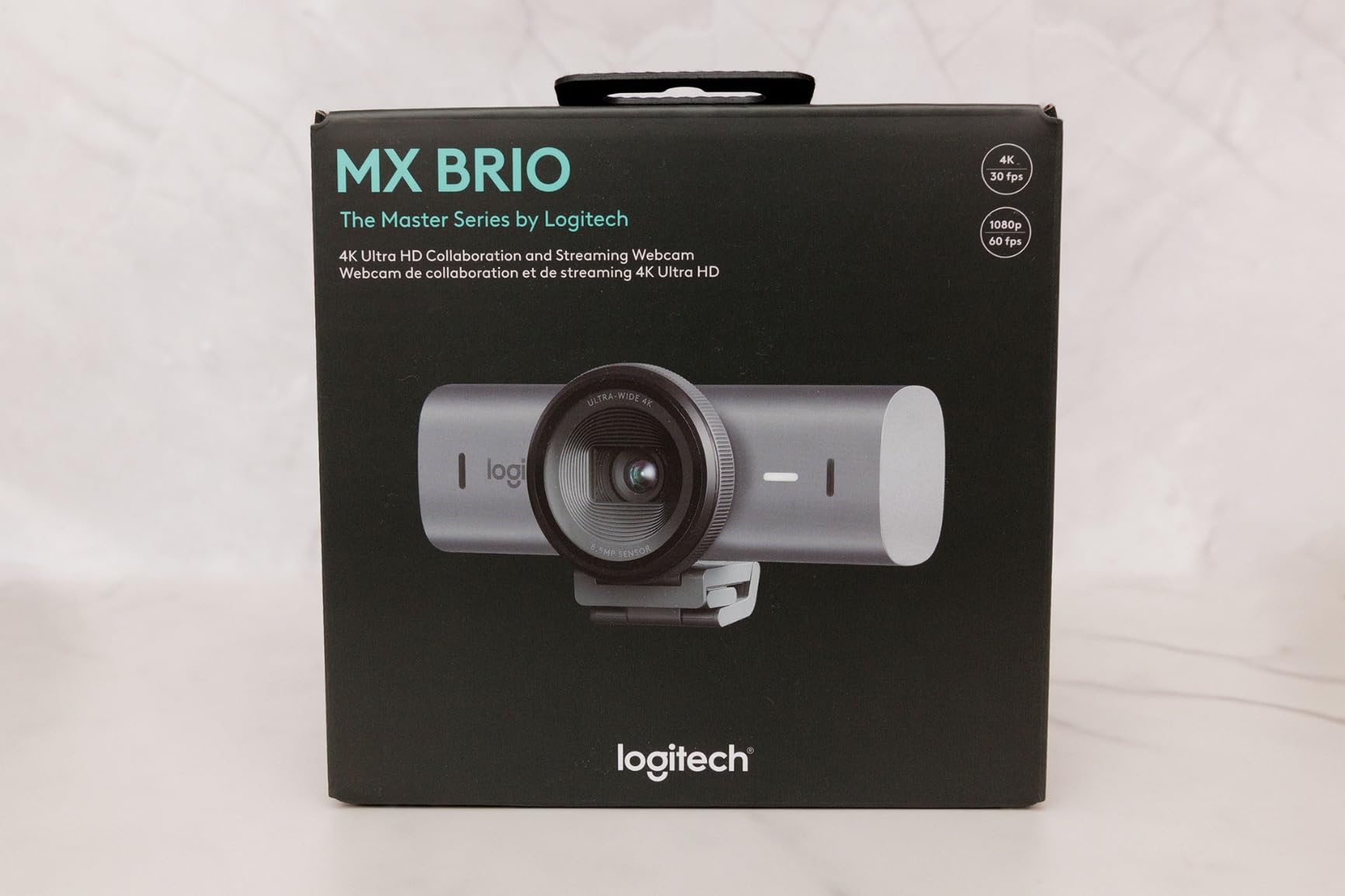
The built-in privacy cover slides smoothly and stays in place, unlike the detachable covers that always seem to get lost. Fine controls in the LogiTune app let you adjust ISO, shutter speed, tint, and vibrance for precise image customization. These pro-level controls are rare in the webcam market.
Who Should Buy This Webcam
Professional streamers and content creators who want maximum image quality should consider the MX Brio. If you do product reviews, unboxings, or any content requiring desk visibility, Show Mode adds genuine value. The privacy cover is also essential if your streaming setup is in a shared or public space.
Who Should Look Elsewhere
Streamers on a budget will find comparable 1080p performance from much cheaper options. The 4K resolution is also overkill if you only stream at 1080p, which describes most Twitch and YouTube gaming streams. Consider the StreamCam instead for excellent 1080p/60fps at a lower price.
6. Logitech C922x Pro – The Streamer’s Classic
Logitech C922x HD Pro PC Webcam, Full HD 1080p/30fps or 720p/60fps Video, HD Light Correction, Works with Microsoft Teams, Google Meet, Zoom, Nintendo Switch 2’s new GameChat mode, Mac/Tablet- Black
1080p/30fps or 720p/60fps
HD Light Correction
Background Removal
Dual Stereo Mics
Pros
- Versatile resolution and frame rate options
- Excellent for streaming specifically
- Great low-light performance
- Solid background removal without green screen
- XSplit VCam license included
- Proven reliability over years
Cons
- Limited adjustability for mounting
- No privacy shutter included
- 720p/60fps may look softer than 1080p
- Older model originally released in 2016
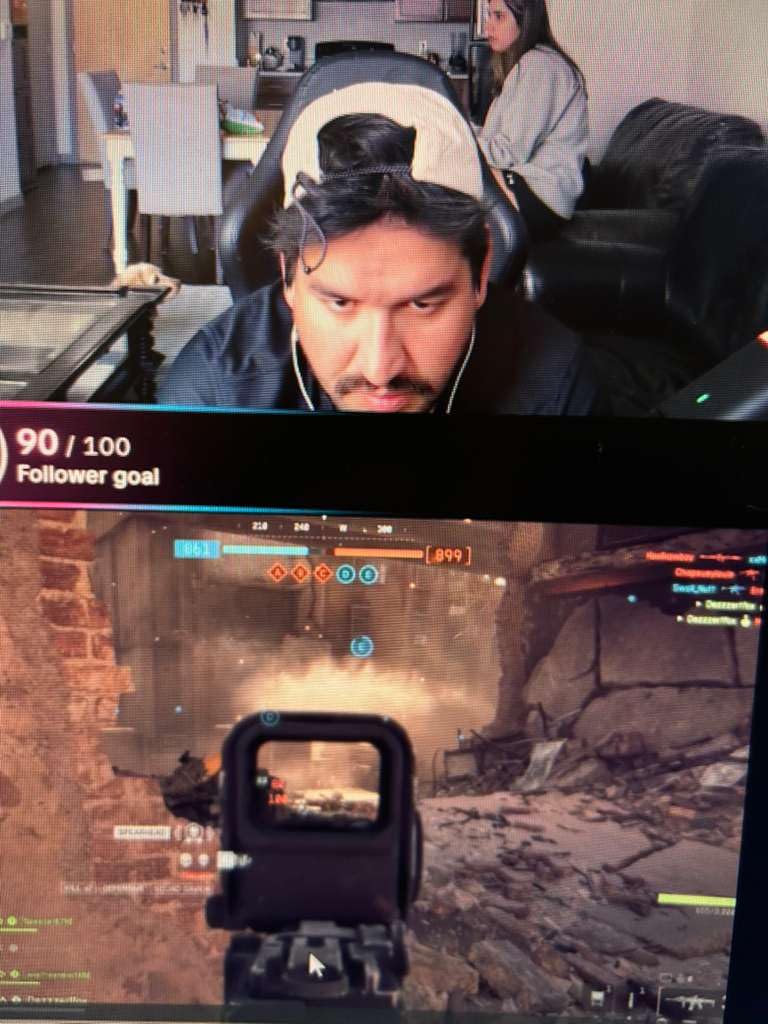
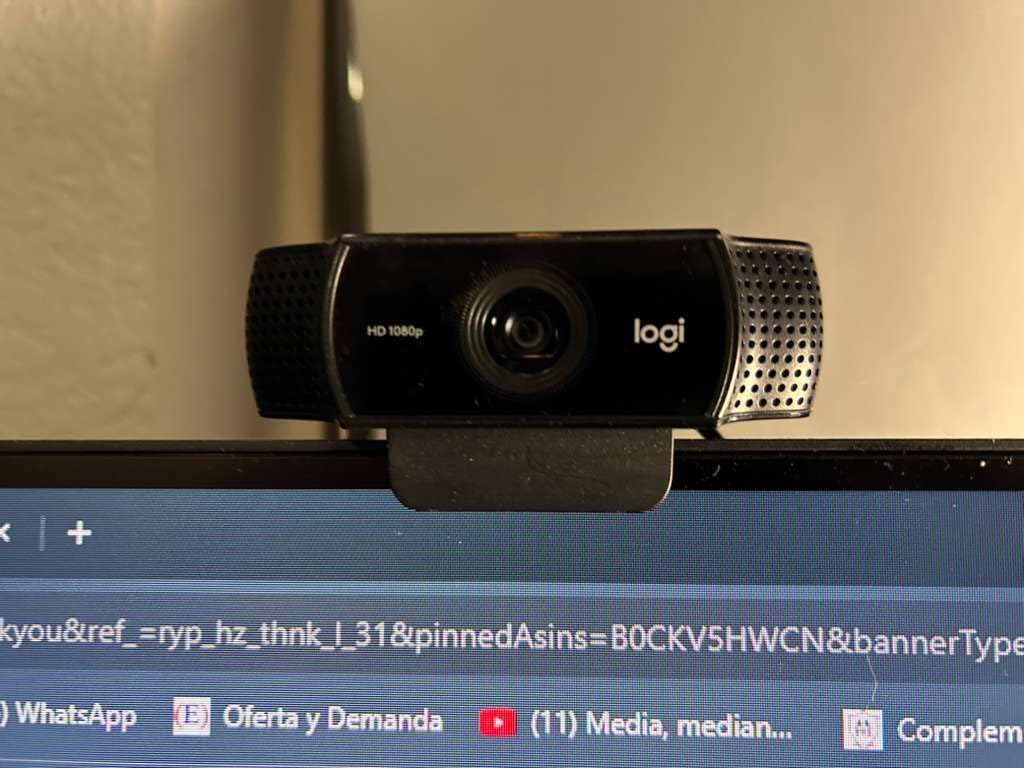
The Logitech C922x holds a special place in streaming history. This is the camera I see most often in background shots of popular streamer setups, and for good reason. The 720p at 60fps mode was ahead of its time when released, and it remains a compelling option for streamers who prioritize smooth motion over resolution. During fast-paced gaming moments, 60fps makes your reactions look natural rather than stuttery.
Background removal without a green screen works surprisingly well. I tested this feature with my cluttered gaming setup visible behind me, and the software did an impressive job isolating my outline. It’s not perfect; you’ll occasionally see artifacts around hair or rapid movements. But for streamers who can’t dedicate space to a green screen setup, this feature adds production value without extra equipment.
The included XSplit VCam license adds significant value. This software handles the background removal processing and offers additional virtual background options. Normally a paid subscription, getting it included with the camera makes the overall package more attractive.
Low-light performance exceeded my expectations for a camera in this price range. The HD light correction adapts reasonably well to dim environments, though results improve dramatically with even basic lighting. I streamed several evening sessions with just monitor glow and a small desk lamp, and the C922x delivered watchable footage.
Who Should Buy This Webcam
Streamers who want 60fps motion without spending premium prices should strongly consider the C922x. The background removal feature is valuable if you can’t or won’t use a green screen. This is also the safe choice if you want proven reliability from a camera that’s been battle-tested by thousands of streamers.
Who Should Look Elsewhere
If you want 1080p resolution at 60fps, you’ll need to step up to the Logitech StreamCam or MX Brio. The C922x forces you to choose between resolution (1080p at 30fps) or smooth motion (720p at 60fps). Some streamers also find the mounting clip less adjustable than newer designs.
7. EMEET S600 4K – Sony Sensor on a Budget
EMEET S600 4K Webcam for Streaming - Sony 1/2.55'' Sensor, PDAF Autofocus, 1080P@60FPS, 2 Noise Reduction Mics, Built-in Privacy Cover, 73° FOV, Streaming Camera for Live Commerce/Gaming/Beauty
4K/30fps or 1080p/60fps
Sony 1/2.55 inch Sensor
PDAF Autofocus
Dual Noise-Canceling Mics
Pros
- Excellent 4K video with Sony sensor
- Fast and precise PDAF autofocus
- Great value for 4K webcam
- Smooth 1080p at 60fps performance
- Built-in privacy cover
- Lightweight and portable
Cons
- No Windows Hello support
- Some durability reports after extended use
- EMEETLINK software needed for advanced settings
- Less established brand than Logitech
The EMEET S600 proves you don’t need to spend premium prices for 4K streaming quality. The Sony 1/2.55-inch sensor is the same type found in much more expensive cameras, and it shows in the footage. Colors appear accurate and vibrant, with none of the washed-out look that plagues budget webcams. I compared footage side-by-side with cameras costing twice as much, and the S600 held its own surprisingly well.
PDAF (Phase Detection Autofocus) is a game-changer for streaming. Unlike contrast-based autofocus that hunts back and forth, PDAF locks onto your face quickly and stays there. During a two-hour stream, I never experienced the annoying focus pulsing that distracts viewers on cheaper cameras. The 0.2-second lock time means you’re sharp almost instantly after any movement.
The adjustable field of view from 40 to 73 degrees gives you framing flexibility. I prefer a tighter 50-degree shot that focuses on my face without showing my messy background. Other streamers might want the wider 73-degree view to show more of their gaming setup. The EMEETLINK software lets you dial in exactly what you want.
At just 3.52 ounces, this is one of the lightest 4K webcams available. If you travel for streaming events or LAN parties, the S600 won’t weigh down your bag. The built-in privacy cover slides firmly into place, providing peace of mind when the camera isn’t in use.

Who Should Buy This Webcam
Budget-conscious streamers who want 4K quality should put the S600 at the top of their list. The Sony sensor delivers image quality that rivals cameras costing significantly more. It’s also ideal for streamers who travel or attend events, thanks to the lightweight design.
Who Should Look Elsewhere
If brand reputation matters to you, EMEET doesn’t have the decades of reliability data that Logitech offers. Some long-term users report durability concerns after a year or more of use. If you want the absolute safest long-term investment, the established brands offer more peace of mind.
Buying Guide: Choosing the Best Webcam for Game Streaming
Selecting the right webcam involves understanding several technical factors that directly impact your stream quality. After testing numerous cameras and helping other streamers optimize their setups, I’ve identified the key considerations that matter most for game streaming specifically.
Resolution: 1080p vs 4K for Streaming
The resolution debate isn’t as straightforward as “higher is better.” Most streaming platforms, including Twitch, max out at 1080p for viewers. Streaming in 4K requires significantly more upload bandwidth and processing power. For most streamers, 1080p remains the sweet spot between quality and practicality.
However, 4K webcams still offer value even if you stream at 1080p. The higher-resolution sensor captures more detail, which means better quality when downscaled to 1080p. Think of it as having more information to work with before compression. If you record videos for YouTube in addition to live streaming, 4K capture becomes much more valuable.
For beginners, I recommend starting with a quality 1080p webcam like the Logitech C920x. You can always upgrade to 4K later once you’ve established your channel and understand your bandwidth limitations.
Frame Rate: Why 60fps Matters for Gaming
Frame rate dramatically impacts how your video looks during dynamic moments. At 30fps, quick movements appear slightly stuttery. When you turn your head rapidly or gesture excitedly, the video can’t keep up smoothly. This becomes particularly noticeable during reaction-heavy gaming content.
60fps capture makes your video look professional and fluid. Your movements appear natural, and reactions translate clearly to viewers. For game streaming specifically, where viewer engagement depends on your authentic reactions, 60fps is worth prioritizing over resolution in many cases.
Several webcams in our list offer 1080p at 60fps, including the Logitech StreamCam, MX Brio, and EMEET models. If you frequently react animatedly during streams, prioritize 60fps capability over 4K resolution.
Low Light Performance Essentials
Most gaming setups aren’t professionally lit. I’ve seen countless streams where the streamer’s face appears grainy or shadowed because their room lighting is inadequate. A webcam with strong low-light performance can partially compensate, but there’s no substitute for proper illumination.
Look for webcams with larger sensors and wider aperture values (lower f-numbers like f/1.7 or f/2.0). The Insta360 Link 2 and Razer-style cameras with large sensors perform significantly better in dim conditions. The EMEET S600L takes a different approach by including a built-in ring light.
Regardless of which webcam you choose, invest in at least one key light positioned at 45 degrees to your face. A simple ring light or LED panel transforms video quality more than upgrading to a more expensive camera.
Autofocus and AI Tracking Features
Autofocus quality varies dramatically between webcams. Basic contrast-detection autofocus constantly adjusts, creating a pulsing effect that distracts viewers. PDAF (Phase Detection Autofocus) technology, found in the EMEET and Insta360 models, locks focus quickly and stays put.
AI tracking represents the next evolution in webcam technology. The Insta360 Link 2 physically moves to follow your position, keeping you centered without manual adjustment. This feature shines for streamers who move around during broadcasts or alternate between sitting and standing.
For most streamers, reliable autofocus that doesn’t hunt is more important than AI tracking. If you stay relatively stationary during streams, save money by choosing a webcam with solid PDAF rather than paying for motorized tracking.
Field of View Considerations
Field of view (FOV) determines how much of your environment appears in frame. Narrow FOV (around 60 degrees) focuses tightly on your face, hiding background clutter. Wide FOV (90+ degrees) shows more of your gaming setup, which some streamers prefer.
For game streaming, I typically recommend a moderate FOV between 70-80 degrees. This captures your face and upper body clearly while keeping the background reasonably contained. Most webcams in our list fall within this range, with some offering adjustable FOV through software.
Consider your streaming environment when choosing FOV. If your background is a carefully curated gaming setup, a wider angle showcases it. If your background is a messy bedroom, tighter framing keeps distractions minimal.
Microphone Quality (And Why You Still Need a Dedicated Mic)
Every webcam in this guide includes built-in microphones, and some are surprisingly good. The Insta360 Link 2’s AI noise-canceling mic captures clean backup audio. The Logitech models include dual stereo mics that work adequately for casual streaming.
However, serious streamers should invest in a dedicated microphone regardless of webcam choice. USB microphones like the Blue Yeti or Elgato Wave:3 capture richer, more professional audio than any webcam mic. Your voice is your primary connection to viewers, making audio quality arguably more important than video quality.
Think of webcam microphones as backup options for when your primary mic has technical issues. They’re insurance, not your main audio source.
OBS Studio Setup Tips for Webcams
Getting your webcam looking its best in OBS Studio requires some configuration beyond plug-and-play. Here are the settings I use for optimal quality across different webcams.
First, always add your webcam as a Video Capture Device source rather than a generic device. This gives you access to camera-specific settings. Right-click the source, select Properties, and choose your highest available resolution and frame rate.
For color correction, add a Color Correction filter to your webcam source. Most webcams benefit from slight adjustments: increase contrast by 5-10%, boost saturation slightly, and adjust gamma if your image looks too dark. These small tweaks significantly improve the final result.
If your webcam supports it, disable auto exposure in the camera’s software and manually set exposure for your lighting conditions. Auto exposure can cause brightness fluctuations when lighting changes, which looks unprofessional. Manual settings ensure consistent appearance throughout your stream.
For streamers using background removal features, add the chroma key or color key filter in OBS rather than relying on webcam software. OBS handles the processing more efficiently, reducing the load on your streaming PC.
What camera is good for streaming games?
The best cameras for game streaming combine at least 1080p resolution, reliable autofocus, and good low-light performance. Our top pick is the Insta360 Link 2 for its 4K quality and AI tracking, while the Logitech C920x offers excellent value for beginners. For smooth motion during gaming reactions, prioritize 60fps capability found in cameras like the Logitech StreamCam.
Which webcam do most streamers use?
The Logitech C920 series (C920, C920x, C922x) remains the most popular webcam among streamers due to its reliable performance, affordable price, and proven track record. Many successful streamers started with a C920 before upgrading to premium options like the Elgato Facecam or Insta360 Link. For beginners, the C920x offers the safest choice with extensive community support.
Is a 4K webcam overkill?
For live streaming specifically, 4K is often overkill since most platforms max out at 1080p viewer resolution. However, 4K webcams still provide value through better image quality when downscaled, future-proofing for YouTube recordings, and typically larger sensors that perform better in low light. If you only stream and have limited bandwidth, a quality 1080p webcam like the Logitech StreamCam makes more sense.
What camera does Kai Cenat use?
Kai Cenat and many top streamers have moved beyond webcams to mirrorless cameras like the Sony A7 series or Canon EOS R6 for maximum image quality. However, these setups cost thousands of dollars and require capture cards. For most streamers, premium webcams like the Insta360 Link 2 or Logitech MX Brio offer professional-looking results without the complexity and cost of a mirrorless camera setup.
Conclusion
Choosing the best webcam for game streaming ultimately depends on your specific needs, budget, and streaming goals. For most streamers, the Logitech C920x provides excellent value and reliable performance to start your journey. Those ready to invest in premium quality should consider the Insta360 Link 2, which offers professional features like AI tracking and 4K HDR that typically require much more expensive camera systems.
Remember that your webcam is just one part of a complete streaming setup. Proper lighting transforms even budget webcams into professional-looking feeds, while a dedicated microphone improves viewer engagement more than any camera upgrade. Focus on building a balanced setup rather than putting your entire budget into one component.
After testing these cameras extensively, I’m confident that any option on this list will serve game streamers well. The key is matching features to your actual needs rather than chasing specifications you won’t use. Start with what fits your budget, upgrade strategically as your channel grows, and focus on creating content that connects with viewers. That’s what builds successful streams in 2026.