
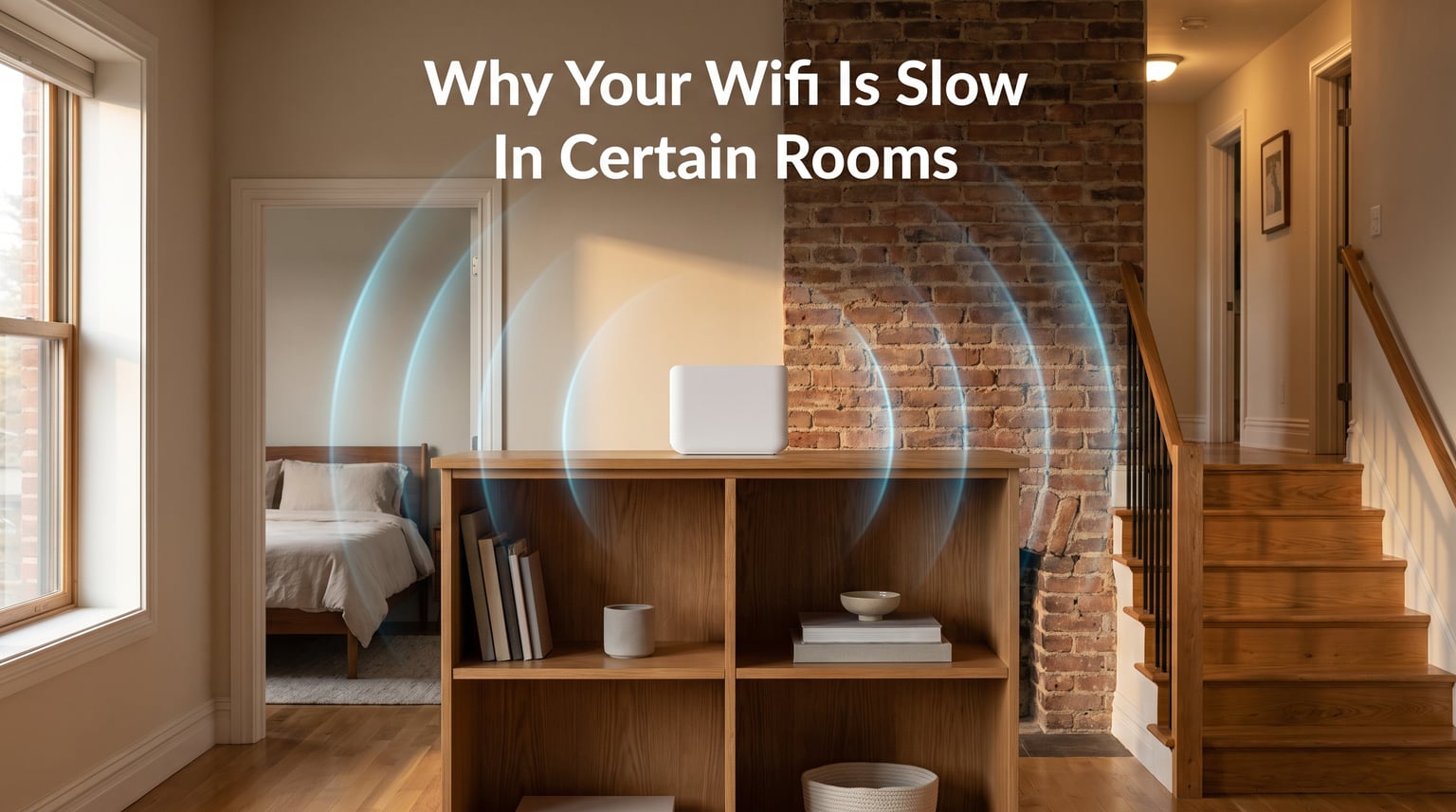
Why your WiFi is slow in certain rooms usually comes down to the path between your device and router: distance weakens the signal, dense materials absorb or reflect it, and nearby radio traffic adds interference. If the living room works well but the bedroom buffers, your internet plan is not automatically the problem; the WiFi link to that room may simply be poor.
The useful part is that a room-specific slowdown can be diagnosed without guessing. Compare the same device near the router and in the problem room, then work through the signal path, band choice, local interference, and router position in that order.
I start with those comparisons because forum reports often describe a basement router that seems fine nearby yet struggles upstairs. That pattern points much more strongly to indoor WiFi coverage than to a general connection outage.
WiFi is slow in certain rooms because distance, barriers, and radio interference weaken the connection.
WiFi is radio energy, not a signal that fills every room evenly. Each wall, floor, cabinet, appliance, and extra meter between the router and your device reduces the amount of usable signal arriving at the device.
A weak connection does not always look like a total disconnect. It can show up as a slow internet connection in a bedroom, video-call freezes, gaming latency, or a stream that drops from high resolution even though the same service works near the router.
Start by running a speed test on the same phone or laptop within a few feet of the router and again in the slow room. If the nearby result is much better, the evidence points to WiFi signal strength, signal obstruction, or local interference rather than the incoming internet service.
Distance reduces WiFi range, and the chosen frequency band changes how quickly it fades.
Signal attenuation rises as the router and device move apart. A router placed at one end of a long home, or in a basement below the main living area, has to push through more space and more materials before reaching far bedrooms.
Many dual-band routers offer 2.4 GHz and 5 GHz connections. The 5 GHz band can carry more data at close range, but it usually loses strength faster through walls; 2.4 GHz generally reaches farther but can be busier and slower.
2.4 GHz reaches farther, while 5 GHz often gives better speed when the signal path is clear.
Try both bands in the problem room if your router presents them separately. A device that clings to a weak 5 GHz signal may perform better on 2.4 GHz, while a nearby device may benefit from 5 GHz because it has less congestion and more available capacity.
Do not judge the bands only by the label. Test a normal activity that matters to you, such as a work video call, a game, or a stream, in the same spot for a few minutes on each connection.
Tip: Stand in the doorway and repeat the same test. A sharp improvement after moving only a few steps is a strong clue that the room itself or the wall just before it is hurting WiFi coverage.
Dense walls, floors, and reflective surfaces block WiFi more than open interior space.
Drywall and wood framing usually cause less trouble than brick, concrete, stone, tile, plaster with metal lath, or large metal surfaces. Water also absorbs radio energy, so a bathroom, aquarium, packed bookcase, or kitchen area can make an already weak path worse.
The important question is not simply how many rooms sit between you and the router. It is what sits between them: one concrete floor can be far more difficult for WiFi than two open stud walls.
Concrete, brick, metal, and tile are common reasons a WiFi dead zone forms in one location.
Metal reflects radio signals and can create an awkward shadow behind a filing cabinet, refrigerator, duct, mirror, or reinforced wall. Concrete and brick are dense enough to reduce a signal heavily, particularly when the route also crosses a floor or multiple walls.
That explains why a device can work reliably in one upstairs room and fail in another at a similar distance. The two paths may cross completely different materials.
Low-E windows can weaken WiFi because their energy-saving coating contains a thin metallic layer.
Low-E glass is designed to manage heat, but its coating can also reflect radio signals. A patio room, sunroom, or detached-workspace setup near this glass may have a weaker WiFi signal than its distance from the router would suggest.
Test with the device moved away from the window and toward the interior wall. If that helps, move the router or add coverage on the interior side rather than assuming the window itself is a fault.
Warning: Do not put a router inside a closed cabinet or behind a television simply to hide it. Those locations add obstructions at the point where the signal needs the clearest possible start.
Electronic devices and nearby networks cause interference when they compete for the same radio space.
A microwave oven, some cordless phones, Bluetooth activity, baby monitors, and other wireless equipment can interfere most noticeably with 2.4 GHz WiFi. The result can be inconsistent speed: a room feels normal at one time and frustratingly slow when a nearby device is active.
Neighbor WiFi interference is another common cause in apartments, townhomes, and dense neighborhoods. When several routers use the same or overlapping channels, devices spend more time waiting to communicate, which reduces throughput and can raise latency.
Channel overlap slows WiFi when several networks crowd the same band in the same place.
A WiFi analyzer app can show the networks your device can hear and the channels they occupy. Use that reading as a clue, then let the router choose channels automatically or select a less crowded channel if your router settings allow it.
Check at the slow-room location, not only beside the router. A channel that looks quiet in the router room may be noisy near a shared wall with a neighbor.
Room-by-room testing finds the cause faster than changing several settings at once.
Use one phone or laptop, one test service, and roughly the same time of day while you compare locations. Switching devices mid-test can confuse the result because each device has a different antenna, WiFi generation, and connection behavior.
Step 1: Compare the problem room with a spot next to the router.
Record download speed, upload speed, and latency close to the router, then record the same measures in the slow room. A large room-to-router gap means you should focus first on local coverage rather than calling the ISP.
Step 2: Walk the path and identify what the signal must cross.
Note floors, masonry, bathrooms, metal cabinets, mirrors, appliances, and energy-efficient windows. Then test at a doorway, hallway, or midpoint to see where performance drops sharply.
This simple signal map is more useful than a vague impression that “the WiFi is bad upstairs.” It shows whether one barrier is creating the dead zone or whether the router is simply too far from that section of the home.
Step 3: Restart the router and check its firmware before changing the layout.
A restart can clear a temporary issue, and a firmware update router check can address stability or compatibility problems. Follow the router maker’s update instructions and let the update finish without removing power.
Also check whether a guest network or parental-control rule is limiting the affected device. If every device in the room is slow, though, signal quality remains the more likely explanation.
Step 4: Test both WiFi bands and move interference sources away.
Compare 2.4 GHz versus 5 GHz in the room, as described above. Keep the router away from a microwave, large speaker, cordless-phone base, dense cluster of smart home hubs, and thick metal objects where possible.
Turn off a suspected source briefly and rerun the same test. If speeds recover only while that item is off, relocate the item or favor the other WiFi band.
Step 5: Raise and reposition the router, then repeat the same room test.
Place it on an open shelf or table, preferably near the middle of the area you need to cover. Moving a router even a few feet away from a corner, floor, masonry wall, or electronics cluster can change the signal path substantially.
Tip: Change one thing, test again, and write down the result. Repositioning the router, changing bands, and changing channels all at once makes it impossible to know which action helped.
Central, elevated router placement gives most rooms a clearer starting signal.
Put the router in a central, open, elevated location rather than in a basement corner or a far-end utility room. For a multi-story home, a main-floor position is often more balanced than the very top or bottom level, though the construction of the home still matters.
Keep it out in the open with air around it. Avoid placing it on the floor, beside a refrigerator, inside a media cabinet, behind a large television, or next to a water tank.
A mesh system, extender, and wired access point solve different coverage problems.
A mesh network places coordinated WiFi nodes around a larger home and is useful when several rooms need better coverage. Put each additional node where it still receives a good signal, not inside the dead zone where it has little signal to repeat.
A WiFi extender can help one limited area when it is placed between the router and the weak room. It is less suitable when several distant rooms, floors, or thick barriers are involved because its own connection back to the router can become the bottleneck.
A wired access point connects back to the router by Ethernet and creates a fresh WiFi point near the difficult room. It takes more setup, but it avoids relying on the same weakened wireless hop for both sides of the connection.
An ISP check is needed when WiFi is slow everywhere, including beside the router.
If every device is slow in every room and the test beside the router is also poor, the issue may be outside the room-by-room WiFi setup. Check for an ISP outage, inspect the modem and router status lights, and compare the result with the speed level you expect from your service.
A direct wired test to the router, if available, helps separate the two problems. Strong wired performance with poor distant-room WiFi points back to coverage; weak wired performance suggests contacting the ISP or checking the modem connection.
An aging router may need attention when it struggles close by or loses connections under normal household load.
Frequent restarts, persistent drops near the router, and trouble with several current devices can signal a router limitation or fault. Heavy simultaneous streaming, gaming, video calls, and smart home traffic can also expose limits that were not obvious when fewer devices were connected.
Before replacing hardware, check firmware, placement, bands, and congestion. Those no-cost checks can reveal a simpler explanation for why the WiFi signal drops in certain rooms of the house.
FAQs
Why is my WiFi so slow in one room?
One room is often slow because distance, walls, floors, metal, Low-E glass, or local radio interference weakens the connection between that room and the router. Compare a test beside the router with the same test in the room to confirm that the problem is WiFi coverage.
Why is my WiFi weak in certain rooms?
WiFi is weaker in certain rooms when the signal has to travel farther or pass through dense or reflective materials such as concrete, brick, metal, tile, and some energy-efficient windows. Router placement and the selected 2.4 GHz or 5 GHz band also affect the result.
How do I improve WiFi in a specific room?
First test near the router and in the room, then move the router to an open central position, try the other WiFi band, reduce nearby interference, and retest. If the location still has weak coverage, add a correctly placed mesh node, extender, or wired access point.
How do I find out what is slowing down my internet?
Test the same device near the router and in the slow room. If only the distant room is slow, investigate WiFi signal strength, walls, band choice, and channel congestion; if it is slow beside the router and over a wired connection, check the modem and contact your ISP.
Most room-specific WiFi problems improve once you test the path instead of guessing.
Why your WiFi is slow in certain rooms is usually answerable with two comparisons: near the router versus in the weak room, then 2.4 GHz versus 5 GHz. Address distance and obstructions first, then interference and settings, because that sequence turns a frustrating dead zone into a specific fix.
If the nearby test is slow too, shift your attention from room coverage to the router, modem, or ISP. That distinction saves time and keeps you from trying a coverage fix for a service-wide problem.